Unfortunately in Keynote there is no feature to apply the color scheme to all the elements and slides in the presentation at once. Therefore, changing the color of your presentation is quite a laborious process since you have to manually change the color of each element. My presentation are implemented using vector shapes, illustrations, diagrams and infographics. This format allows you to change the color of objects without the need for additional applications (you won’t need Photoshop, all the changes will have to be done in KeyNote).
In some rare cases the vector used in the presentation is imported in EPS format. To change its color you will need Illustrator. But this is rather the exception of which I warn you in advance in the description of the presentation.
Changing fonts’ style and color
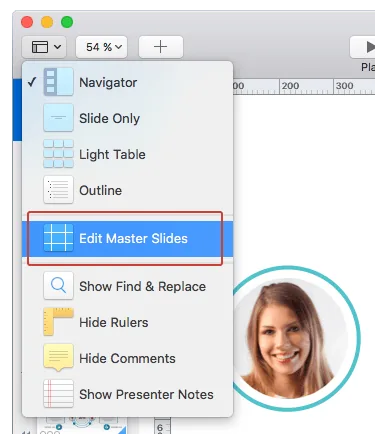
1. In Keynote you can automatically change the font type and color of the entire presentation. These changes are made in the master slide mode. To do this, in the top menu select “View” > “Edit Master Slides”.
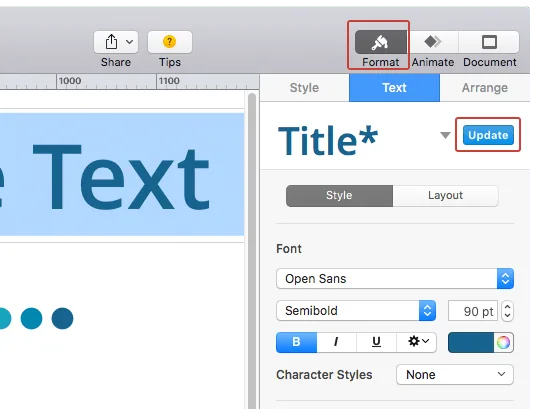
2. Click “Format” in the top menu, then using a mouse select the text block in the format of which you want to make changes. You will see the name of style in the sidebar. Make the necessary changes and click “Update” next to the name of style. Changes will be applied to every slide that uses text block of the edited style. Note: next symbol “*” in the name of style informs that the style is not saved as the basic one for the entire presentation. And the changes will not be applied to all blocks of this type. Don’t forget to click “Update” button
Changing background color
1. You can change background color for the entire presentation. These changes are made in the master slide mode. To do this, in the top menu select “View” > “Edit Master Slides”.
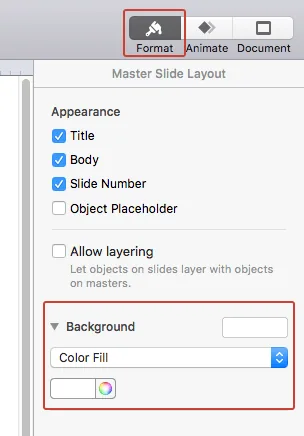
2. Click “Format” button in the top menu. Note: do not select any objects, otherwise the ability to edit the background will not be available. In “Master Side Layout” sidebar you can change background color. Options available: “No fill”, “Color Fill”, “Gradient Fill”, “Advanced Gradient Fill”, “Image Fill”, “Advanced Image Fill”. Changes made to the master slide will apply to all the slides in the presentation that use this template as basic.
Note: The presentation often uses several master slides templates. So don’t forget to change the background in all your master slides.