You’ve just created a stellar PowerPoint presentation for an upcoming meeting. But wait – you remember another presentation with slides that would fit perfectly in this one. If only there was a way to integrate them! Oh, wait. There is. Wondering how to copy slides from one PowerPoint to another? Dive in, and let’s unravel the mystery together.
Step-by-Step Guide: How to Copy Slides from One PowerPoint to Another
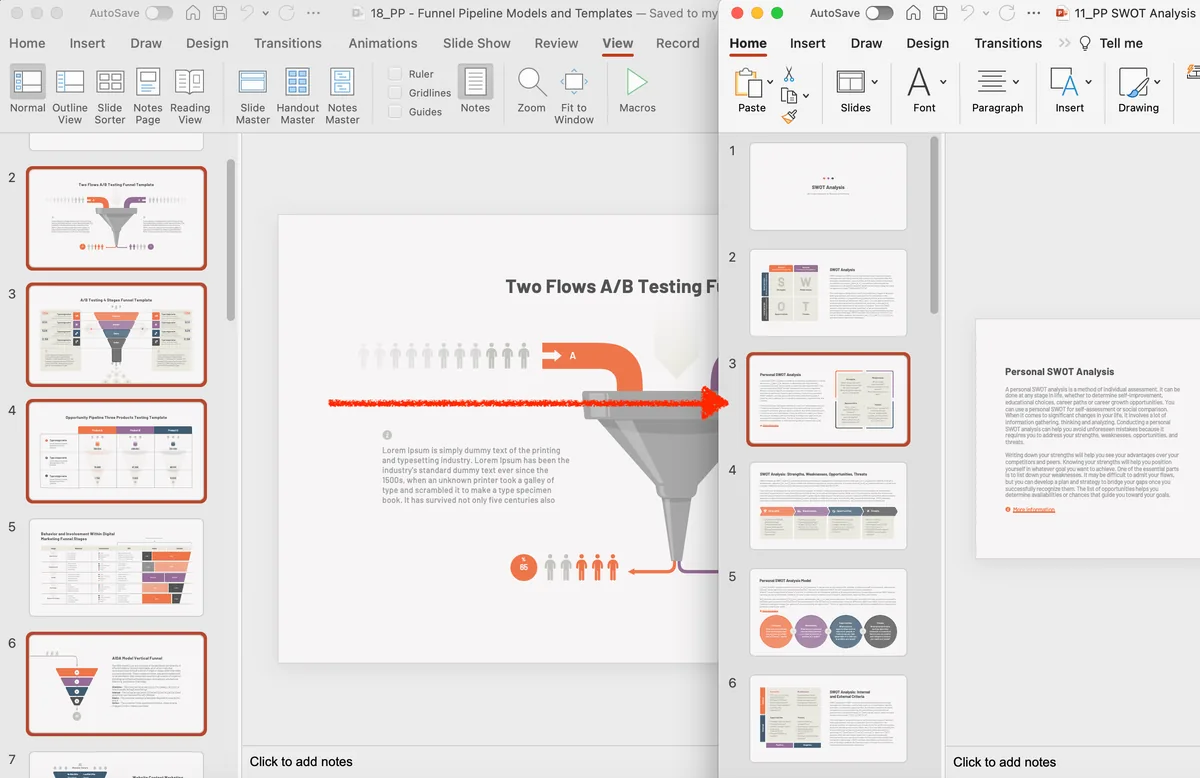
- Setup for the Process Open Both Presentations: Initiate by launching both the original presentation and the destination presentation where you want to copy and paste the slides. Navigate to Normal View: Before you begin, ensure you’re in the normal view. This gives you access to the slides pane, making the process simpler.

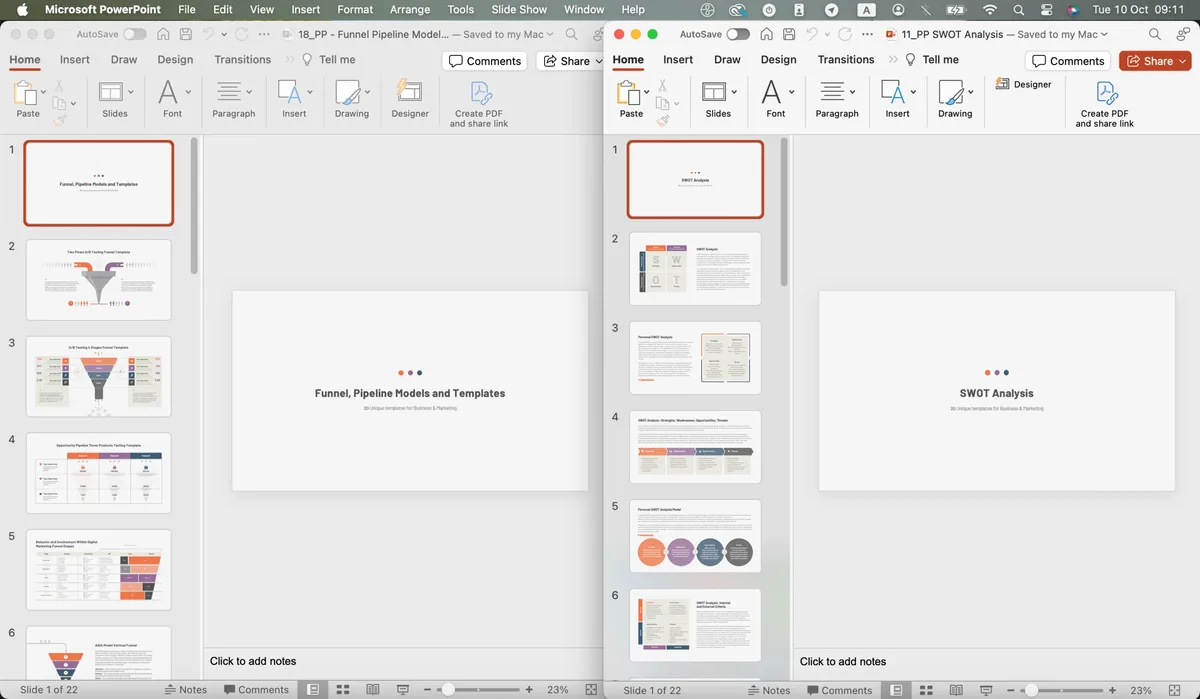

- Selecting the Slides You Want to Transfer Click the Slide: Start by clicking the slide you want to copy. If it’s the first slide, it’ll be at the top of the thumbnail pane. Select Multiple Slides: Need to select multiple? Press and hold Ctrl (or Cmd on Mac), then click each thumbnail you wish to transfer. This allows you to select multiple slides efficiently.
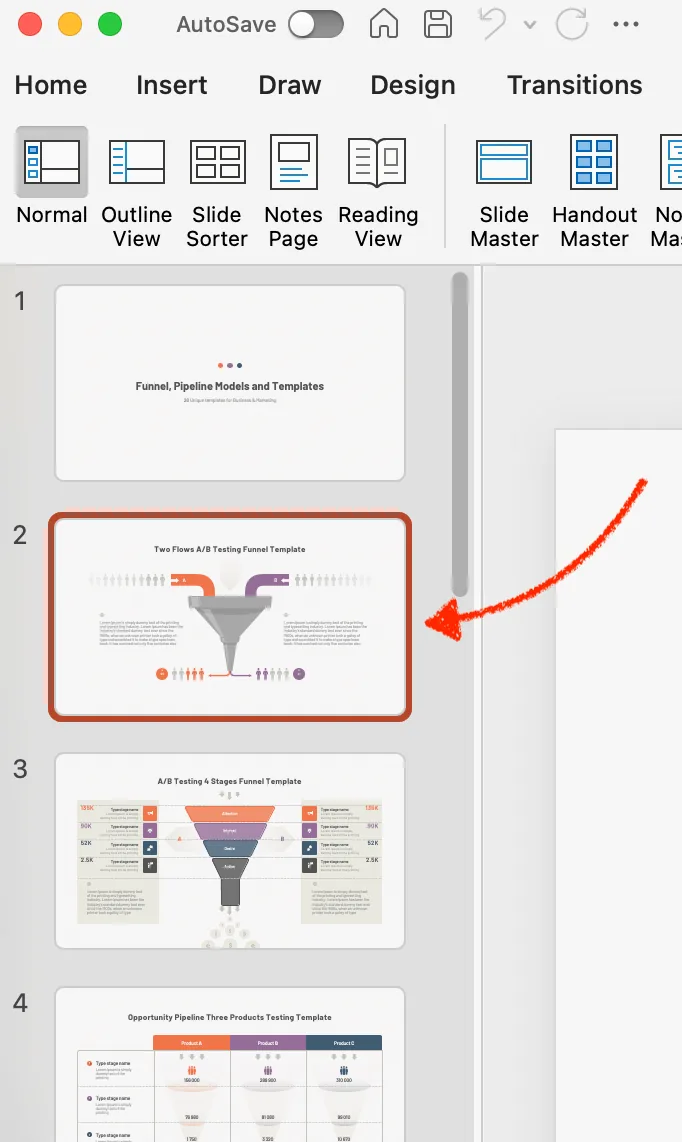
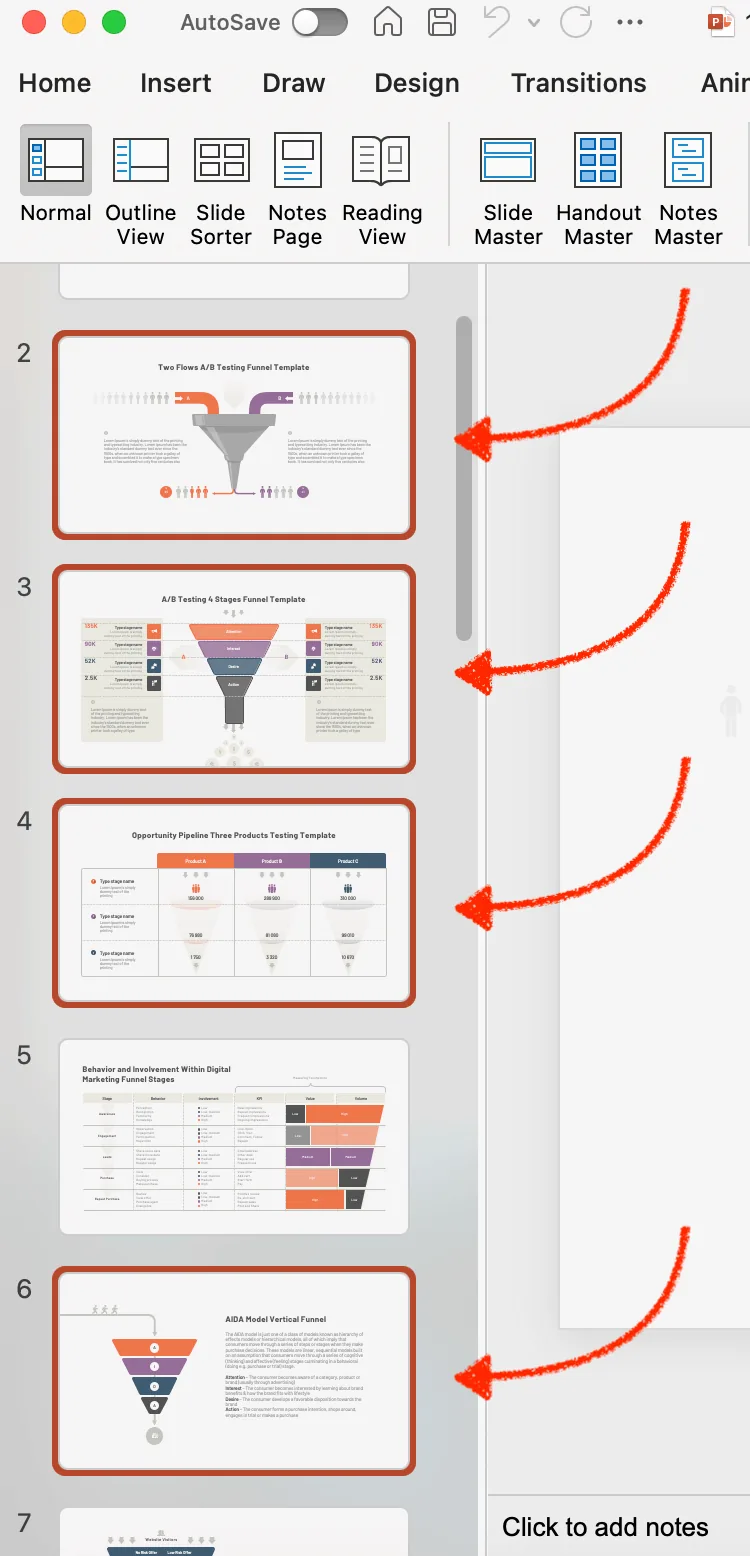
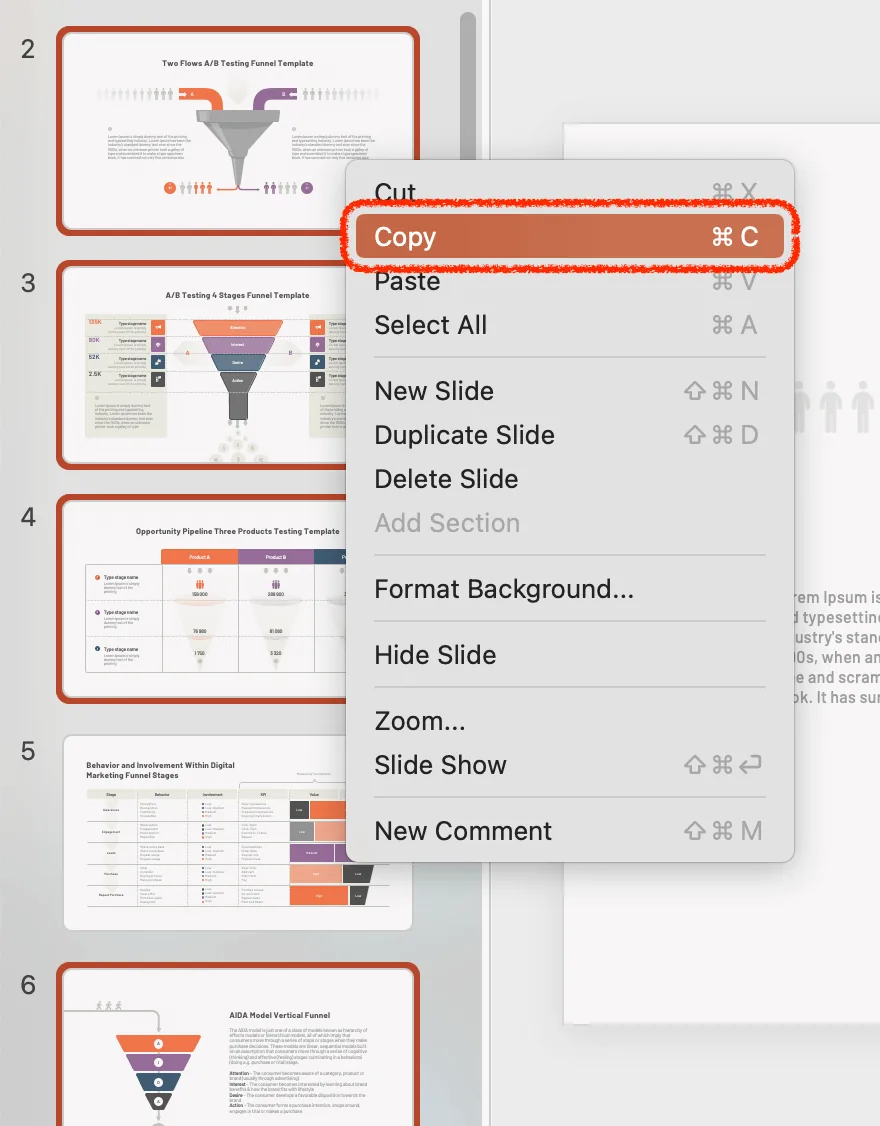
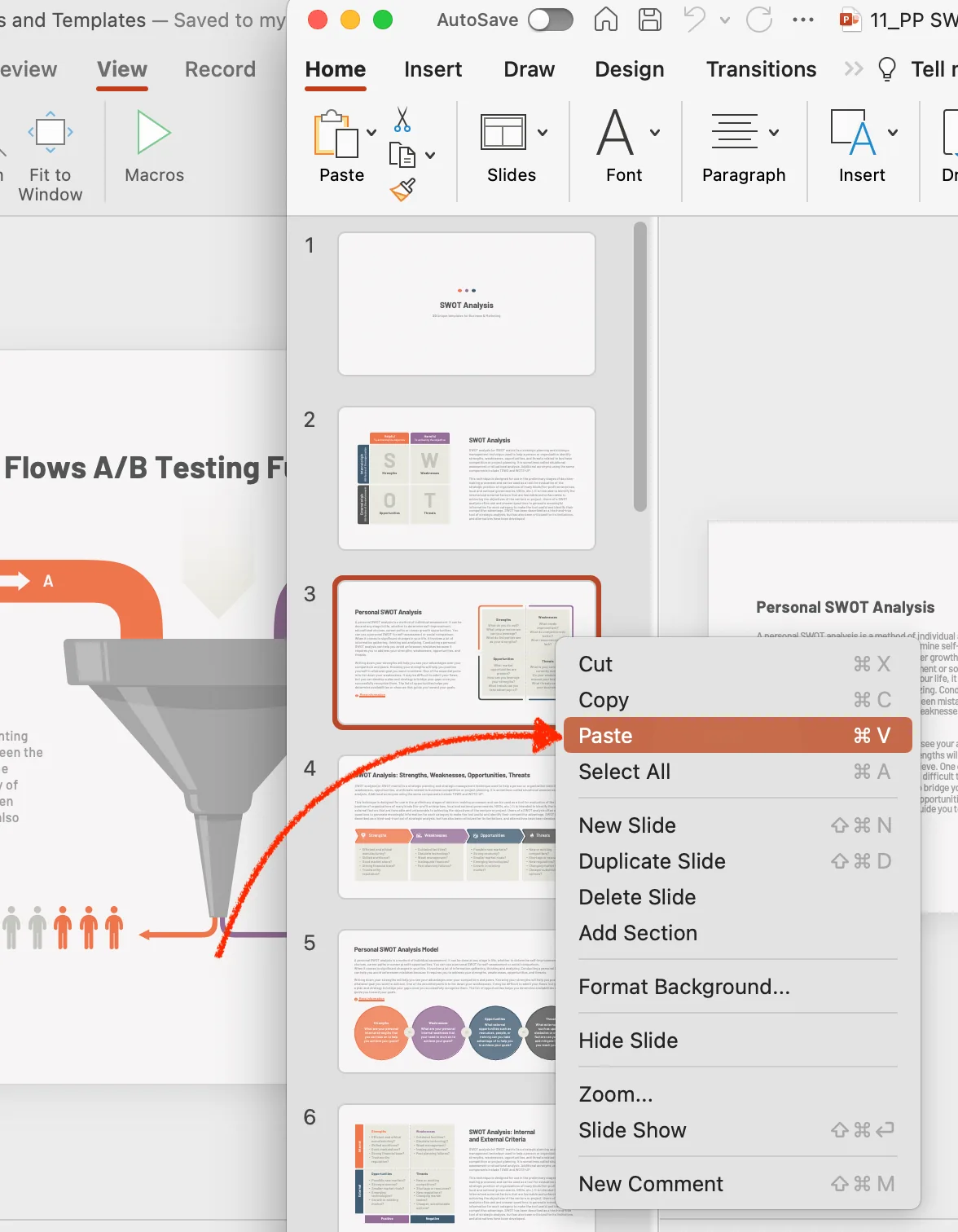
- Executing the Copy Command Right-Click Method: Simply right-click the highlighted slide or slides and select “Copy”. Shortcut: As a shortcut, press Ctrl+C after selecting the slides.
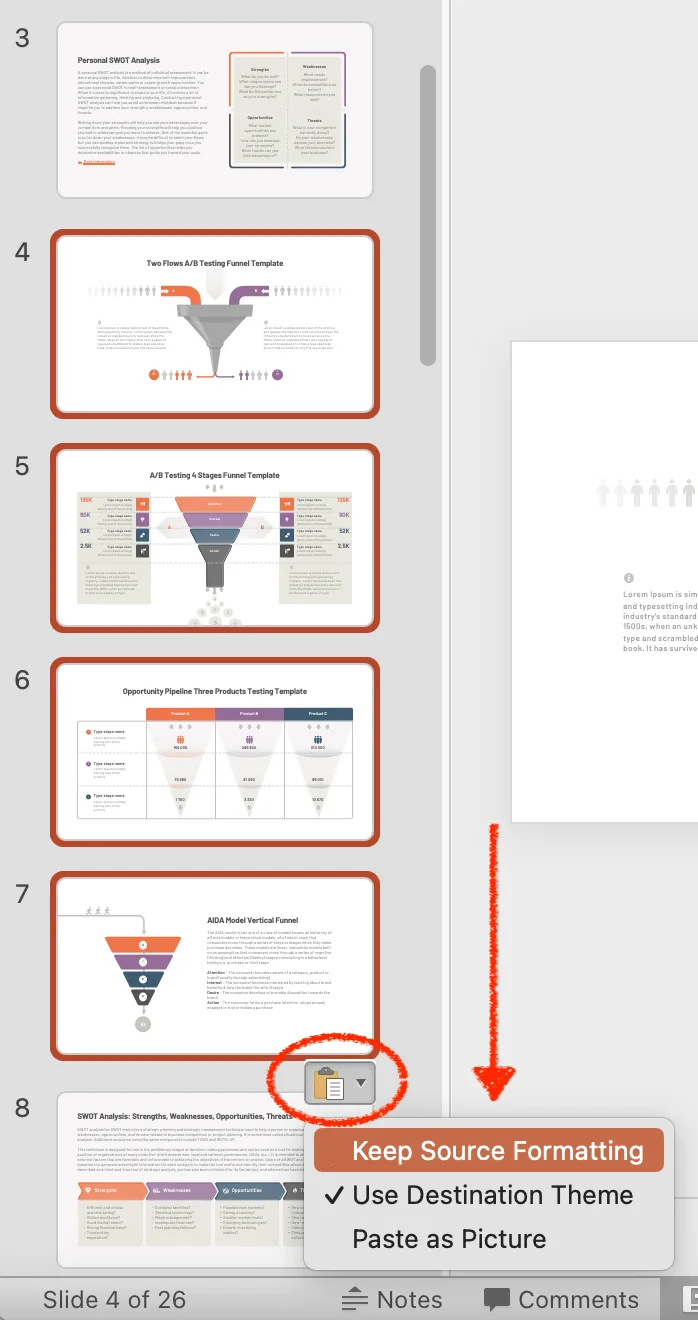
- Pasting into the New Presentation Navigate to the Destination: Shift to your second presentation – this is your destination presentation. Choose Insertion Point: In the slides pane, click where you want the slide or slides to appear. For instance, if you want them to be first, click the first slide. Execute the Paste: You can right-click and choose “Paste” or use the shortcut Ctrl+V. As you paste, you’ll notice a small clipboard icon appearing near the new slide; this is the paste options tool.
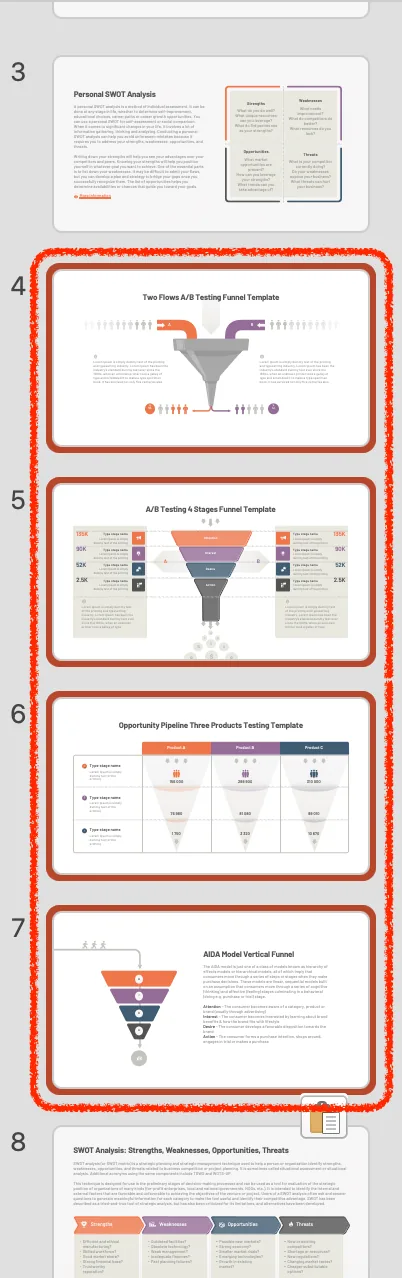
- Ensuring Proper Formatting Keep Source Formatting: If the slides from the original presentation look different in the new presentation, click the clipboard icon and select the keep source formatting option. This ensures that the slides keep the formatting from the original slide. Slide Sorter Tool: Use the slide sorter tool for a broader view, making it easier to organize your slides.
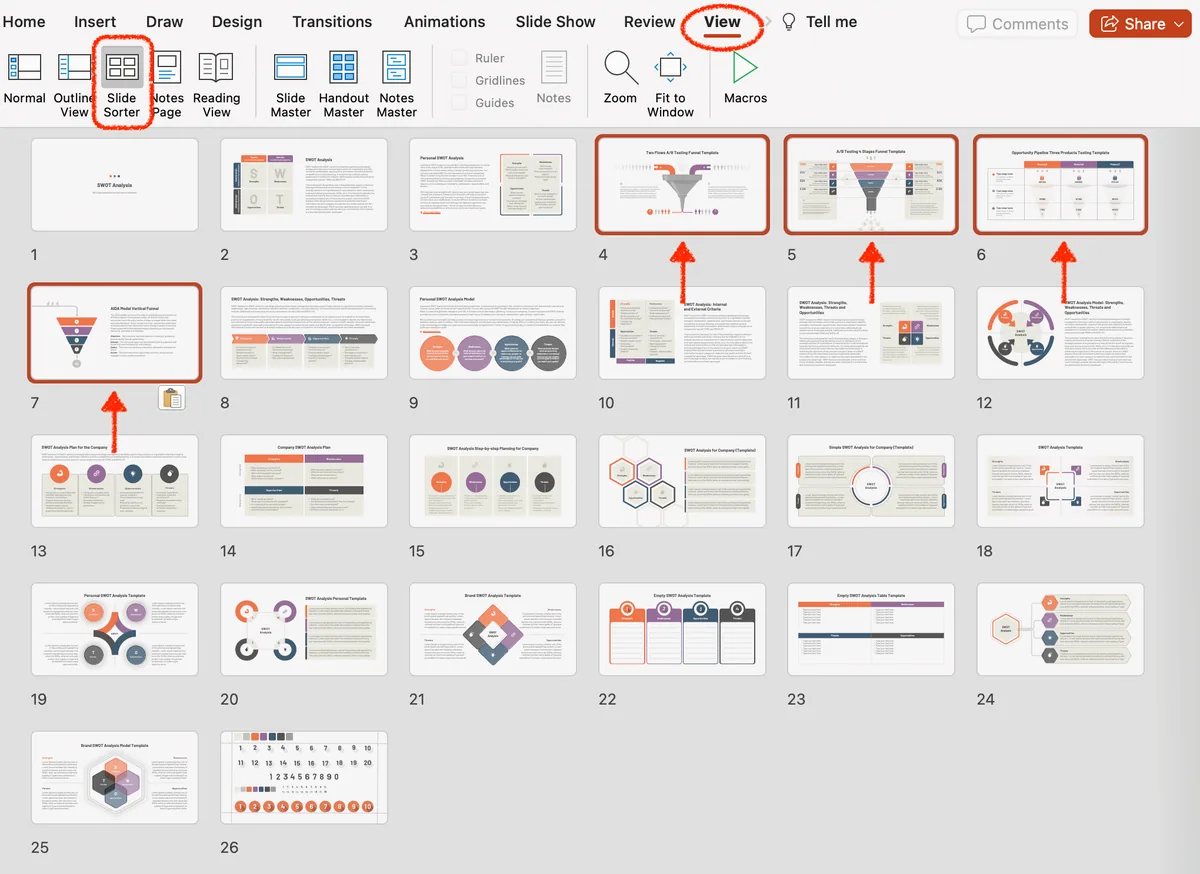
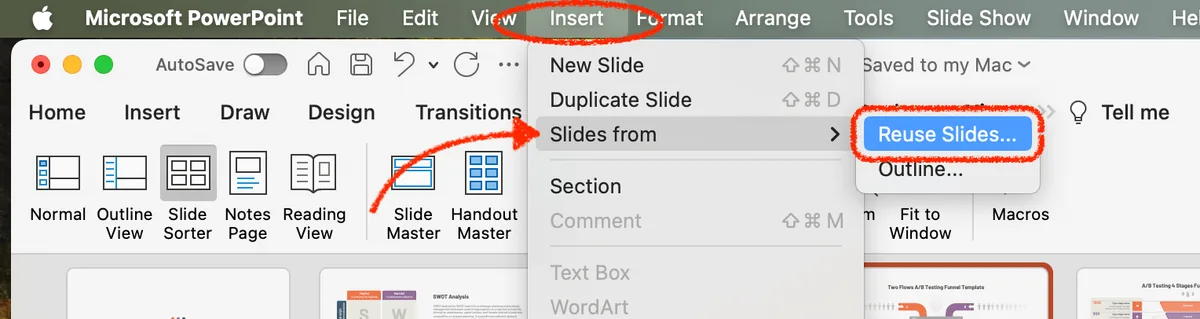
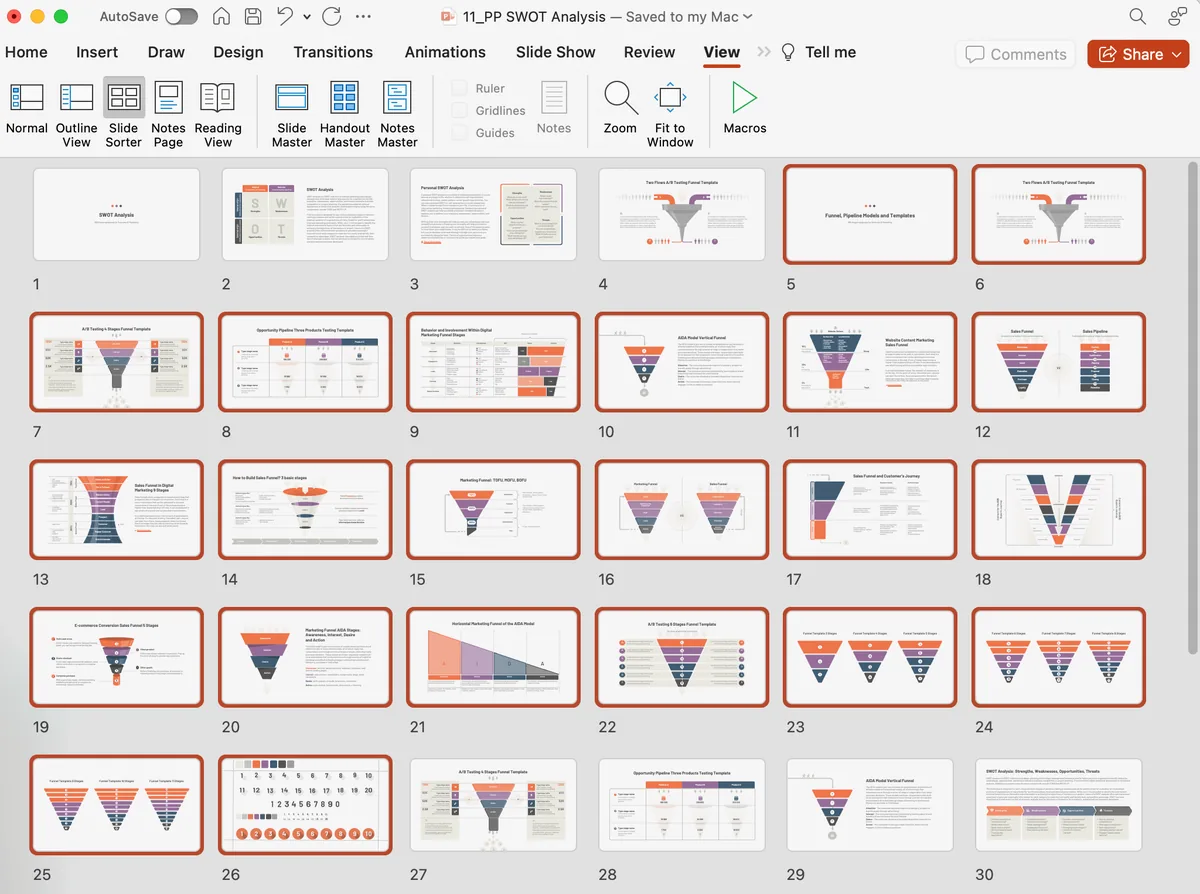
- Reuse Slides Option Accessing Reuse Slides Pane: Go to the Home tab, locate the slides group, and select “Reuse Slides”. A reuse slides pane will appear on the right. Insert Slide from Another Presentation: From the reuse slides pane, you can browse and insert slide options from slides from another presentation. This can save you a lot of effort, especially if multiple presentations are involved.
- Troubleshooting and Additional Tips Mismatched Slide Numbers: Ensure continuity by adjusting slide numbers through the ‘Insert’ tab, selecting ‘Slide Number’. PowerPoint Versions: If you’re using older versions like PowerPoint 2007 or PowerPoint 2013, some methods may slightly vary. Check Microsoft Support for specific instructions. Feedback & Further Assistance: If you encounter any issues, remember to give feedback. For comprehensive guides, the “See Also” section in Microsoft Office support can be beneficial. Also, PowerPoint for the web offers a streamlined interface if you’re working online.
- Final Words: Mastering the art of moving slides from one presentation to another can save you time and effort, enhancing your productivity. Whether you use drag and drop, shortcut methods, or repurpose slides, you’ll find this knowledge invaluable.
Transferring PowerPoint slides between presentations is essential for efficient workflow. To copy a slide, start by selecting the slide that you want from one presentation and then paste it into another PowerPoint presentation. Always consider the design theme, and you might choose to use the destination theme for consistency. Utilize tools like SharePoint and OneDrive for streamlined collaboration and storage. By practicing these methods, managing your slides will become a breeze. Happy presenting!