You’ve just finished crafting a brilliant PowerPoint presentation, and now it’s time to share it. But how exactly do you do that? Whether you’re collaborating with a team or presenting to an audience, sharing your work is essential. Let’s dive in and explore the different methods available to share your PowerPoint presentation.
Different Methods How to Share PowerPoint: A Step-by-Step Guide
Sharing a PowerPoint presentation can seem like a straightforward task. However, with multiple ways available, it’s essential to choose the method that best suits your needs. Here’s a detailed tutorial on different methods to share your presentation.
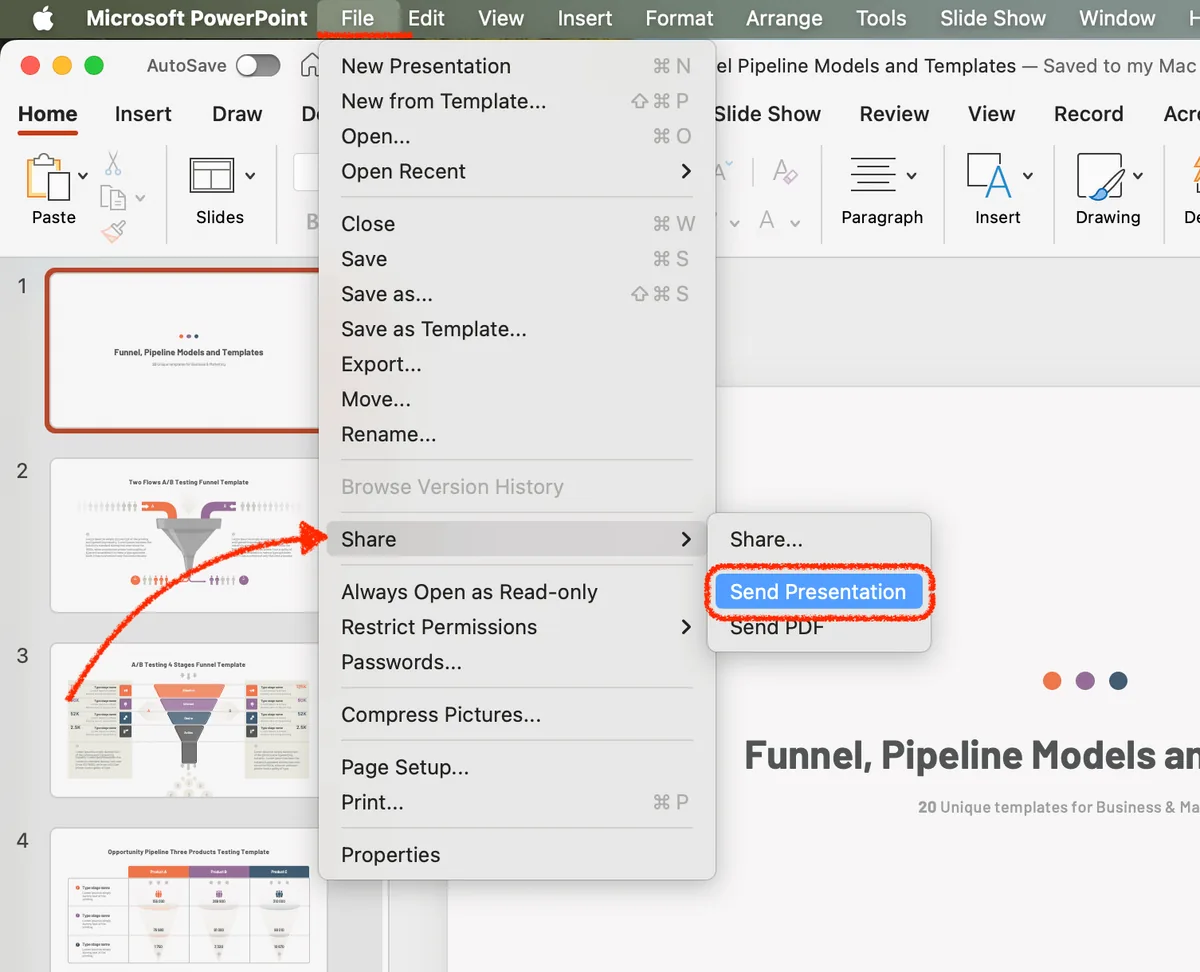
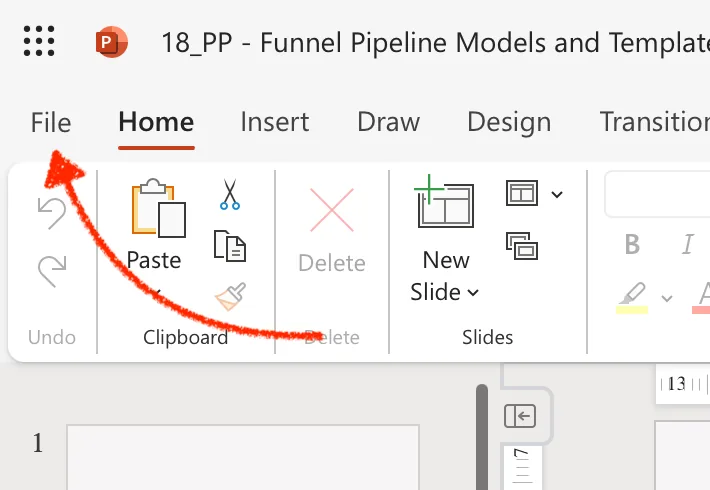
- Share via Email Step 1: Open the presentation file you’d like to share in Microsoft Office. Step 2: Click on “File” located in the top-left corner of the ribbon. Step 3: Choose ‘Share’ and select ‘Send presentation’.You can also use the “share” option at the top left of the menu. Step 4: Your default email client will open. Attach the file and enter the email address of the recipient. Step 5: Before you click send, ensure your presentation file size doesn’t exceed the email provider’s limits. If it does, consider other ways to share your presentation.
- Share via Microsoft Teams Step 1: Open the presentation you’d like to share in PowerPoint. Step 2: Launch Microsoft Teams. If you haven’t used it, you might want to check Microsoft support for a quick guide. Step 3: In the top-right corner, click on the ‘Files’ tab. Step 4: Upload your presentation and then invite others to view or edit the presentation.
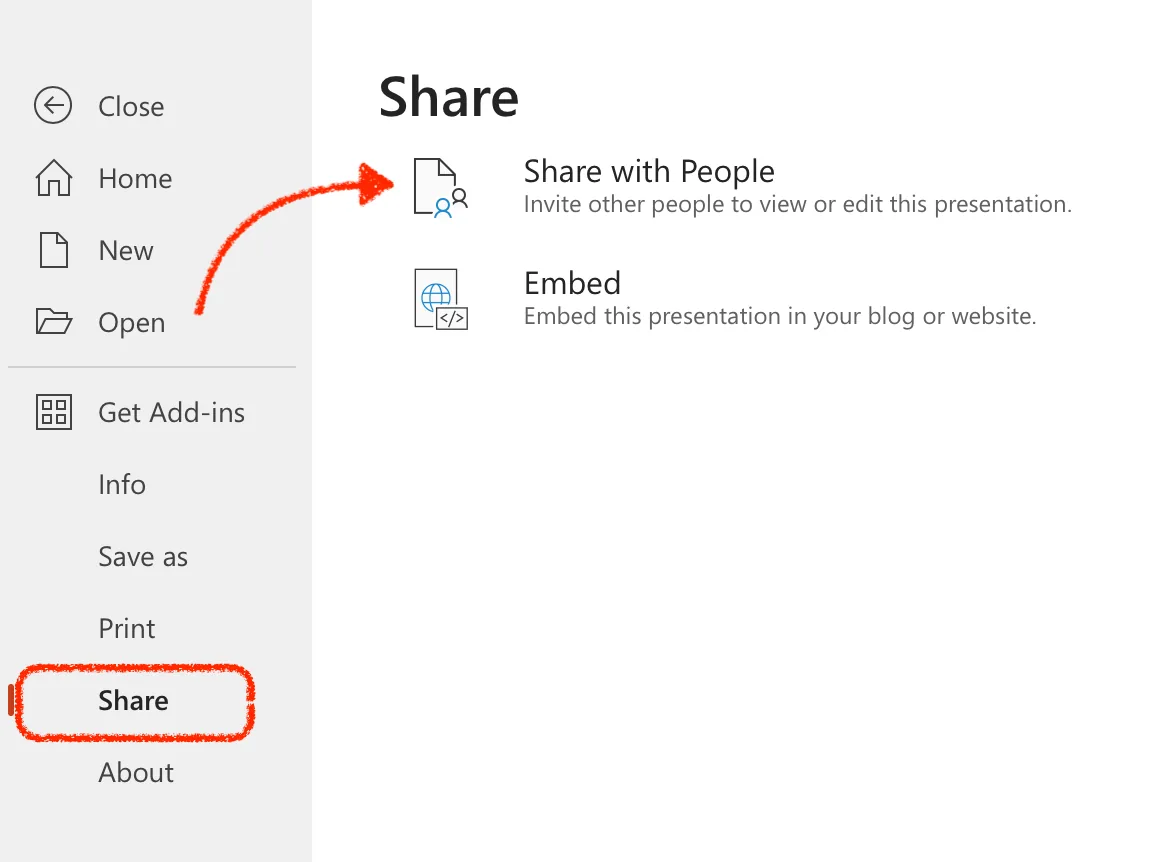
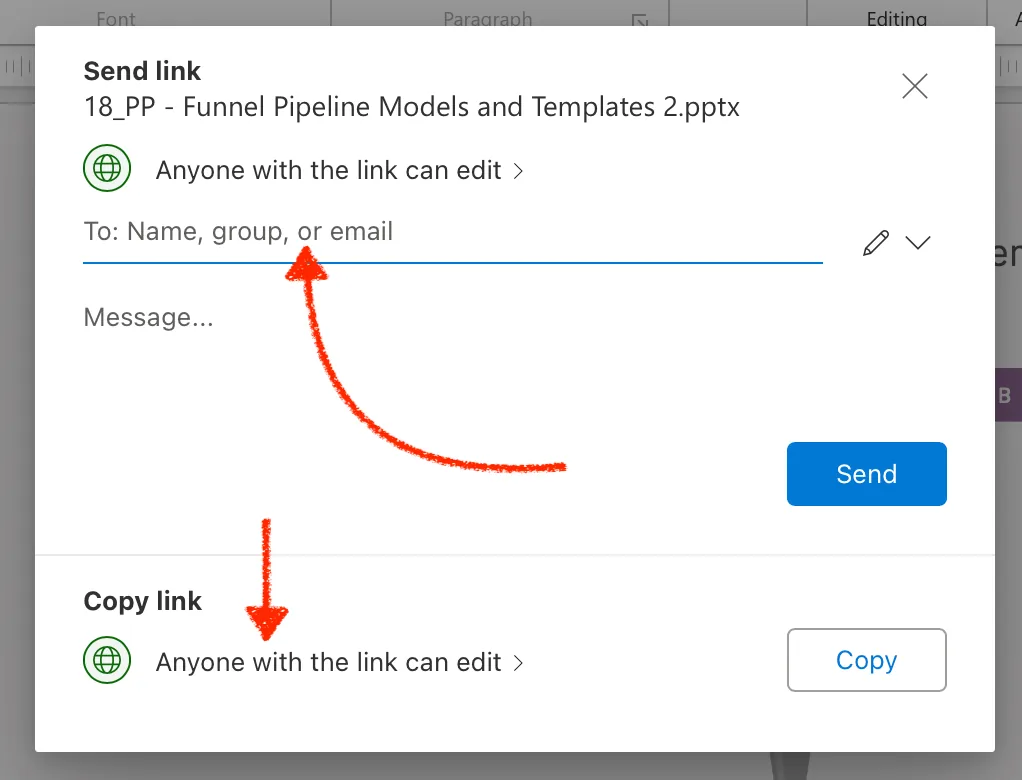
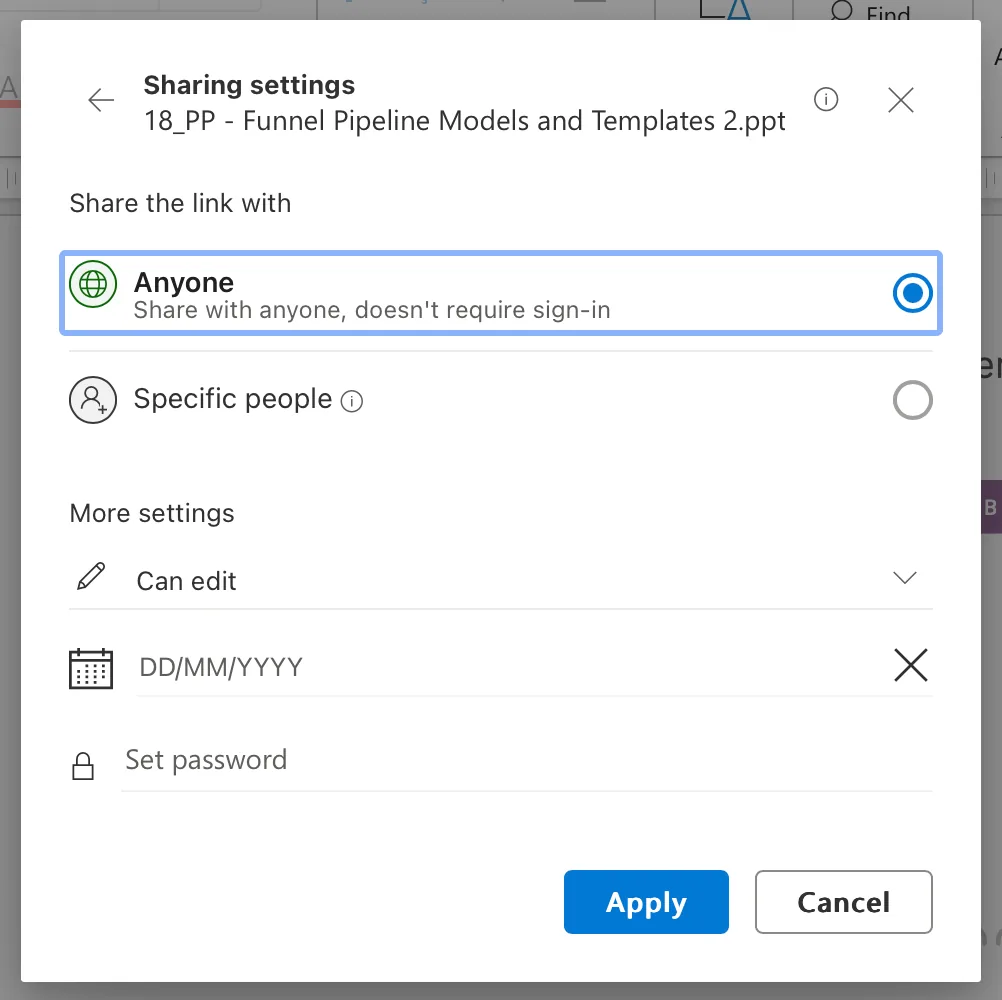
- Share Using a Link with Microsoft 365 Step 1: Make sure your presentation is saved to the cloud, preferably on OneDrive or SharePoint. Step 2: In PowerPoint, click on “File” and select ‘Share’. Step 3: Choose ‘Share with people’. Step 4: Set your desired permission level – whether you’d like others to edit or just view. Step 5: Click ‘Copy Link’ and share it with others. They can access your presentation through the link, even if they have a different version of PowerPoint.
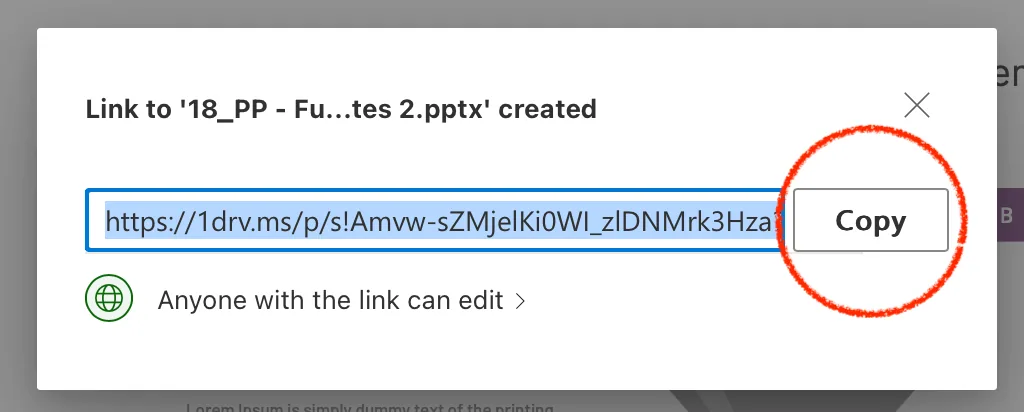
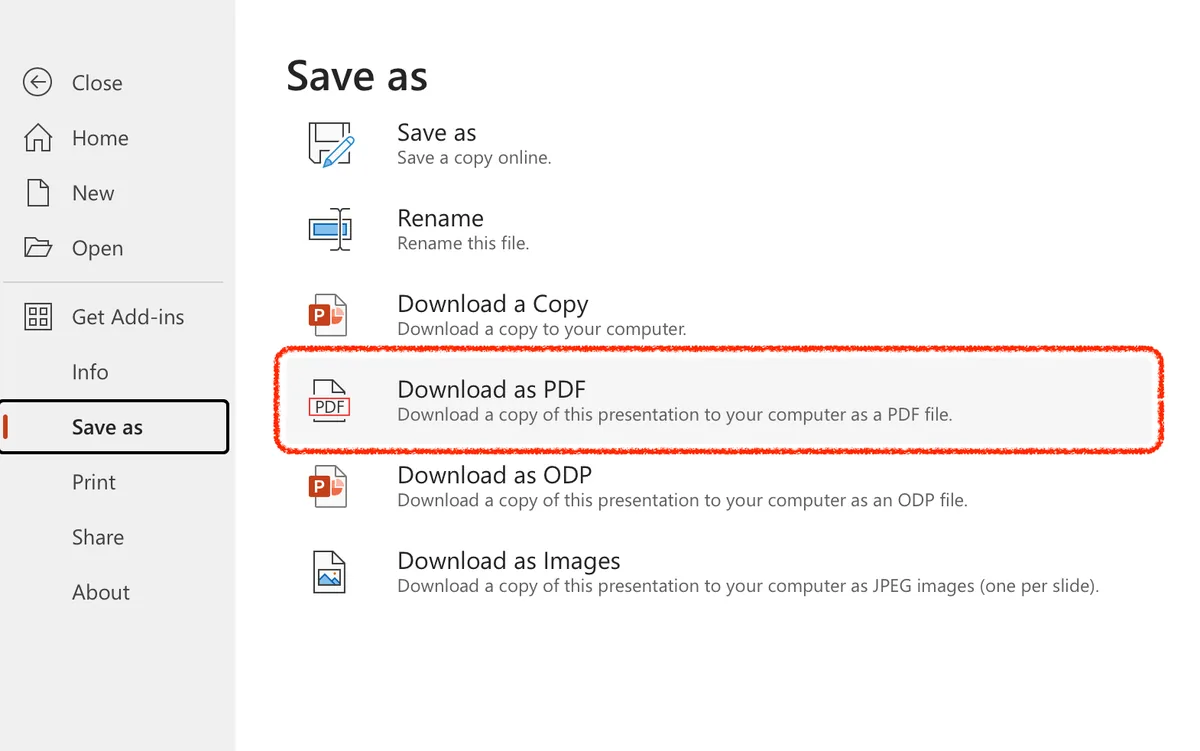
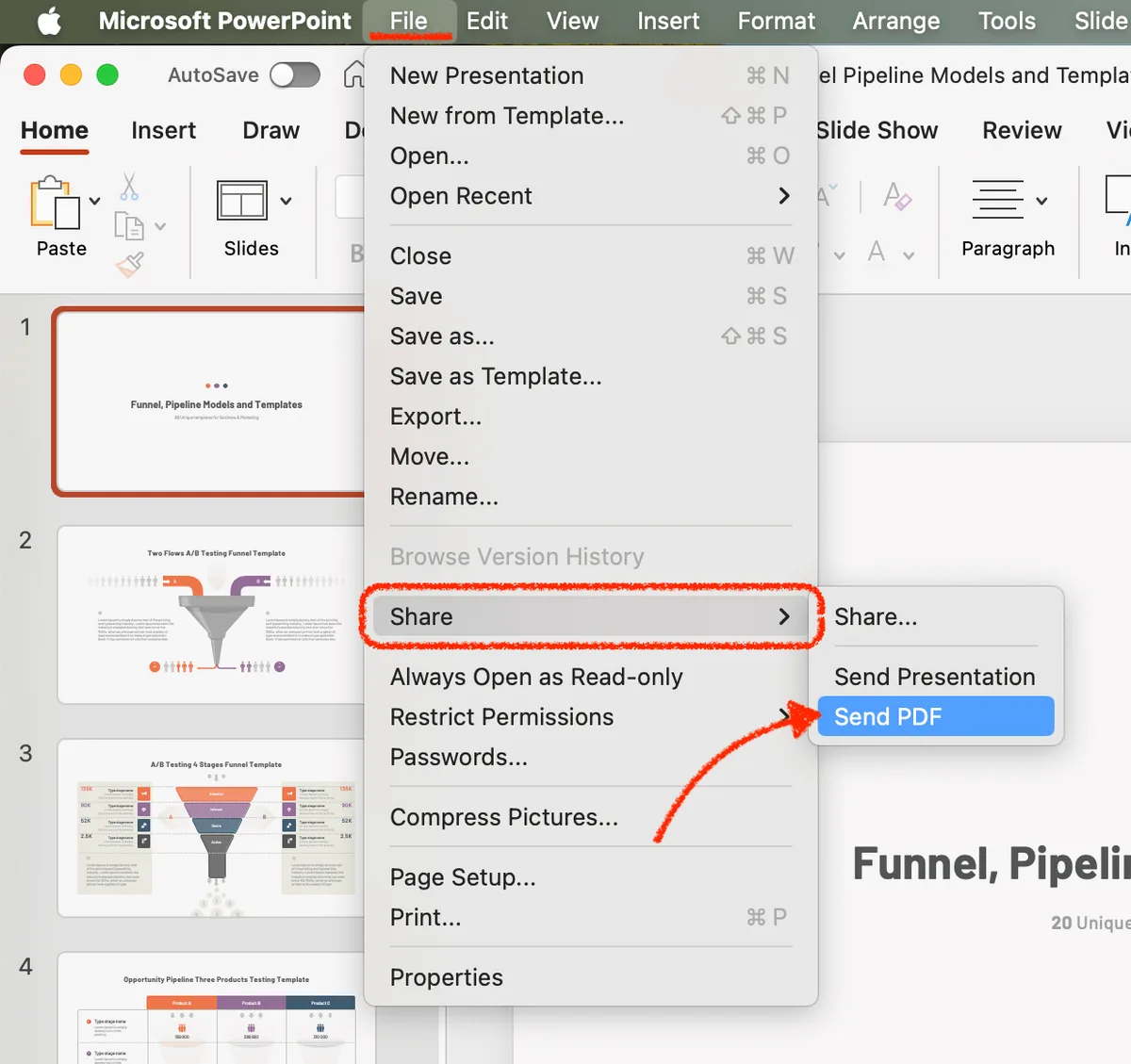
- Export and Share as a Video or PDF File Step 1: Open your presentation in PowerPoint. Step 2: Click on “File” in the upper left corner of the ribbon. Step 3: Choose ‘Save as’, and you’ll see different file options. Select either ‘Create a Video’ or ‘Download as PDF file’. The features may vary depending on the version of your software.For Apple Mac users: You can save the file as a PDF and download it, or share it immediately in an email ‘File’ > ‘Share’ > ‘Send PDF’ Step 4: Once you’ve made your choice, save your file. Now, it’s easy to share your presentation as a video or PDF file with others.
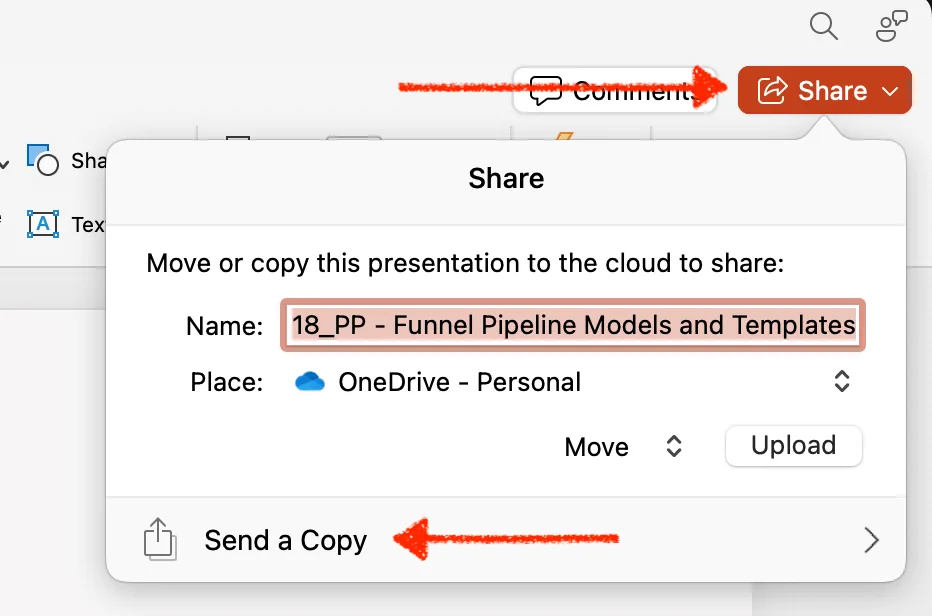
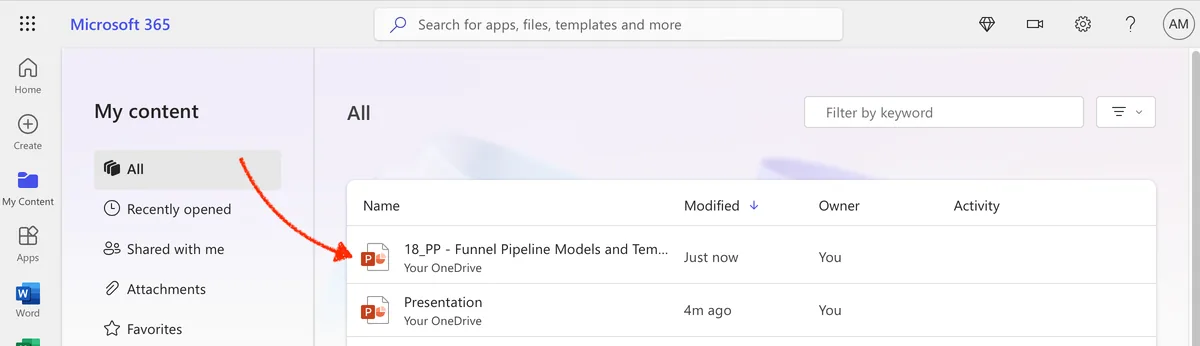
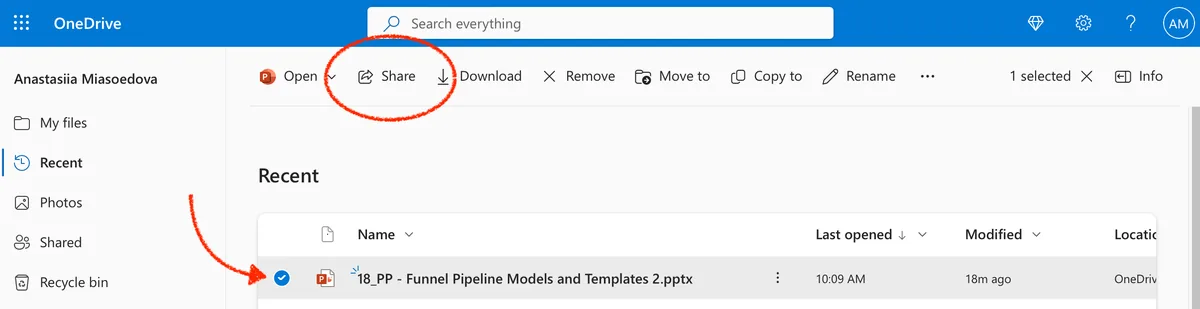
- Share via Cloud Storage Step 1: Save a copy of your presentation in PowerPoint to your preferred cloud storage, such as OneDrive, Google Drive, or others. Step 2: Once uploaded to the cloud, right-click on the file and select ‘Share’. Step 3: Choose whether to ‘Send a copy’, ‘Send a link’, or ‘Share a link’. Step 4: Attach your file or link to your comment or email and send. Windows users might see this in the corner of the window, while Mac and PC users might find it in the corner of the screen.
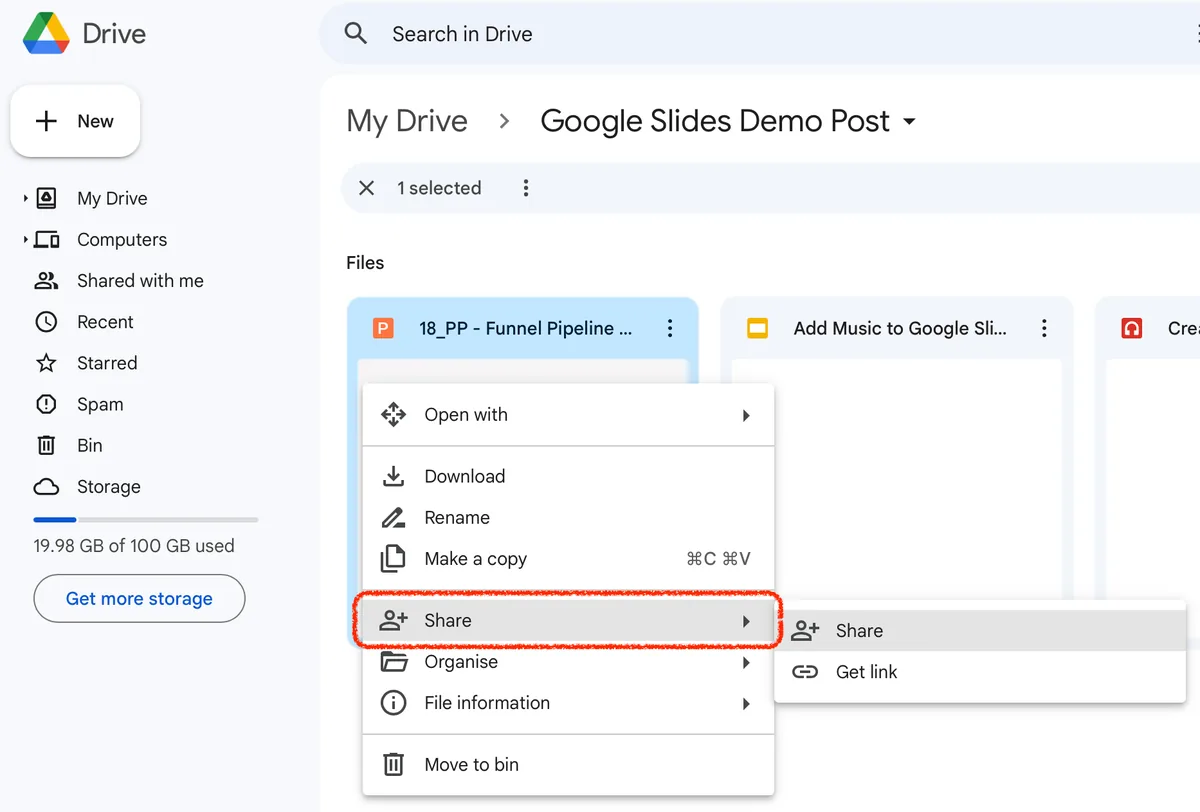
- Extra Tips: For those who’d like a visual guide, you can watch this video supported by Microsoft on how to share. Collaborate with others for real-time feedback. In PowerPoint Online or PowerPoint for the Web, click on the ‘Share’ button in the upper right corner of the screen, and invite collaborators.
By following these steps, you’ll make your presentations easily accessible to your audience, fostering better collaboration and understanding.
Creating and sharing presentations has never been easier with tools like PowerPoint 2016. Whether you’re in work or school, you can create a presentation, store it on OneDrive, and seamlessly share a presentation with others. Choose to send a link, send a copy, or convert your presentation as a PDF file. With the ‘click share’ feature, sharing with specific name or email address is straightforward. This information aims to make your collaborative efforts smoother, ensuring your audience can view your presentation or even provide feedback with ease. So, whenever you want to share a presentation, just remember these simplified steps.