A stylish modern presentation template is a useful tool for every office employee who wants to create a professional presentation on service providers. It is a well-structured pack that includes various types of slides. Each block is professionally developed. The template is available for Keynote, Google Slides, and PowerPoint software. As a result of our testing, the following characteristics have been identified:
Download PowerPoint PPT version >
Download Google Slides theme >
- High quality. Perfect quality is its main feature. Developers create high-quality elements that look excellent on various devices with different resolutions. The quality of structural blocks and elements is easily customized. Thus, developers guarantee that the set of slides will be free of visible defects, and your PowerPoint presentation on a service provider will be perfect.
- Free download. This template is available without paying! Just a few clicks and you can use it as you wish.
- Vector elements. Visual elements are equipped with built-in tools. They allow customizing a number of vector characteristics. For instance, users can edit size or colors.
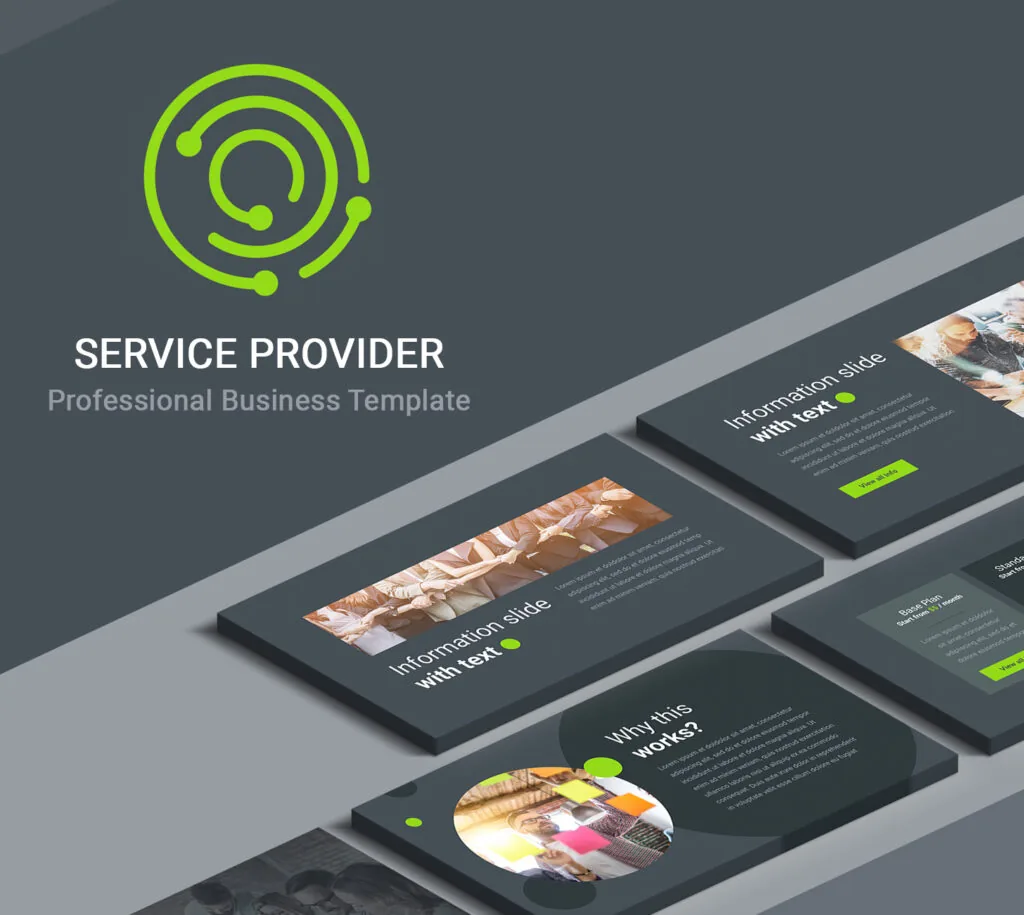
4. Stylish color theme. In addition to perfect specs and improved functionality, the template that is designed for a managed service providerhas a stylish color theme that looks vivid and restrained at the same time.
5. Multipurpose pack. The template comprises various types of slides including lists, profiles, tables, charts. The abundance of multipurpose visualization tools allows covering a wide range of topics. It is an excellent template for a proposal to provide service. However, it is possible to use the pack for other business or marketing presentations.
6. Ease of use. Developers tried to make the template as clear as possible. They prove that even beginners won’t encounter difficulties while creating presentations on the basis of the pack. All tools are clear, and the template does not require additional training.