


PowerPoint: How to change a color scheme of the presentation to a different preinstalled color scheme?

Google Slides™ Add-on

Over 600 professionally designed layouts and data-driven infographics with weekly updates.

Download it for free from the official Google Marketplace.

Download fromGoogle Marketplace
powerpoint_default_post

Option 1:

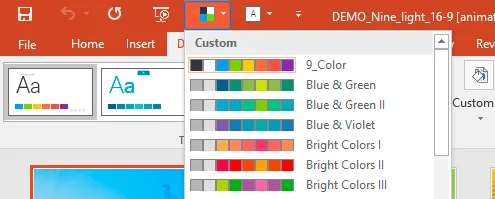
In new versions of PowerPoint a button for changing color themes “Theme Colors” (to preinstalled or standard) is located at the very top of the window (at one level with “Open”/”Hide”/”Close” buttons, but on the opposite side). That’s how the button looks like:
5
Custom colour design in PowerPoint

After clicking the button, you’ll see pop-up menu with samples of color schemes. Move the cursor to previously see the color scheme of the current slide. Select the color scheme you need by clicking on it. Changes will be applied to every slide of your presentation.

Option 2:

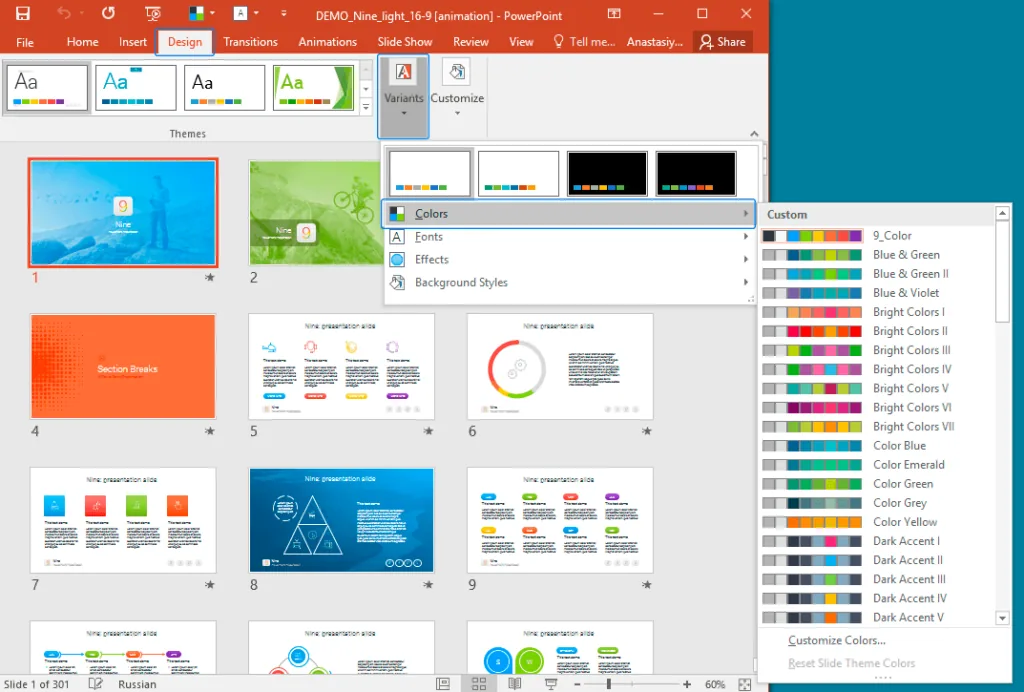
Select “Design” tab at the top toolbar. In a pop-up tab the big field with “Variants” preview represents color themes “Colors”. Use “Colors” button to preview the results of the color scheme changes (by pointing) or click on the theme you need to apply it for every slide of your presentation.
4
Colour variants in PowerPoint

Option 3:

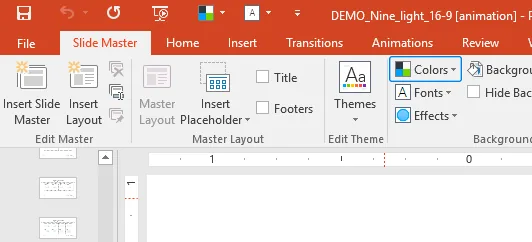
In the slide master editing mode (View>Slide Master) at the top toolbar you’ll find “Colors” button. Use it to preview a result of the color scheme changes (by pointing) or click on the theme you need, to apply it for every slide of the presentation. When changes done, click “Close Master View” in the top menu.

6
Menu “Slide Master” > “Colours”
Stacy M.
About the author:Stacy M.
Follow the expert:
how-to-share-powerpoint

How to Share PowerPoint: A Comprehensive Guide

You’ve just finished crafting a brilliant PowerPoint presentation, and now it’s time to share it. But how exactly do you do that? Whether you’re collaborating with a team or presenting to an audience, sharing your work is essential. Let’s dive in and explore the different methods available to share your PowerPoint presentation. Different Methods How … Read more
how-to-copy-slides-from-one-powerpoint-to-another

How to Copy Slides from One PowerPoint Presentation to Another?

You’ve just created a stellar PowerPoint presentation for an upcoming meeting. But wait – you remember another presentation with slides that would fit perfectly in this one. If only there was a way to integrate them! Oh, wait. There is. Wondering how to copy slides from one PowerPoint to another? Dive in, and let’s unravel … Read more
how-to-insert-pdf-into-powerpoint

How to Insert PDF into PowerPoint?

Ever been in a situation where you wanted to seamlessly integrate the detailed content of a PDF into your PowerPoint presentation? You’re not alone. Many professionals and students often find themselves needing to combine these two formats for a more effective presentation. Benefits of Inserting PDFs into PowerPoint Incorporating a PDF file into a PowerPoint enhances … Read more

