


Whether your presentation is for a significant business proposal at work, the science project you stayed up past midnight to perfect, or the photo slideshow for your step-sister’s second marriage, there always seems to be another skill to learn in PowerPoint.
In this tutorial, you’ll learn how to add a timer for PowerPoint slides. Using a timer for your presentation helps keep your audience aware of time passed or how much time remains for a particular section of your presentation during a break.
Inserting a countdown timer
One of the additions you can include in your presentation is a PowerPoint timer add-on free and easily accessible right from your presentation screen.
To insert a countdown timer, follow these steps:
- Go up the Insert tab at the top of your screen.
- Click on the “Get Add-ins” under the dropdown menu under Insert.
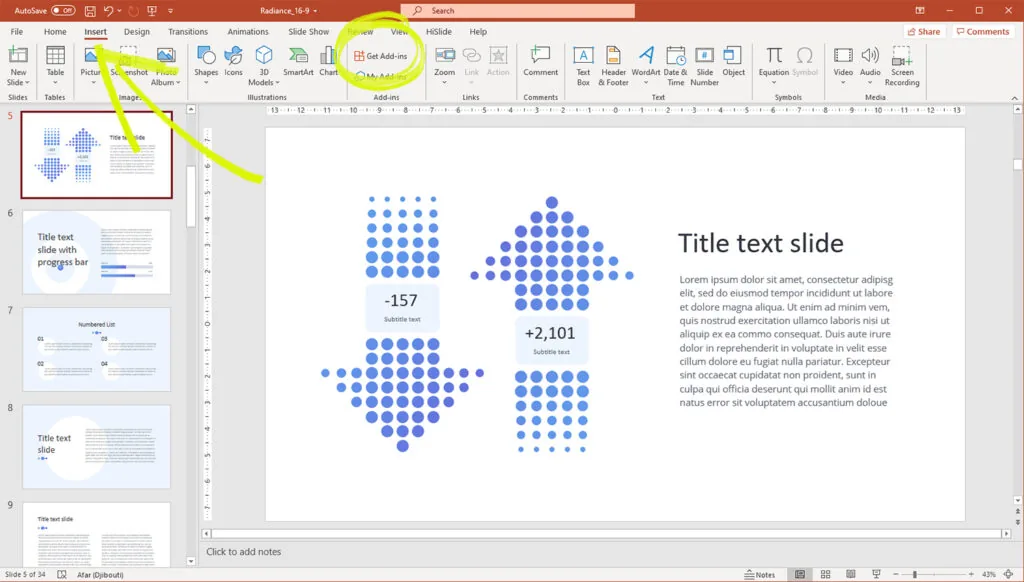
3. This option will direct you to the Microsoft Office store.
4. When you get to the store, you should go over to the search bar and type in “timer.”
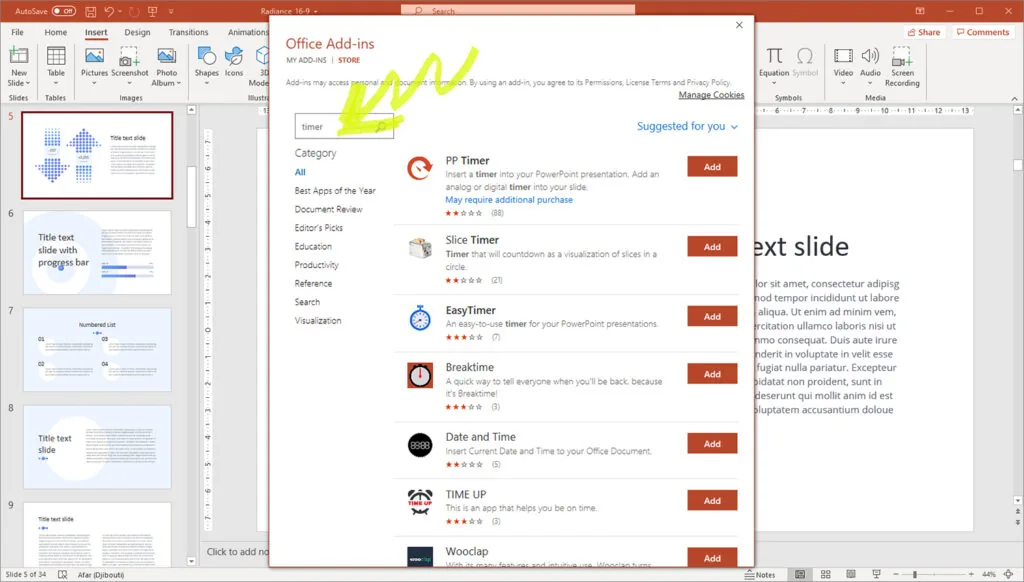
5. The store will suggest several free add-ins for your PowerPoint, including a Slice Timer, Easy Timer, Breaktime, Date, and Time, as well as others.
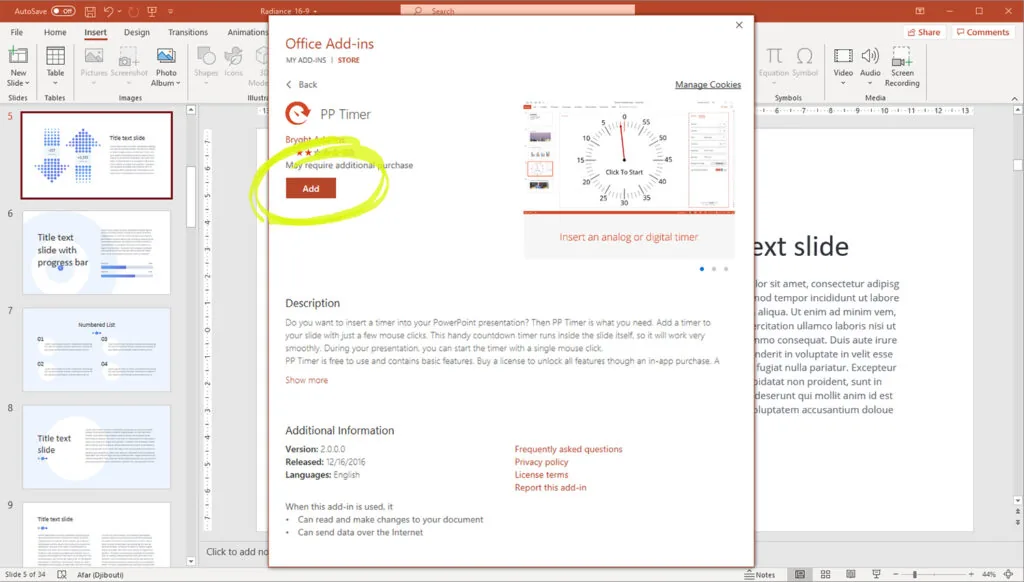
While all of these are good for select types of timer needs, a couple is best for a quality presentation.
- Easy Timer, which offers three different countdown clocks: analog, digital, and bar
- Breaktime, which is ideal for longer presentations, to countdown a break within the presentation
A clock to customize
The free add-in clocks are great when just starting to meddle with including watches into your PowerPoint presentation, but they don’t offer many customization options. To have a timer you can customize, you need to insert a shape first.
To insert a shape, follow these steps:
- To make a bar shape, first, click on the Insert tab.
- Under this tab, go down to the shape option.
3. Under the shape options, choose the “rectangle.”
Once you’ve created your shape, you’ll go up to the Animation tab, over to the “Add Animation” option, and go under “Exit” to choose the option “Wipe.”
Then, to customize your countdown, click on the Animation tab once more and choose the “Effect” options. Under Effects, you can select the direction: to make the rectangle vertical, choose the “to bottom” choice, and to make it horizontal, choose either the “to left” or “to the right.”
Finally, you’ll add time. To do this, you’ll go up to the Animation tab once more. Then go down to the “Timing” group and enter the duration you desire.
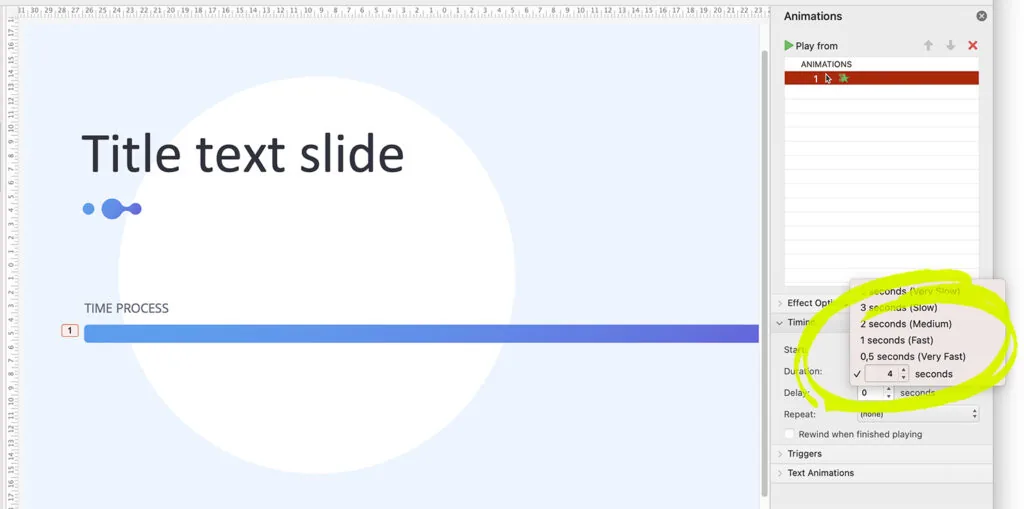
Following these steps and making some decisions as to which options will best fit your presentation, you’ll be able to add a timer on PowerPoint.
An example of the animation the circular timer:


