


The header refers to the section of a document that appears in the top margin. On the other hand, the footer refers to the area of a document that appears in the bottom margin. Text inserted in the header or footer will show on each page of the document where you can add names, dates, and titles.
However, unlike Google Docs or Microsoft PowerPoint, there is no dedicated option to add or remove headers, footers in Google Slides. Still, you can insert them manually just like any other text, and if you want, you can also add page numbers to your Google Slides, and this is the subject of this article.
Adding headers and footers in Google Slides
Listed are the steps you can follow if you want to add Google Slides header and footer.
Step 1: Open your presentation in Google Slides.
Step 2: Choose the Slide where you want to add a header or footer.
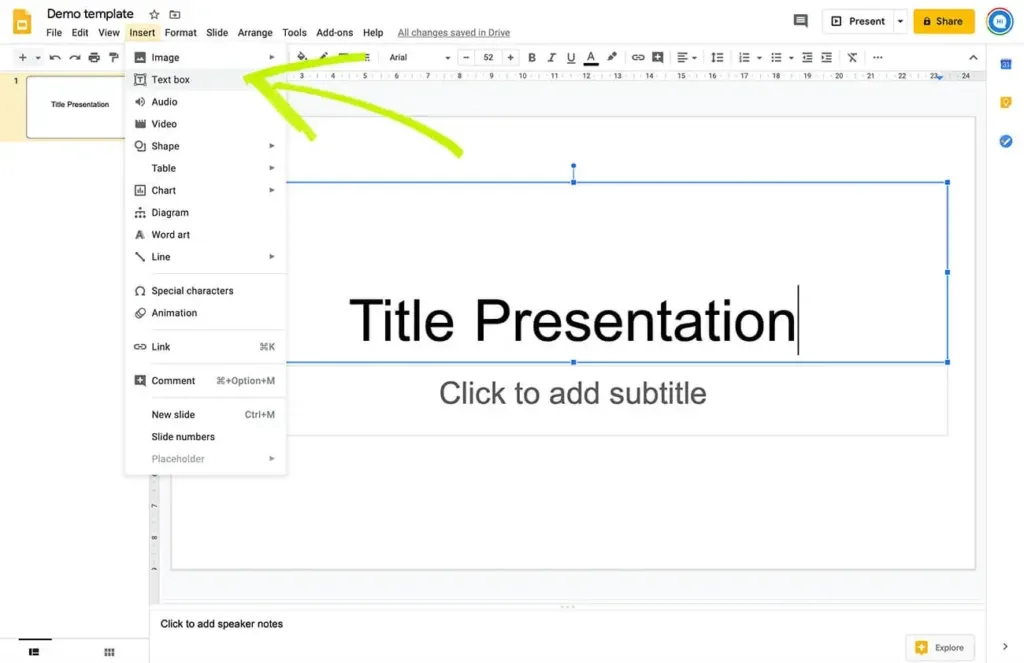
Step 3: Select the ‘Text box’ from the Toolbar dropdown menu. Then click and drag to form a text box on the slide. If you’re adding a header, drag it on the top margin and on the bottom footer margin.
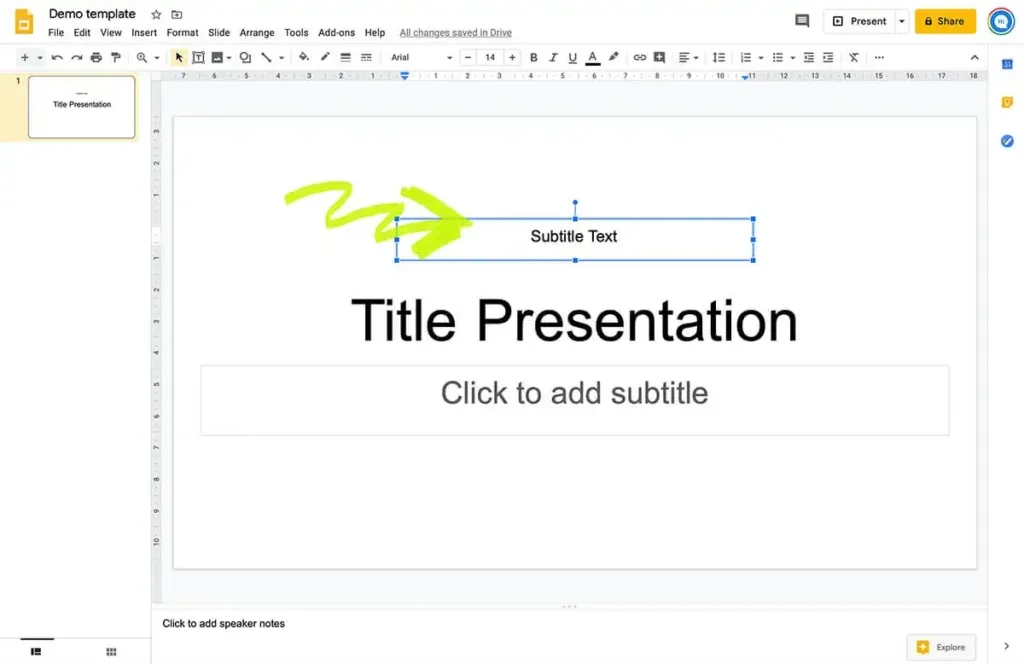
Step 4: Now enter the text for the header or footer. You can change the text’s font, size, alignment, color, and style using the options found on the Toolbar.
Adding the same footer or header on multiple slides
If you have several slides with the same layout and want to add a Google Slides footer or header to all of them, you can do it quickly as long as they come from a similar layout master.
Step 1: Select the slide where you want to insert a header or footer.
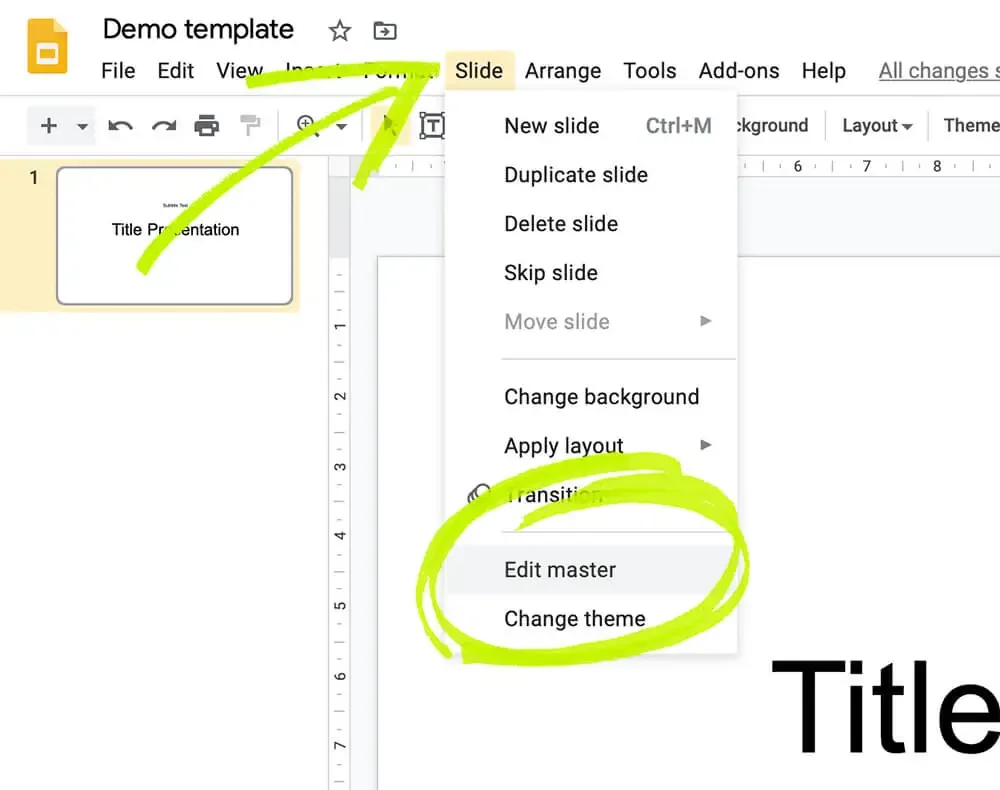
Step 2: Click ‘Slide’ and select ‘Edit Master’ from the dropdown menu.
Step 3: The Master Editor View should open.
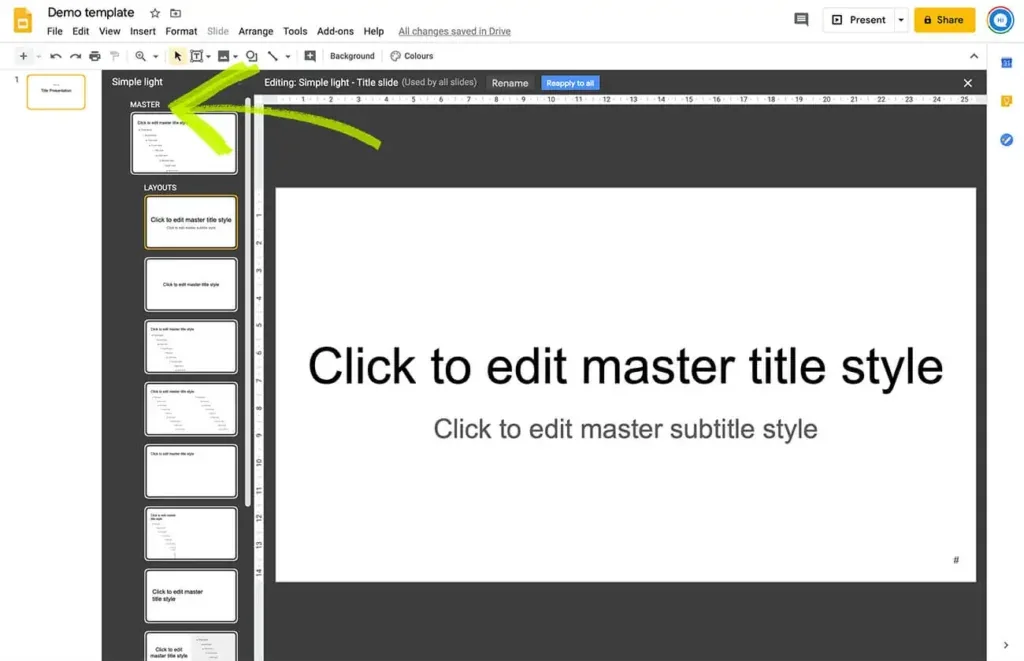
Step 4: Click the Insert placeholder dropdown arrow on the Toolbar and choose Text Box.
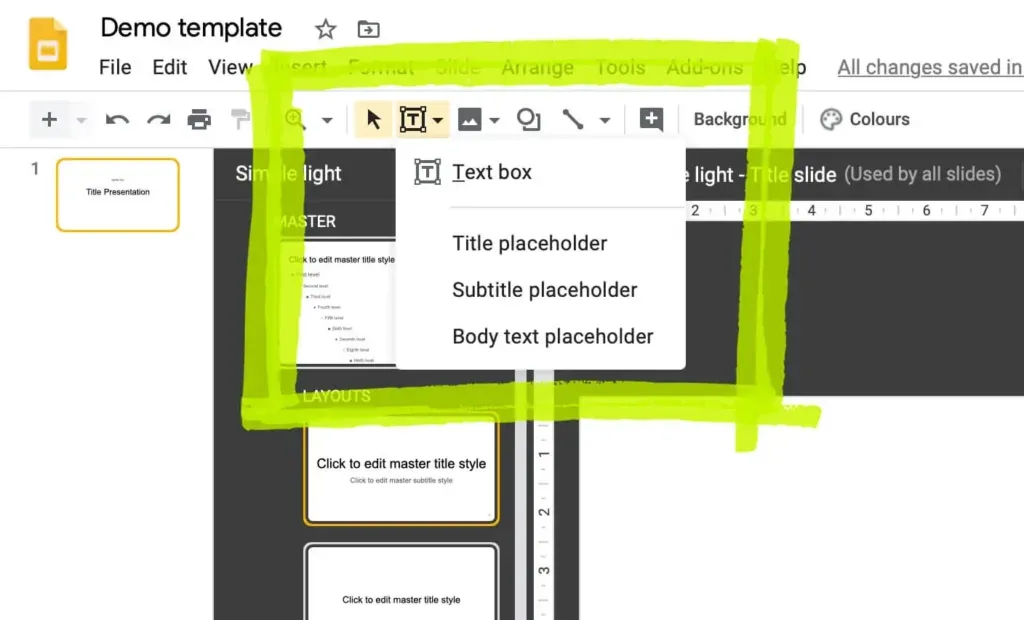
Step 5: Draw a text box where you want to place the footer or header.
Step 6: Now enter the text. You can change the text’s font, size, alignment, color, and style using the options found on the Toolbar.
Step 7: Click the “X” button at the upper-right to exit the master view. The footer or header text will appear on all the slides that are derived from this slide master.
How to delete headers and footers in Google Slides?
Now, when you want to delete the header or footer from your Google Slide Presentation, simply follow the steps below:
Step 1: Open the presentation in Google Slides, from which you want to remove headers and footers.
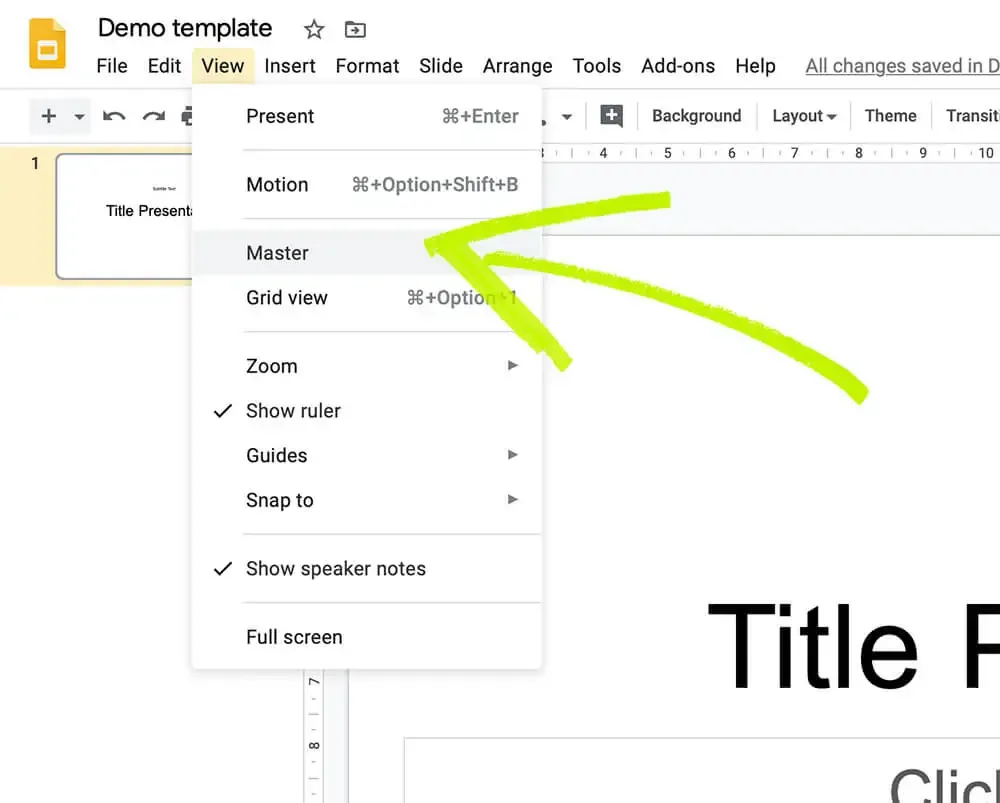
Step 2: Click ‘View’ from the top menu and select “Master’ from the dropdown menu.
Step 3: Right Click to Delete the header or footer text.
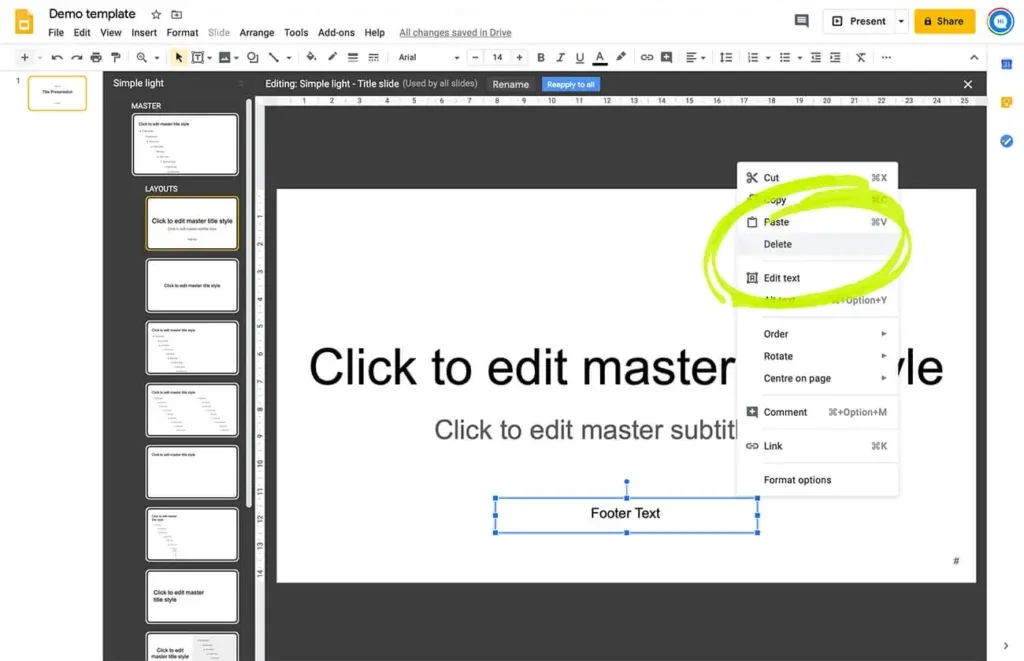
Step 4: Click the “X” button at the upper-right to exit the master view. The footer or header text will be removed on all the slides that are derived from this slide master.
Adding page numbers on Google Slides
If you want to affix page numbers to Google Slides, simply follow the steps below:
Step 1: Open a presentation in Google Slides to which you want to add numbers.Step 2: From the Toolbar menu, click ‘Insert’ and select ‘Slide numbers’ form the dropdown.
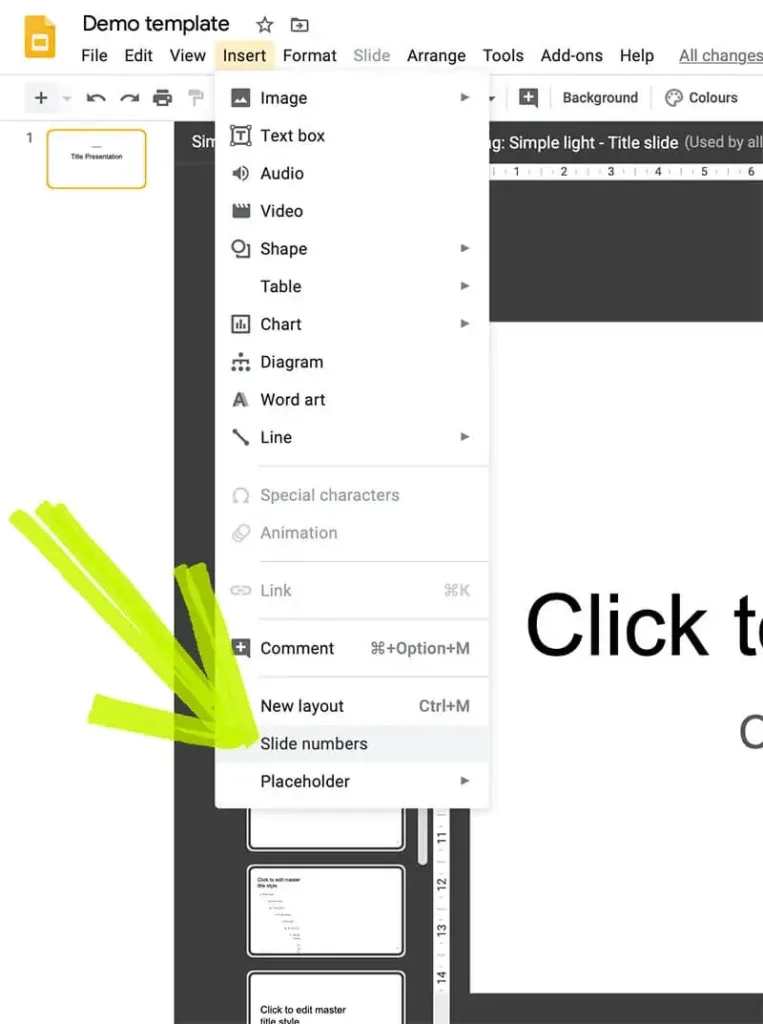
Step 3: Click on Apply.

Note: When adding slide numbers, if you don’t want your title slide to be numbered, you need to check the box next to ‘Skip title slides.’ Alternatively, if you’re going to number only specific slides, choose ‘Apply to Selected’ instead of ‘Apply.’
How to get rid of slide numbers from Google Slides?
Step 1: Open the Google Slide presentation containing the slide numbers that you want to remove.
Step 2: Choose the ‘Insert’ tab at the top menu.
Step 3: Select ‘Slide numbers’ at the bottom of the dropdown menu.
Step 4: Choose the ‘Off’ option.

Step 5: Click the ‘Apply’ button.


