How to See Speaker Notes on Google Slides App?

Google Slides™ Add-on

Over 600 professionally designed layouts and data-driven infographics with weekly updates.

Download it for free from the official Google Marketplace.

Download fromGoogle Marketplace
how-to-see-speaker-notes-on-google-slides-app

Have you ever been caught in the middle of a presentation, palms sweaty, heart racing, because you forgot your next point? We’ve all been there. This is where the Google Slides app and its ‘speaker notes’ feature come in handy. Let’s dive into how you can access this lifesaver.

Full Guide How to See Speaker Notes on Google Slides App

Before embarking on this journey to masterfully access your speaker notes while presenting on your phone, tablet, or iPad, there’s a crucial preliminary step to consider. This step ensures that you experience the 2023 optimized Google Slides experience.

  • Step 1: Update Before You Navigate Ensure your Google Slides application on your mobile device, whether android or iOS, is updated. Head to the Google Play or App Store to check for updates and install if necessary. A recent update guarantees compatibility and introduces new features, making this guide even more valuable.
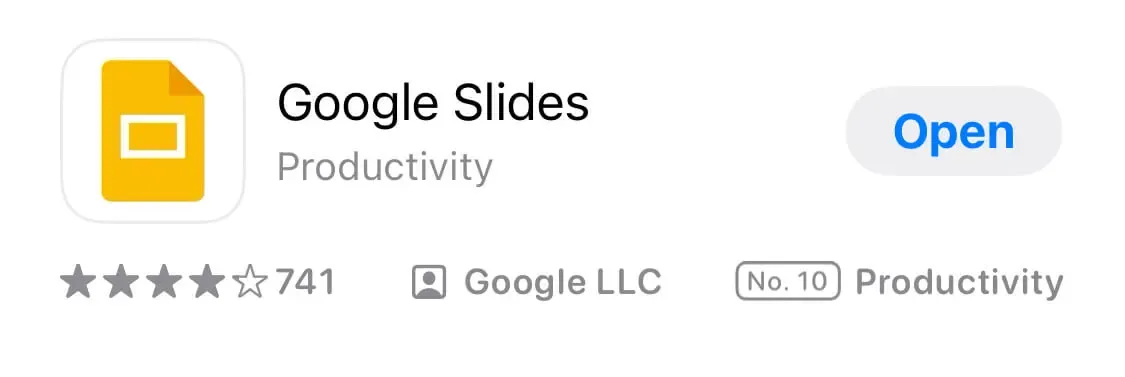
    update google slides app in your smartphone
  • Step 2: Open The Application Launch the Google Slides mobile app. Remember, Google Slides is a versatile tool, so ensure you’re opening the Google Slides and not a different presentation app, like PowerPoint.
    google slides add
  • Step 3: Locate Your Presentation Once you open the presentation library, find and click on the document you wish to present. If you’ve prepared multiple presentation slides or presentation templates for different events, ensure you select the correct one.
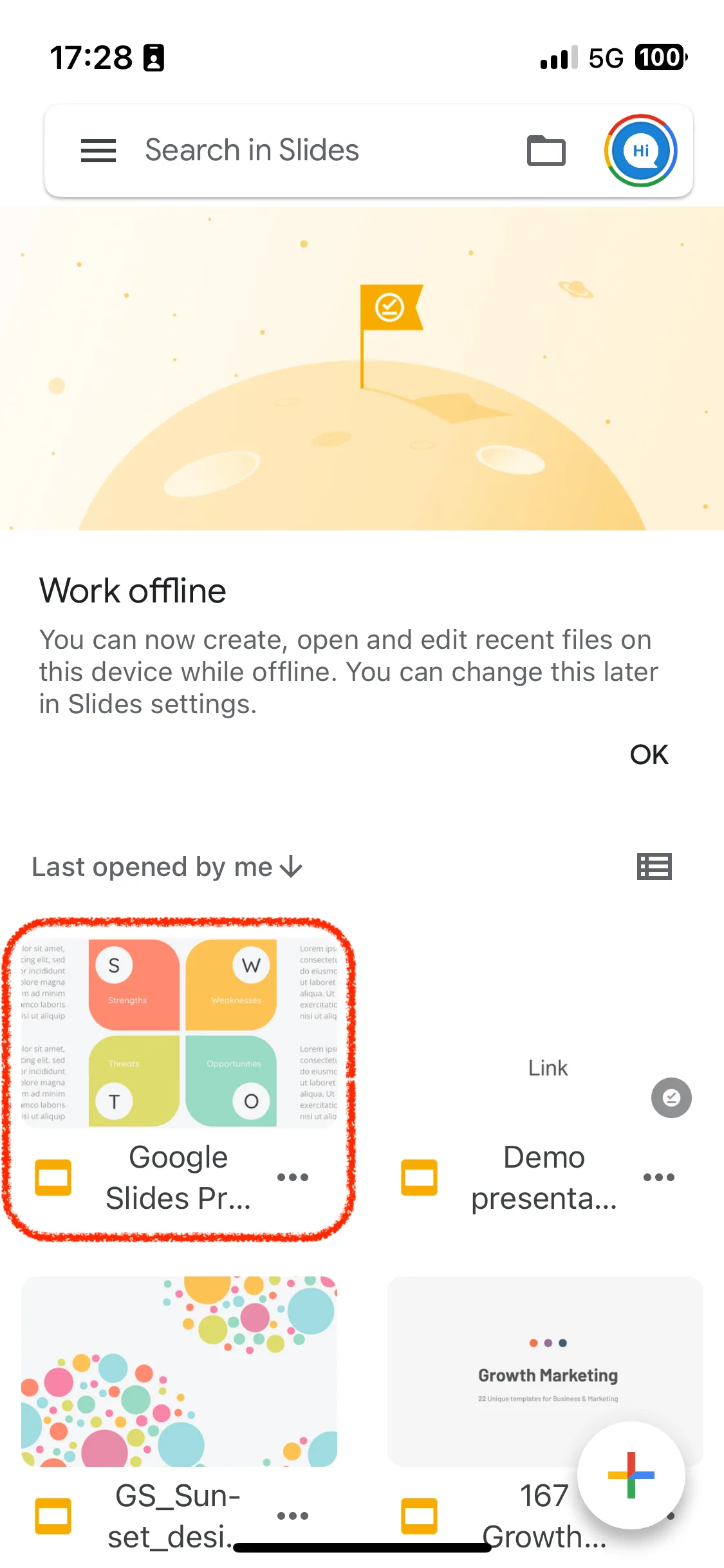
    find your presentation
  • Step 4: Navigate to the Desired Slide As you look through your presentation, tap on the slide you want to talk about or the one you’ve prepared speaker notes for.
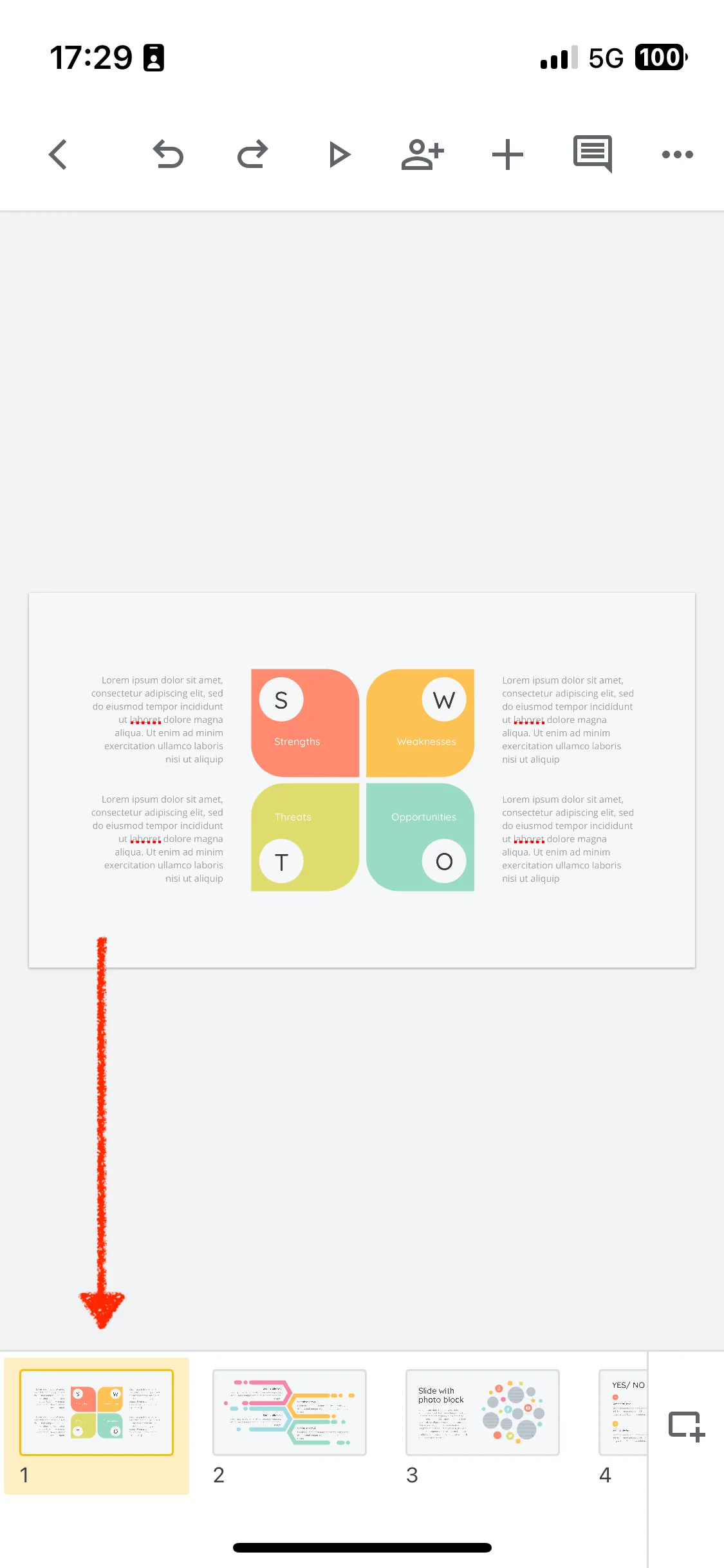
    choose needed slide with note
  • Step 5: Access Speaker Notes Now, here’s where the magic happens! On the upper right, next to the slide number, you should see a ‘speaker’ icon. Tap on that. On some devices, especially on iPad or iPhone, you might need to touch the notes icon next to the slide number to access your speaker notes within the app.

    click to top menu
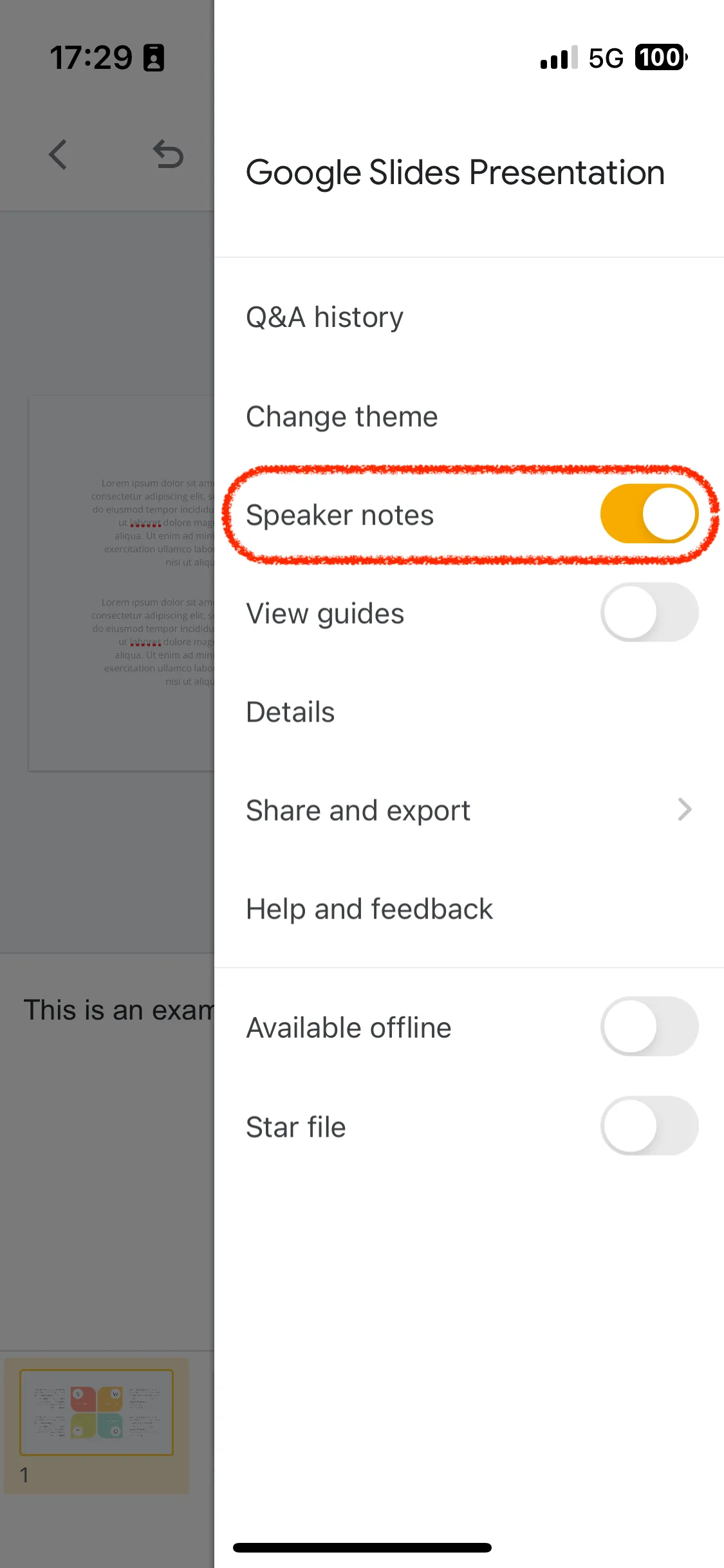
    turn on speaker notes
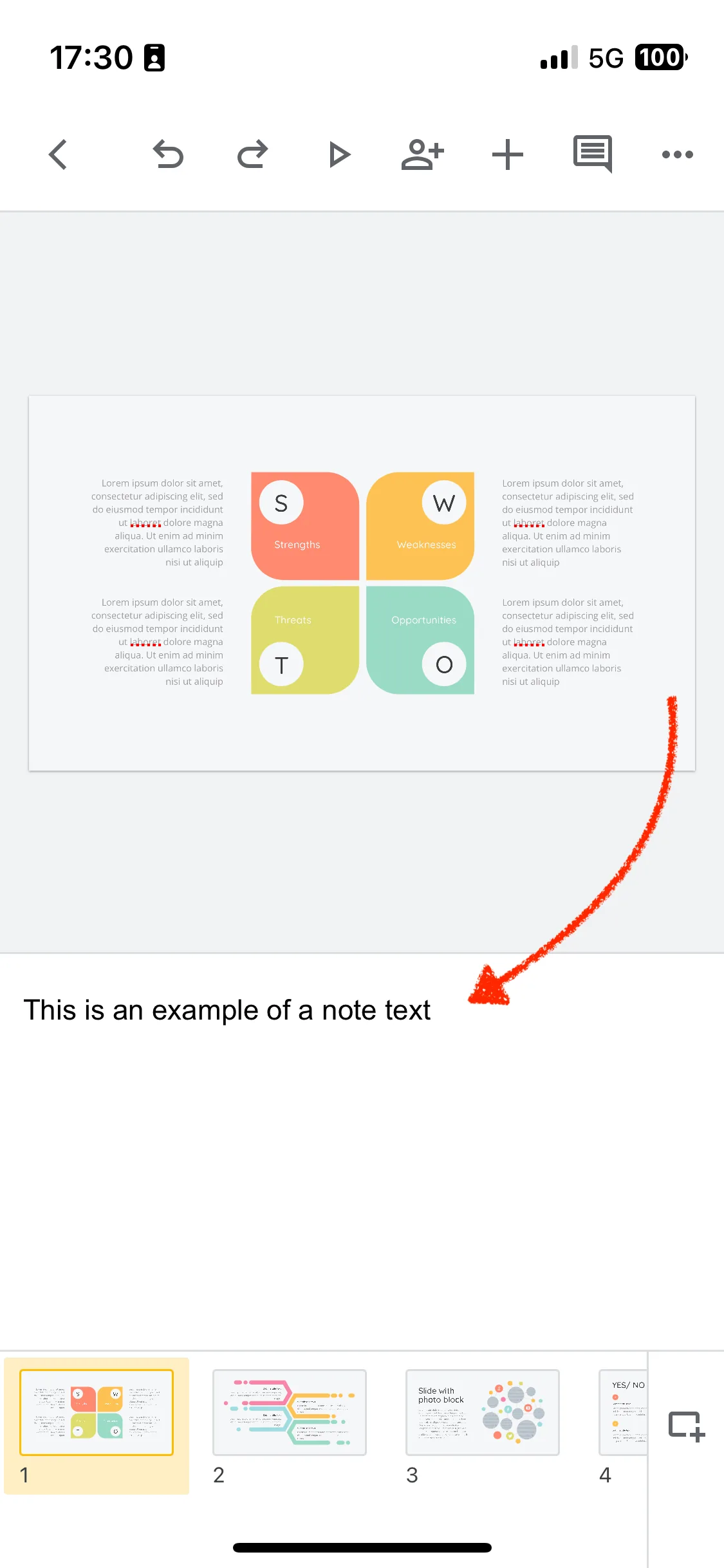
    new you can see all speaker notes

Remember! If you want a presenter view option with two screens (one for your notes and one for the actual slide), you might want to connect your device to a digital display or use platforms like Google Meet. It allows you to have speaker notes while presenting on one screen and the actual slide on the other.


FAQs

Yes, you can add or modify speaker notes using the app.
No, speaker notes are only visible to the presenter.
Yes, most modern presentation software has a similar feature.
While you can view them on the app, for printing, it’s best to use the desktop version.
Absolutely! Everything on Google Slides gets backed up on your Google Drive.
Stacy M.
About the author:Stacy M.
Follow the expert:
how-to-convert-keynote-to-google-slides

How to Convert Keynote to Google Slides: A Comprehensive Guide

Ever found yourself in a situation where you’ve crafted a stunning Keynote presentation, but your audience or colleagues are more accustomed to Google Slides? Don’t fret! This tutorial will guide you through the seamless process of converting your Keynote masterpiece into a Google Slides presentation. Let’s dive in, shall we? Step-by-Step Guide: How to Convert … Read more
how-to-put-a-video-on-google-slides-from-your-phone

How to Put a Video on Google Slides from Your Phone?

Ever been on the go and thought of that perfect video clip to add to your presentation, but had no idea how to do it from your phone? Let’s dive right into how to seamlessly incorporate videos into your Google Slides presentation using just your mobile device! Steps to Put a Video on Google Slides … Read more
how-to-add-transitions-on-google-slides

How to Add Transitions on Google Slides?

Ever watched a film where scenes shift seamlessly, leaving you engrossed in the story? Or perhaps, while reading a book, you’ve felt the flow of one chapter transitioning effortlessly into the next? That smooth progression, that tiny moment of satisfaction, is what we experience in a presentation when one slide gracefully moves to another. That’s … Read more