Ever been on the go and thought of that perfect video clip to add to your presentation, but had no idea how to do it from your phone? Let’s dive right into how to seamlessly incorporate videos into your Google Slides presentation using just your mobile device!
Steps to Put a Video on Google Slides from Your Phone: A Detailed Tutorial
Got that perfect video to elevate your presentation but aren’t sure how to add it? You’re in the right place! Here’s a step-by-step guide to help you insert videos into Google Slides via your mobile device.
- Preparation. Google Drive Setup: Before you proceed, make sure you have the Google Drive app installed on your iPhone, iPad, or Android device. If your video isn’t in your device’s gallery or camera roll, you might want to upload it to Google Drive first. This ensures easy access when you want to add it to the slides.
- Open the Google drive app on your smartphone.
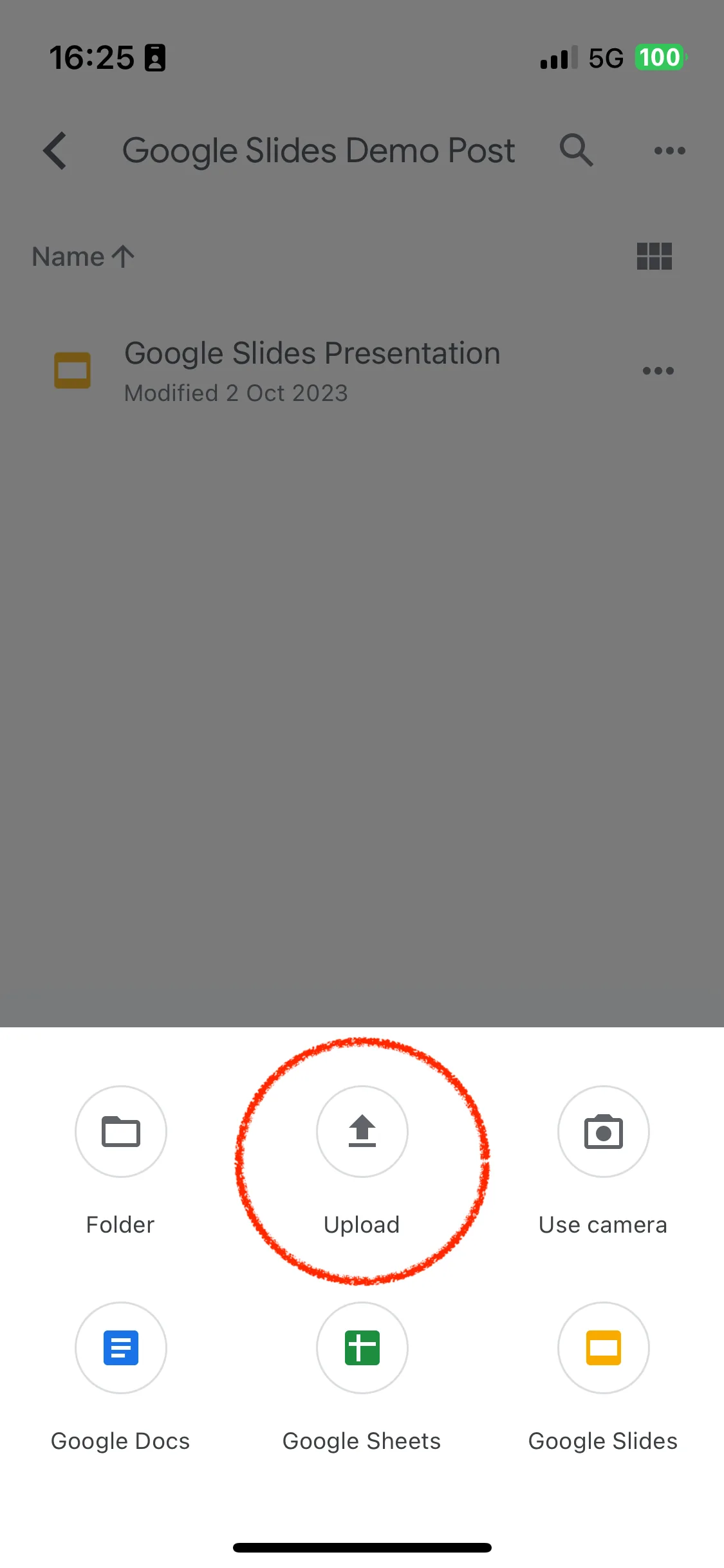
- Select the folder where you want to save your video. I recommend that you use one folder for your presentation and video. This ensures that you don’t accidentally delete the video and it will no longer be available in the presentation. Click on the “+” icon.Select “Upload.”

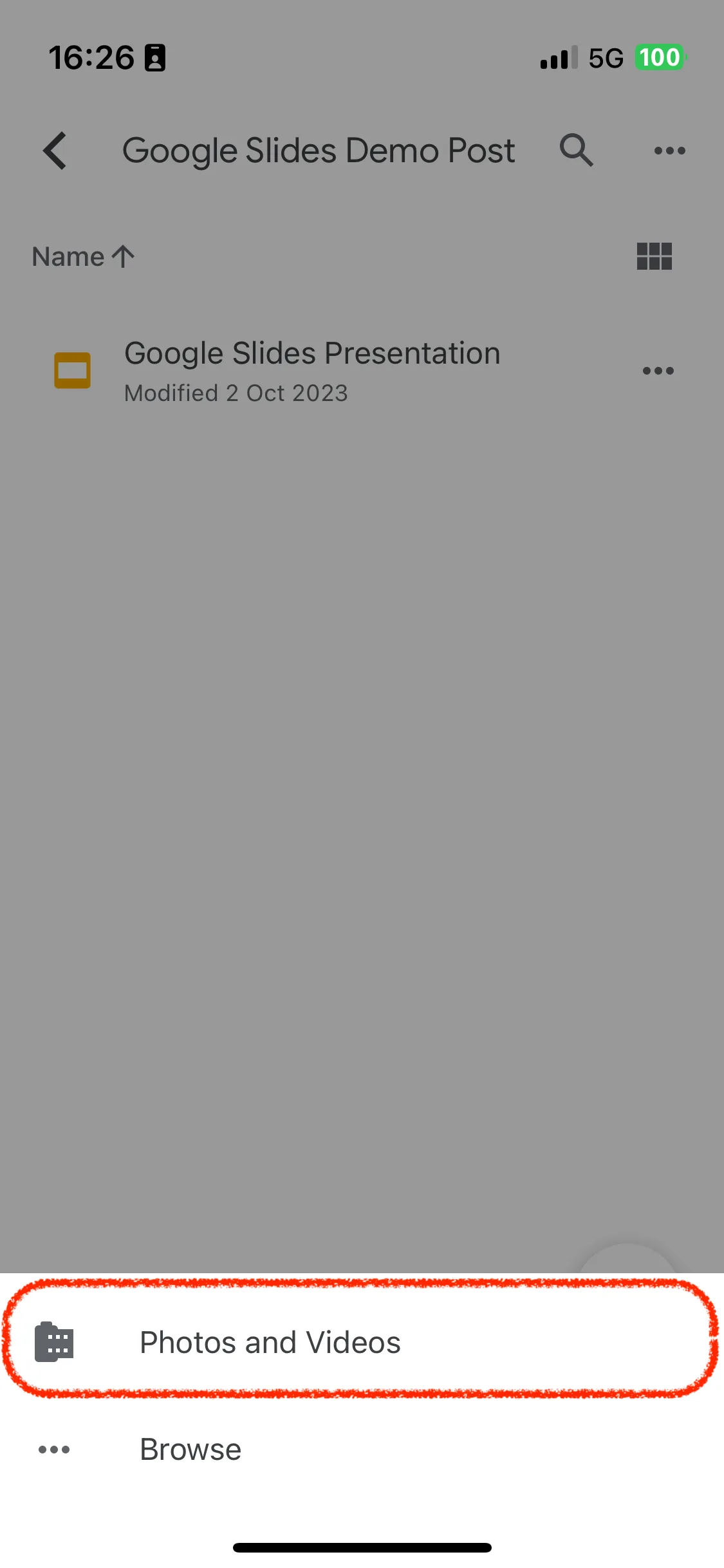
- Select “Photos and Videos.”
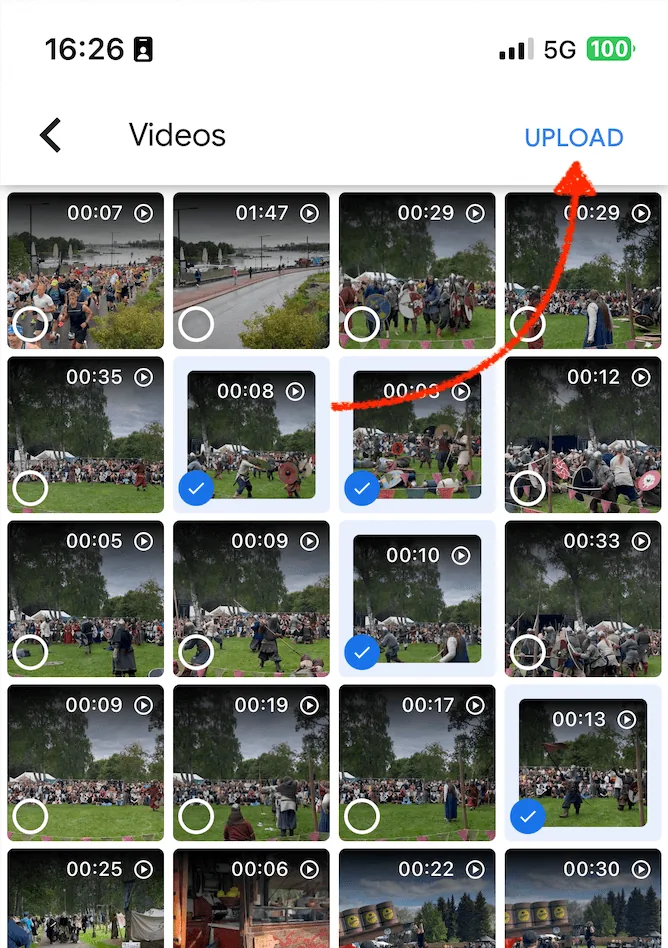
- You can select multiple photos and videos at a time from your album on your phone. Finally, click on “Upload” at the top of the screen.
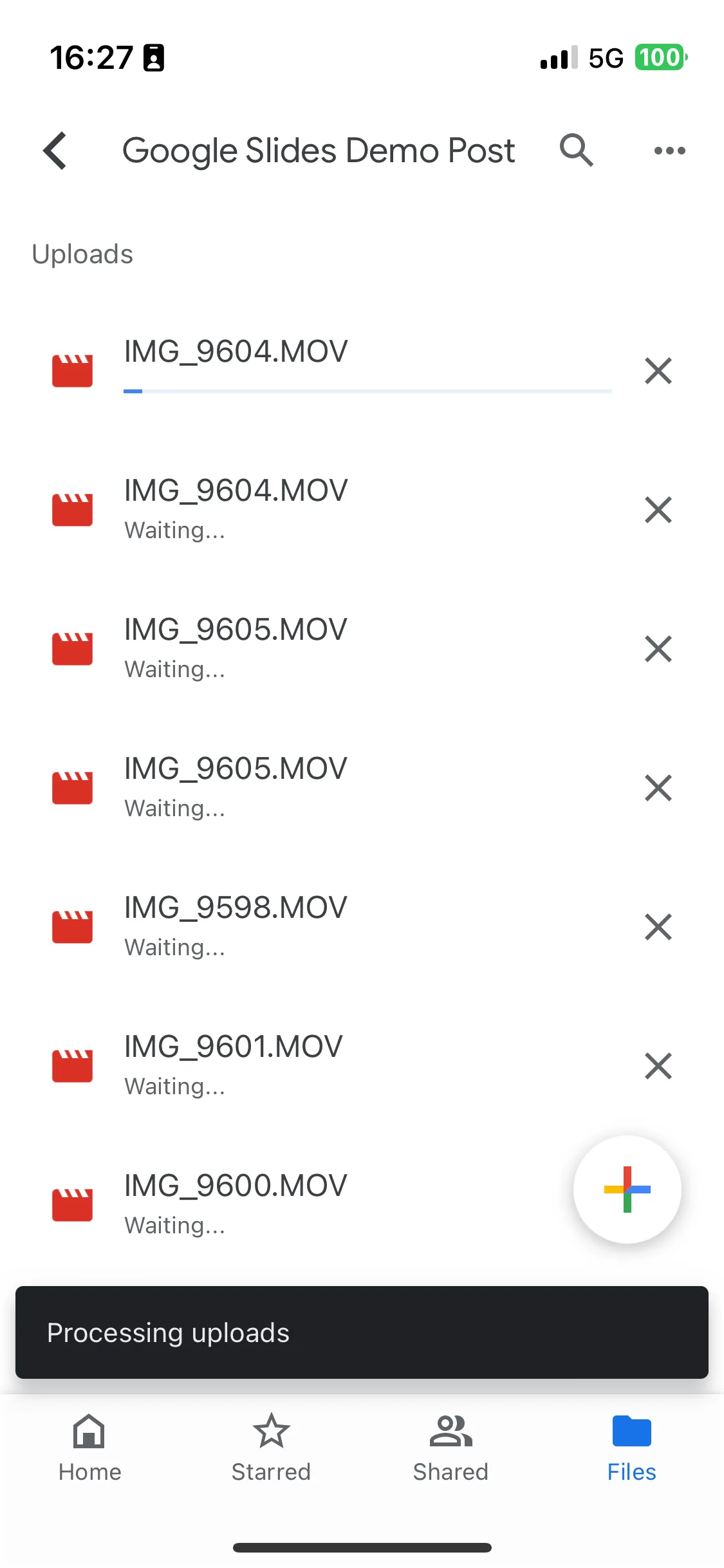
- The upload process usually takes some time. Note that videos often have large file sizes and can take a long time to upload. I recommend that you use Wi-Fi.
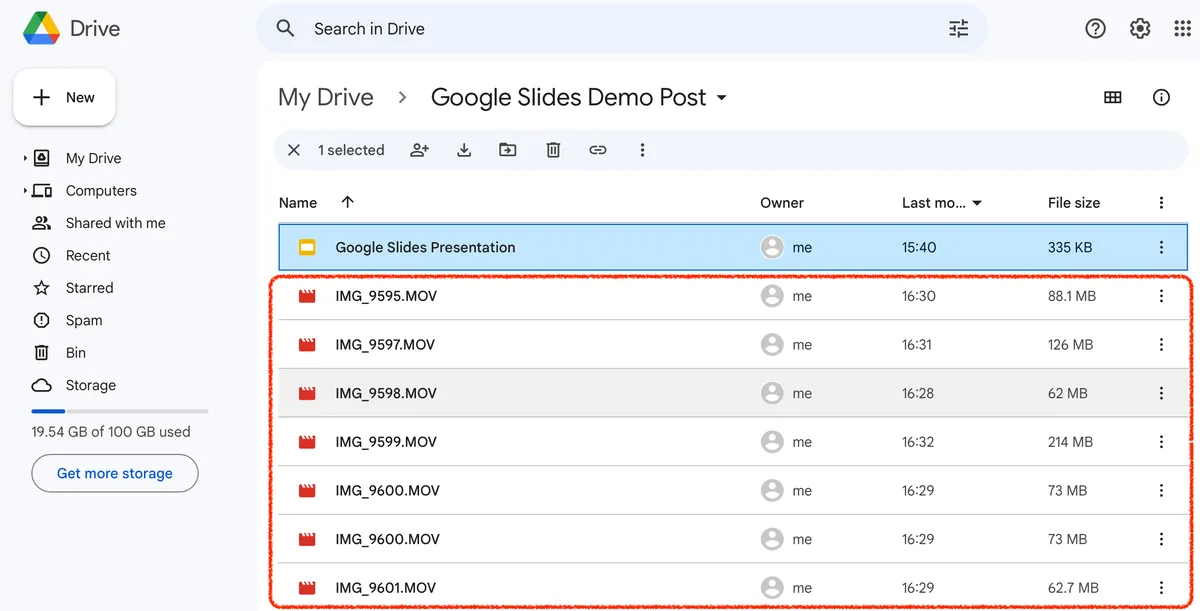
- When the upload is complete, close your Google Drive on your computer and navigate to the desired folder. You can see all the video files that were previously uploaded from your smartphone. If you don’t see all your files, please make sure that the upload process has already finished and was successful.
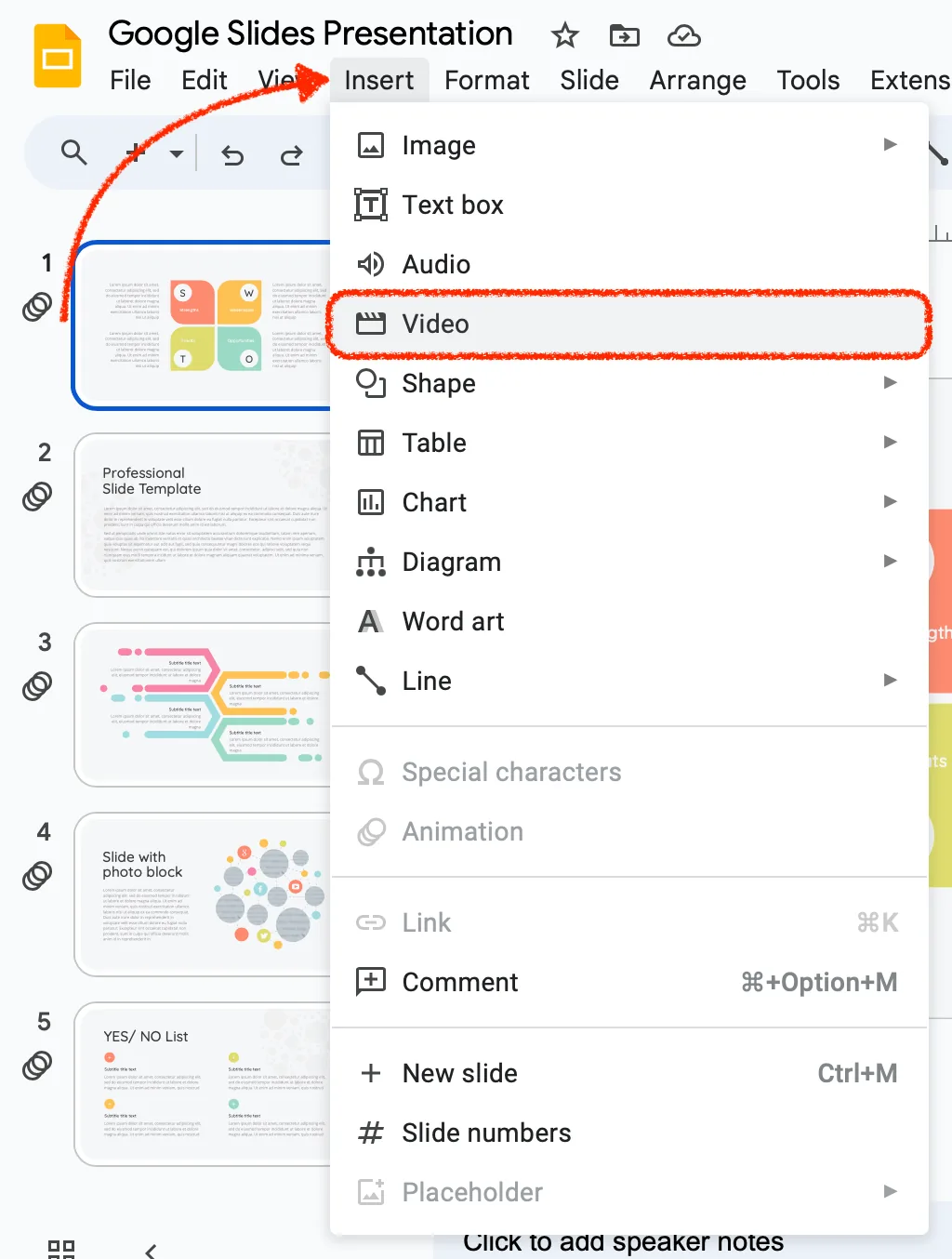
- Open your presentation and select the slide where you want to add the video. In the top menu, click on “Insert” tab > “Video”.
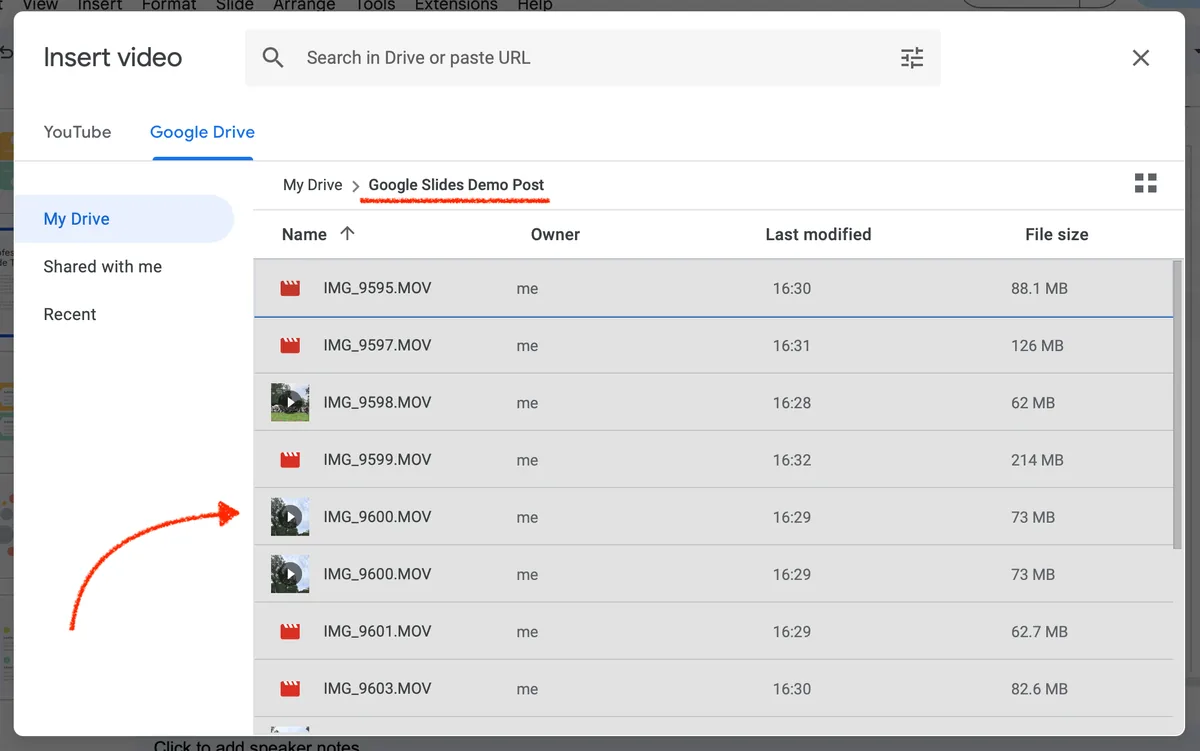
- In the window that opens, find the video you want and click on it.
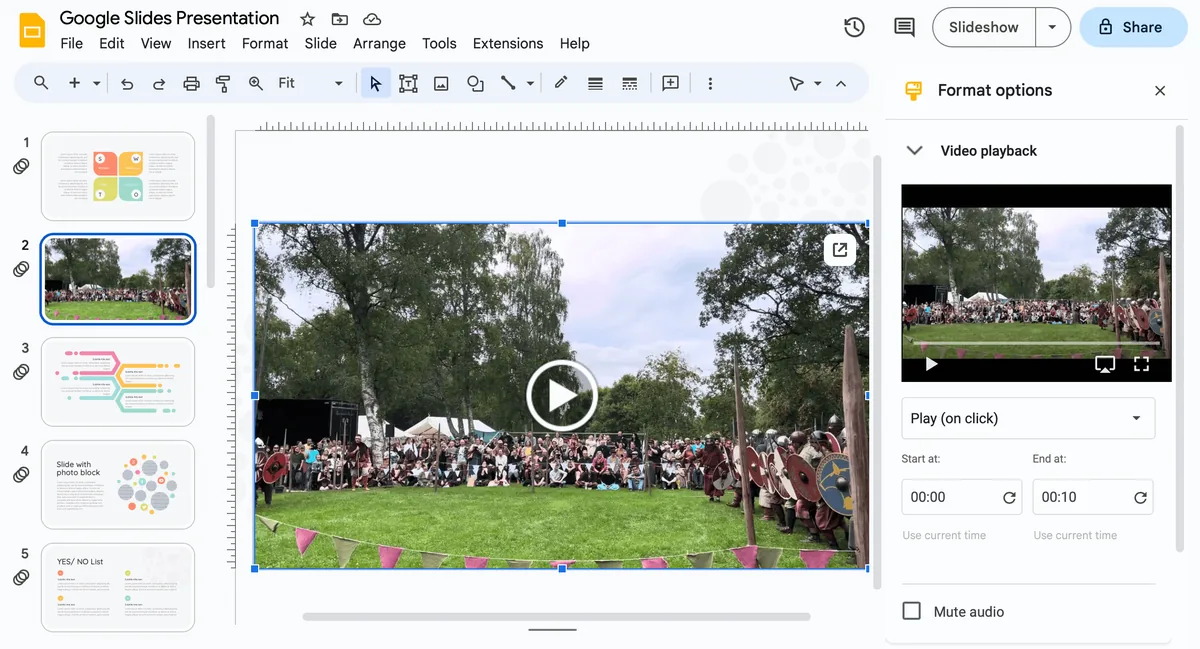
- Now your video has been added to the presentation and you have access to additional settings in the “Formating Options” sidebar. You can edit settings.
Troubleshooting Common Issues
As with all tech, sometimes things might not go as planned. Here’s a quick fix for a couple of common issues:
- Unsupported Video Formats: Ensure your video is in a supported format. MP4 typically works best.
- Connection Errors: Ensure you have a steady internet connection when uploading videos.
Tips for Effective Video Integration
To ensure your video isn’t just a random addition but adds value to your presentation, keep these tips in mind:
- Keep It Relevant: Make sure your video directly relates to the topic at hand.
- Ensure Quality: A blurry video can be more of a distraction than a tool. Ensure good resolution and sound quality.
- Respect Copyright: Always use videos you have rights to or have permission to use.
Adding a video to your Google Slides from your phone is not just convenient; it can enhance the quality and engagement level of your presentations. Embrace the power of visual aids and make your slides more compelling than ever!