


Using lists is one of the best ways to present lots of information in a concise, easy-to-understand way. Lists will ensure that your presentations can be informative without boring your audience or inducing information overload. Let’s look at some of the ways that you can use a bullet point PowerPoint.
Adding bullet points to PowerPoint
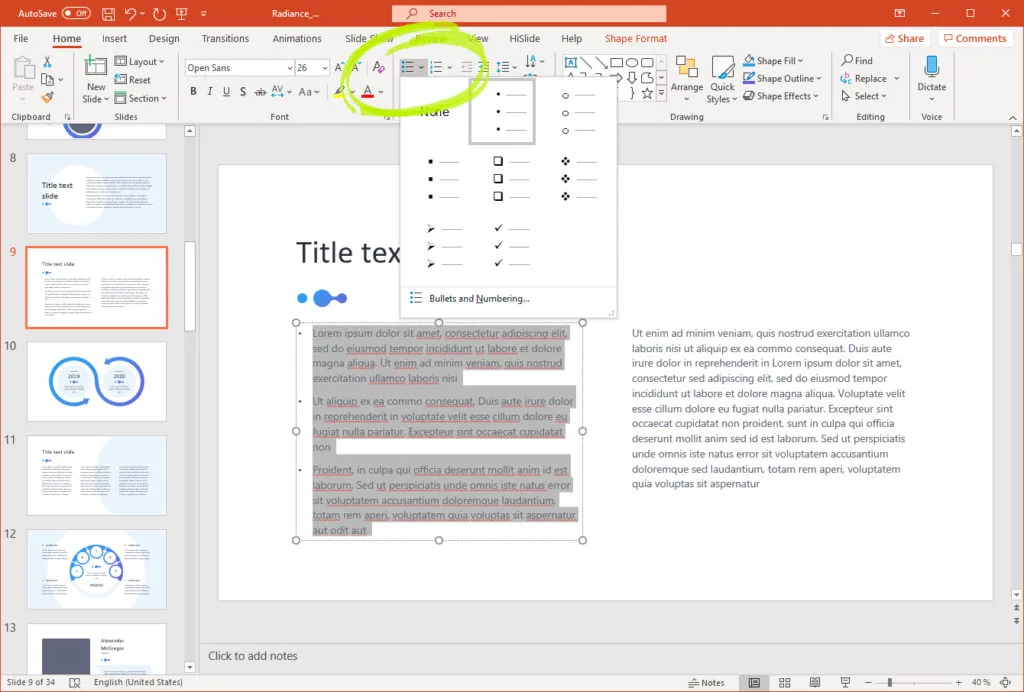
First, you need to select the area to which you want to apply the bullet points. Then, you will need to click on the bullet points icon. This icon is located on the “Home” tab in the middle of the page. Once you do this, you will be presented with a range of options from which you can choose. You can next select the best bullet points for your needs. If none of these options are appealing, or you want to access more advanced settings, click on the “Bullets and Numbering” button at the bottom of this options menu.
Adding a numbered list to PowerPoint
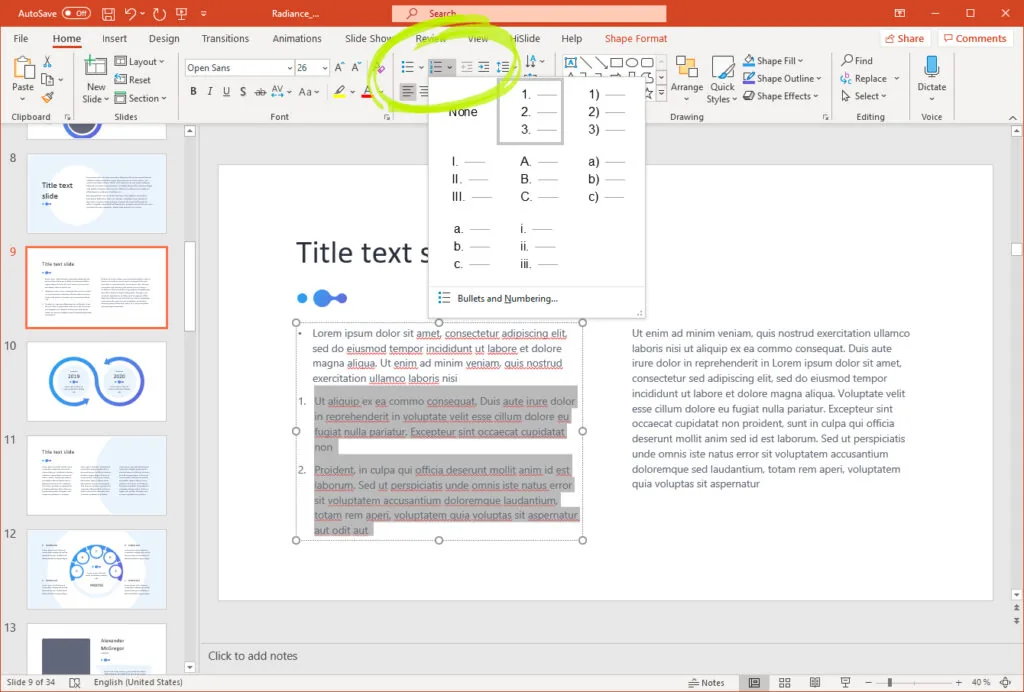
In some cases, you might prefer to use a numbered list. Numbered lists can make it easier for you to spell out your points. To do this, you will need to click on the numbered list icon, which is also on the “Home” tab, next to the bullet point list icon. This list will give you multiple options, ensuring that you can select the best one for your presentation.
How do you make a multi-level numbered list in PowerPoint?
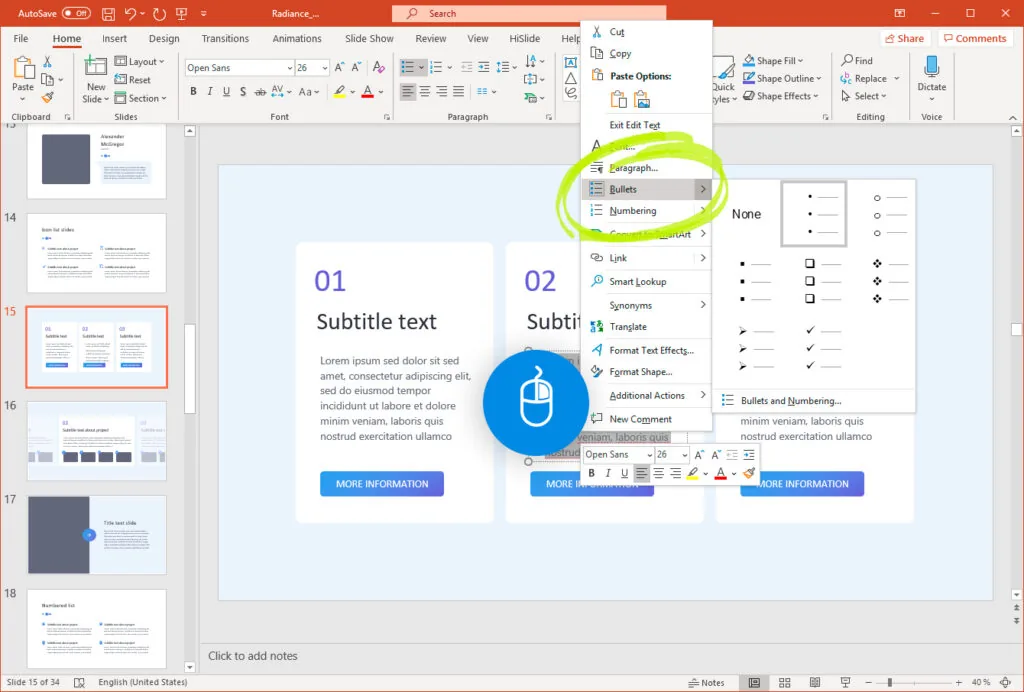
You can create multi-leveled lists in PowerPoint using the tab key. When you want to create a new level, you can hit the tab key, which will shift everything across, starting a new list on that level. By default, this new numbered list will begin at number one. However, there are some ways to customize this to suit your needs. You can use the method we discussed above to define a new type of numbered list. Alternatively, you can select the text and right-click, which will bring up a range of options. You can adjust the way that list items appear by selecting either the bullet or numbered list sections.
To get back to the previous level, you will need to use the shift + tab keys. In some cases, you will need to change the settings on that level to return to the original formatting. While it can be time-consuming, setting a multi-level list will help your presentation stand out, pleasing your audience.
Lists will let you summarize much information in a short space of time, helping keep your presentation short and ensuring that your audience understands your points. As we discussed, there are multiple options for using PowerPoint bullet points. Hopefully, you will now understand some of the things that you can do to use this powerful set of tools in your presentations.


