

One of the best ways to add a bit of excitement to your presentation is by using animations. These will allow you to make some aspects of your presentation move around, allowing you to emphasize those areas. To help you use these tools, let’s look at how to add animations on Google Slides.
Add animation on Google Slides
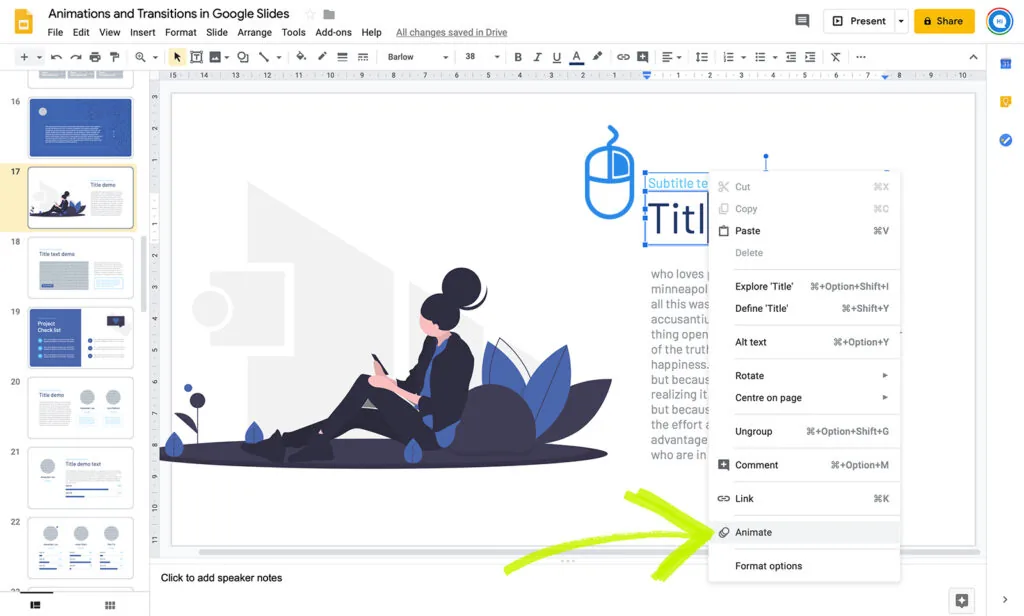
- Right-Click on The Selected Item. Once you’ve finished designing the slide, right-click on the element that you want to have animated. When you do this, you will notice a list of items appear. Then, click on the Animate section, which should be at the bottom of the list.
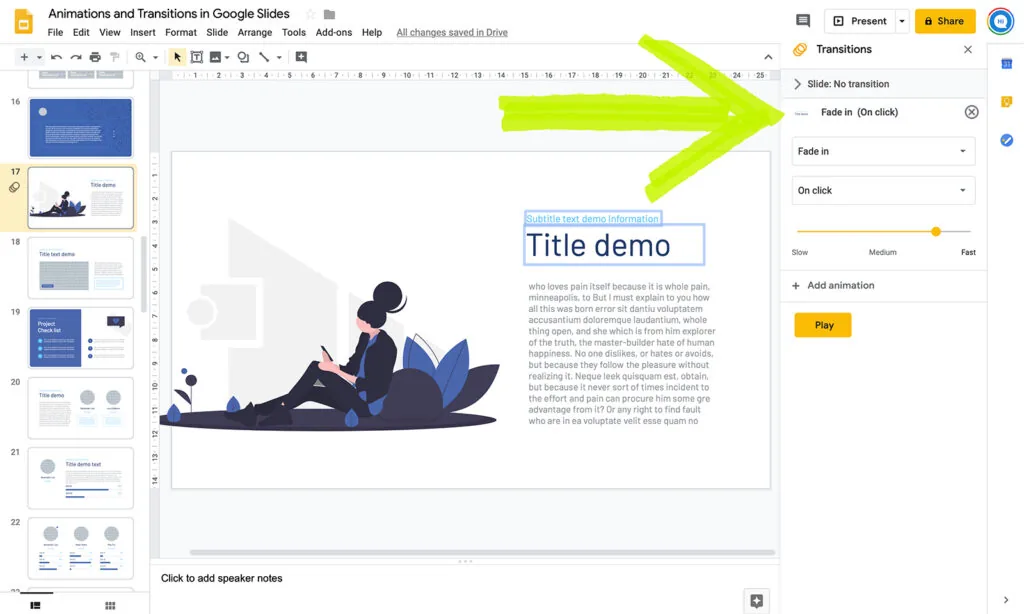
2. When you open up the panel for the first time, you will see the default animation that has been selected for you. If you don’t want to use this one, you can choose another.
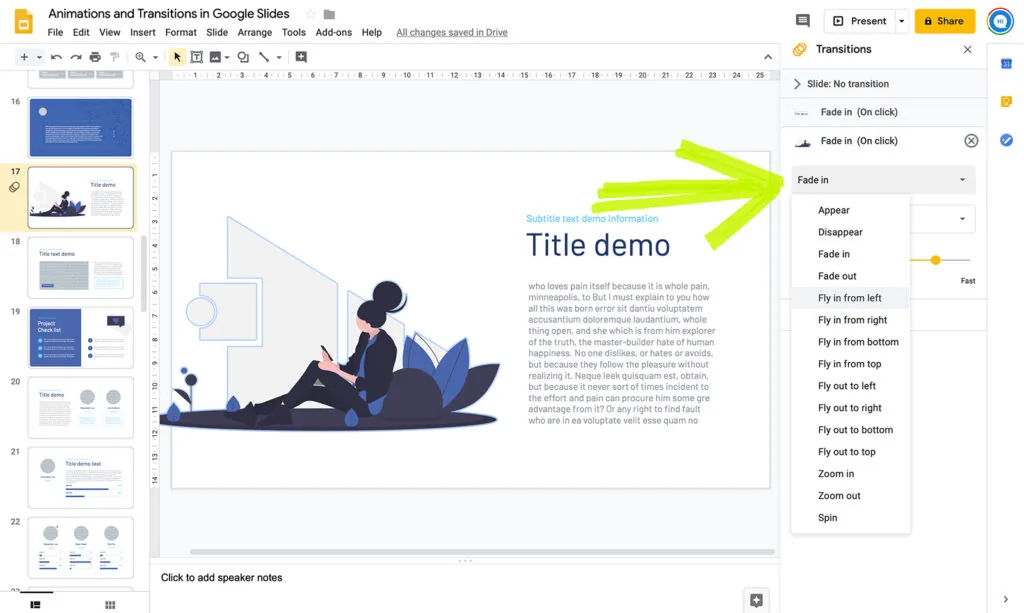
3. Choose the Animation You Want to Use. Once you’re in the Animations panel, you will have plenty of customization options to explore. This panel will allow you to pick the best one for your needs. For example, you might want to select the type of animation that you use. To do this, you will need to click on that section, and it will present a drop-down menu of options. You will then be able to pick the Google Slides move object animation that works best for you. You will also be able to select when the animation plays. For example, you might want to have it play as soon as the slide transition occurs.
4. Apply Animations to Multiple Objects. If you wish to apply the animations to another object in the slide, leave the animation panel open. Then click on the object you want to animate, which will give you an Add Animation option. By clicking this, that object will also become animated.
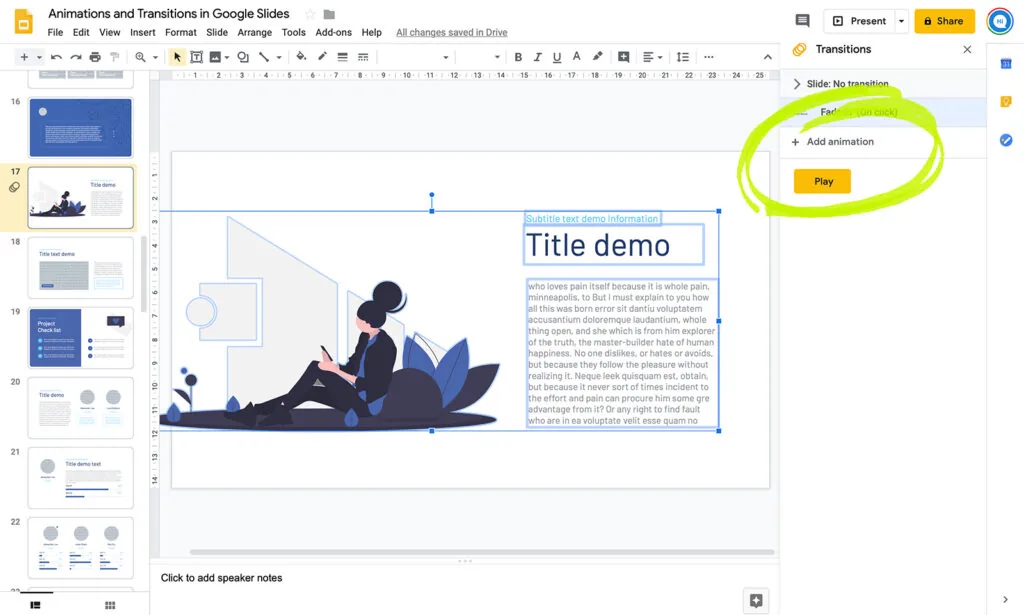
5. Check the Way Everything Looks. Once you’ve finished adjusting everything, you might want to make sure that it all looks the way that it should appear. You can use the present option to do this. It will allow you to see the presentation, with the animations, just like the audience will. You can then note which Google Slide animations are working well, and which ones you might need to adjust further. You can find this tool by selecting the Present icon at the top of the page.
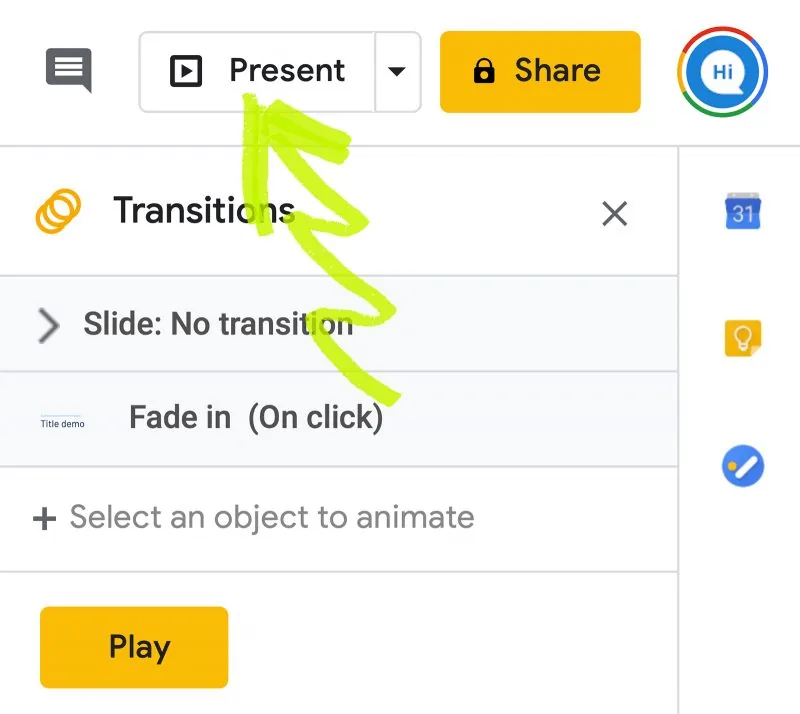
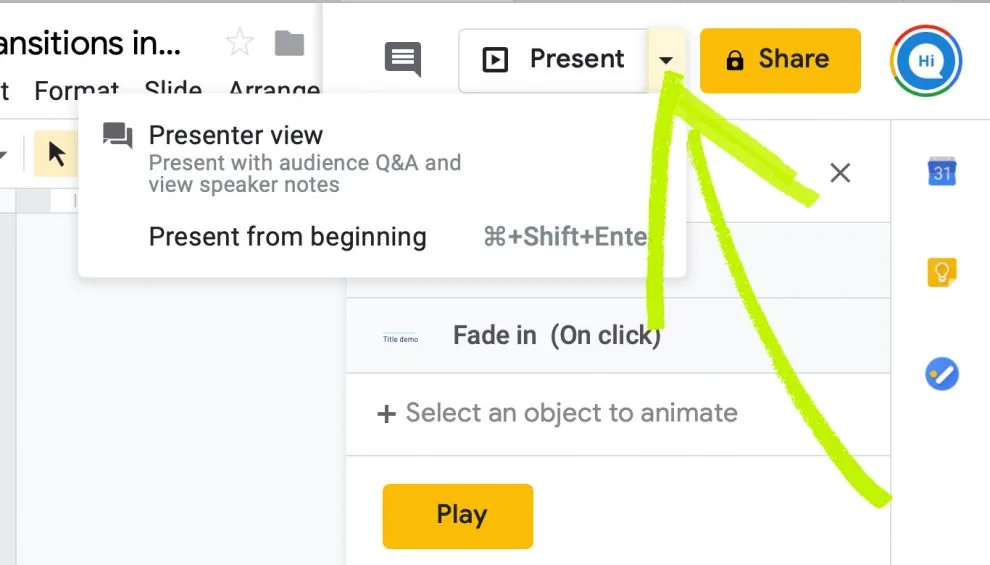
6. When you choose this, you will be given a range of options. Select the one which best suits your needs. For example, you might want to start it from the beginning, to see the overall flow. Alternatively, you might want to try presenting with speaker notes, which will allow you to practice the way you will deliver the presentation.
Conclusion
Hopefully, you now have an enhanced understanding of the process of adding animations to your presentation. Often, the motion will be able to keep your audience engaged so that you can get your point across successfully. So, try incorporation Google Slide animations into your projects today.


