


When giving a presentation, you want to make sure that you capture your audience’s attention. One of the best ways of doing this is by using animations and slide transitions. Let’s look at some of the ways that you can incorporate these elements into your PowerPoint presentation.
How to add animation in PowerPoint?
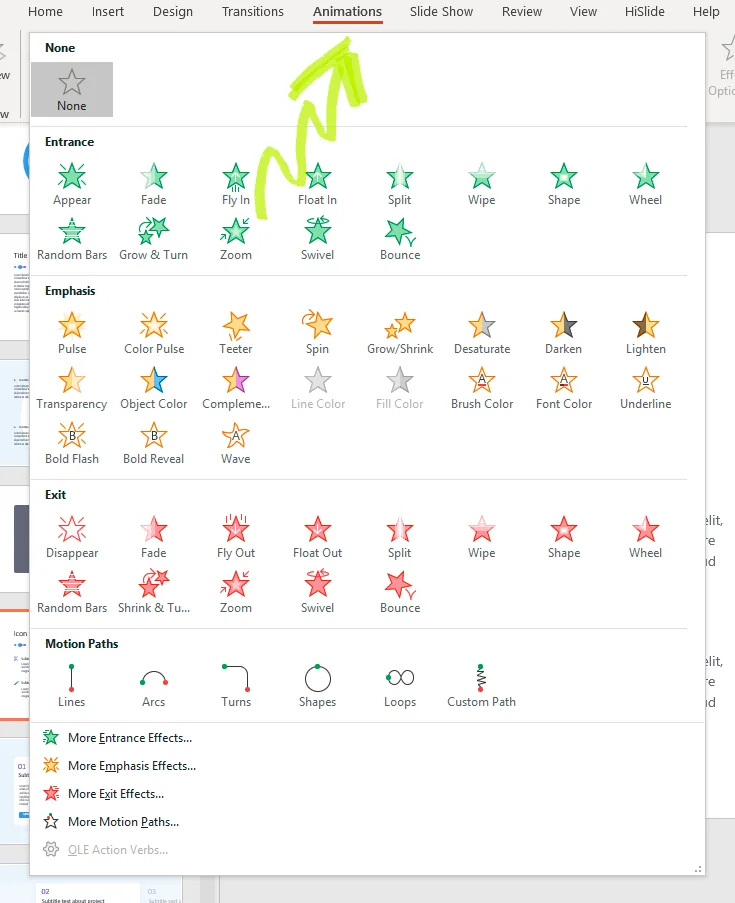
Let’s start by looking at some of the simple ways you can add animation to your presentation. First, you will need to select the object to which you want to apply the animation, which can be accomplished by using your cursor to highlight that area. If you’re going to animate a picture, you will need to click on it. Once this has been done, go to the animation tab at the top of the screen. When you click on this, it will bring up a range of options. Often, you will need to experiment with some of these options, and they will allow you to find the perfect animation for your PowerPoint presentation. To see what it will look like, you can click the Preview button in the top left-hand corner.
Remove animations from PowerPoint
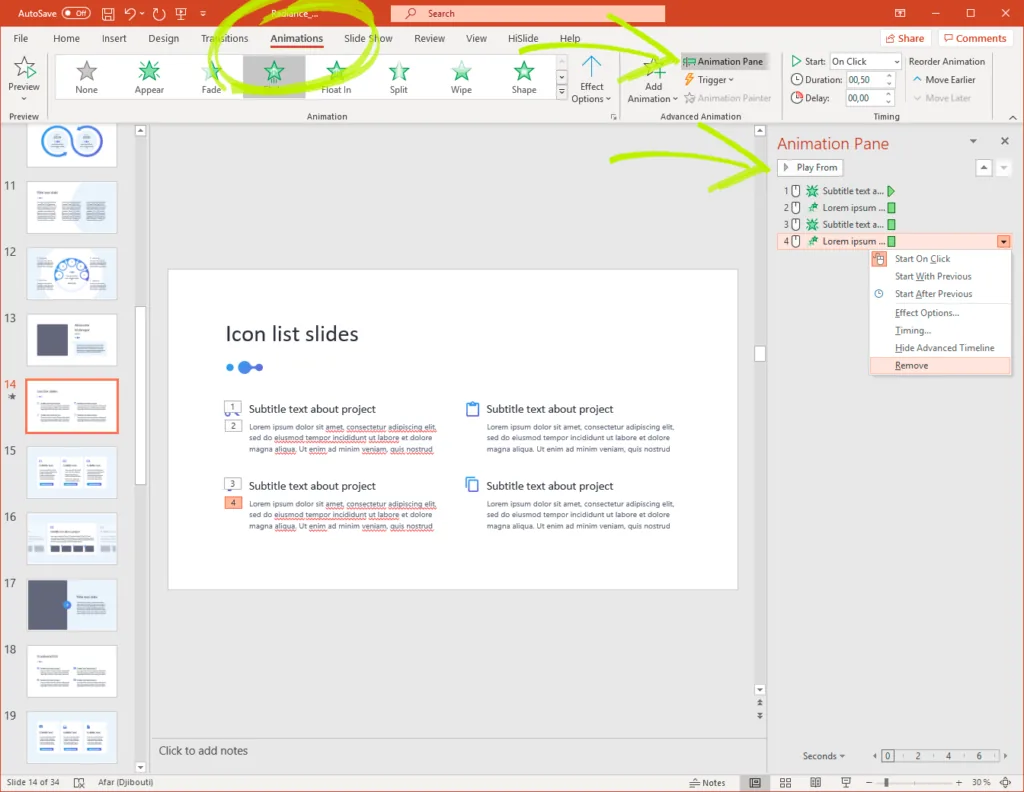
In some cases, you might have a change of mind about what animations you want to use. In this case, you will need to find a way of getting rid of that animation from the presentation. Thankfully, this is also very simple. First, you will need to open the animations section at the top of the display. Then, you will need to go to the slide that has the effect that you want to remove. Select this effect and open the “Animation Pane,” next to the “Add Animation” section in the top left-hand corner. Once you open this, you will be able to get all the effects on that slide. Select the correct effect, then right-click, which will bring up a range of options. You can then choose to remove that effect.
Adding and removing slide transitions
Finally, you might wish to use PowerPoint transitions. To do this, click on the slide that you want to apply the change to, using the outline of the left-hand side of the screen. Then, go to the transitions tab. Once there, you will be given a range of options.
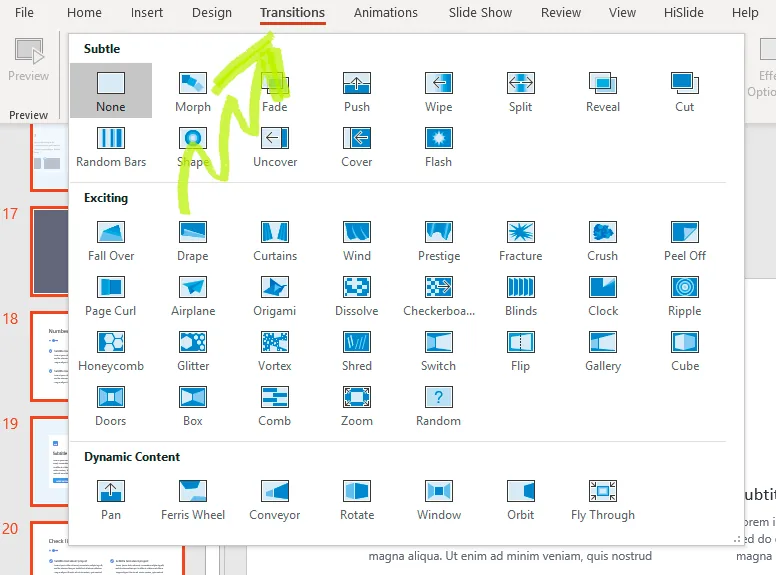
When you select a transition, you will be given a preview, showing what it will look like when applied. If you want to spread it to all the slides, use the “Apply to All” option in the “Timing Group” section of this tab. To get rid of the transition, you can use the “None” option in the Transitions tab.
Learning how to add animation PowerPoint and mastering PowerPoint transitions is often a significant part of making an engaging presentation. So, use these tips to ensure that people enjoy your performances.


