


When creating a presentation, it’s essential that you understand some of the basic principles of PowerPoint. It’s especially vital that you know how to control the slides. Let’s look at how to perform some of these critical functions.
Adding slides
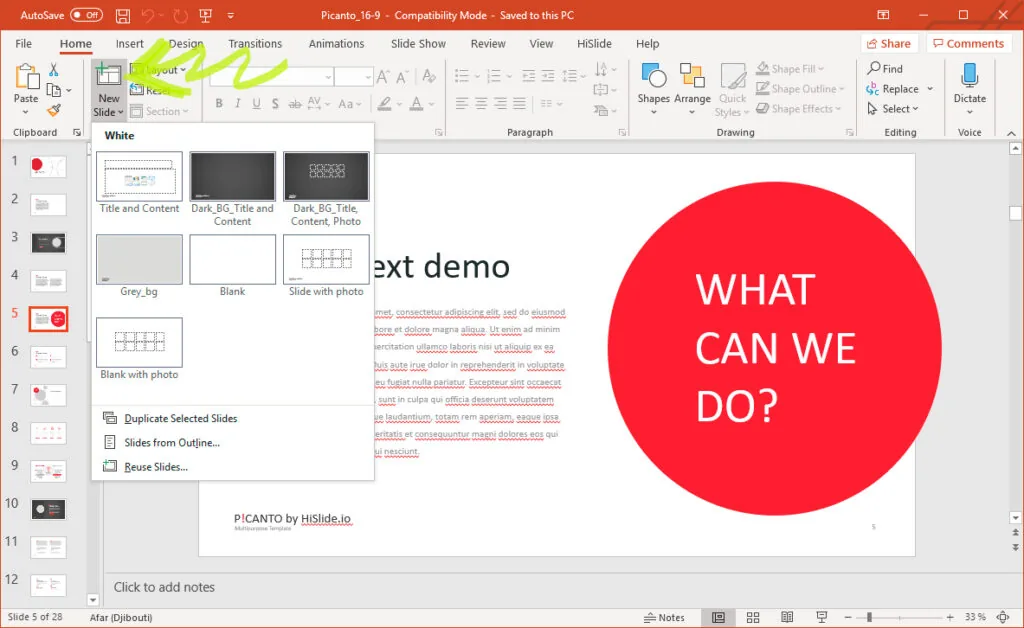
First, you need to be able to add slides. Adding slides will allow you to expand the show. First, move to the Home tab. On the left side of the screen, you should see a New Slide function. You can click on it, which will add the default slide to the show. Alternatively, you can click on the arrow, which will activate a drop-down menu. Then, choose which type of slide you want. This slide will then be added to the show.
Duplicating slides
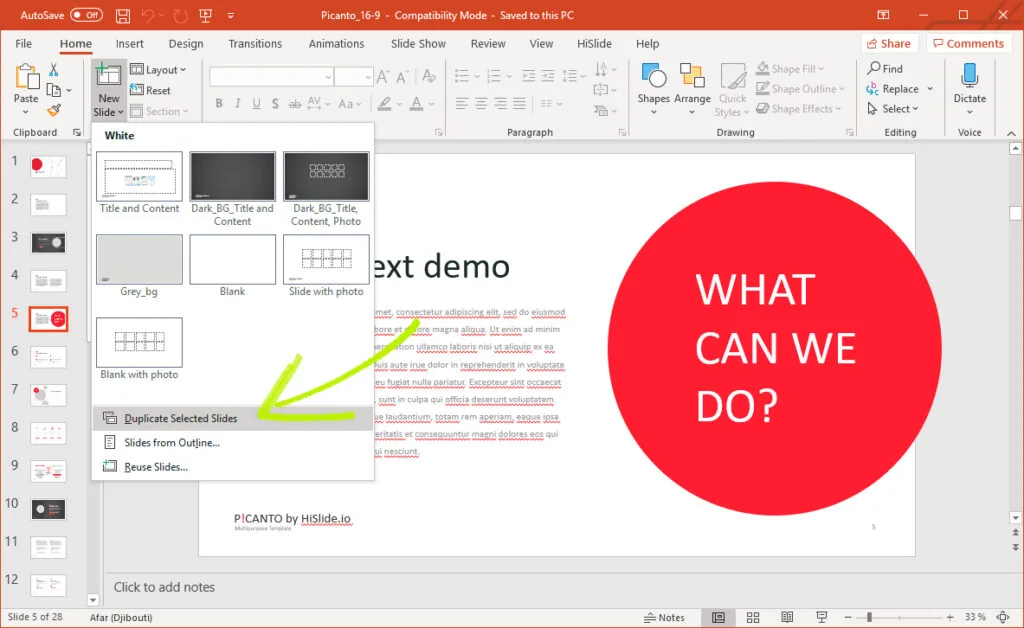
Next, you might want to know how to duplicate slides in PowerPoint. Duplicate slides will allow you to use the same format to create future slides. To do so, you should click on the slide that you want to duplicate. Then, move to the Home tab. On the right-hand side of your screen, you should see a Duplicate Slide option. Clicking on this option will create a new slide in the same format.
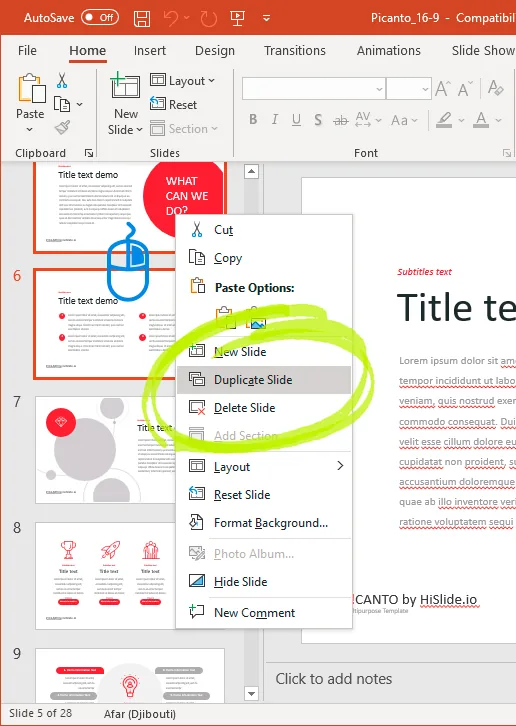
Alternatively, you can right-click on the slide you want to duplicate.
Moving slides
Relocating slides is relatively simple. On the side of your screen, you should be able to see in what order the slides are currently. Click and hold the slide, then move it into the correct position.
Deleting slides
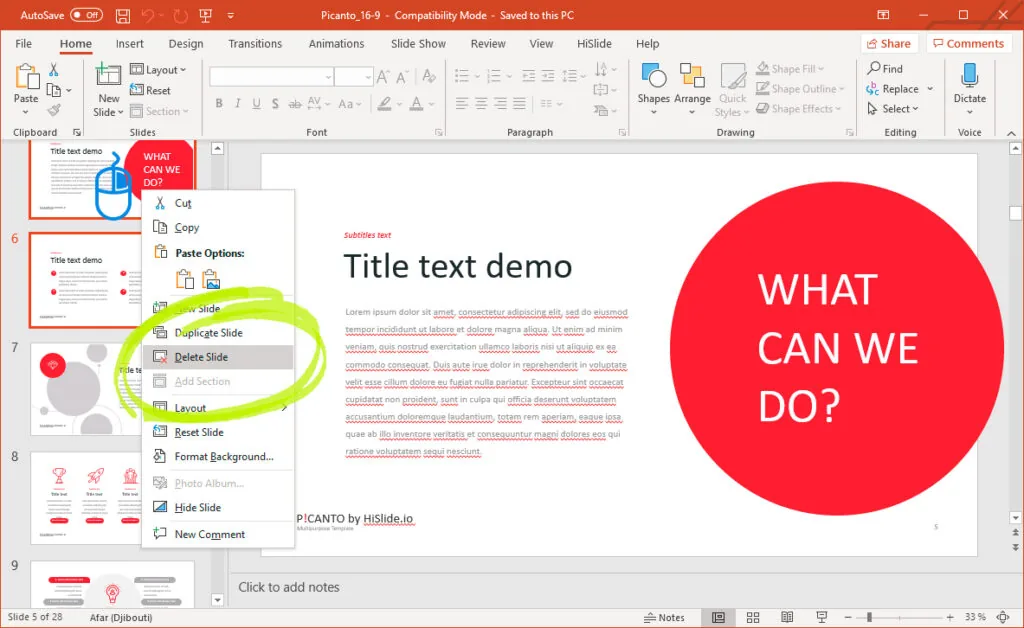
In some cases, you might want to remove a slide from the presentation. To delete a slide in PowerPoint, right-click on it, which will bring up a menu of options. You will find one there called Delete Slide. Clicking on this option will remove that slide from the show.
Hiding slides
In some cases, you might create a slide, but don’t want to show it when you give the presentation. To not show the slide, you will need to choose Hide Slides in PowerPoint. You can do so by going to the Slideshow tab. Select the slide you want and choose the Hide Slide option.
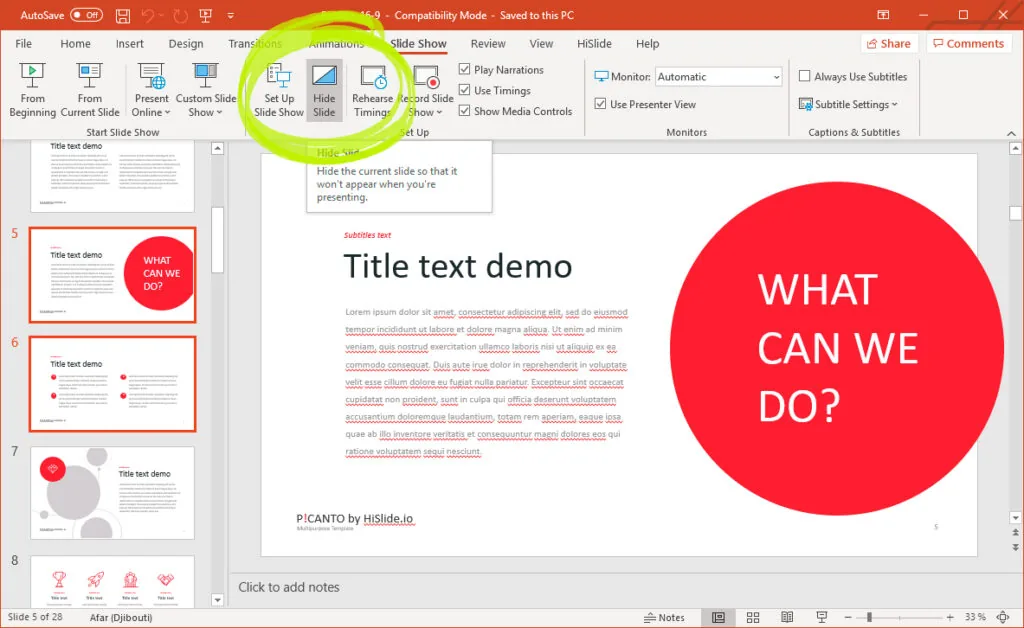
To show a hidden slide, right-click on the current slide, which will bring up multiple options. Select the See All Slides option and choose the one you want to show. The presentation will resume with that slide on the screen. If you are using presenter view, the audience will see the hidden slide appear, but won’t know how you got it there.
Conclusion
Using PowerPoint can be a great tool to create a presentation. However, to do this effectively, there are a few techniques that you will need to learn, like how to add and delete slides. Hopefully, you now have the tools you need to master PowerPoint creation.
In this example we used a template for PowerPoint “Picanto”. You can download this template for free at the link.


