

People love their GIFs. Putting a GIF in Google Slides can be a great way to get the point across or add a laugh to keep people interested in your presentation. If you don’t know how to put GIFs on Google Slides, you may be missing out on taking your presentations to the next level. This article will give you the step by step instructions that you need to learn how to add a GIF to Google Slides to make your presentations stand out.
Before getting started, you should know that inserting the GIF is pretty easy to do. However, the problem is that unless you follow specific steps, you will notice that the GIFs are not animated. This guide will show you how to add GIFs to your presentation correctly.
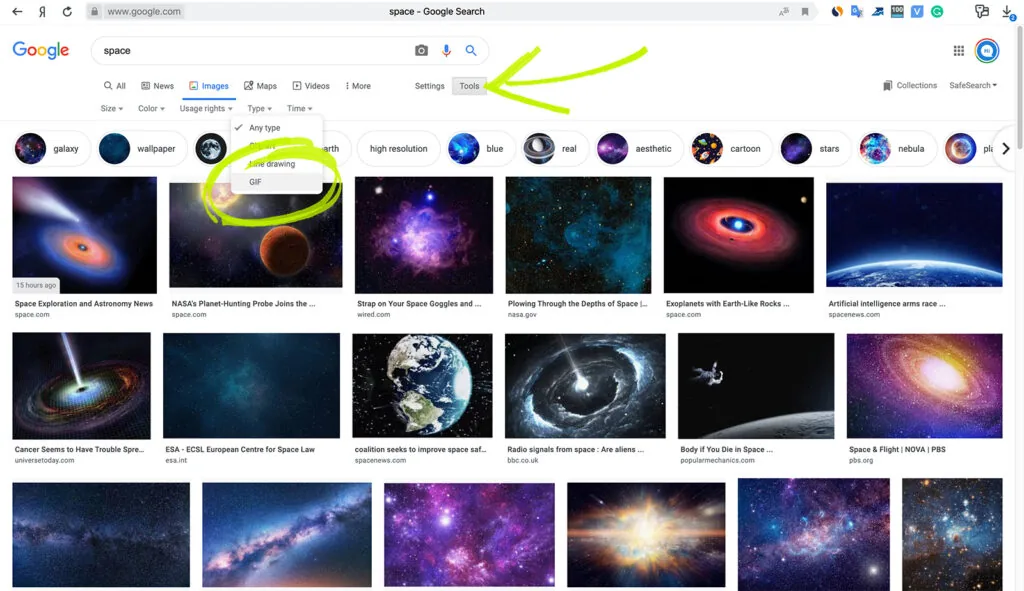
- The first thing that you need to do is find your GIF. You can go to images.google.com and then search for the perfect GIF for your Google Slides presentation. You want to be sure that you pick something relevant to your presentation.
- Click on the Search Tools area, then select Animated. Choosing “Animated is essential to ensure that you get a working GIF for your presentation.
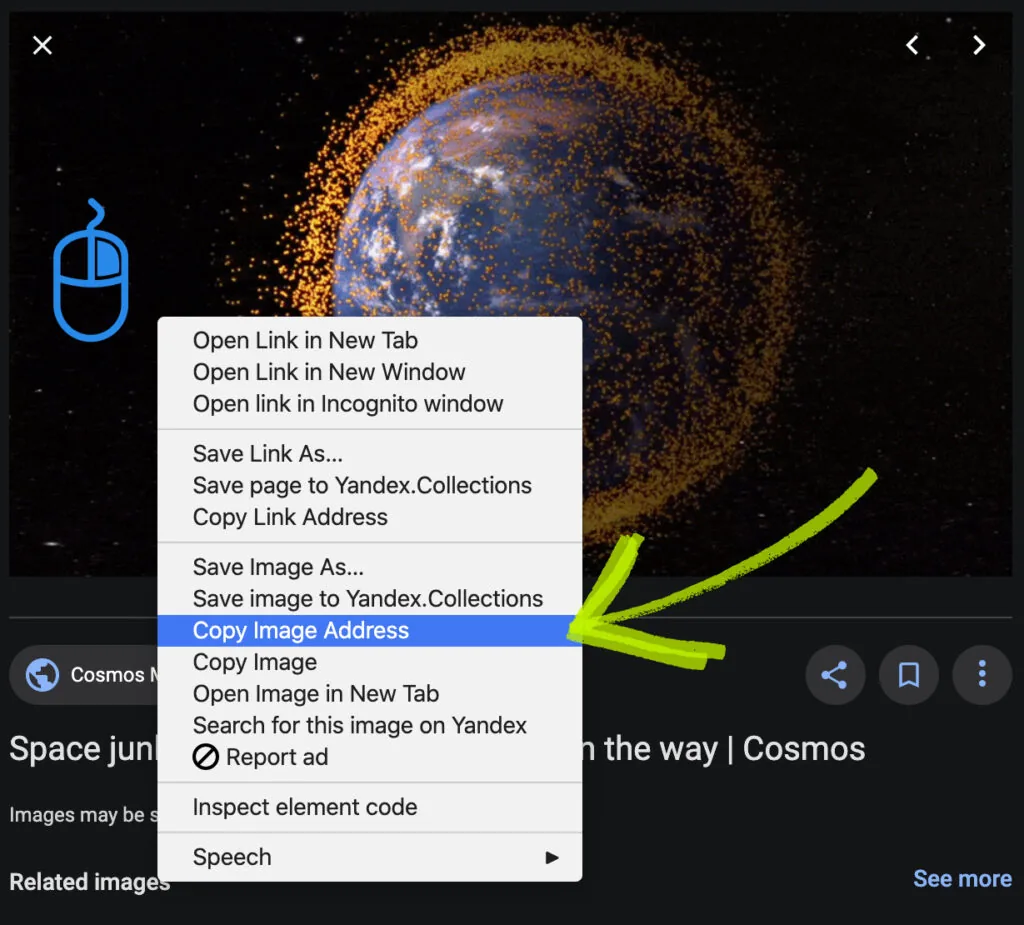
3. Once you have found the perfect GIF, you can right-click the image. Click where it says, Copy Image Link or Copy Image Address, depending on the browser you are using. You need to insert the image using the URL; otherwise, the animations won’t work.
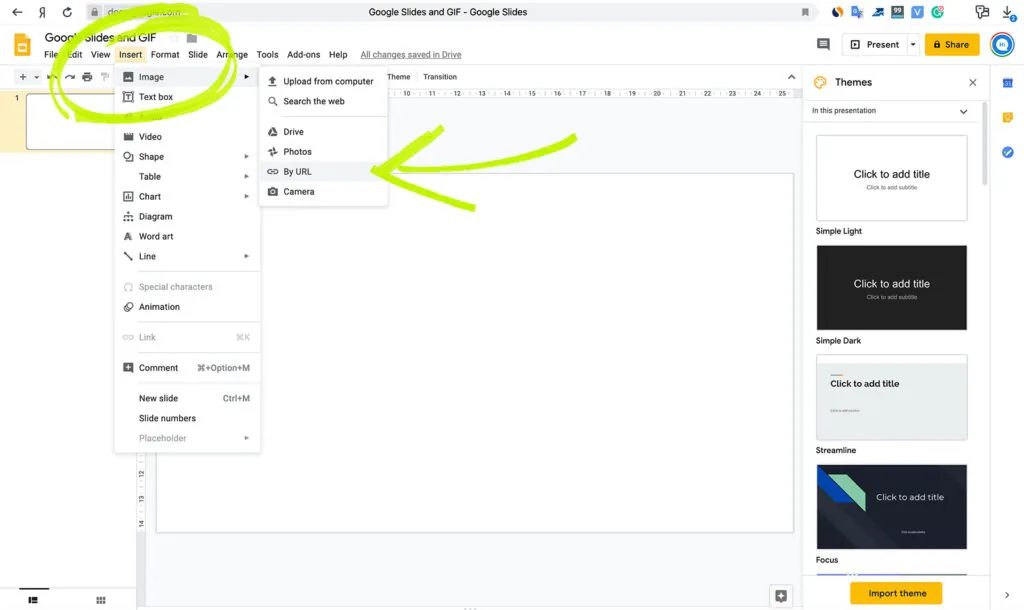
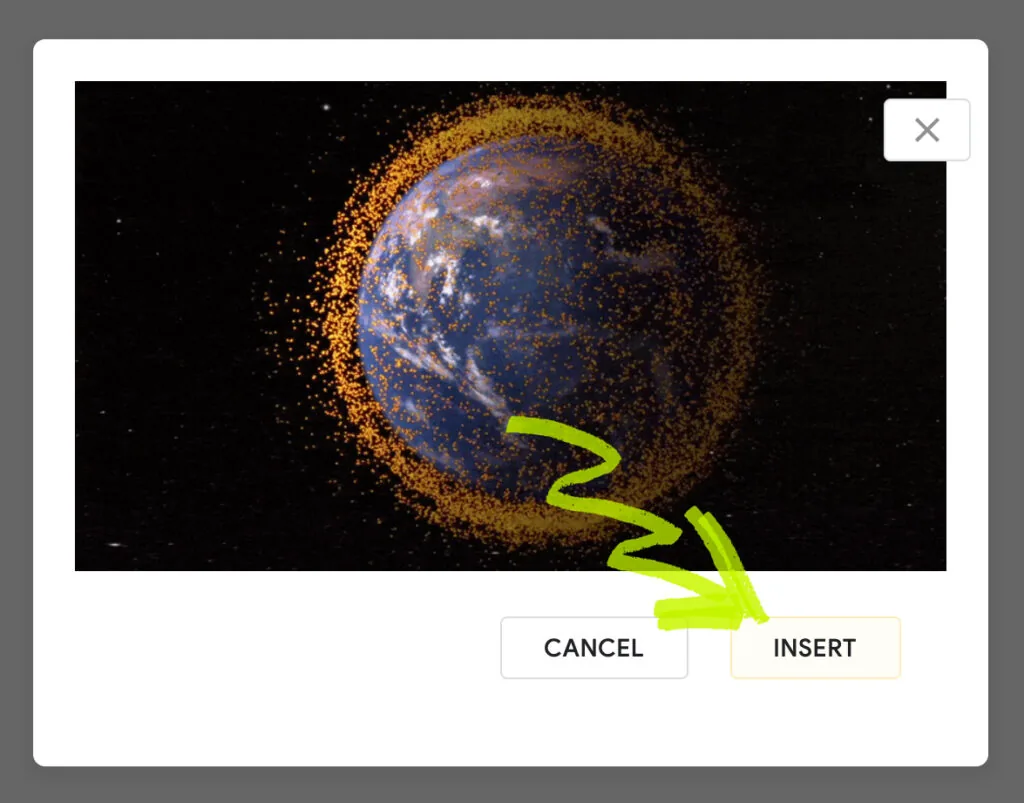
4. Click on the Insert tab on the toolbar, then select Image. Here, you will get an option By URL. Paste the URL then press the Insert option in the dialog box. Doing this will cause the GIF to appear instantly on the slide. Side note: if you are keeping that particular slide up for a while during your presentation, you need to check the URL to ensure that the GIF stays up.
5. If the GIF is too big or you don’t like its positioning, you can change it as you can with any other image. Adjust it as needed until you are happy with how it looks. You want to make sure that it scales appropriately to avoid a funny looking GIF.
You aren’t just stuck settling for the GIFs that you find online to add them to your Google Slides. You can also create awesome GIFs for your presentation. You can create your GIF and then add it to your Google Drive by uploading it. You are also able to use GIFs in other parts of the Google Suite as well to improve your documents.
GIFs are trendy right now and can precisely be what you need to give your Google Slide presentation to attract the right attention. People get bored very quickly, so by adding visual interest by putting a fun GIF into the presentation; you can keep their interest while you are giving your presentation. GIFs are the modern touch your presentation needs.


