

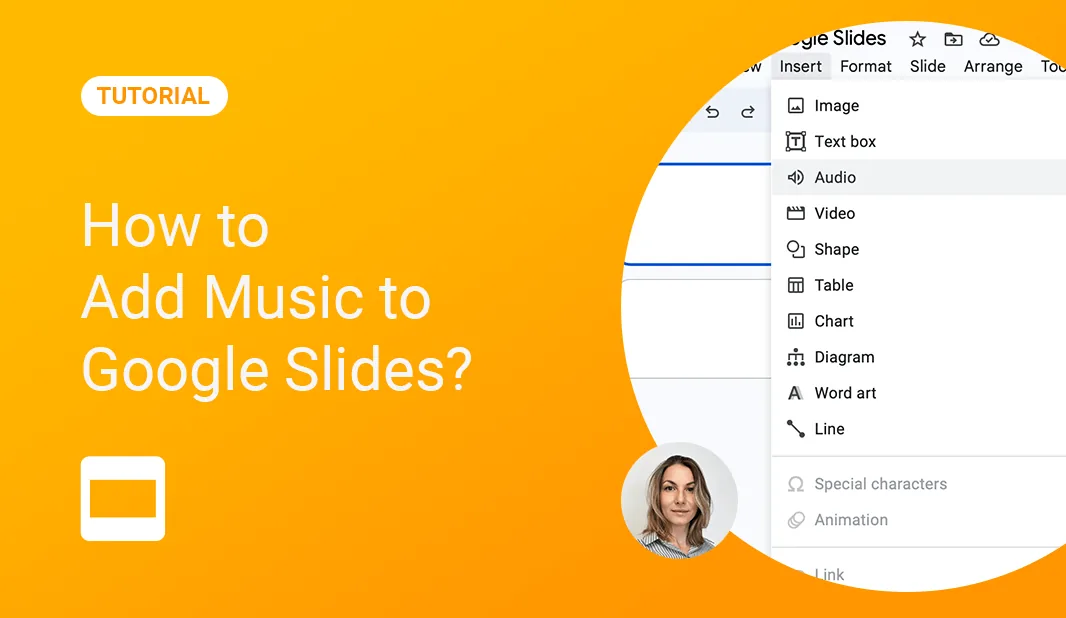
Ever sat through a presentation and felt it was missing something? A touch of background music can make all the difference! Music has the power to elevate your Google Slides presentation, making it more memorable and engaging. But how do you add that perfect track? Let’s dive in!
The Impact of Music in Google Slides
Adding music to your Google slides can elevate a slideshow, setting the perfect mood for topics like summer vacations. More than just background noise, the right track enhances engagement and emphasizes key points. By mastering how to insert audio, your presentation becomes a captivating experience, ensuring your audience remains hooked from start to finish.
Step-by-Step Guide on How to Add Music to Google Slides
- Understanding Supported FormatsBefore you dive into the process, it’s essential to know that Google Slides primarily supports MP3 and WAV files. So, if you want to add a song or any audio to Google Slides, ensure it’s in one of these formats.

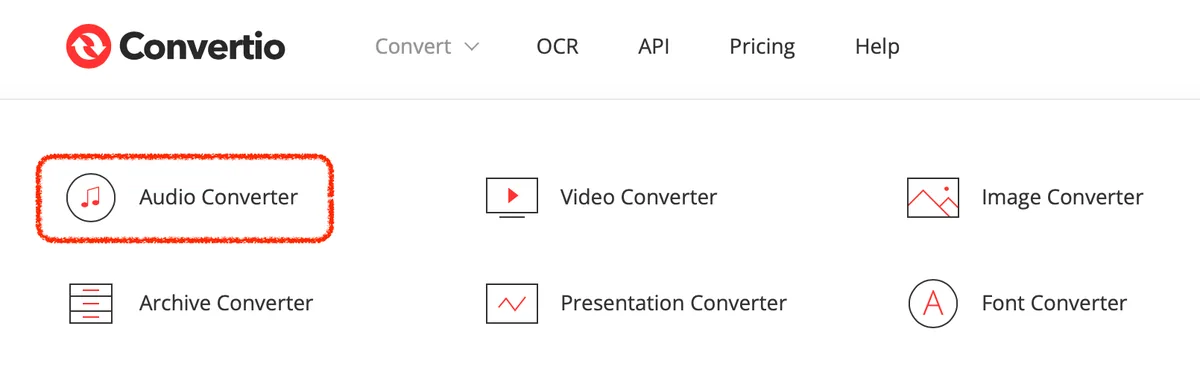
- Converting Your Audio Files If your audio or music isn’t in the right format, don’t fret! There are numerous online converters where you can upload your recording and get it converted. Simply upload your file, select either MP3 or WAV as the desired format, and you’re good to go!
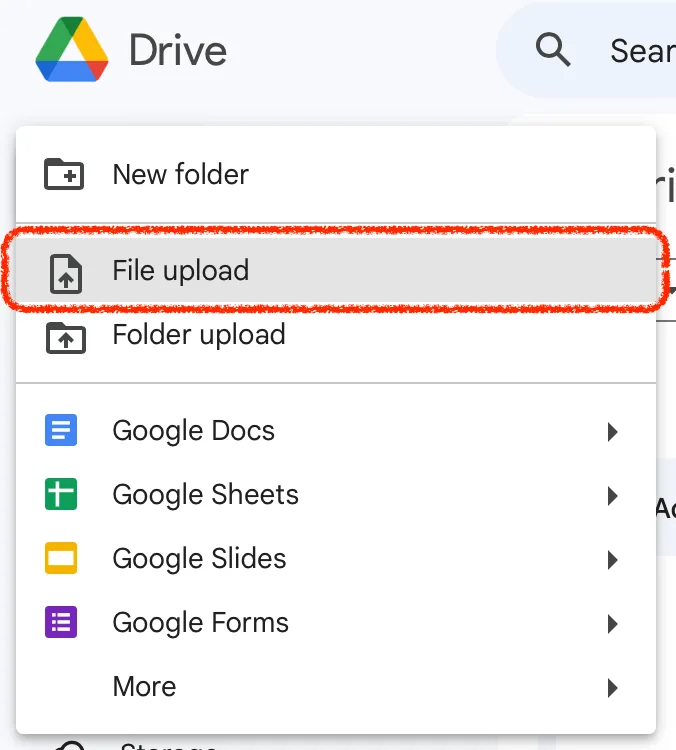
- Uploading Audio to Google Drive First, open Google Drive on your PC, Mac, or Chromebook. Click on the ‘+ New’ button on the left panel. Choose ‘File Upload’ and select the audio file you want to add. Once the music file is uploaded, right-click on it. Ensure its sharing settings are set to ‘Anyone with the link can view’. This is crucial for when you want to insert the audio into Google Slides.


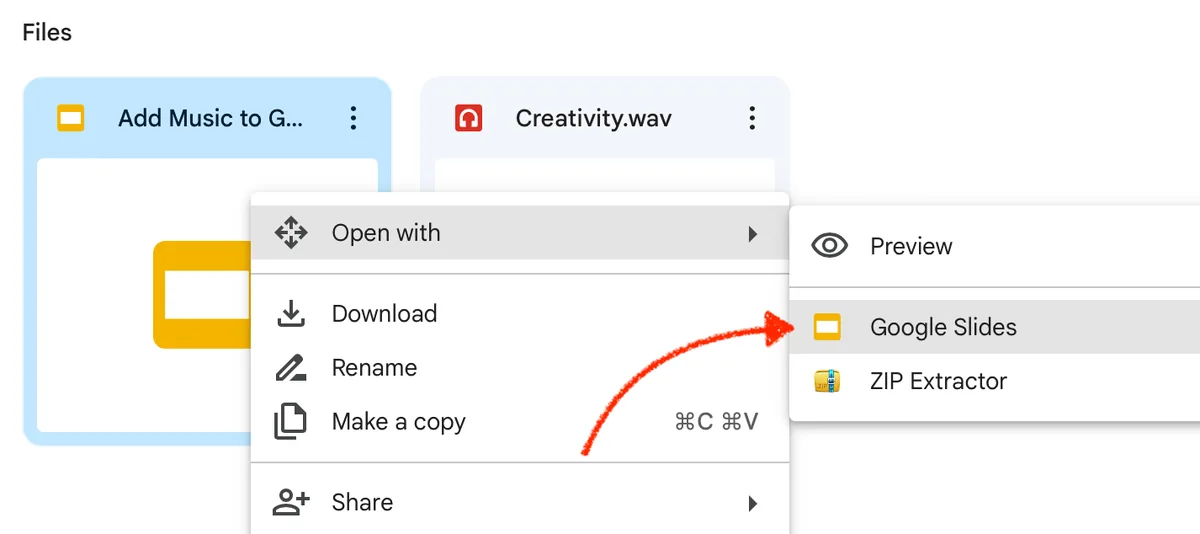
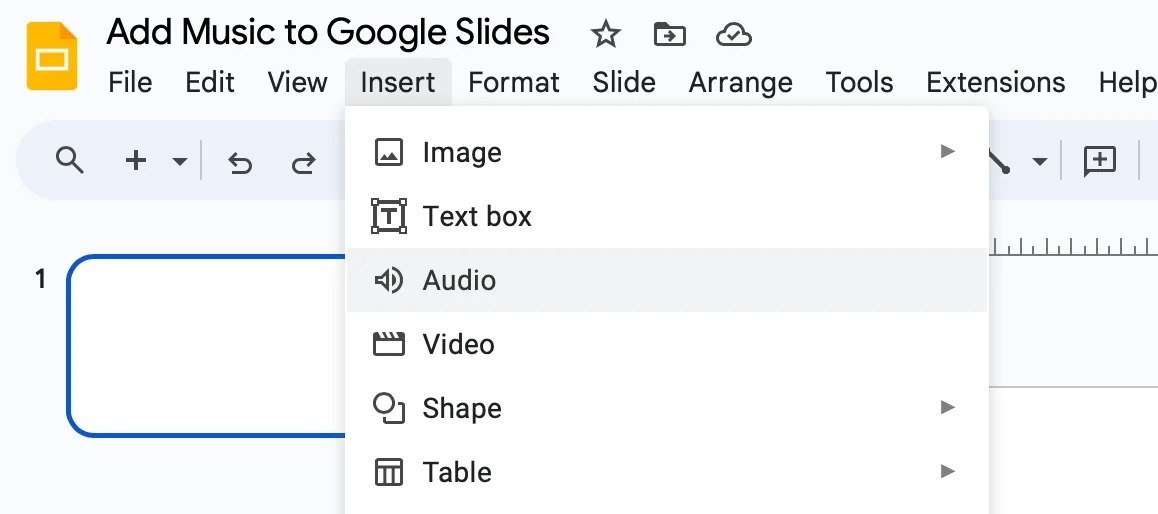
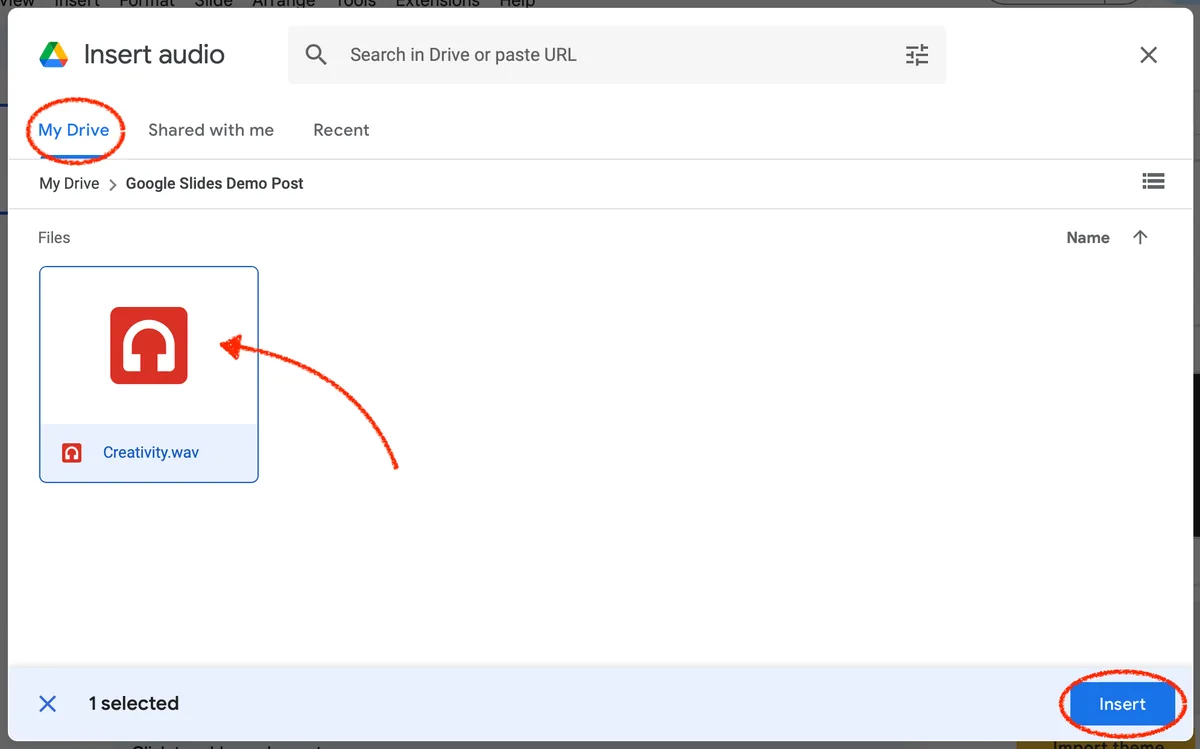
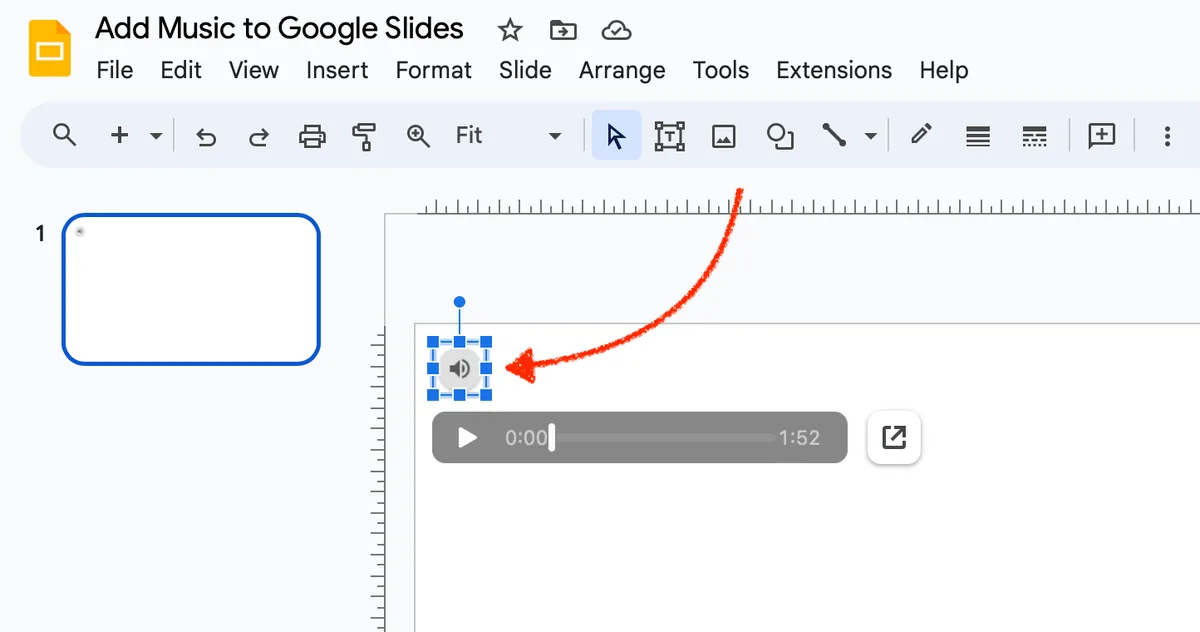
- Inserting Your Audio into the Presentation Open your presentation in Google Slides. Navigate to the slide where you want to add the audio or music. Click on ‘Insert’ in the top menu, then choose ‘Audio’. Your Google Drive will pop up, showcasing all your audio files. Select the audio you’ve just uploaded. An audio icon will then appear on your slide. You can move this icon around or resize it as needed.
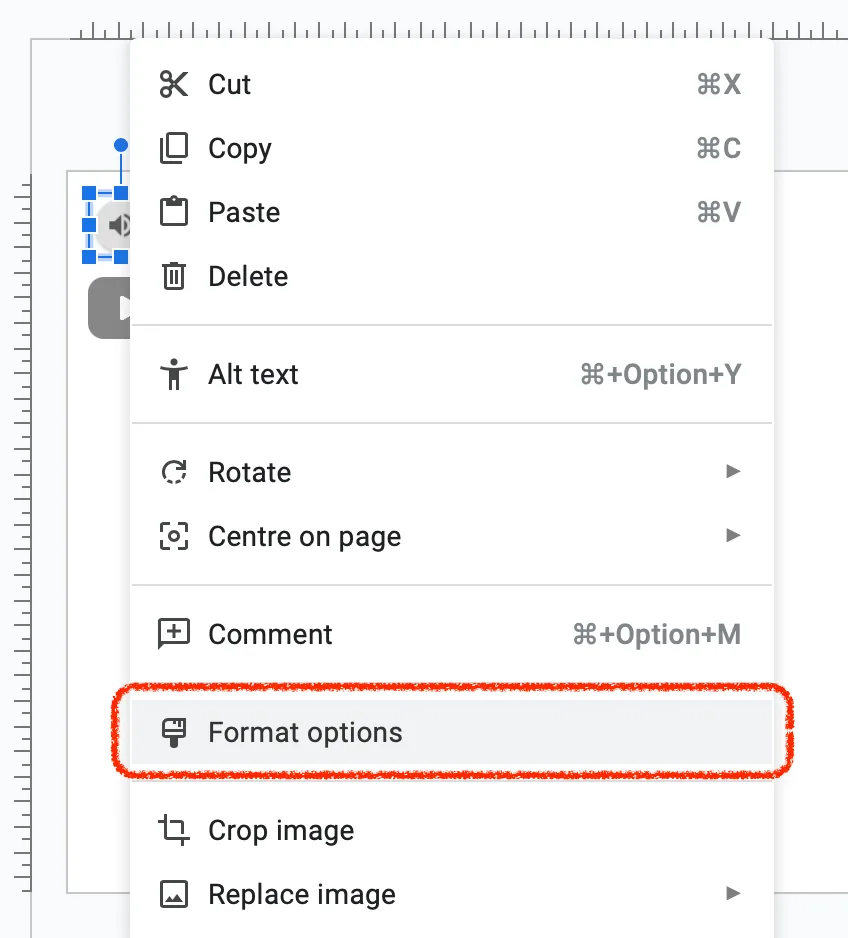
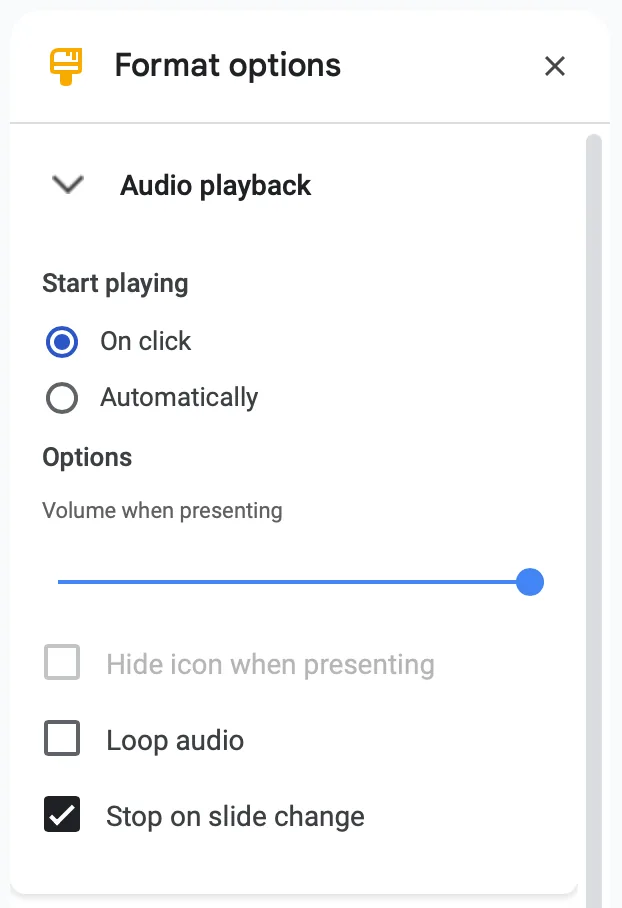
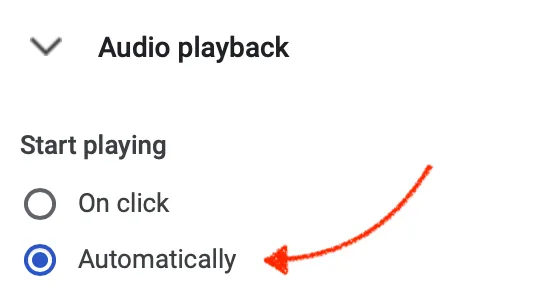
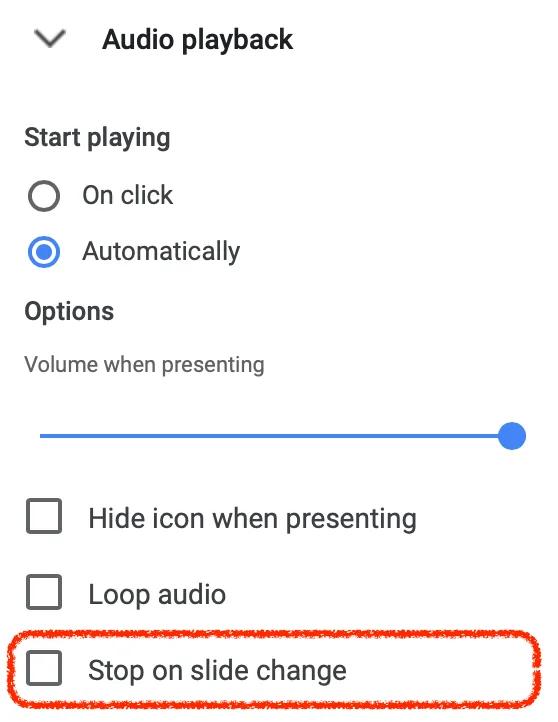
- Customizing Audio Playback Settings If you want the audio to play automatically when the slide is on, you can set that up! Right-click on the audio icon on your slide. Choose ‘Format options’ from the dropdown. Here, you can adjust various audio playback settings, such as making the sound play automatically, adjusting the volume, or even making the audio play across multiple slides. If you want the sound to start playing automatically, check the “Start playing” > “Automatically” option. If you want the music to play throughout the presentation without interruption, make sure that the “Stop on slide change” function is disabled. You can also click the play button to preview how it sounds.
By following this Google Slides tutorial, you’ll not only add music to your Google presentation but also ensure it complements your content perfectly. Whether it’s a soft instrumental or a lively track, the music we listen to can set the mood and keep your audience engaged. So, why wait? Start adding audio to Google Slides and see the difference it makes!
Tips for Effective Audio Integration in Google Slides
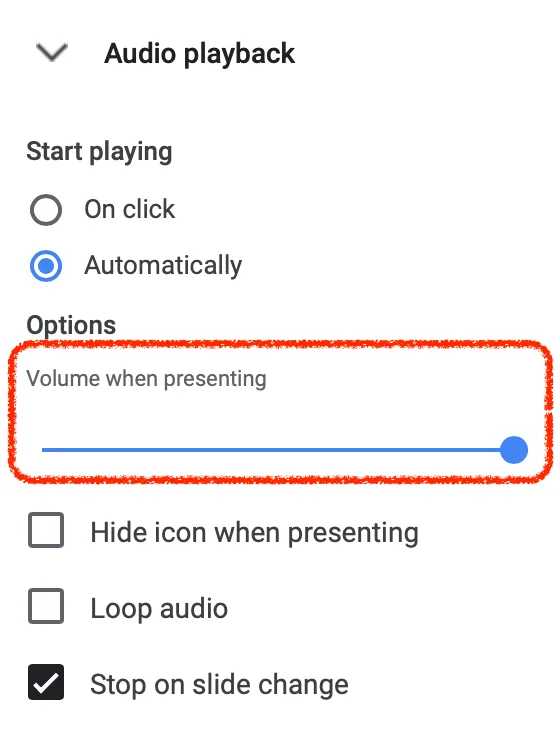
- Volume Levels and Voice ClarityIt’s essential to strike the right balance between your voice and the background music. Ensure your music doesn’t overshadow or drown out your voiceover throughout your presentation. Adjust the volume so that it complements your speech, creating a harmonious effect without competing with your message. Remember, the audio in Google slides should enhance, not distract.
- Timing, Transitions, and Synchronization Learn how to add and synchronize your slides with the music. This involves timing your slide transitions to match the rhythm of the song, ensuring a seamless flow. If you’re using sound effects, make sure they’re timed perfectly with specific points in your presentation. For instance, a ‘ding’ sound when a new point appears. Click on the audio icon to preview and adjust the timing as needed.
- Choosing the Right Music and Sources Always opt for royalty-free music. Platforms like Jamendo or Free Music Archive offer a plethora of tracks that can be safely used without infringing on copyrights. If you’re inclined towards popular tracks, platforms like Spotify have a vast playlist collection. However, ensure you have the rights to use them. Always choose the right music that aligns with the mood and theme of your presentation. For instance, a corporate presentation might not benefit from a heavy metal track!
- Common Mistakes to Avoid Using audio from copyrighted sources without permission. This can lead to legal issues and your presentation being flagged or removed. Overloading your slides with too many audio clips. It’s essential to maintain a balance. Remember, less is often more. Not aligning the tracks with the presentation’s mood. The music accompaniment can help, but it should be in harmony with your content.
- Editing and Embedding Audio Google Slides provides tools for editing audio. Familiarize yourself with these to make the most of your audio integration. Embed your audio directly into the slide for a smoother experience. This ensures that even if you share your presentation separately from Google Drive, the audio remains intact. If you add an audio clip and find the icon to be distracting, you can hide the audio icon while ensuring it still plays during the presentation.
- Storing and Accessing Audio Always upload your audio to your Google Drive account. This ensures easy access and integration when you add audio or music to your slides. If you’re using a voiceover, consider storing it in a separate folder in Drive for better organization.
- Enhancing with Additional Media Apart from audio, consider adding relevant videos. Video in Google Slides can further enhance your presentation’s impact. Remember, the goal is to create a multimedia experience that’s engaging but not overwhelming.
Adding music to Google Slides can transform your presentations, making them more dynamic and impactful. Remember to choose tracks that enhance, not overshadow, your content. With the right tune, your slides will sing!


