


To add a little more personality to your presentation, you might want to add music. Music can also help you underline essential points. Let’s look at how to add music to PowerPoint.
Download the song to your computer
First, you will need to make sure that you have downloaded the song. If you want to use multiple songs, you might want to use an audio editing program to make it into one file. Such software will ensure that it doesn’t skip between slides.
Go to the insert tab
Next, you need to insert the audio. To do so, go to the slide on which you want the song to start playing. Then, move to the Insert tab.
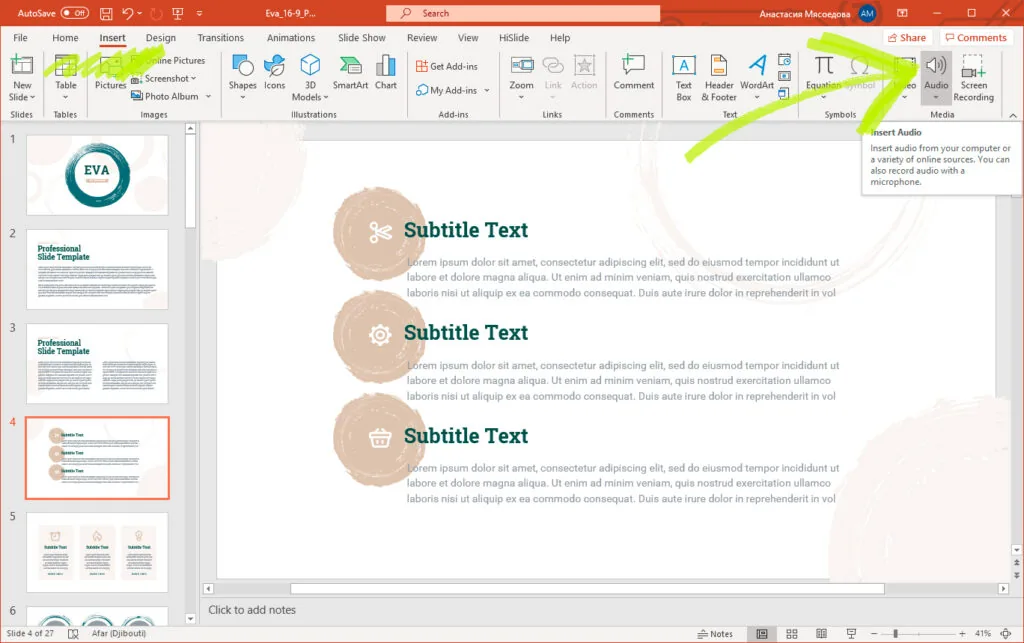
Once there, move to the Audio section, which can be found on the left-hand side of the screen.
Choose the audio file you want to use
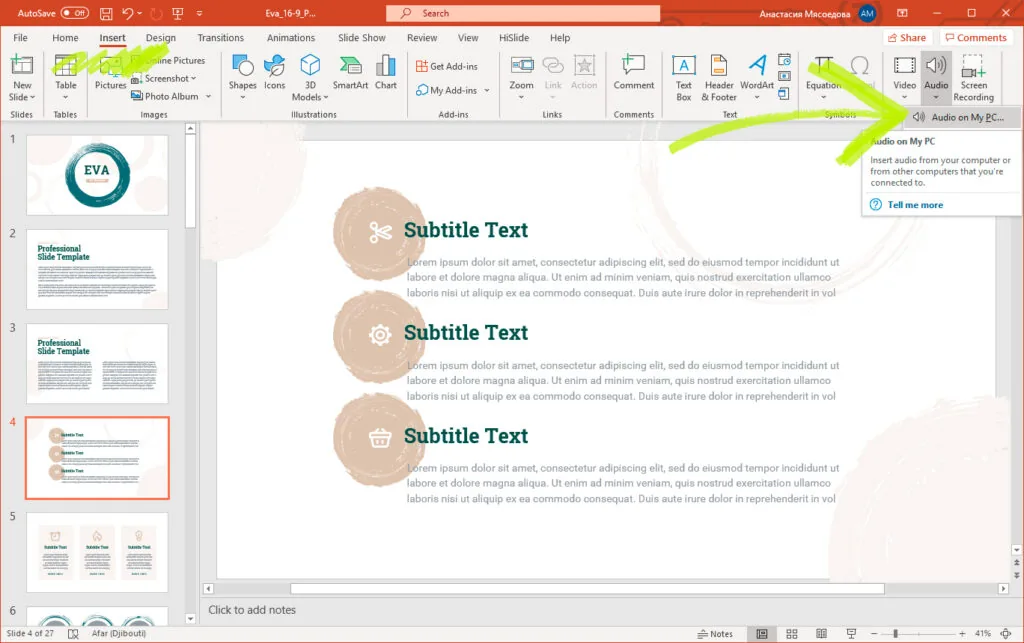
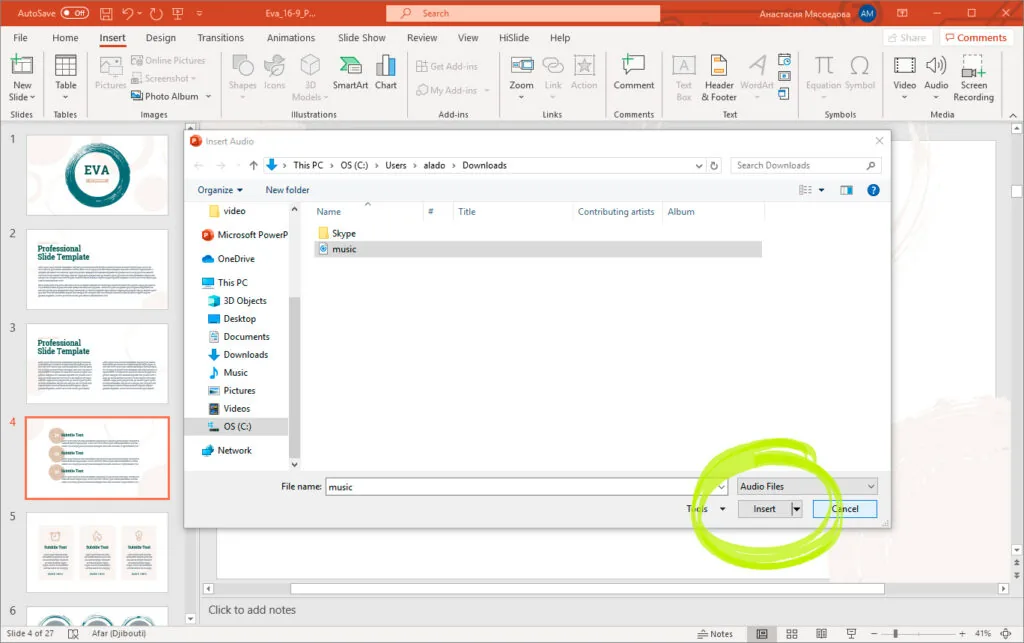
When you click the Audio tab, you will be given two options. In this case, you will need to select the Audio From My PC Option. This selection will bring up a list of files on your computer. Then move to the area where the audio file is stored and highlight it. Then click the Insert button at the bottom of the screen. If you want to narrate over the slides, you can opt to Record Audio. This choice will use the computer’s microphone to record your voice as you talk over the slides.
Customize your playback options
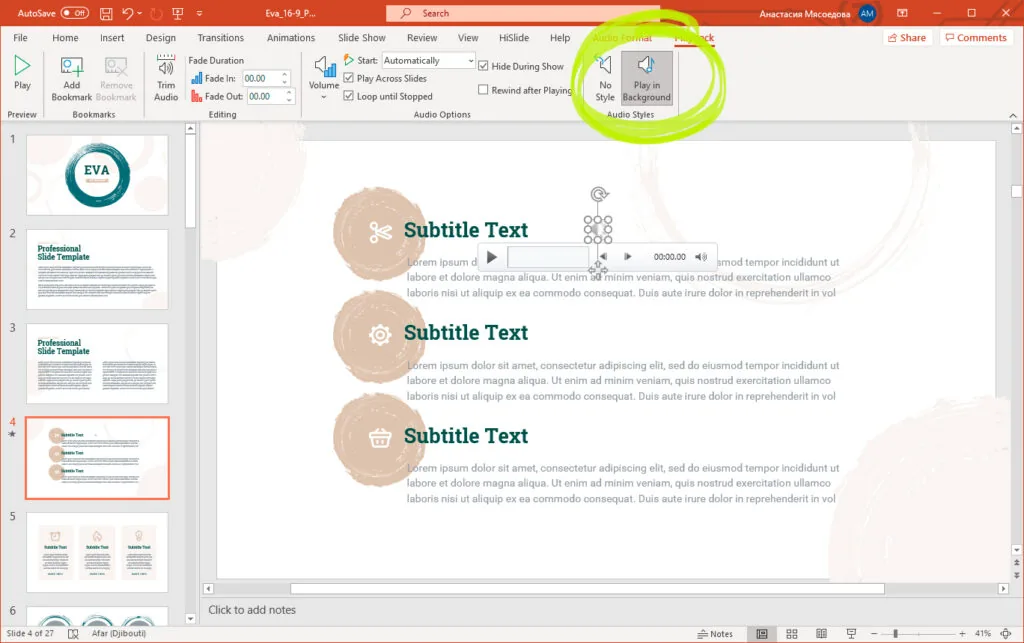
You also have some control over how music playback works within your presentation. To do this, you will need to select the Music icon, which should appear on the slide. Once the Music icon is chosen, you will bring up a selection of audio options in the Playback tab. Here, you should select the Play in Background option.
Control the volume
Finally, after adding theme PowerPoint music, you want to control the volume of the audio. Controlling the loudness will ensure that it doesn’t overwhelm the audience, or make it difficult for them to hear your presentation. For this reason, you should click on the Sound icon, which will bring up multiple icons. Then, click on the Volume icon. This choice will present you with a drop-down menu of options.
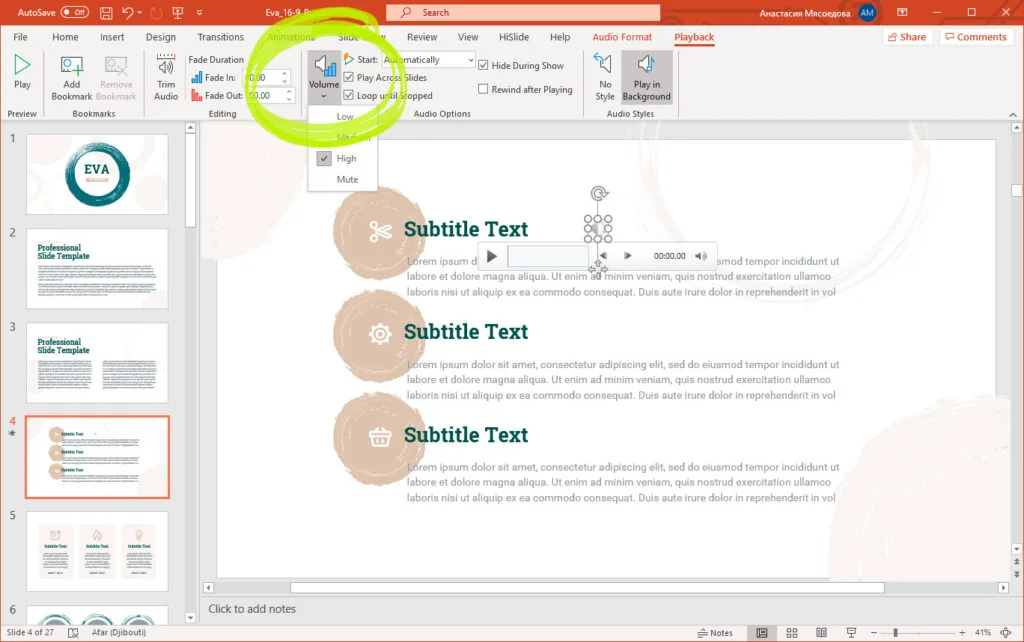
To make sure you get it right, try giving the presentation at each of these volume levels. Doing this testing will provide you with a better indication of which one will work best. After selecting the right one, make sure to save the PowerPoint, making these changes permanent.
Conclusion
Adding audio to your presentation can be a great way to get people’s attention, making sure that they are engaged. Hopefully, you now know how to put music in ppt. So, use these options and create more interesting PowerPoints today.


