


With so much going on in the world with technology nowadays, people are more commonly able to utilize computers. Someone may know all the kinks and secrets to work with software like Google Slides, but, for the average person, just getting used to working with these tools, the basics need to be learned before anything.
In three easy steps, you will know how to add a font to Google Slides and change and customize the font to fit your project.
Choose the text box
Your first step will be clicking on the text box with the font inside you wish to change or add.

Open fonts options
Once you’ve decided which text you want to change, or where you want to add text in your presentation, you’ll go up to the toolbox at the top of your screen. By clicking the font dropdown arrow, you’ll be able to choose which font is right for your project.
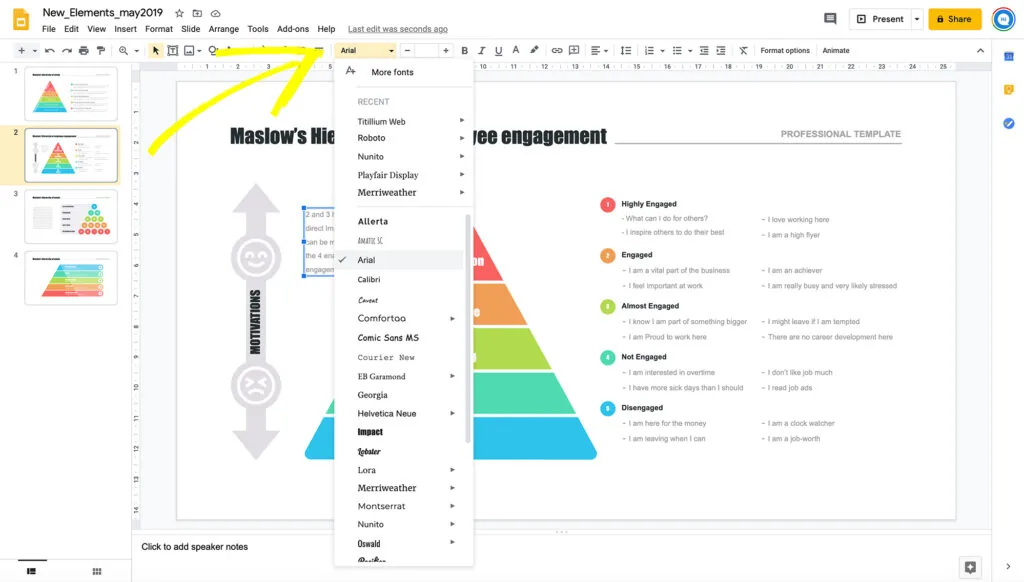
If the font you’d like to use for your textbox isn’t appearing under the dropdown arrow, or none of them seem like the right choice, you can also click on the ‘More fonts’ option at the top of the dropdown bar.
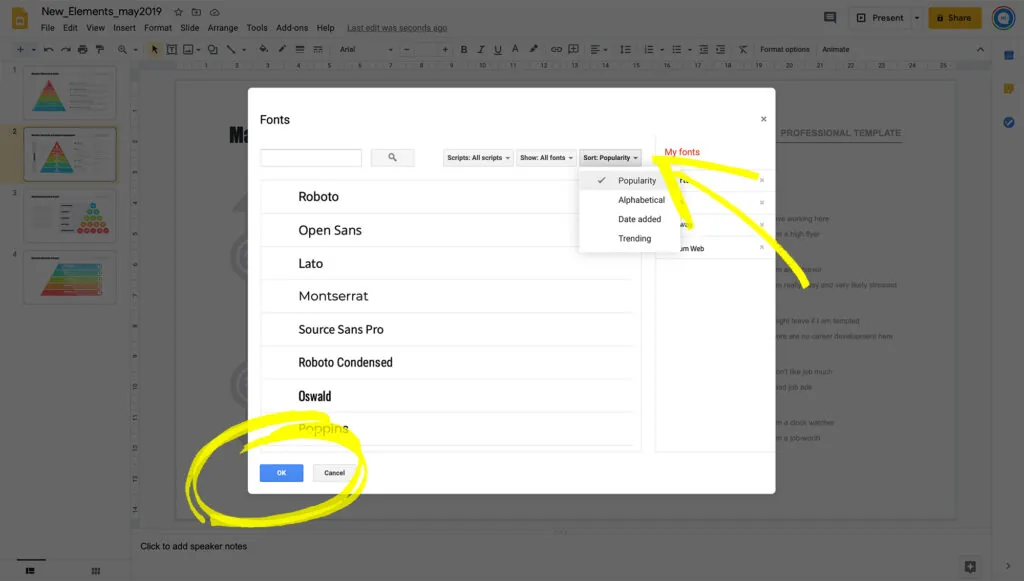
With this window, you can browse all the different fonts available through Google Slides. You can use the search bar to assist you if there is a particular font for which you’re searching. There are also a few different ways to filter the results, such as sorting the fonts by popularity, alphabetical, the date they were added, or which are trending.
To choose a font in this window, simply click on the name. If you’ve changed your mind, or perhaps accidentally clicked on the wrong font, simply go under ‘My Fonts’ and click on the X by the name you want to be removed.
Other fonts options: size, colour, highlight
Once you’ve learned how to change the font in Google Slides, you need to decide if the font’s design is appropriate for your project. Size, color, and visual appeal are also aspects to consider when changing or adding font.
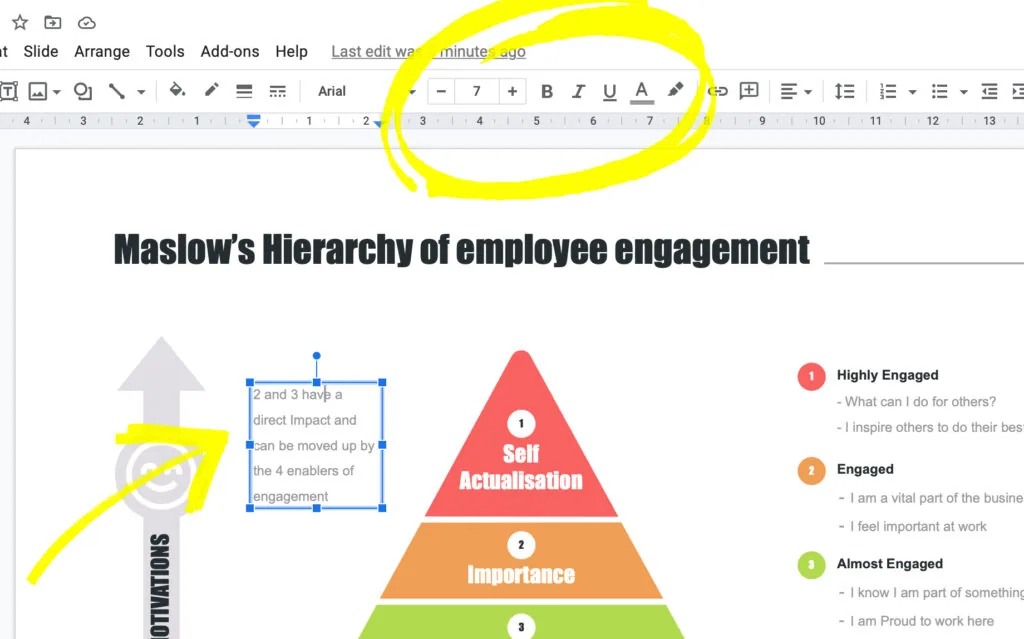
Beside your font dropdown bar, there are six other ways to customize your font. You can decide which font size is right for each slide using the small bar with a number and a plus or minus arrow. You can also use the B, I, and U to boldface, italicize, or underline your font. To choose colors that make your presentation pop, use the underlined A to change your text’s color, or the pen tip image at the end of your toolbox to highlight your text.
Whether you want to be a computer whiz or just need to know enough to get by in the ever-growing world of technology, the basics need to come first. Now that you know how to add and change the font, you’re a step closer to learning how to create your next project on Google Slides.


