


How to add transitions in Google Slides?

PowerPoint® Add-in

Over 600 professionally designed layouts and data-driven infographics with weekly updates.

Download it for free from the official Microsoft Marketplace.

google_slides_default_post

Your Google Slides App allows you to make great slideshows, share them with your colleagues or students, and update them instantly. However, sometimes, a good layout and font are not enough. To truly bring your presentation to life, it must be made more interactive and exciting. Google slide animations can achieve this. When you animate in Google slides, such as adding moving graphics or slide transitions, your point can be presented more clearly. It is easier to understand and grasp the given information.

Let’s begin with how to add transitions on Google slides

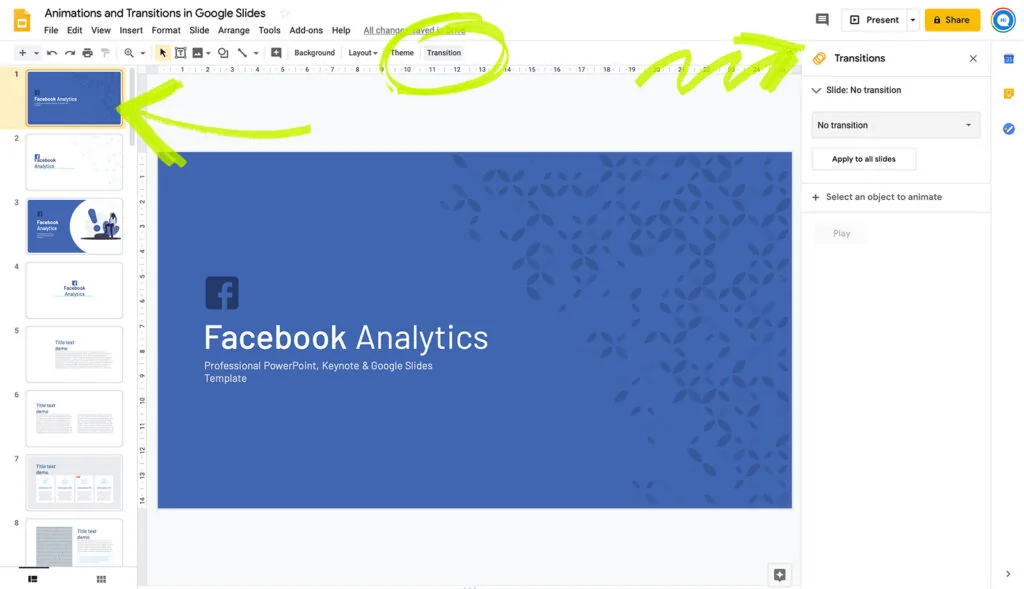
  1. Select the slide to which you want to add a transition effect. On the command bar above, there should be a Transition tab right at the end. Click on it.
1-add-transitions-on-google-slides-1
Add transitions on Google slides

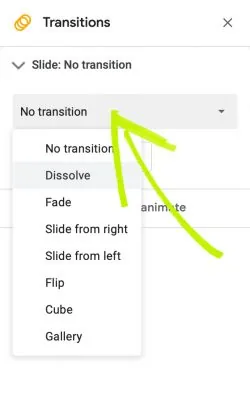
2. A side menu will appear that shows what animations have exciting with the current slide. Select the drop-down menu to see the different transition options available.
2-transitions-panel-on-google-slides-e1576141480918-1
Transitions panel on Google slides

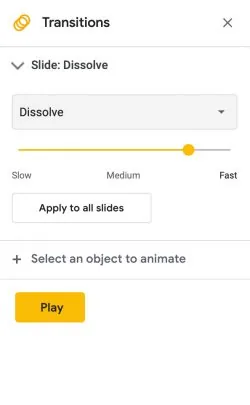
3. Select the animation you would like to apply to the slide. On the same side menu, you can control the speed of the transition, apply it to the rest of the slides, or preview the transition to see how it looks.
3-transitions-slides-e1576141501539-1

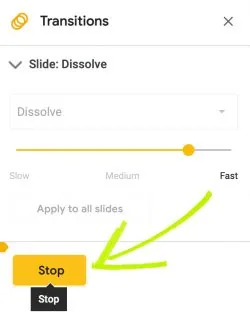
4. After clicking on play to preview how your animation plays out, select stop to stop playing and continue editing.
4-stop-demo-animation-e1576141514322
Transitions slides

That’s it! It is straightforward to add more dimensions to your slide show and made it more interesting. Sometimes the smallest of details can improve the quality of your slideshow that much more. However, overusing them may also make your presentation seem unprofessional or too flashy. Playing around with and seeing how each transition looks will give you a much better idea of the most suitable way to edit your Google Slides presentation.


Stacy M.
About the author:Stacy M.
Follow the expert:
how-to-convert-keynote-to-google-slides

How to Convert Keynote to Google Slides: A Comprehensive Guide

Ever found yourself in a situation where you’ve crafted a stunning Keynote presentation, but your audience or colleagues are more accustomed to Google Slides? Don’t fret! This tutorial will guide you through the seamless process of converting your Keynote masterpiece into a Google Slides presentation. Let’s dive in, shall we? Step-by-Step Guide: How to Convert … Read more
how-to-see-speaker-notes-on-google-slides-app

How to See Speaker Notes on Google Slides App?

Have you ever been caught in the middle of a presentation, palms sweaty, heart racing, because you forgot your next point? We’ve all been there. This is where the Google Slides app and its ‘speaker notes’ feature come in handy. Let’s dive into how you can access this lifesaver. Full Guide How to See Speaker … Read more
how-to-put-a-video-on-google-slides-from-your-phone

How to Put a Video on Google Slides from Your Phone?

Ever been on the go and thought of that perfect video clip to add to your presentation, but had no idea how to do it from your phone? Let’s dive right into how to seamlessly incorporate videos into your Google Slides presentation using just your mobile device! Steps to Put a Video on Google Slides … Read more
