

Knowing how to add a video to Google Slides is an excellent way to transform your presentation into something impressive. You can even learn how to embed a YouTube video in Google Slides if you find a relevant one for your presentation, or you created a perfect video for your slide presentation. This article is here to help you add videos to Google Slides so that you can create amazing presentations.
Adding any video to your presentation
If you aren’t using a YouTube video for your presentation, this section will help you add other types of videos to your Google Slides.
- Select the slide where you want to add the video.
- Next, find the video on your computer that you want to upload to slides. Your first step here would be to upload your video to your Google Drive. Uploading to Google Drive is the most straightforward approach to adding a non-YouTube video.
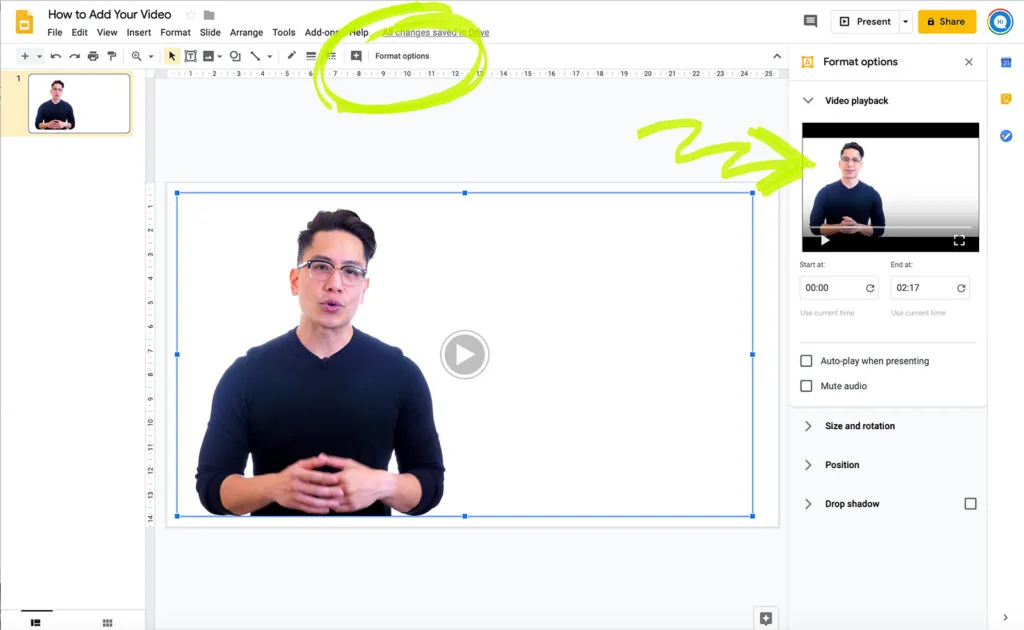
3. While in Google Drive, you can right-click the video and select Video Options. This option allows you to decide when the video starts and stops at, set it to Autoplay when Presenting, and Mute Audio. Copy the shareable link to this video.
4. Then you need to go back into Google Slides and select the slide where you want the video.
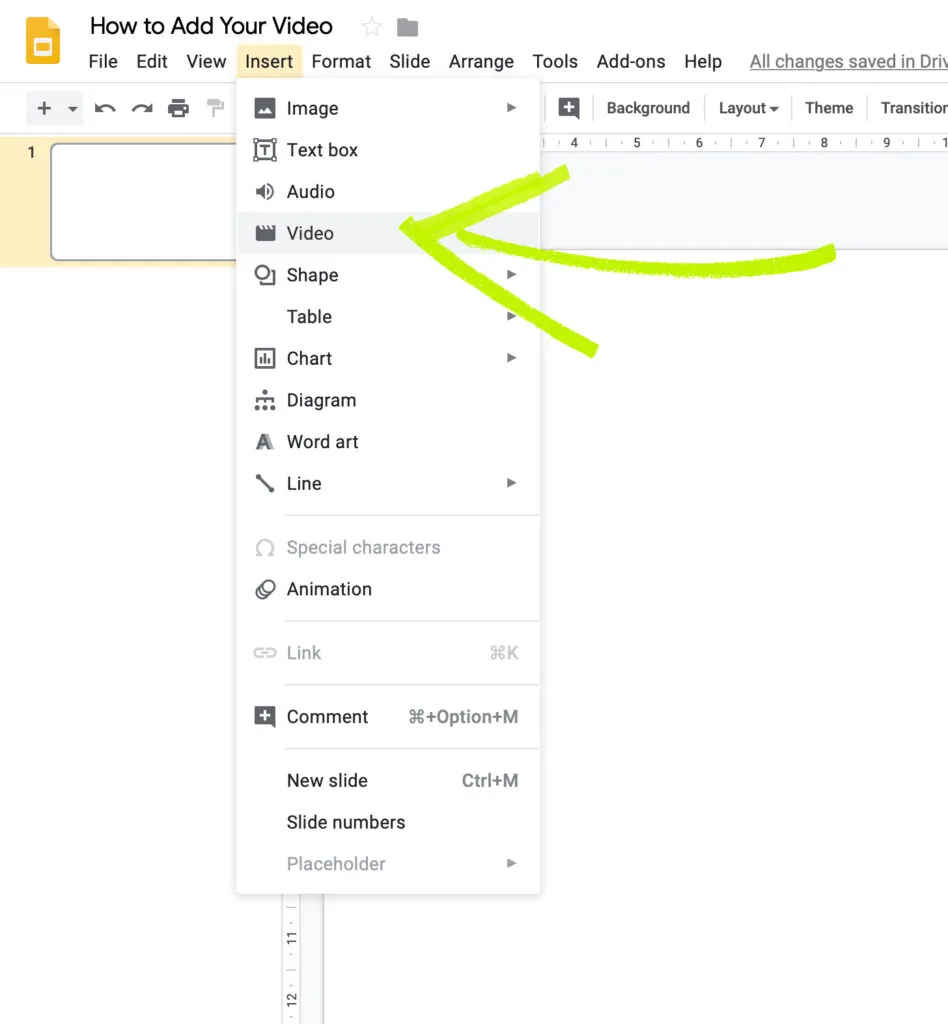
5. Next, you need to select Insert, then Video.
6. A window will pop up, and all you need to do is insert the link where prompted. Now your uploaded video is embedded.
Adding a YouTube video to Google Slides
- Start by pulling up the slide that you want to put the video on.
- On the toolbar, select the Insert option, then go down to the Video option.
3. If you have the video already selected from YouTube, you can paste the link from this video to the window that pops up. If you don’t have the YouTube video that you want, you can search for it in this window.
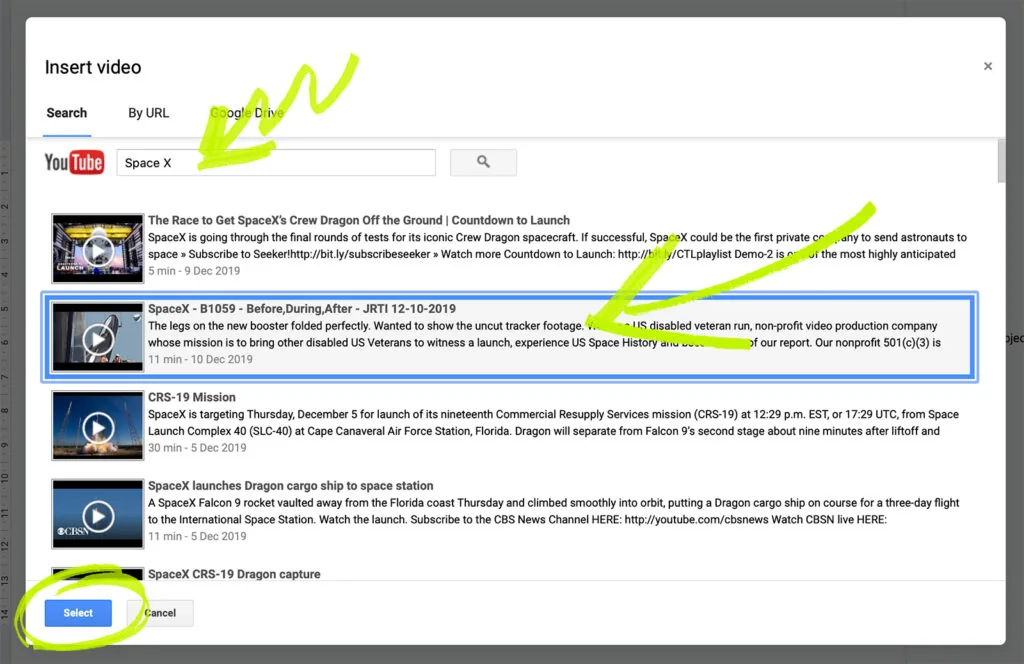
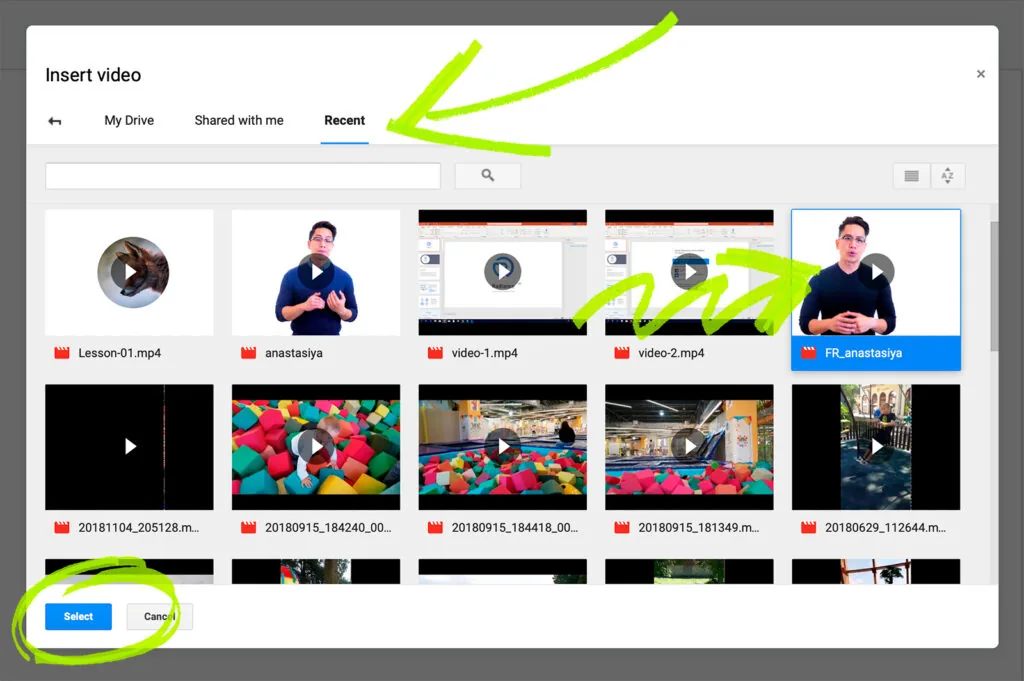
4. When you pull up the videos, be sure that you select the right one. You want to make sure that the thumbnail and title are correct, then press the blue Select button at the bottom of the window. Choosing this option will cause a video to pop up, and you can resize it and position it how you want on the slide.
5. Go through the same process as above to make the video autoplay or to mute the audio if you want to.
Videos are an excellent way to make your presentations more exciting. By adding a video, you can find a great way to get the point across or to make your presentation more engaging. Google Slides makes adding a video to the presentation a lot easier, primarily when you use Google Drive and YouTube to embed these videos. Google Slides allows you to either find a video online, upload one to YouTube, or directly upload a video that you created on your computer into your presentation.


