


Whether it be casual or important, any presentation designed on PowerPoint should have a level of organization. Not only does order make your slides look better, but it also allows the viewer to create a more precise sense of the information they’re consuming.
In this tutorial, you’ll learn how to organize your PowerPoint slides by arranging and aligning objects.
Arranging objects
The arrange tools in PowerPoint are a very uncomplex skill to understand and, in turn, utilize to your advantage.
If you add three pictures, organize them into a line, and then add a circle, the circle will be on top of the images.
If you wish to change the way objects overlap in the slide, you rearrange the order of the items you want to change.
To get started, select the object you wish to move. Then, go up to your toolbar and click “Format.” Under “Format,” you have two options: “Bring Forward” and “Send Backward.” One of these options will allow you to change how this object overlaps with others by either sending it behind an item or bringing it to the front of one.
Each of these options has a sub-option if you click the dropdown arrow. “Send Backward” has an option “Send to Back,” and “Send Backward” has an option “Send to Front.” These options simply allow you to skip a couple of steps by sending them directly behind or in front of everything.
Selecting multiple objects
Now that you know how to arrange objects, it’s time to learn how to align them. Before you begin aligning your items, however, you need to be able to group them.
To do this, simply click on the objects you wish to align while holding the shift key. When you’ve selected them all, let go of shift.
Aligning objects
Once you have your objects selected, go back up to the “Format” tab in your toolbar. Under “Align,” there are several options for aligning your objects.
A PowerPoint shortcut to align objects would be simply to click “Align Selected Objects.” This shortcut will align the items to one another evenly, without you having to drag and rearrange them until they look aligned.
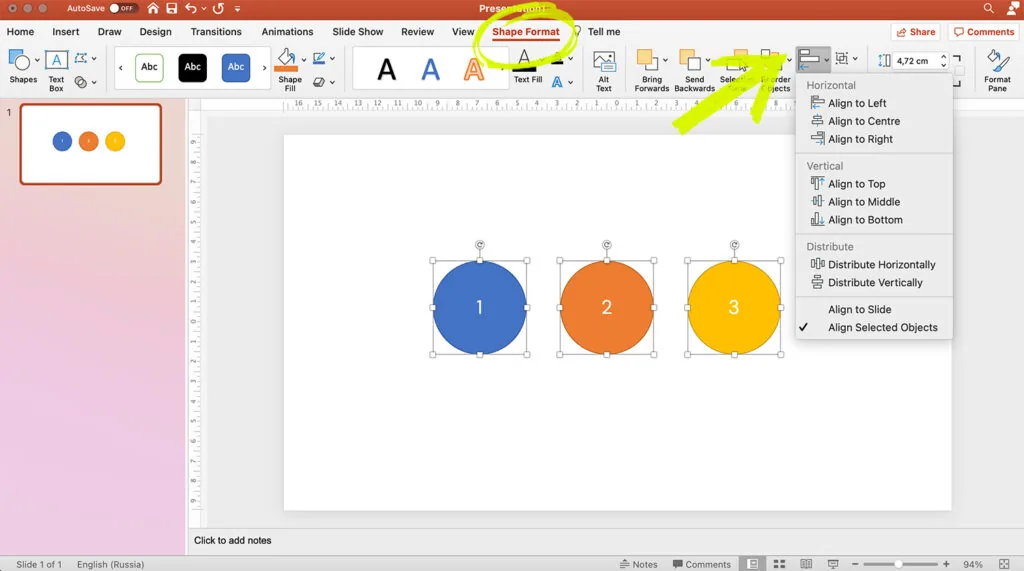
The options to align your objects to the: “Left”, “Center”, “Right”, “Top”, “Middle”, or “Bottom” is relatively straight forward. Whichever one you select will change where these objects are aligned on the slide.
Choosing to either “Distribute Horizontally” or “Distribute Vertically” will alter the direction your objects face on the slide, rotating them either horizontally or vertically.
Conclusion
By the end of this tutorial, you should understand how to arrange and align elements across slides in PowerPoint. While they are such easy skills to master, they significantly change the organization of your slides.


