


Whether it’s a simple project or the kind that makes or breaks your next career goal, you want your Google Slides presentation to be neat and orderly. There are many skills to learn in Google slides to increase organization, and a couple of the key ones are understanding how to arrange and align objects in slides.
In this tutorial, you’ll learn how to arrange objects and align objects in a Google Slides presentation.
Arranging objects
Arranging and aligning objects go hand in hand. When changing these objects’ arrangements, you also have the option to align them in a particular way.
To get started, click on the object you wish to rearrange. Then click on “Arrange” in your toolbar at the top of the page. Then, there are the following options to choose from to organize and arrange the Google Slideshow you see fit.
- The first option under Arrange is “Order.” The choices you can choose from ordering your object are:
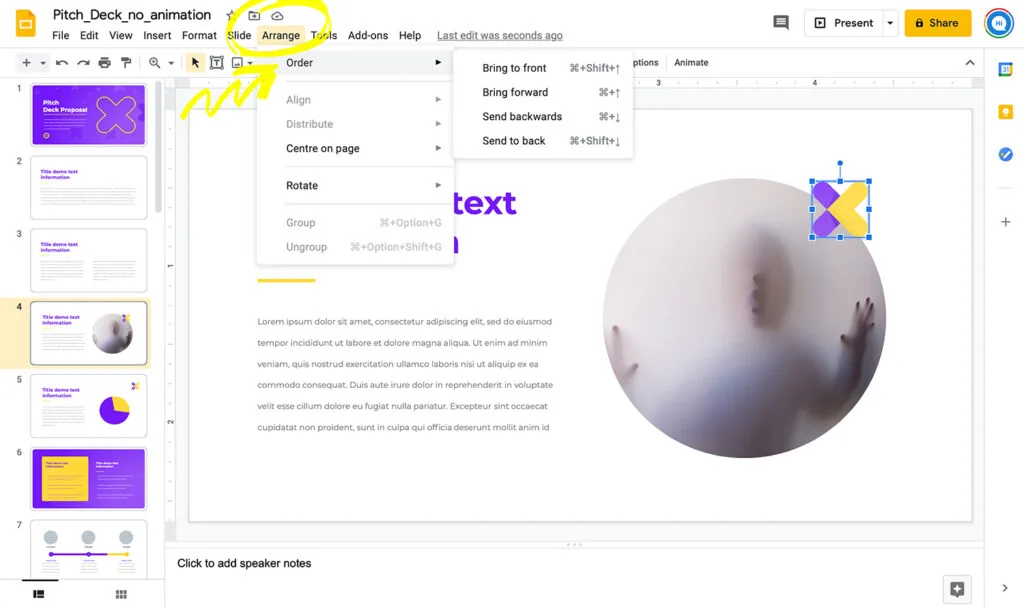
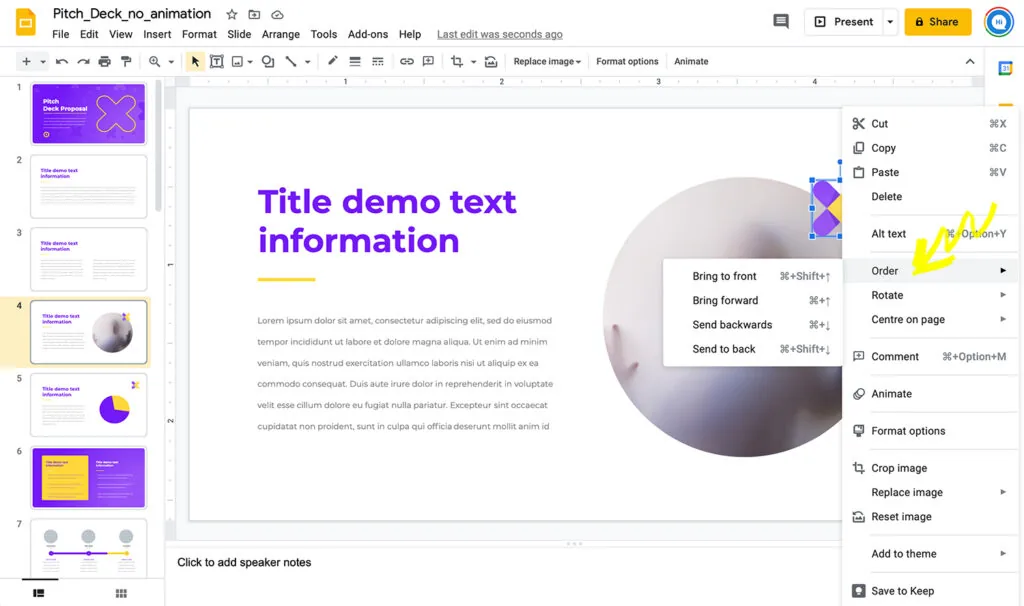
- “Send backward” — This will allow you to place objects behind or on top of others on the particular slide.
- “Send to back” — This will make your selected object move to the back of the slide, behind other objects.
- If you don’t like how your objects look to the back of the slide or behind objects, you can alter this by choosing the “Bring to front” or “Bring forward” options.
- Another arrange option, “Center on page,” will help center the slide’s object. You can choose to center it horizontally or vertically.
- One other arrangement option for you to enhance the organization of your slides is “Rotate.” You have four options when rotating your objects:
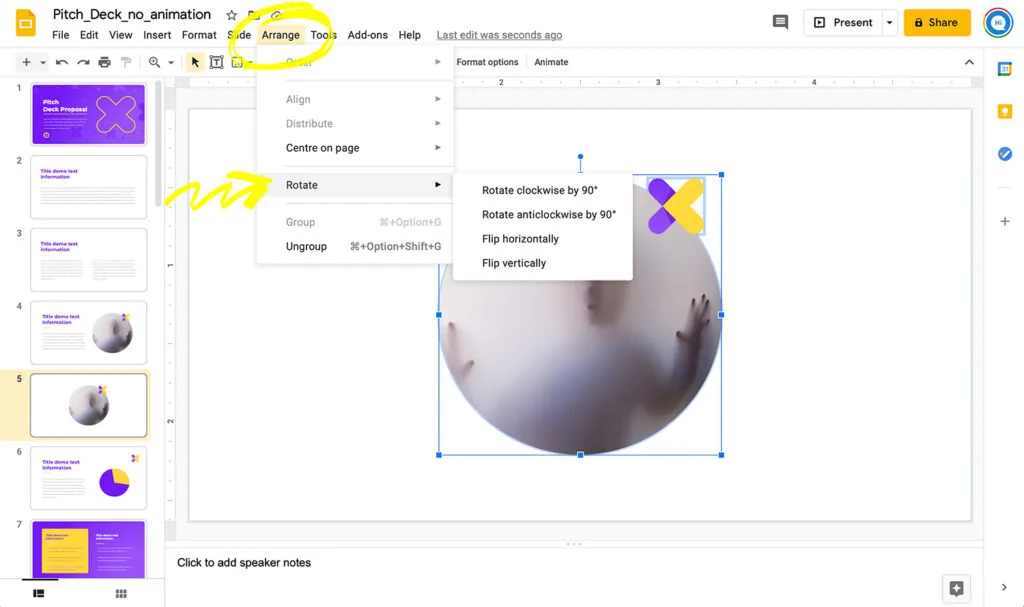
- “Rotate clockwise”
- “Rotate counter-clockwise”
- “Flip horizontally”
- “Flip vertically”
Selecting multiple objects
If you wish to arrange multiple options at a time, you’ll need to group them beforehand.
To do this, simply click on one object and then hold the shift button on your keyboard and click on the other items. When you’re finished clicking the objects you wish to group, let go of shift.
Note: You will not be able to align a single object; you have to have a group of items selected to make an alignment on your Google Slides slide.
Aligning objects
Being able to align objects in Google Slides is nearly the same skill as understanding how to arrange items.
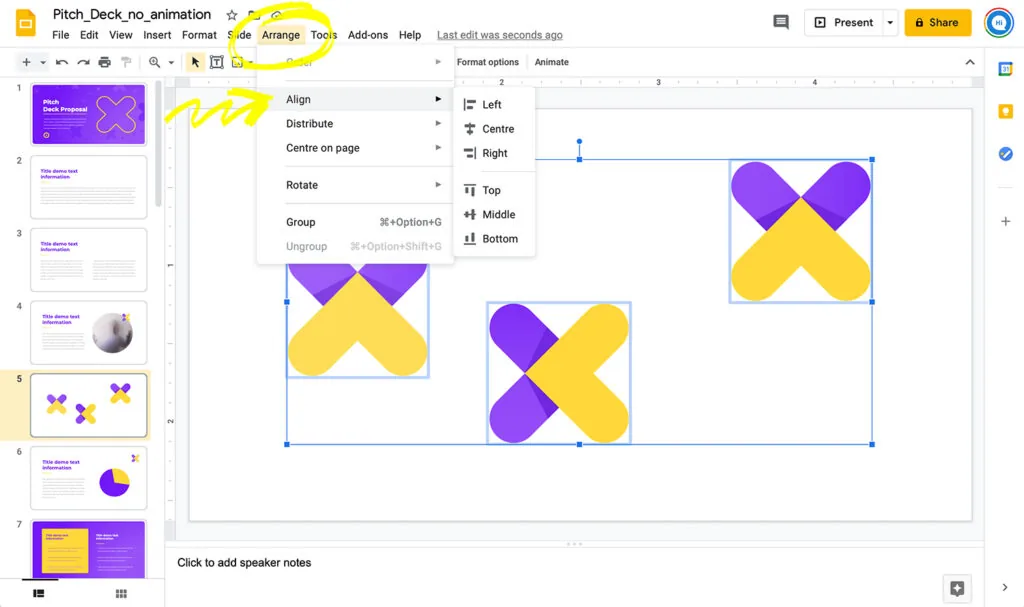
You first start by clicking on the object you wish to align. Then, once more, go up to the “Arrange” tab on the toolbar at the top of your screen.
One of the six options for alignment, “Left,” “Center,” “Right,” “Top,” Middle,” and “Bottom,” properly align the objects in the selected area of the slide.
Although arranging and aligning may seem like two different tasks and require different steps to be taken, they both take place under the “Arrange” tab on Google Slides. With a simple review of this tutorial, you have one more skill to improve your presentation’s organization.


