


While some people are becoming savvier with presentation programs like PowerPoint and Google Slides, others aren’t entirely as adapted to the ins and outs as they’d like. Do you need to learn some of the basics of PowerPoint? Are you working on a presentation and struggling to maneuver the program’s settings?
In this tutorial, you’ll learn how to change the spacing in PowerPoint, including line spacing, paragraph spacing, and indentations.
First-line indent
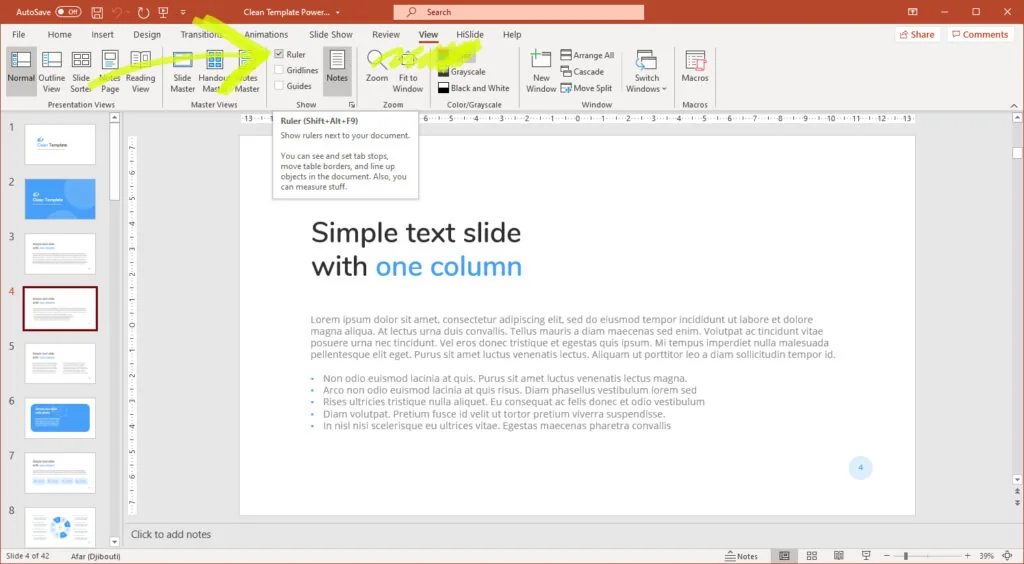
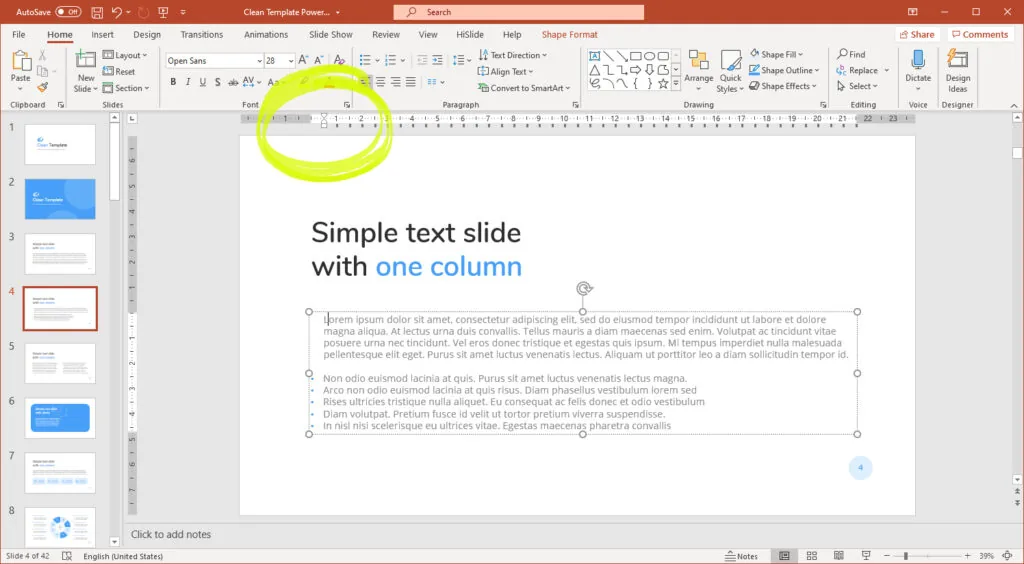
The essential skill for indenting is indenting the first line in a PowerPoint textbox. To change the first-line indentation, follow these steps:
- Select the textbox that you wish to alter.
- Drag the first line marker on the ruler to your desired location at the top of the screen. If it doesn’t look how you suspected, quickly slide the marker left and right until your textbox’s first line is where you need it to be.
Hanging indent
A hanging indent, which is another skill level than merely changing the first line indent, involves indenting every line of the paragraph except for the first one.
- Go up to the “Home” icon in the left corner of the screen.
- Under “Home,” click on the “Paragraph” option.
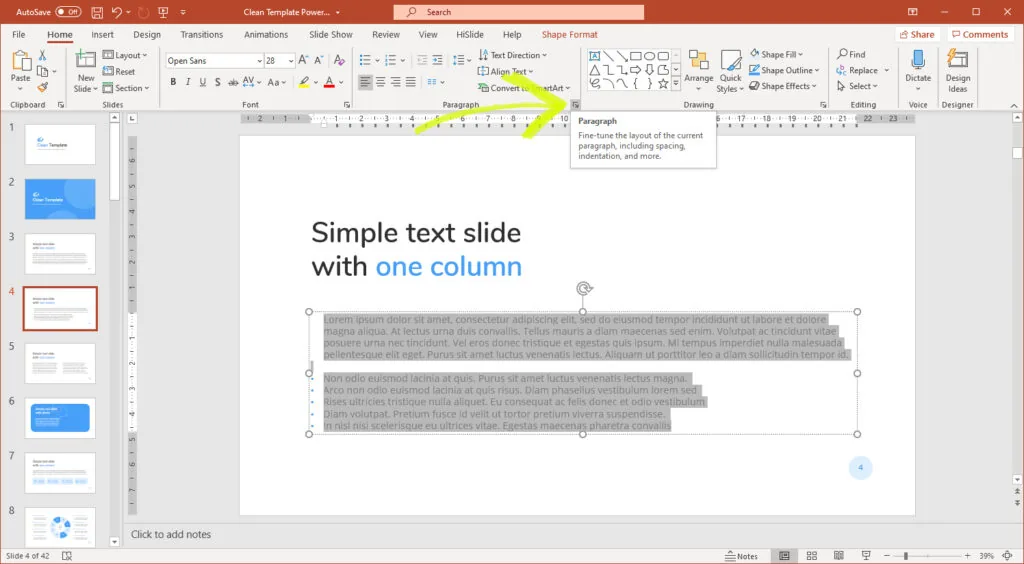
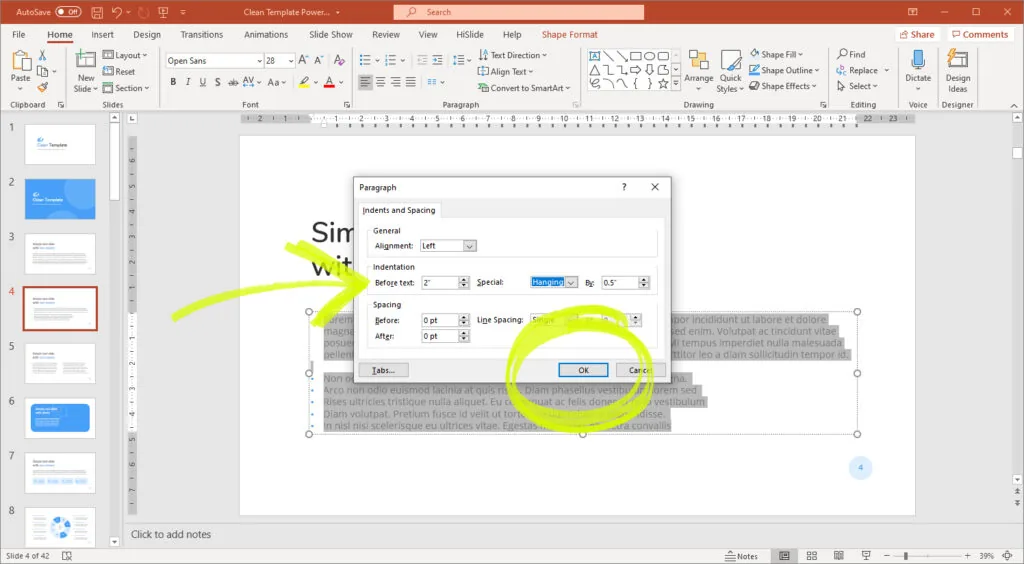
3. A menu box will appear. Under the “Indentations” option, click on the “special” box. An option under this box will be labeled “Hanging.” To create a hanging indentation, click on this option.
4. Once you’ve selected “Hanging,” you can insert your desired indent measurement into the “Before text” box. Then click OK to make the change to your textbox.
Spacing your textbox
When you alter your PowerPoint slide’s spacing, you’re altering the space above or below your textbox.
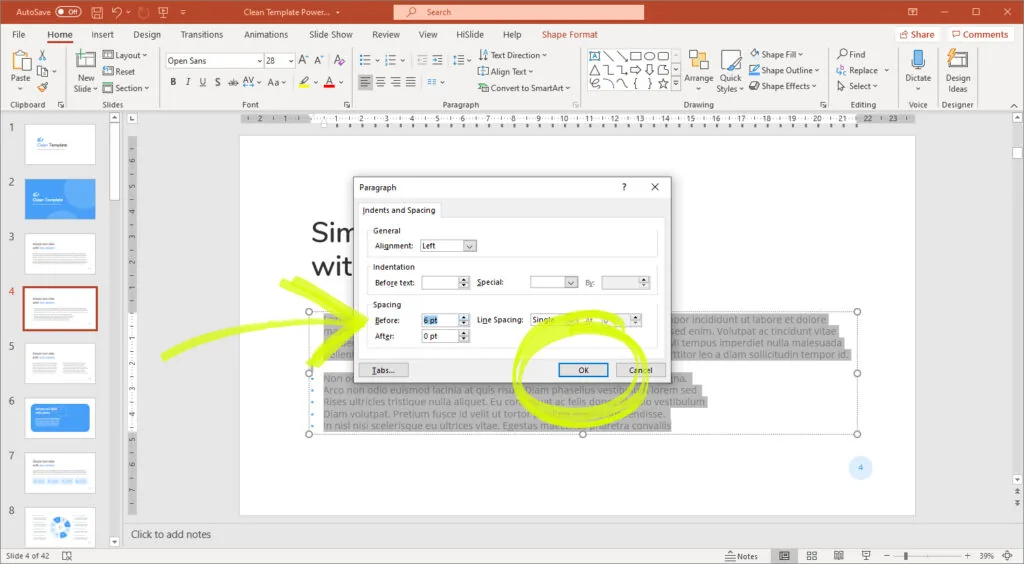
- Click on the “Home” icon in your toolbar again. Then, once more, click on the “Paragraph” option.
- Then a menu will appear. Next to “Before” and “After” are boxes, you can enter your desired space value before and after your text.
Line spacing
Changing the line spacing is essentially the same process as changing the spacing of the text.
First, you go to the “Home” icon and then select the “Paragraph” option. Once the same menu appears that did previously, you can change the line spacing by going under “Spacing” and over to the right where there is a bar labeled “Line Spacing” before it.
There will be five options for spacing: Single, 1.5, double, multiple, or custom. Stick with using one of the first four basic spacing techniques unless you wish to customize your spacing. By clicking “custom,” you’ll be able to enter an exact number value you wish for your line separation.
Once you’ve decided on a line spacing option, click OK.
Now that you’ve read this tutorial, you’ve gained valuable PowerPoint spacing skills to improve your presentations.


