


If for whatever reason, your Google Slides is not set to the language you need it to be, there are a few different steps to change the language. You can do this by either altering the language directly in your Slides app or going straight to your Google Account to make the changes.
In this tutorial, you’re going to learn the necessary but complicated steps to both options for changing the language on Google Slides.
Changing the language in Google Slides
There are four easy steps to changing the language of a Google Slides presentation. Once you have the presentation open, or a new, blank presentation open, follow these steps:
- Go up to the toolbar at the topmost of your screen and go over to “File.”
- Then, go down towards the bottom of the dropdown menu until you find “Language.”
3. Once you move your cursor over the language option and another menu appears, you can select the language to which you need to switch your slide presentation.
Designer’s Note: Keep in mind that the language you choose could change the program’s measurements. For example, if your presentation is set initially to US English, which is set in inches, and you change it to Spanish, the measures will be altered from inches into centimeters.
Changing the language in your Google Account
While changing the language within Google Slides is the most straightforward way to complete the task, you may also go into your Google account and change the language to which the entire program is set. To get started with this, you must first make sure you’re signed in to your Google Account.
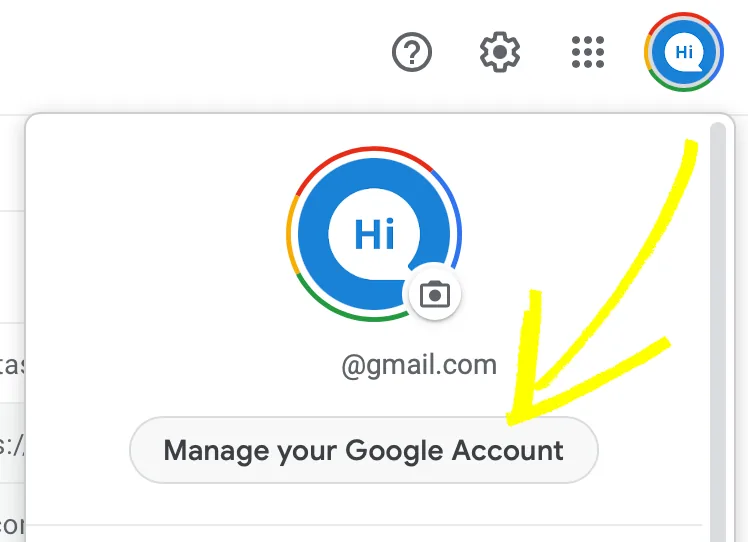
Once you’ve logged in to your account, click on your avatar icon in the upper-right corner of your home screen. Directly under your name and email, there will be a “Manage your Google Account” tab. Once you click that, it will redirect you to a new window.
Once you’ve reached your Google Account Settings, go over to the menu at the far left of your screen and choose the “Data & Personalization” tab.
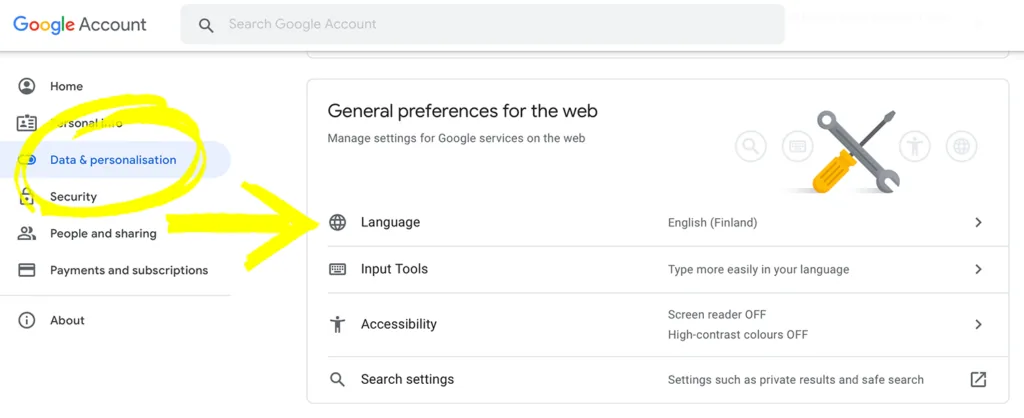
Then you will be able to scroll down until you reach the “General Preferences” menu. The first option to change in your general preferences will be “Language.”
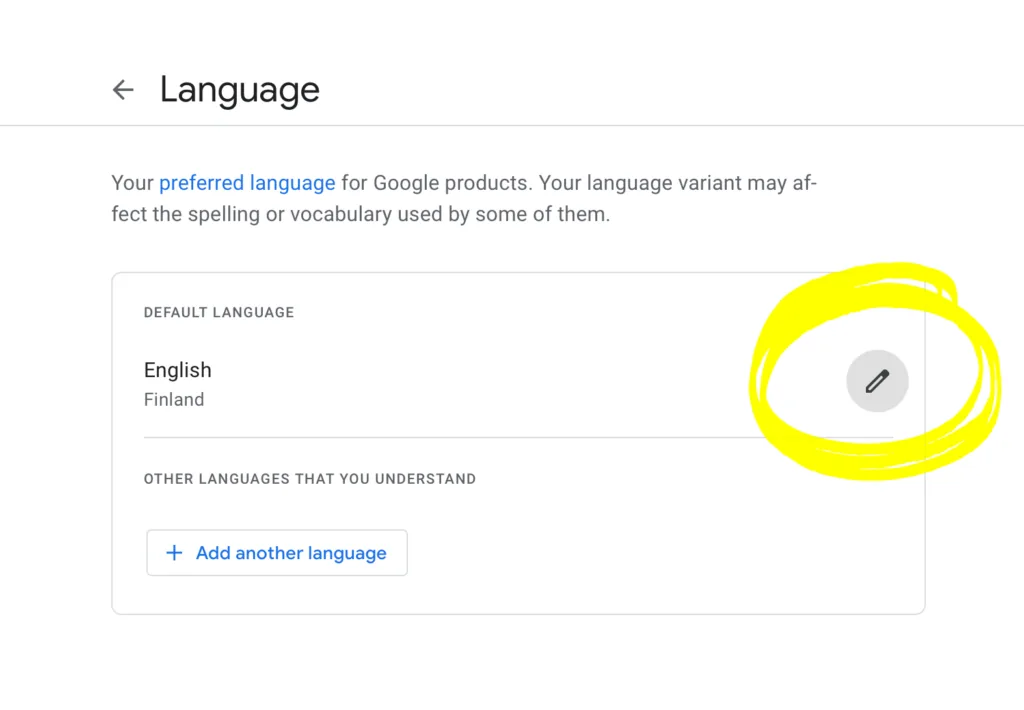
Once inside this option, you can click the pencil icon to alter the language settings for your Google Account. You’ll select a language, be prompted to choose your country, and then click “Select” to complete the change.
This skillset can also come in handy if you travel to another country and change the Google language to English on a device other than your own.
Now you understand that changing your Google language settings isn’t any more complicated than changing your devices’ language. After reading this tutorial, you can easily change the language of your Google Slides to suit your needs.


