

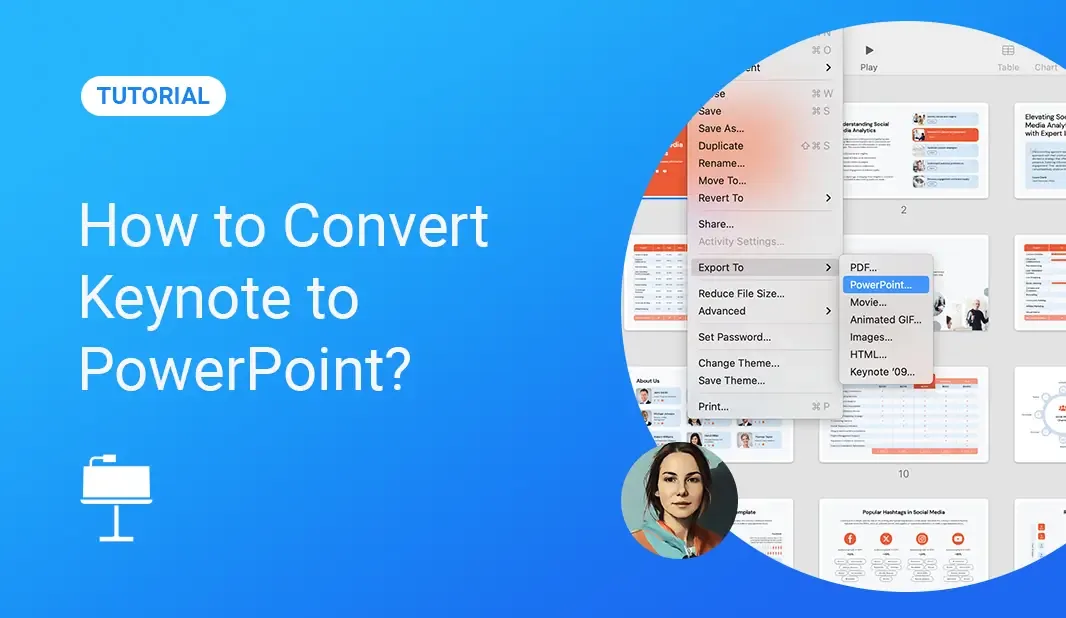
How to Convert Keynote to PowerPoint?

PowerPoint® Add-in

Over 600 professionally designed layouts and data-driven infographics with weekly updates.

Download it for free from the official Microsoft Marketplace.

how-to-convert-keynote-to-powerpoint

If you give presentations often, likely, you’ve at least heard of Keynote by now. It’s a fantastic application designed by Apple, and it makes creating beautiful and creative presentations a cinch! The problem, however, arises because Keynote saves a .key file that can’t be recognized outside of Apple Software.

Happily, there is a rather simple solution to this problem—convert Keynote to Microsoft PowerPoint PPT or PPTX! Doing this will allow you to access your presentation no matter where you’re presenting. It may seem like an off-putting task if you’ve never converted a file before, but the procedure is quite easy if you have the right tools!

Converting to PowerPoint using the Keynote App on Mac
export-keynote-to-powerpoint
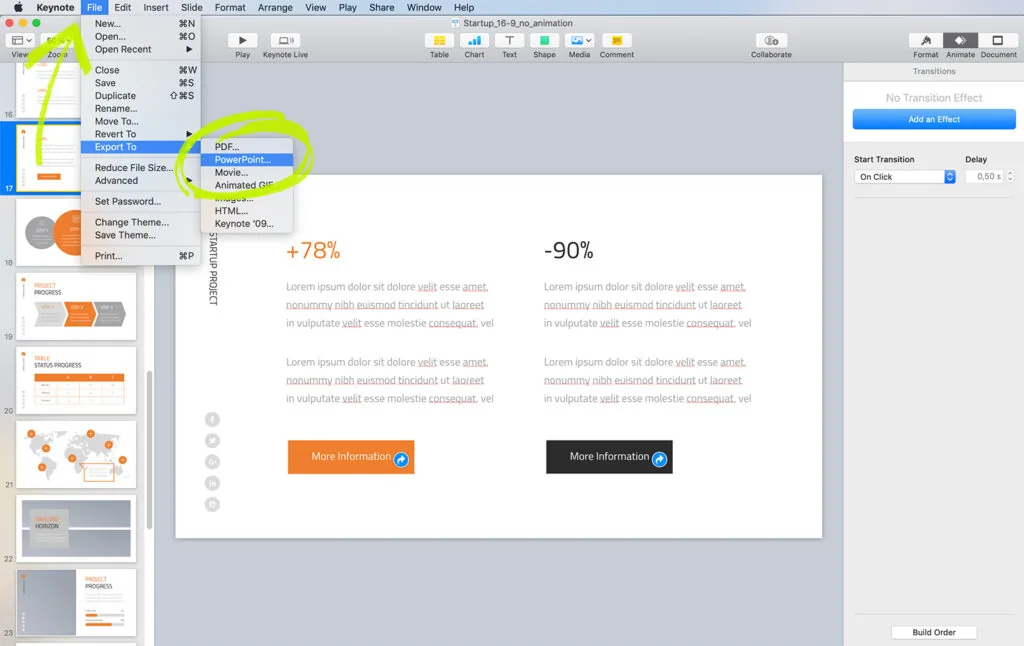
Export Keynote to PowerPoint
  1. To begin this process, make sure you have the most recent version of the application downloaded to your Mac. A current version of the app will ensure you get the best results for the conversion.
  2. Open the file you’d like to convert through the app on your Mac.
  3. Go to the ‘File’ tab at the top of the screen and select ‘Export To.’ Once the options appear on the right, select ‘PowerPoint.’
  4. When you’re prompted with “Advanced Options,” choose the proper format (pptx or ppt format) and then click on the ‘Next’ button.
  5. Now, choose a new name for the file or keep the default name. Decide where you want to save the file so that it can be most easily accessed. To finish, click ‘Save.’

Convert Keynote to PowerPoint without Keynote

The process above may be relatively simple to follow, but there is one glaring issue—it only works for those that have an Apple computer. Luckily, this isn’t the only way for you to convert your Keynote files to PowerPoint. What you are required to do is use a fantastic web-service called ‘CloudConvert.’
convert-keynote-to-powerpoint
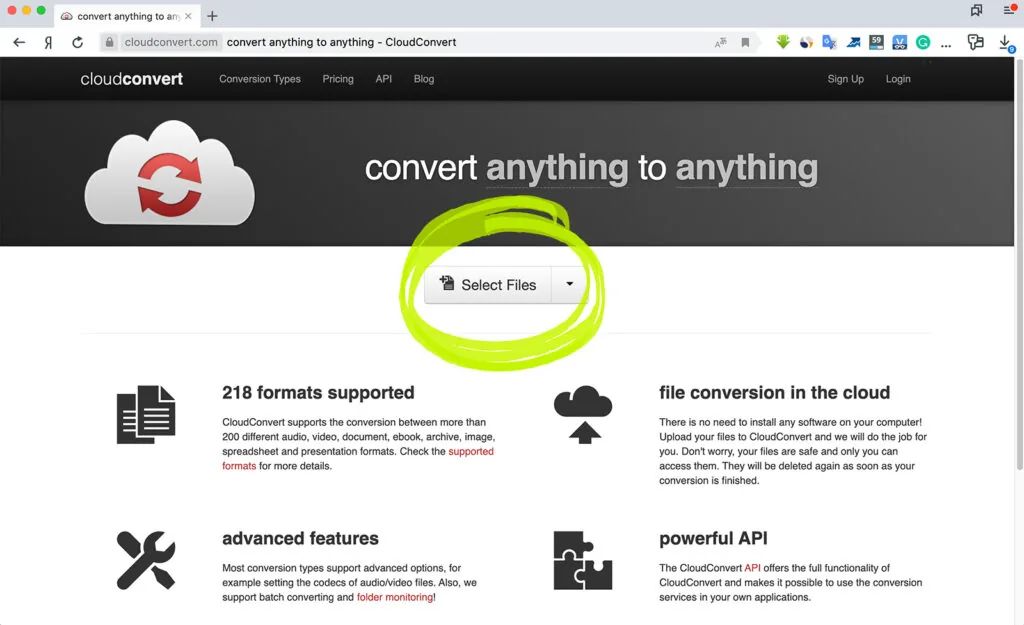
Convert Keynote to PowerPoint

CloudConvert is a fantastic service that allows you to convert images, presentations, or any other file type to .pptx, .ppt, .png, .jpg, .txt, .html, or .pdf! It only takes a short time, and the process is just as simple as the example that was given above!

1. Navigate to the CloudConvert website and get familiar with the layout of the page.

2. Look for the ‘Select Files’ button and click on it. You’ll be prompted to browse through the files on your local hard disk and choose the file you’d like to convert. Don’t worry if you don’t have the file on your local hard disk! You’ll also be able to load files through Dropbox, Google Drive, OneDrive, Box, or URLs.
convert-keynote-to-powerpoint-without-keynote
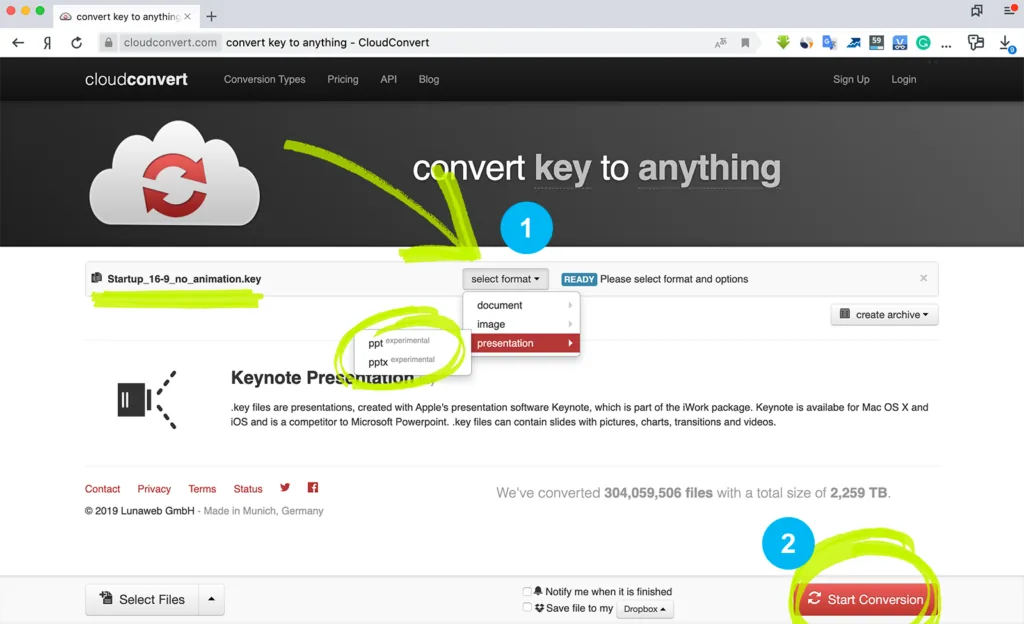
Convert Keynote to PowerPoint without Keynote

3. When the file has been successfully uploaded, click the ‘Start Conversion’ button. It should be near the bottom of your screen.

4. Now all you need to do is wait until your file has been converted! When you received the notification that the file is finished, click on the green ‘Download’ button, which will allow you to save your file!

keynote-to-powerpoint-converter
Keynote to PowerPoint converter

5. If you’re doing this process on your phone, click on the ‘Get QR Code’ option. This option is located in the drop-down box on the ‘Download’ button.

keynote-to-powerpoint-converter-result
Keynote to PowerPoint converter result

6. You’re done! Save the file to your desktop and start preparing for your presentation!

FAQs

Keynote saves a .key file that can’t be recognized outside of Apple’s presentation software. This means if you want to convert this apple keynote presentation to a format like PowerPoint, you’ll need a converter.
1. Open the Keynote presentation you want to convert.2. Go to the ‘File’ tab and select ‘Export To.’ Choose ‘PowerPoint.’3. Follow the prompts, select the desired file format (like .pptx), and save.
You can use an online converter like ‘CloudConvert.’ This online tool allows you to convert Keynote files to PowerPoint and other formats.
1. Go to the CloudConvert website.2. Click ‘Select Files’ and upload your Keynote presentation.3. Click ‘Start Conversion.’4. Once converted, download the PowerPoint file.
Yes, after the conversion, click on the ‘Get QR Code’ option to download the PowerPoint file on your iOS device.
It’s recommended to have the most recent version of PowerPoint and Keynote for the best results.
I suggests using the Keynote application on macOS or the online converter CloudConvert. However, there might be other online tools and apps for file conversions available.
Typically some animations and fonts might not transfer perfectly due to differences in presentation software.
CloudConvert allows you to convert to various formats, including .pptx, .ppt, .png, .jpg, .txt, .html, or .pdf.
If you don’t use Keynote, you might need to convert the Keynote file to a PowerPoint or another format to view it, especially if you’re using Microsoft Office on your PC.
Stacy M.
About the author:Stacy M.
Follow the expert:
how-to-share-powerpoint

How to Share PowerPoint: A Comprehensive Guide

You’ve just finished crafting a brilliant PowerPoint presentation, and now it’s time to share it. But how exactly do you do that? Whether you’re collaborating with a team or presenting to an audience, sharing your work is essential. Let’s dive in and explore the different methods available to share your PowerPoint presentation. Different Methods How … Read more
how-to-copy-slides-from-one-powerpoint-to-another

How to Copy Slides from One PowerPoint Presentation to Another?

You’ve just created a stellar PowerPoint presentation for an upcoming meeting. But wait – you remember another presentation with slides that would fit perfectly in this one. If only there was a way to integrate them! Oh, wait. There is. Wondering how to copy slides from one PowerPoint to another? Dive in, and let’s unravel … Read more
how-to-insert-pdf-into-powerpoint

How to Insert PDF into PowerPoint?

Ever been in a situation where you wanted to seamlessly integrate the detailed content of a PDF into your PowerPoint presentation? You’re not alone. Many professionals and students often find themselves needing to combine these two formats for a more effective presentation. Benefits of Inserting PDFs into PowerPoint Incorporating a PDF file into a PowerPoint enhances … Read more

