


One of the best ways to make sure that your presentation more appealing is by adding images. However, sometimes, you might need to edit the pictures, cropping out some unnecessary sections. Alternatively, you might want to make them more appealing by cropping them into shapes, like circles or squares. To help you do this, let’s look at how to crop pictures in PowerPoint.
Inserting a picture
The first thing that you need to do is put in an image. You can do this by going to the Insert tab. Once there, you should find different ways of adding pictures.
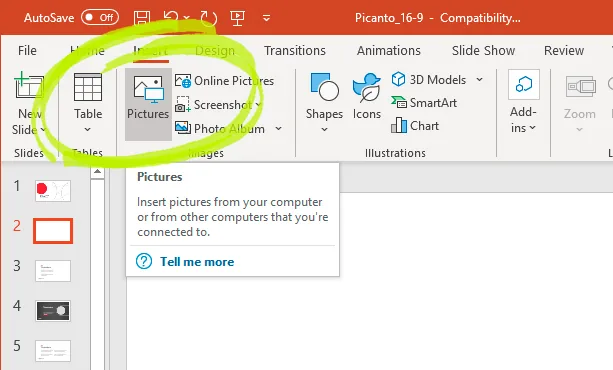
Choose the Pictures icon. Then go through your files and select the image that you want to include. Once selected, it should appear on the slide. Move it into the correct placement, so you are ready to begin the cropping process.
Cropping the image
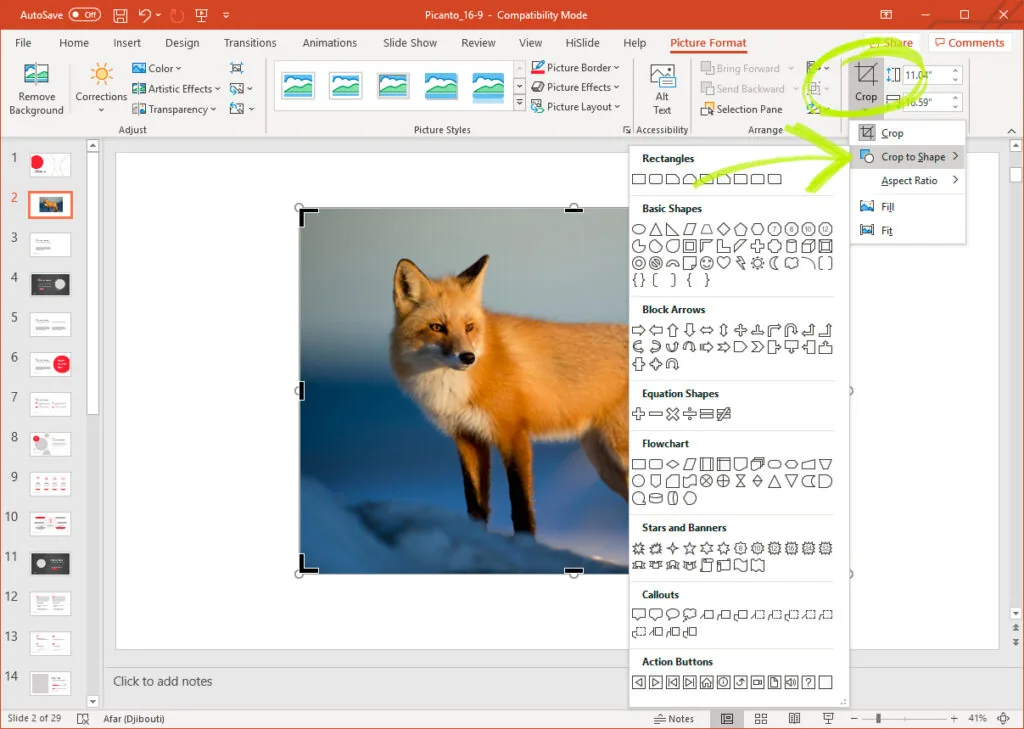
Next, you might want to crop the image to remove unwanted sections. To remove these sections, you can click on the image and move to the Format tab. After this, you will be presented with a range of options. In this case, you should click on the Crop icon.
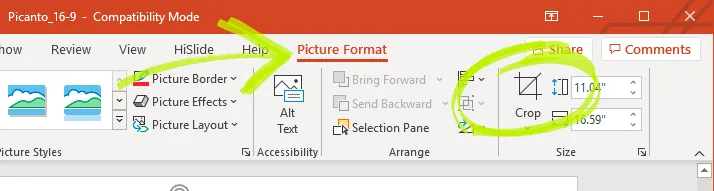
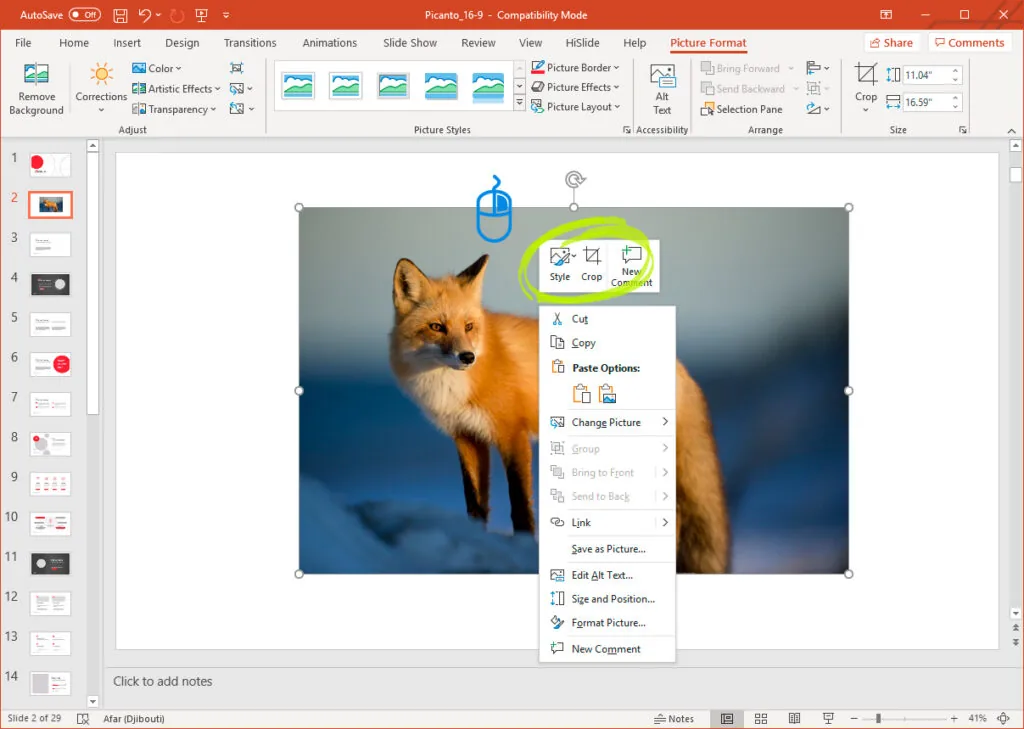
You are also able to access this function by right-clicking on the image. After right-clicking, the image Crop icon will appear. Clicking on this will also allow you to edit the image.
Once you’ve selected the Crop function, you will notice black markings around the side of the picture. These markings will allow you to control the way that you edit the photo.
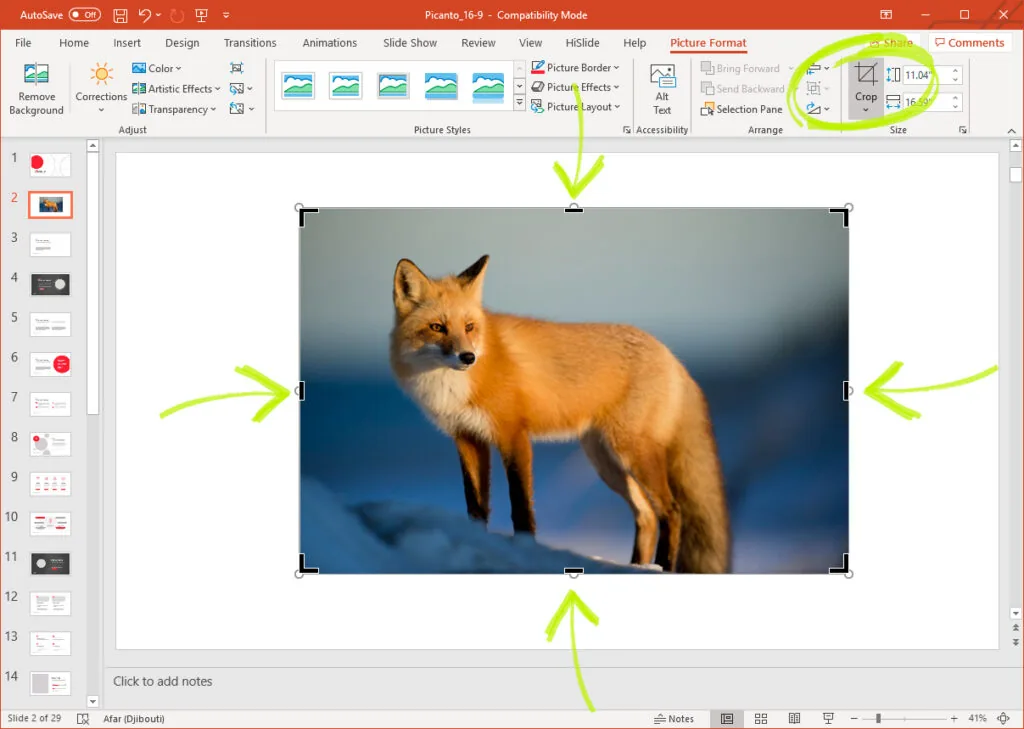
There are several ways that you can edit the picture. For example, if you want to select one side, you can drag the handles inward. Alternatively, if you’re going to crop all four sides at once, you can hold the Control key and pull inwards on any corner. Once you’ve finished, click anywhere else in the document.
Cropping to a shape
You might not need to edit the image, but instead, want to transform it into shape. To crop a photo to a circle, you should click on the picture, and this will bring up the Format tab. Click on this and move to the Crop icon on the left-hand side of the screen. After doing so, you will see an option called Crop to Shape. Clicking on this selection will bring up a list of shapes. Find the one you want, in this case, a circle, and click on it. It will then be automatically applied to the image.
Conclusion
Whether you want to remove unwanted information or make the image look more appealing, there are plenty of PowerPoint crop image options. So, use these techniques to incorporate pictures into your future presentations more effectively.


