


In some cases, you might need to embed the fonts that you used in your presentation. Embedding fonts will allow you to use custom fonts to make your demonstration appear more visually appealing. If you don’t embed the fonts, they might not get displayed correctly, causing the presentation to become unreadable. To prevent this, let’s look at how to embed fonts in PowerPoint.
Embedding fonts using Windows
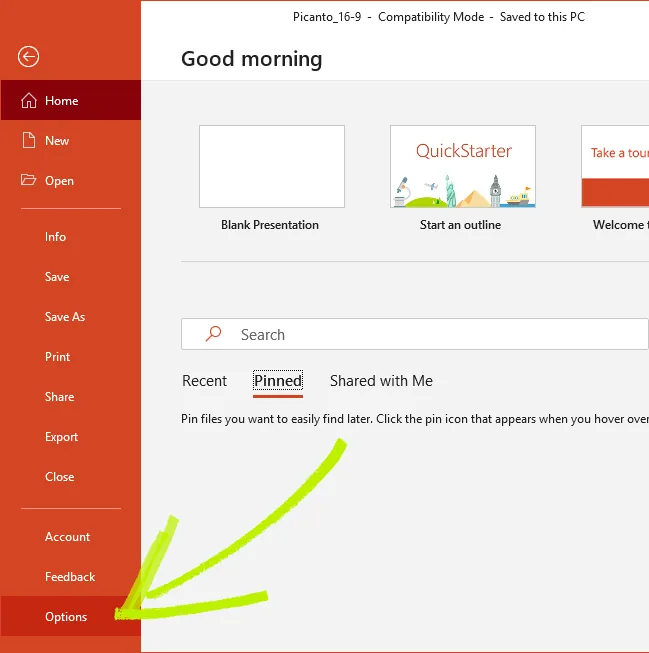
First, you will need to click on the File button in the top right-hand corner of the screen. When you click on this, navigate to the Options button. This button is located at the bottom of the list.
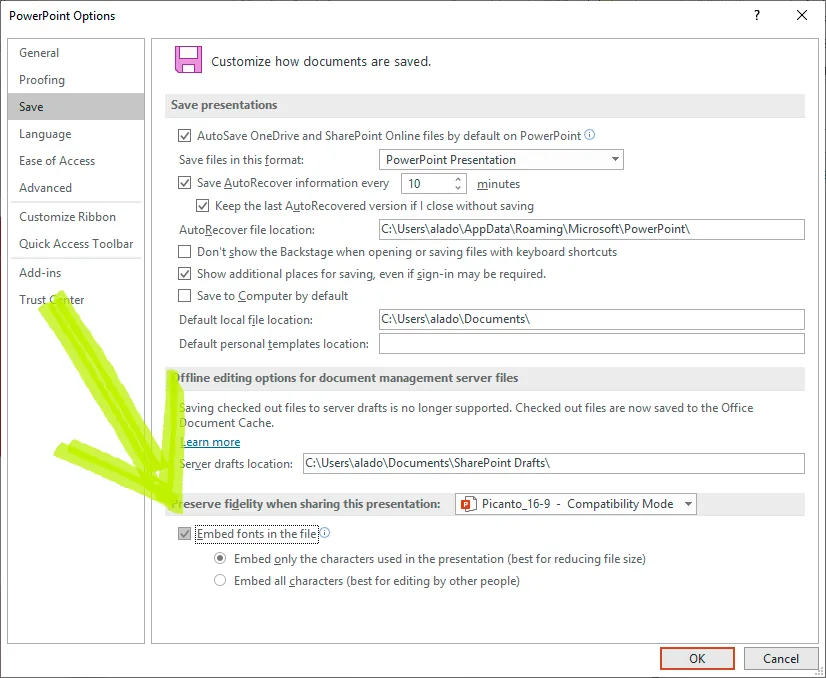
Once you have selected Options, you will be presented with a range of choices. Click on the Save option on the right ribbon. Then move down to the bottom panel. There you will find an icon titled Embed Fonts in the File. This selection should contain a few options. Embed Characters Used in the Presentation will show the font, but won’t allow other people to adjust the presentation. Alternatively, you might want to choose to Embed All Characters. This option will enable the recipient to make changes, but the file size will be larger.
Embed font in PowerPoint Mac
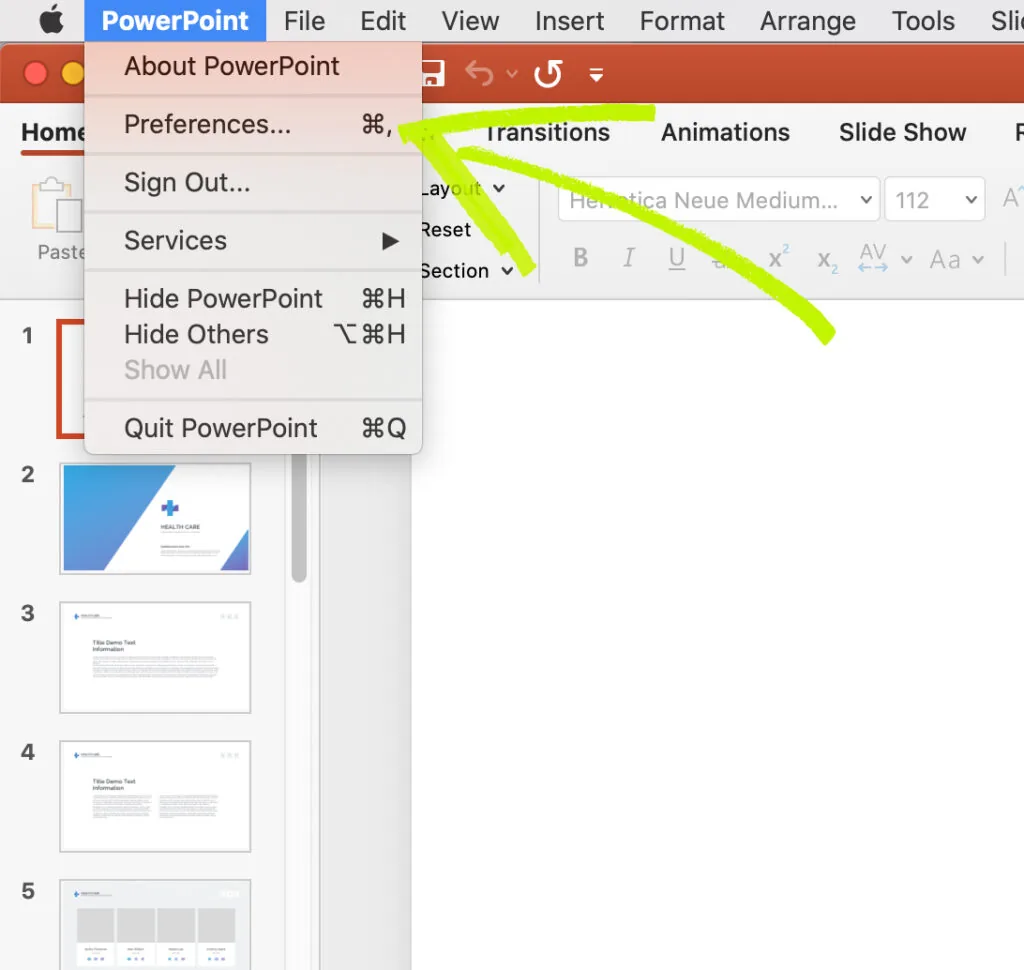
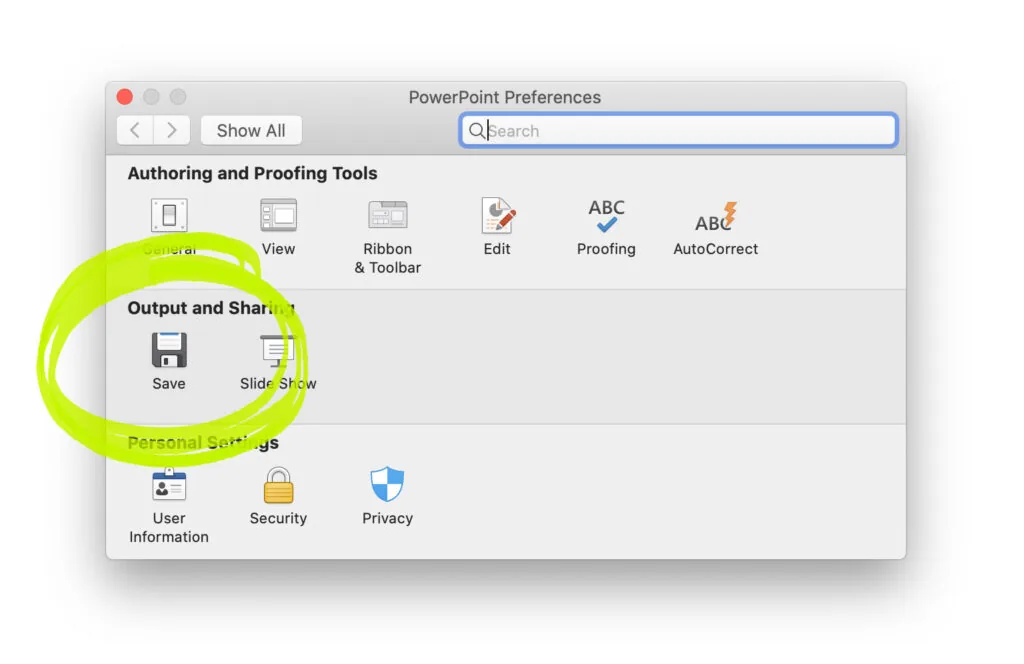
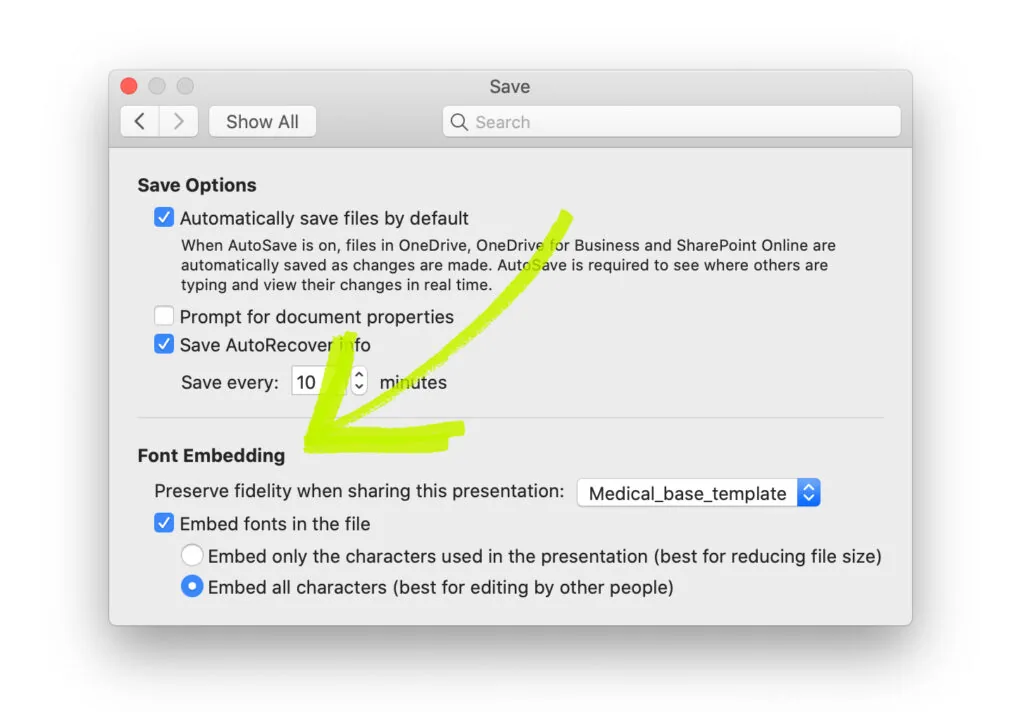
If you own a Mac, you might need to go through a slightly different procedure to embed fonts into a PowerPoint. In this case, you will need to go to the PowerPoint menu and open up the Preferences option. Then you will need to select Output and Sharing. Next, move to the Save section. Here you will be presented with two embedding options, which we discussed above. Select the best option, hit the OK button, then save the file.
Checking your font
It’s possible that you can go through this procedure, and the font still won’t be adequately embedded. This issue could be because it hasn’t been designed to be embedded. In this case, you will need to use a different font in your presentation. To check whether the font can be inserted, go to the Control Panel and click on the Fonts option. This option will bring up the fonts that you have installed on your computer. Click on the one you are trying to use in your presentation—it will tell you if it’s editable or not. If it’s not, you might not be able to embed the font correctly. You can view this in the bottom left of the panel.
Conclusion
Using custom fonts is a great way to add more personality to your presentation. However, to make sure that it plays well on devices where you want the font isn’t installed, you will need to embed it. Therefore, use these tips to be able to master PowerPoint embed fonts in your future presentations.


