


When creating a presentation, sometimes you need to embed a video in PowerPoint. You can use this functionality in Microsoft Office PowerPoint 2010 and all new versions, including PowerPoint for MAC 2019.
To embed a video in PowerPoint, you can use videos uploaded to YouTube or Vimeo as well as local video files from your computer.
Supported PowerPoint video format file types
When uploading videos from your computer, you need to pay attention to the file type. Video files have different extensions and only some of them can be embedded in the PowerPoint presentation workspace. Different operating systems and MS Office versions may have different file types.
Video file formats supported by PowerPoint, Windows operating system: ASF, AVI, MP4, M4V, MOV, MPG, MPEG, WMV
Video file formats supported by PowerPoint, MAC Operating System: AVI, VFW, MP4, MPG4, M4V, MPG, MPEG, MPE, M75, M15, M2V, TS, MOV, QT, DIF
Tip: The best video format for PowerPoint is the most common format, which is supported by all versions and works in all operating systems. I recommend using the MP4 and AVI formats. Use these types of video and you can avoid compatibility issues.
How to embed a YouTube video in PowerPoint?
This method is good for embedding videos from YouTube or Vimeo.
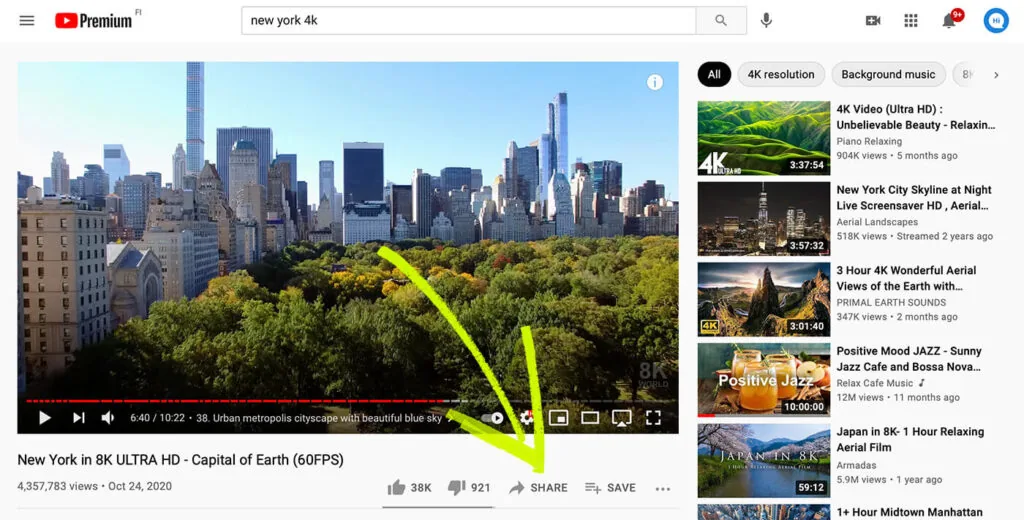
- Open YouTube and find the video you need. Click on the “Share” icon. Attention! Not all public videos can be embedded. Some videos don’t have this feature.
- In the “Share” window, copy the URL by clicking on “Copy.” The link to the video is copied to your computer’s clipboard.

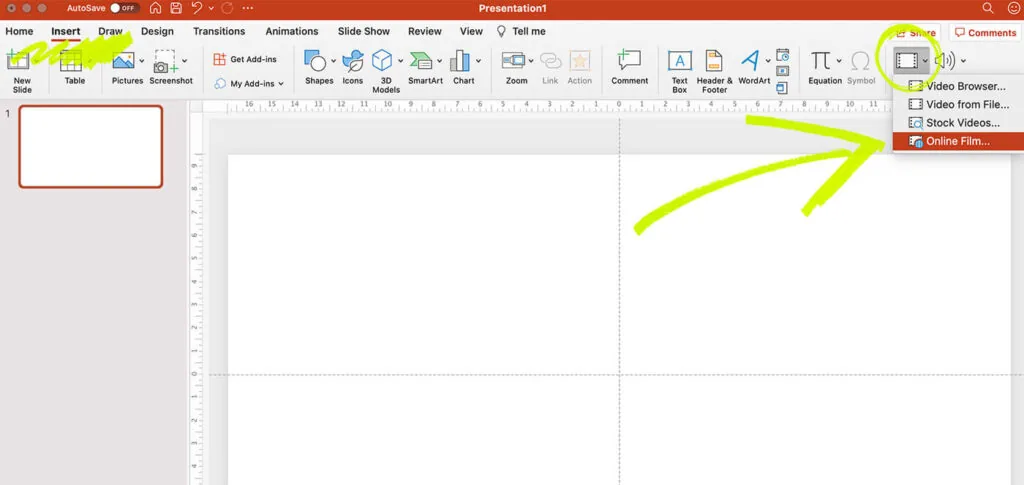
3. Open your PowerPoint presentation. Open the slide where you want to add the video. From the top menu, choose the Insert tab > Video > Online film.
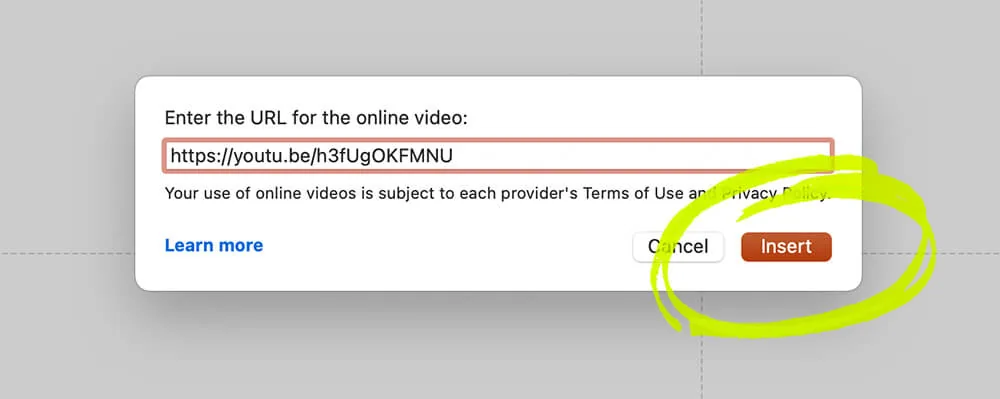
4. In the dialog box that opens, paste the copied URL into the “Enter the URL for the online video” field and click the “Insert” button. You can paste the URL from the clipboard using the context menu (right mouse button > “Past”) or the CTRL+V (Command+V) hotkeys.
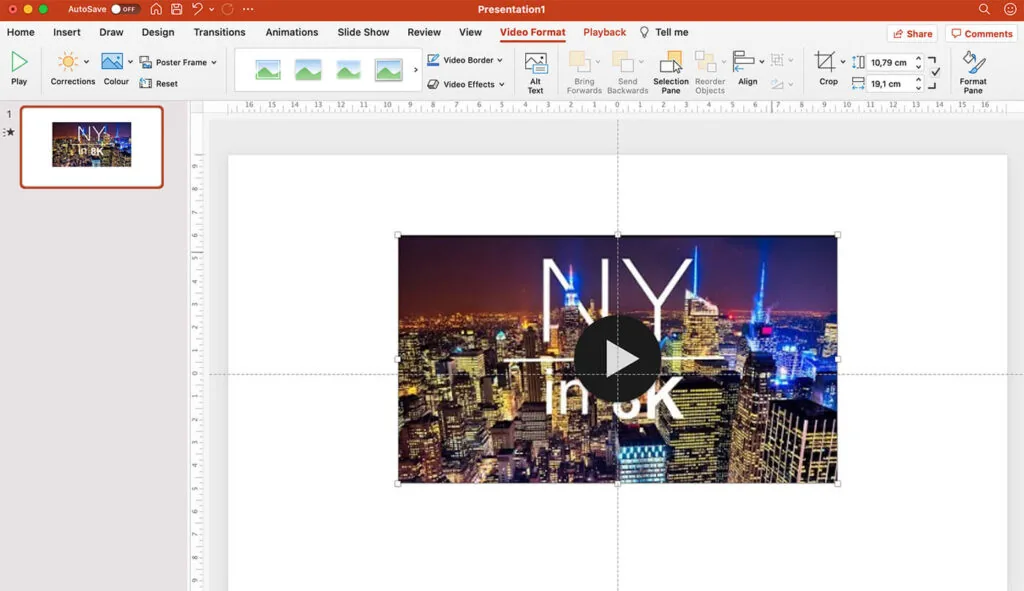
5. The video has been added to the slide. Now using the mouse, you can change its size and position.
Helpful resource:How in PowerPoint to make videos play automatically? (And other settings for playing videos in PPT)
Embedding YouTube videos in PowerPoint is the recommended way because it doesn’t increase the file size of your presentation and doesn’t need a compatibility check. But you need to keep in mind that you will need internet access and video availability at the source site to play the video.
If you embed somebody else’s video, there is a risk that the owner of the video will remove it or block access. In that case, playing the added video in your presentation will not be possible.
How to insert a video in PowerPoint from your computer?
You can add a video file to your presentation from your computer. Important: Remember that if you plan to move your presentation to other storage media, you need to move the original video file with it. I recommend that you save the video file used in your presentation in the same folder as the presentation file.
- Open the presentation and the slide where you want to insert the video.
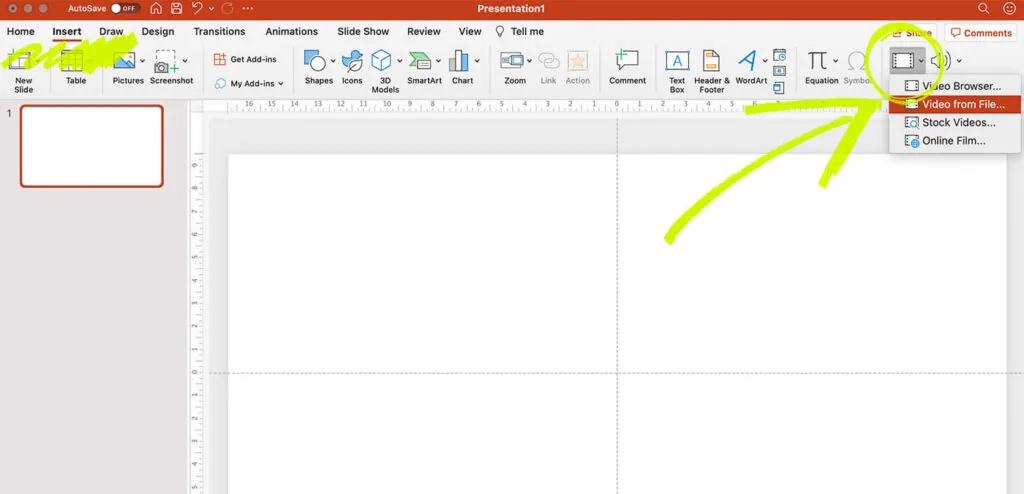
- From the top menu choose “Insert” > “Video” > “Video from file.”
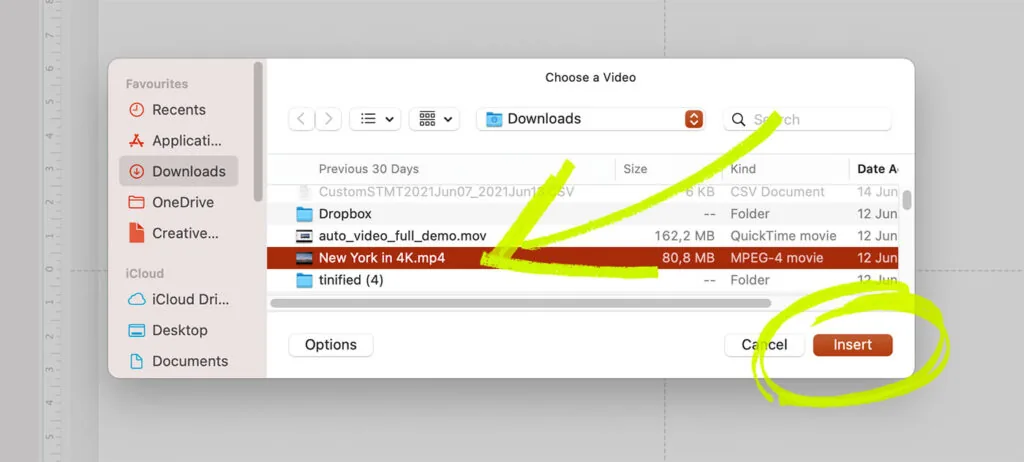
3. Find the file you need on your computer and click on the “Insert” button.
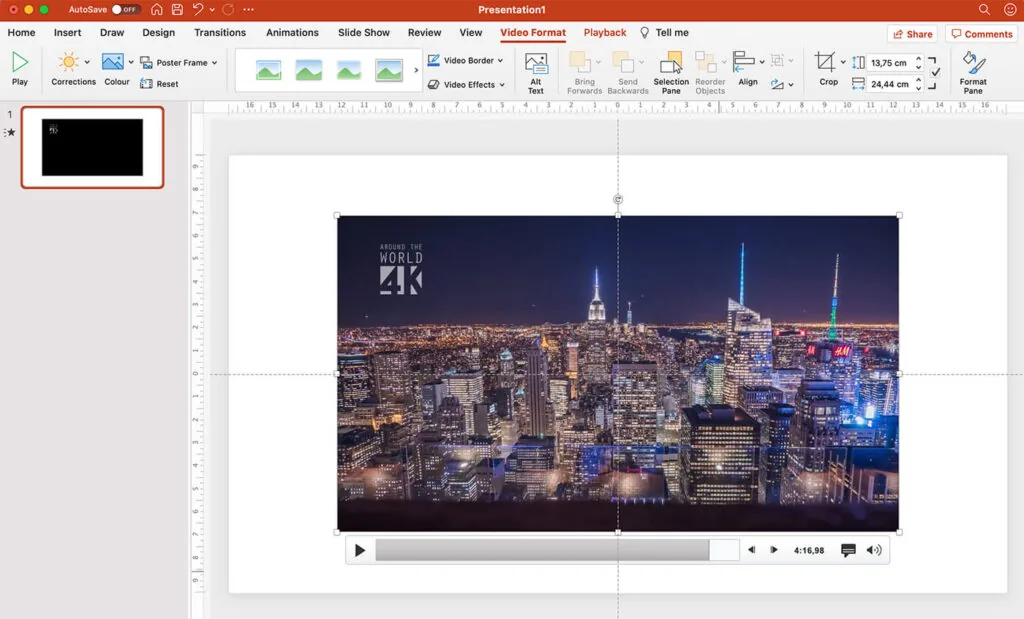
4. The video file is inserted into your presentation and now you can use the additional settings to change its size and position, as well as add bookmarks.
Helpful resource: How in PowerPoint to make videos play automatically? (And other settings for playing videos in PPT)
How to make PowerPoint video background?
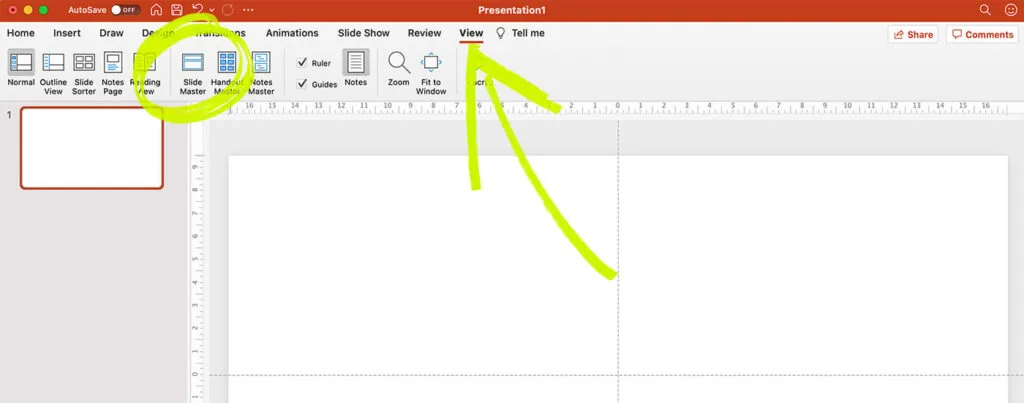
To use video as an animated presentation background, you need to add the video file to the “Slide Master.” To do that:
- From the top menu, select the “View”>”Slide Master” tab.
2. Find the slides you want and add video to them following the steps in the instructions above.
You can also make a PowerPoint video background loop. There are detailed instructions on how to set up an auto-play loop on this link.
Problems when embedding videos in PowerPoint
This is a list of common problems when embedding videos in PowerPoint presentations with short answers:
- Problem: PowerPoint cannot insert a video from the selected file. Solution: Check the file type. Not all files are supported by PowerPoint. Also, pay attention to the file size: reduce the video quality or use an online converter to change the format.
- Problem: PowerPoint video not playing. Solution: Make sure your computer has the necessary codecs installed. Reinstall codec packs if necessary.
- Problem: The video file does not play in PowerPoint or there is a path error when opening it. Solution: The video file has probably been moved. Check the file path.
Conclusion
Embedding videos in PowerPoint is an easy way to diversify your content and make your presentation more compelling. Try to use common video file types to avoid compatibility problems. To be safe when making your presentation, save the video files along with your presentation. Check if any of the videos from YouTube are available and make sure you have access to the internet when you do your presentation.


