If you’re making a PowerPoint, you’ll want to make sure that you’re able to add all of the useful data you can to support the presentation. Though this can prove to be challenging if you limit yourself to the tools already present in PowerPoint, the task becomes much easier if you work on your project by importing the information you’ve created with other tools, like Microsoft Excel.
Importing information from Excel allows you to provide additional resources to demonstrate your points while you present your PowerPoint slides. Doing this will enable you to make your points more clearly, give people more than one way to understand the information you’re offering, and makes your presentation more relatable.
Are you ready to learn about how to make your presentations more productive by learning how to embed an excel file in PowerPoint? Continue reading for our step by step guide on how to make sure your files are correctly linked in Excel.
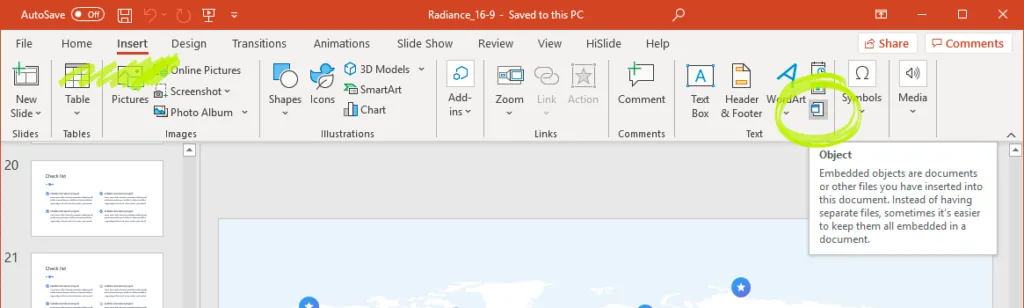
1. To start, open up your PowerPoint program and look at the main header. You’ll see a series of tabs. Click on the Inserttab.
2. Once you’ve clicked on the Insert tab, you’ll want to examine the actions and find the Object button. Click on it.
3. When the dialog box for the Insert Object button appears, you’ll see several options. You can either create a new object or create an object from a file. You’ll want to select the option that prompts you to Create from file.
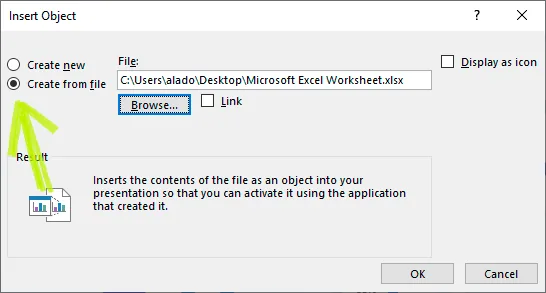
4. Next, click Browse and go through all your Excel data files. One of the highly crucial aspects of learning how to link data in excel is to know which documents will flow well with your presentation. You should have looked through your files previously to get an idea of what might work well with this PowerPoint. Click the file with the necessary data that you’d like to link to your page.
5. After you’ve selected the file, click the Link box next to the Browse button and then select Ok. It should look like this:
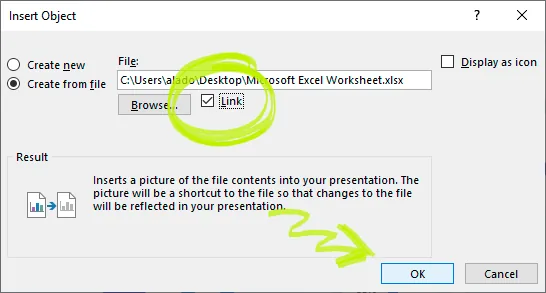
Now is when you are provided a link to your presentation! It’s important to remember, however, that the first work page in your Excel workbook will be the data that is displayed in the slides.
If you want to link a specific section of data to PowerPoint, you’ll have to take slightly different steps.
- First, you’ll want to open your workbook to the spot you’d like to export the data from.
- Now, drag over the area of the workbook data that you’d like to link into your presentation and then click Copy, on the Home tab.
- Next, while still in PowerPoint, click the slide where you want to paste the link to your worksheet data. This action will help to prepare you for the final set of instructions.
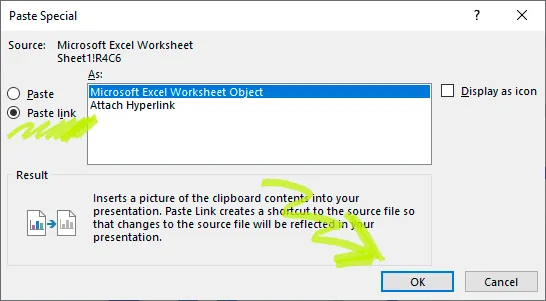
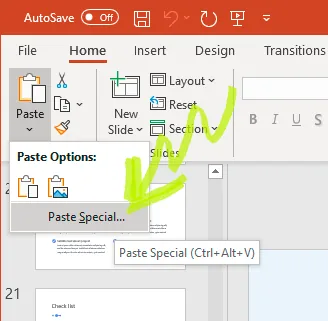
- Click on the Paste Special option. It should be located on the Home tab, directly below the Paste function.
5. In the Paste Special box, check the Paste link option. Then, you will be prompted to select an option under the As:section. Choose Microsoft Excel Worksheet Object.