


Word count can be important, especially when you are working on a project that requires a specific word count. But how do you find the word count in PowerPoint? This task may be an easy one when you look at Microsoft Word, but it may not be as noticeable when it comes to your PowerPoint presentation. The goal here is to walk you through how to find the word count for your PowerPoint presentation so that you will know if you have the number of words that you need.
Finding the word count in PowerPoint 2010
There are different ways to check the word count, depending on the PowerPoint you are using. This section will take a look at how to check the word count in 2010.
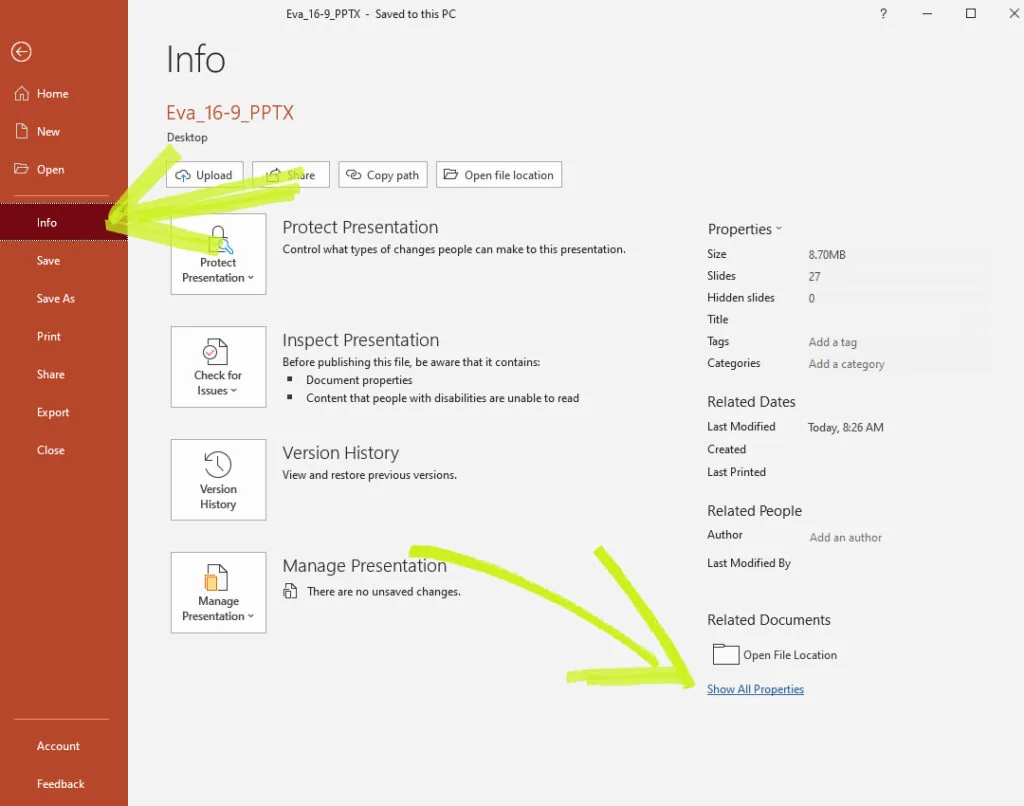
- Start by going to the “File” tab on PowerPoint, then go down to the “Info” option.
- This choice will cause a panel to appear that has an option to “Show Properties.” Click this option.
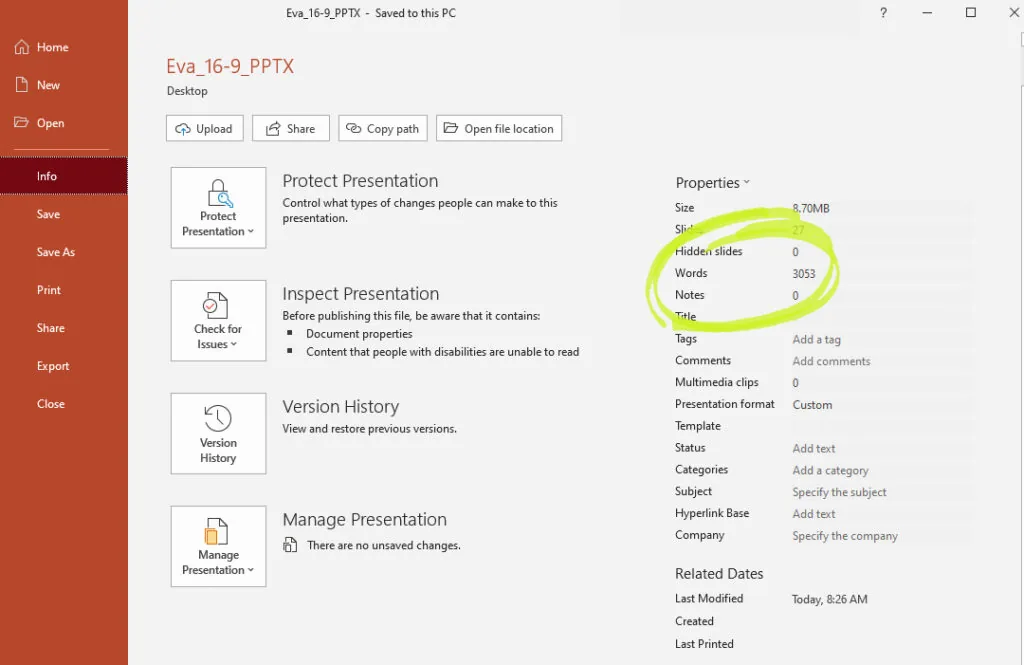
3. After you have expanded this menu, you will notice that it has several different properties, such as how many slides you have and any hidden slides. There is also your word count on this panel.
Finding word count PowerPoint 2013
If you are using PowerPoint 2013, you will go through a similar process to find the word count. The only exception is that you need to go to where it says “Properties,” then open up “Advanced Properties.” You will see an option for “Statistics,” and the word count can be found there.
Finding word count for PowerPoint 2016 Mac presentation
If you are using the PowerPoint 2013 for Mac, you do have to go through a similar process, as previously mentioned.
- Click on the “File” menu, then click on “Properties.”
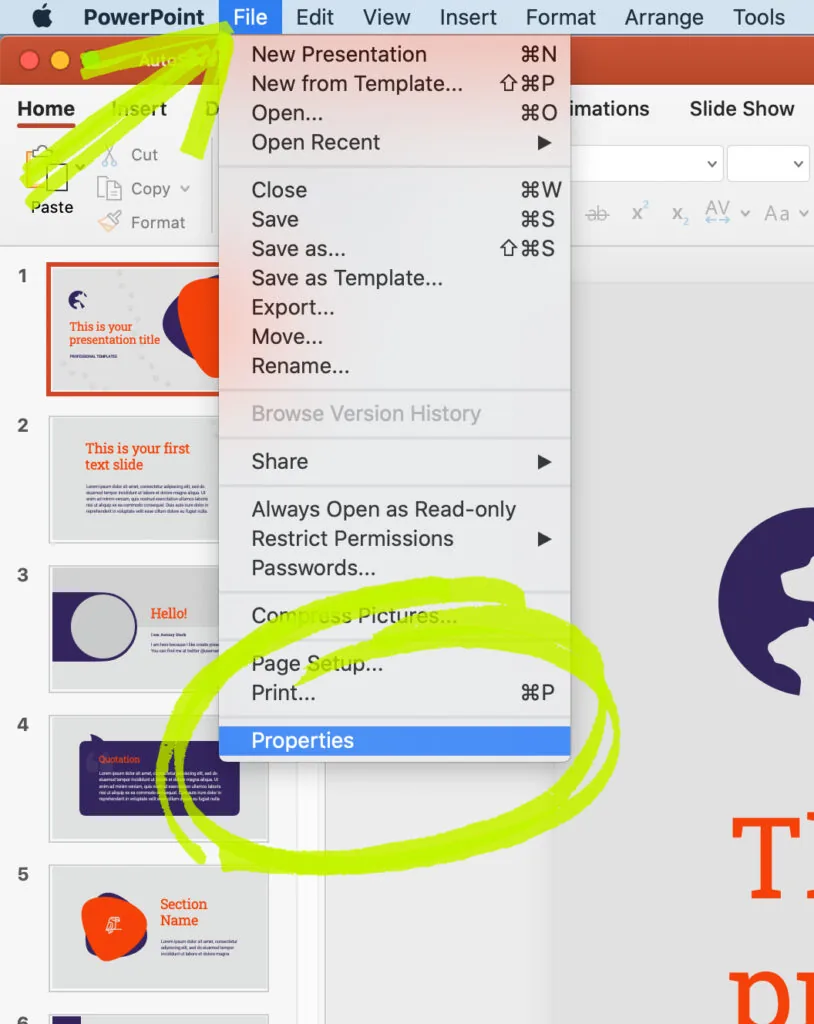
2. When you do that, find where it says “Statistics” and then click on that. You will see the word count here.
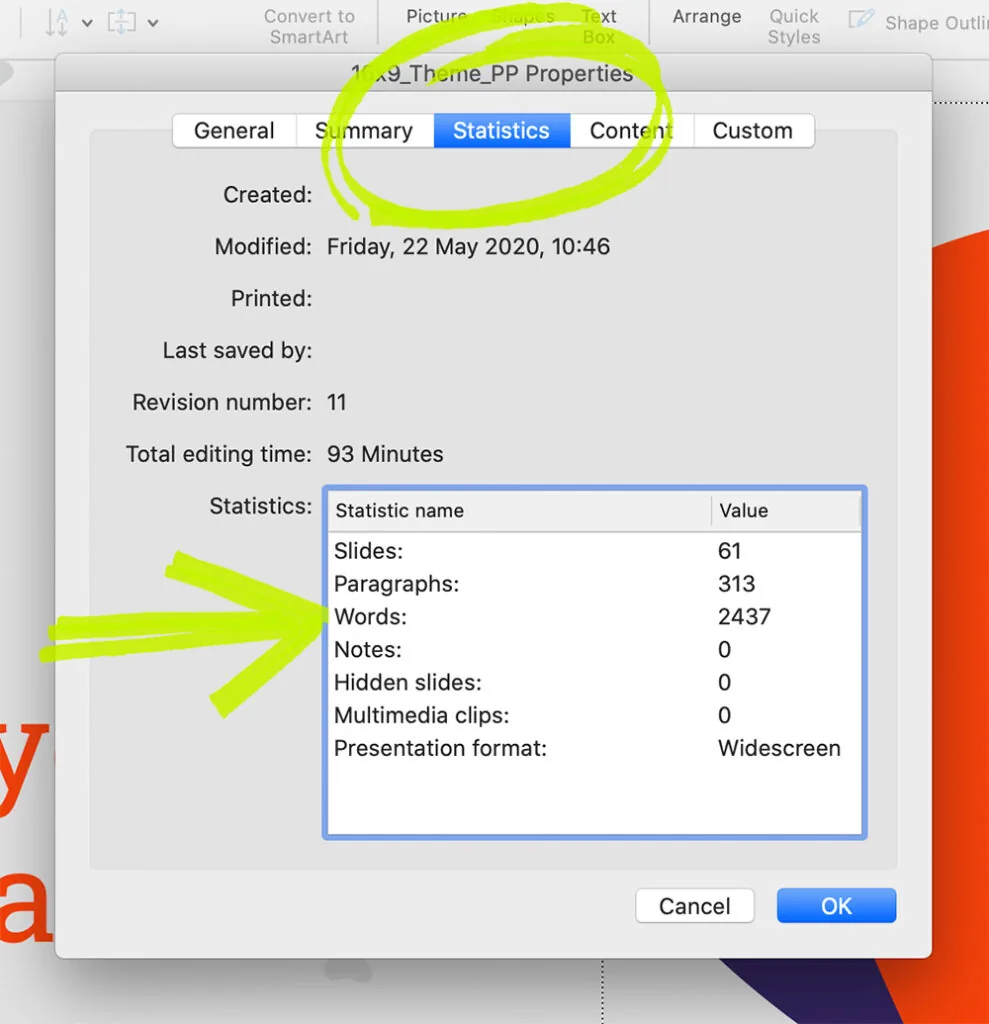
Keep in mind that this does include any punctuation, which can mess up your word count and think that you have more words than you do.
Different approaches in PowerPoint 365
You have some other ways to show word count in PowerPoint 365: counting both the slides and notes pages or just in the notes pages.
Word counts in slides and notes pages
If you want to see the word count for both the slides and notes pages, this is how.
- Go to the “File” menu on the tab. Then click “Info.”
- Go to the bottom of the panel to the right, then click “Show All Properties.”
- Look for the word count on this page.
Word counts in notes pages only
If you just want to know how many words are on your notes pages, this is a task that is easiest done by using Microsoft Word.
- Click on the “File” tab, then click “Export” and select “Create Handouts.”
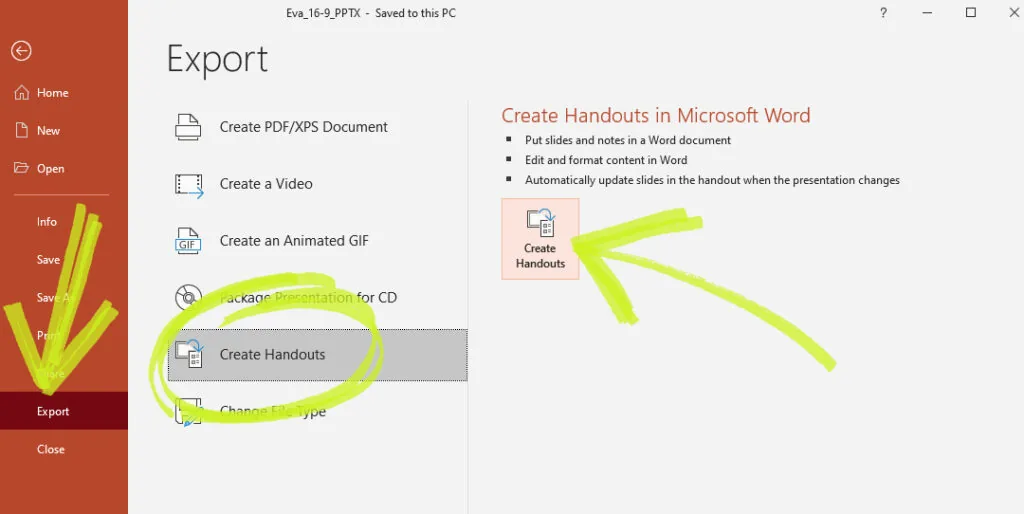
2. Click “Create Handouts,” then “Send to Microsoft Word,” clicking the layout that you want.
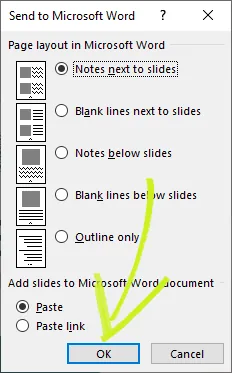
3. From here, you can either “Paste” or “Paste Link.” Use “Paste” if you don’t want it to change the content in PowerPoint automatically. If you do want this, use “Paste Link.”
4. This choice will cause the presentation to open up in Word, and you can see the word count in the status bar. If not, right-click the status bar and select “Word Count.”


