


When creating a presentation, it’s essential that you use a great color palette. The color will allow you to capture the audience’s attention, getting your message across more effectively. To help you do this, let’s look at the PowerPoint color scheme and how you can customize it to suit your own needs.
Changing the theme colors
Multiple PowerPoint theme colors come with the app. You will be able to find these under the Design ribbon.
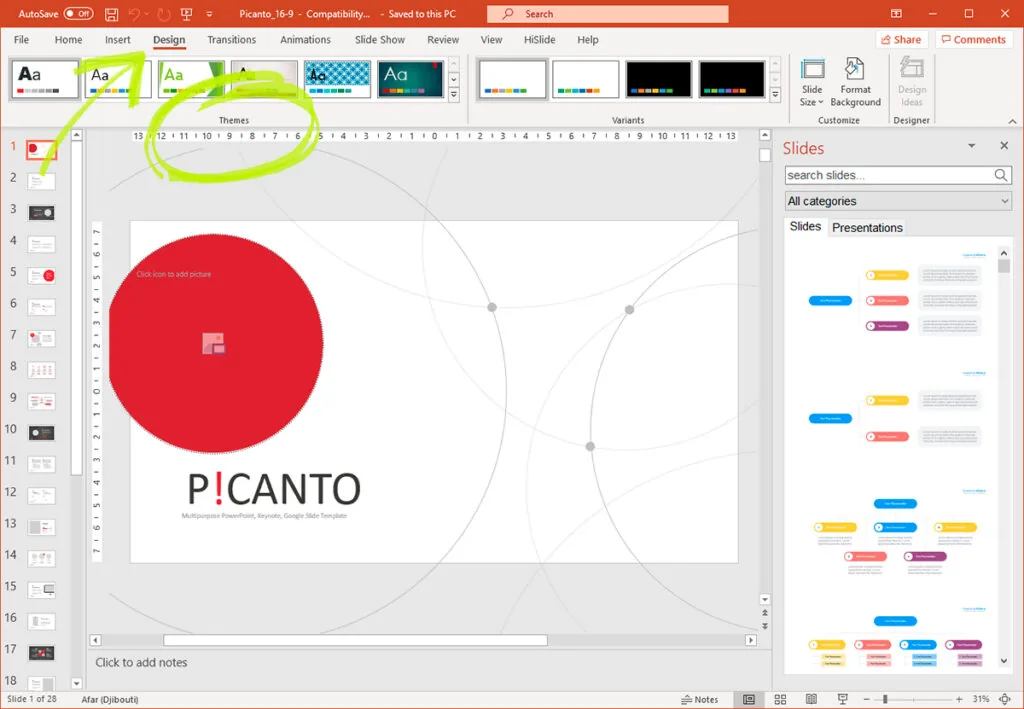
Once you’ve navigated to this area, you will be able to choose one that will work best with your presentation. When you’ve found it, click on that theme. It will then be applied throughout the whole presentation. However, there are some cases where you might need to create a customized theme. If this is the case, select the theme that features the layout that you like the most.
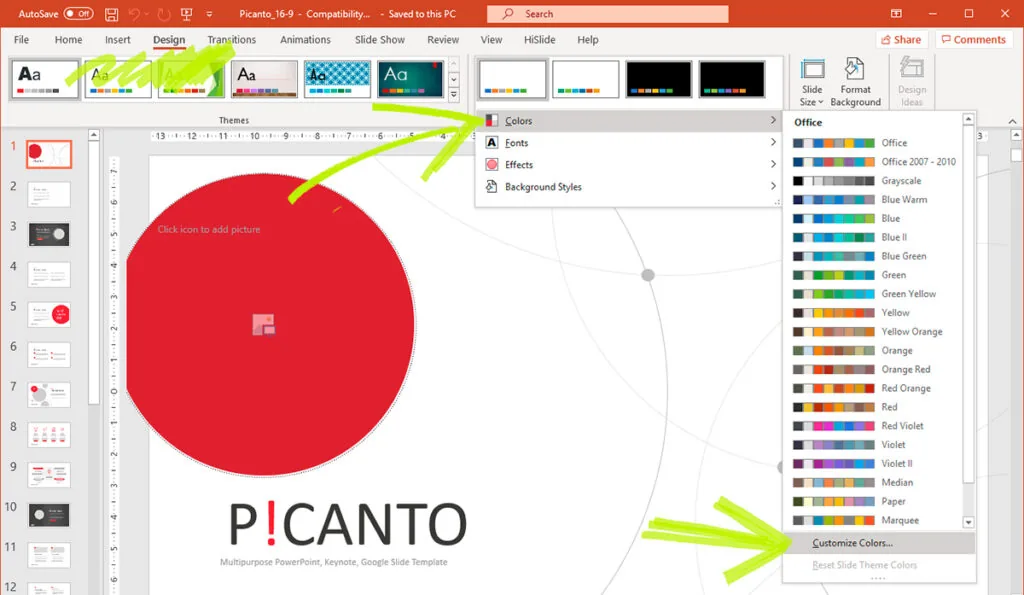
Then, click on the Variants option. This option should be two arrows. Once done, this choice will open a menu giving you more customization options. In this case, you should select the colors option.
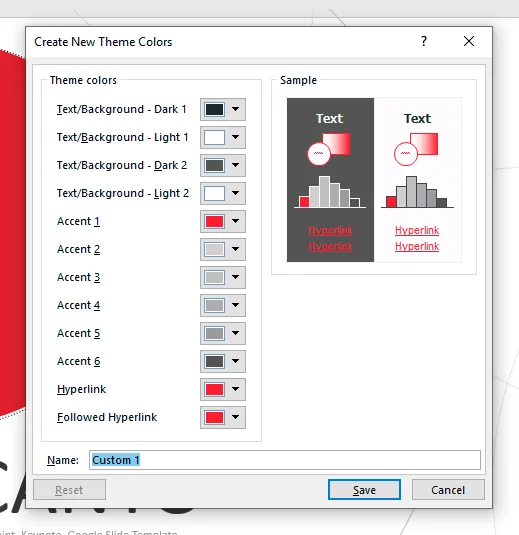
When you want to change the colors for a theme PowerPoint presentation, you will be presented with a list of potential color options. In this area, Accent 1 is the default color for lines and shapes. From Accent 2 to Accent 5, you will have to select the colors that you intend to use throughout your presentation. To give yourself the fullest list of options, you might want to choose the More Colors option. This option will also make it easier for you to select the specific color that you want to use in your presentation.
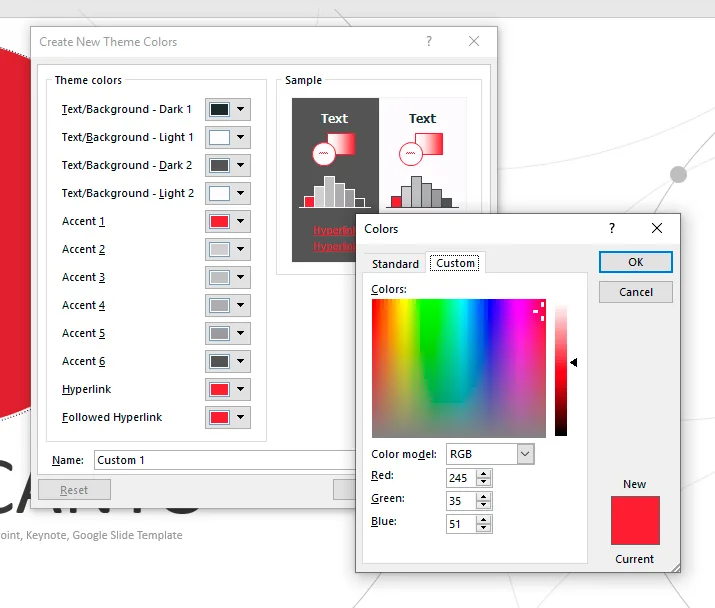
You will also be able to customize other elements of the presentation from this section. For example, this is how to change the color of the hyperlink in PowerPoint. You can choose the way the link will typically appear, and how it will look once someone has clicked on it.
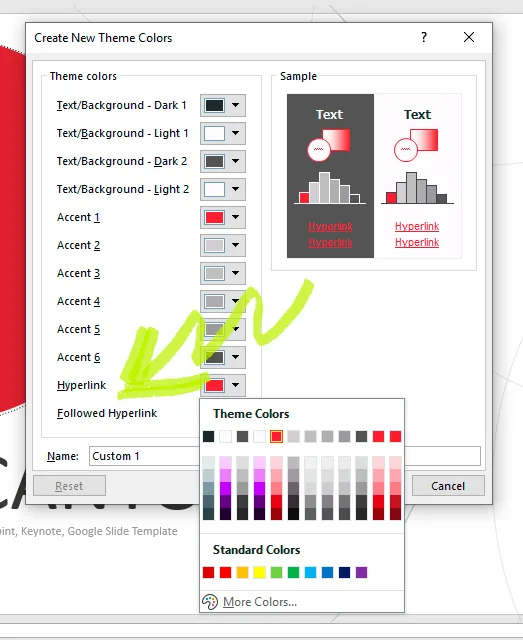
Once you’ve finished customizing the colors, make sure to name the custom PowerPoint theme. Naming the theme will make it easier for you to identify it later. Then, click on the Save button. To apply your theme to a slide, you will need to go to the Design tab. Then, move across to the Variants section. Click on the double arrow to open more options. Then, you should see your custom theme. Clicking on this will apply the changes to your presentation.
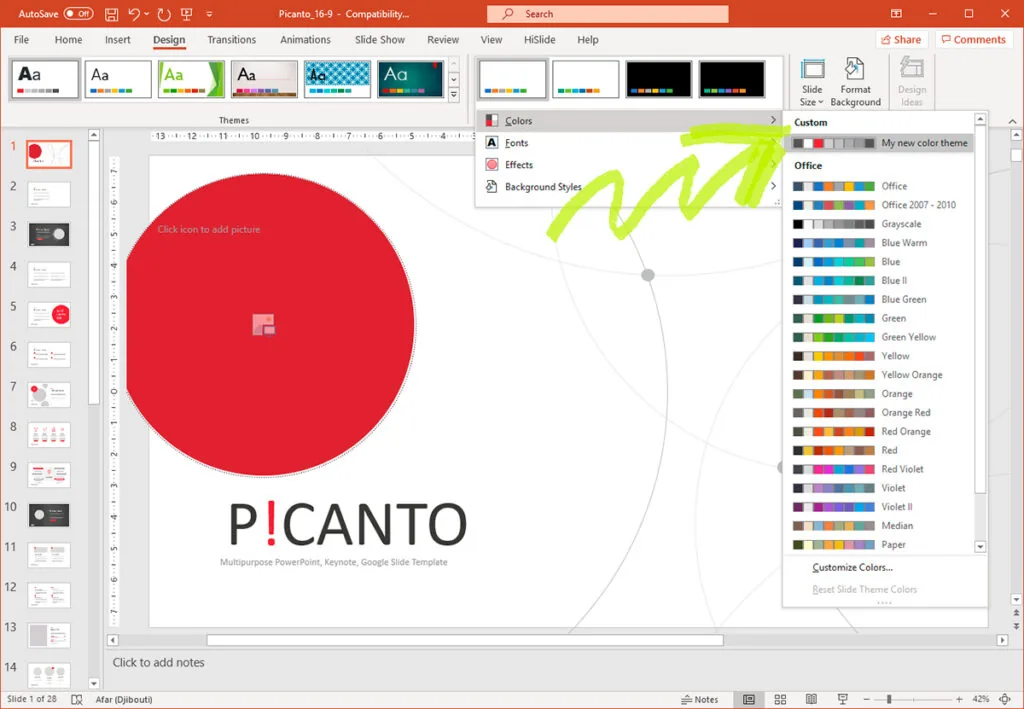
After using your themes, you should take the time to inspect the way that the presentation looks. In some cases, you might need to go back to fine-tune these changes. If this is the case, merely repeat the above process.
Conclusion
When creating a PowerPoint, it’s essential to choose the best possible theme. A great theme will ensure that the presentation looks as good as possible. It can also help the audience understand your message. So, use this technique to customize the themes the next time you want to make a PowerPoint presentation.


