


Sometimes, you will have to work on presentations that involve secure information. To protect this information, you might want to add password protection. Safeguarding your passwords will allow you to limit the type of actions that people can perform. Let’s look at how you can use this function to make your PowerPoint presentations more secure.
Adding a password
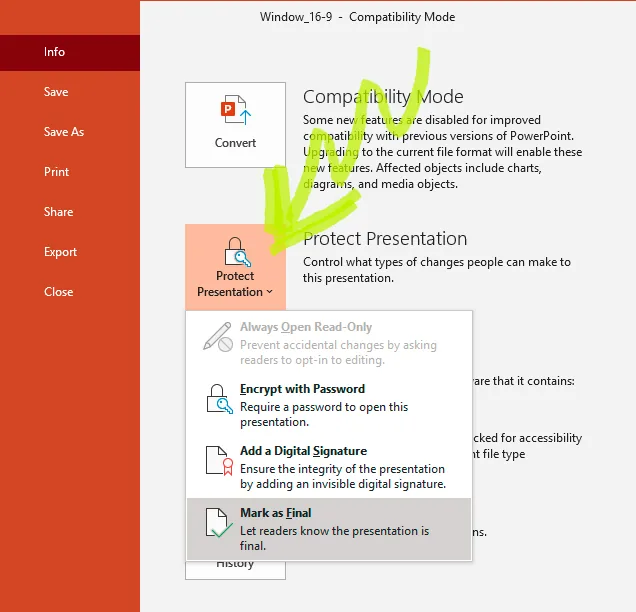
If you want to add a password, you will need to go to the File ribbon, in the top left-hand corner. Clicking on this will cause a menu to appear. In this menu, click the Info tab. This tab will present an option called Protect Presentation. Clicking on this icon will bring a range of options. You will then be able to select the best one to suit your needs. For example, you might want to lock the presentation to Read Only. Then people will be able to view the demonstration, but they will be unable to make changes unless they know the password. Alternatively, you can choose to encrypt the file. Encrypting the file means that you will need to put in the password before you can open it.
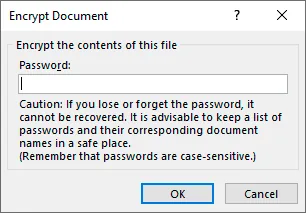
Once you select the right choice, you will need to enter your password and hit OK. It’s important to remember that this password is code sensitive. Once this is done, you will need to save the file. Saving will finalize these changes and enforce password protection.
How to remove a password from PowerPoint?
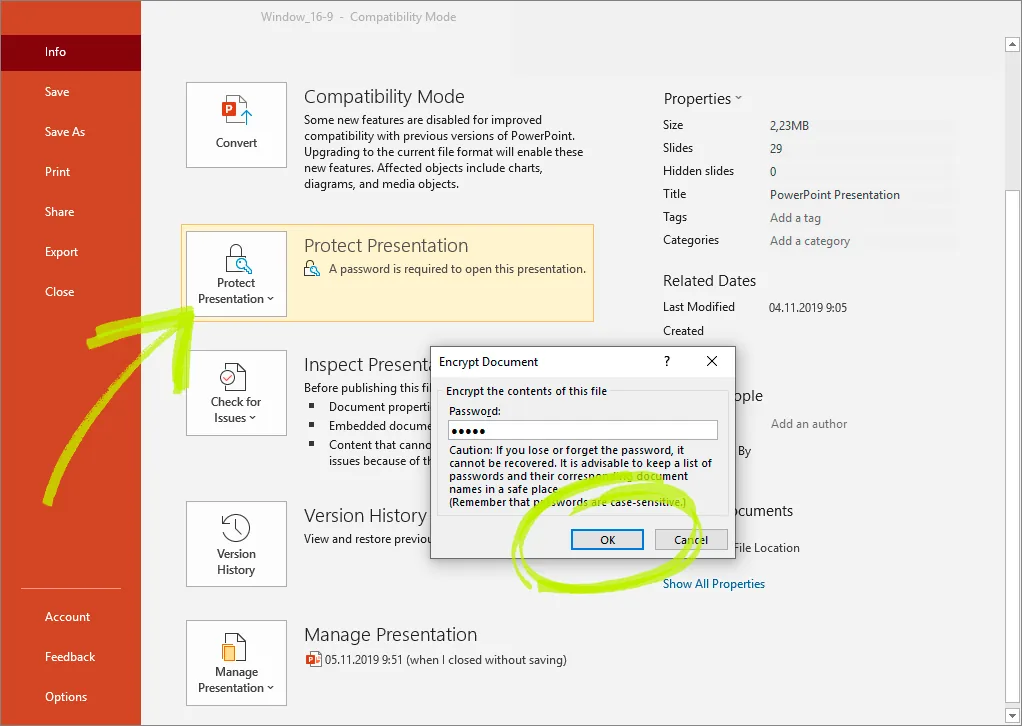
In some cases, the status of the document might change, and you will no longer require password protection. Once this happens, you will need to remove the password. Thankfully, removing the password is usually a simple procedure. First, go to File, select the Info section, and navigate to the Protect Presentation section. Then you should see the text box, which you used to apply the password. To remove the password, delete the text and hit the OK button. To complete the process, you will need to save the file.
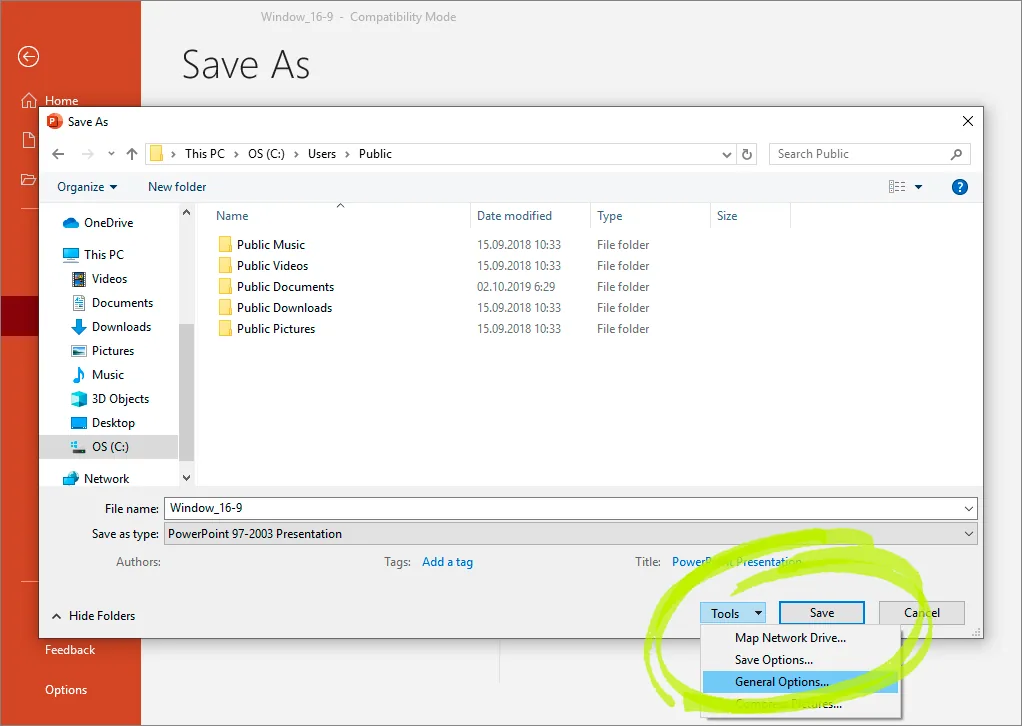
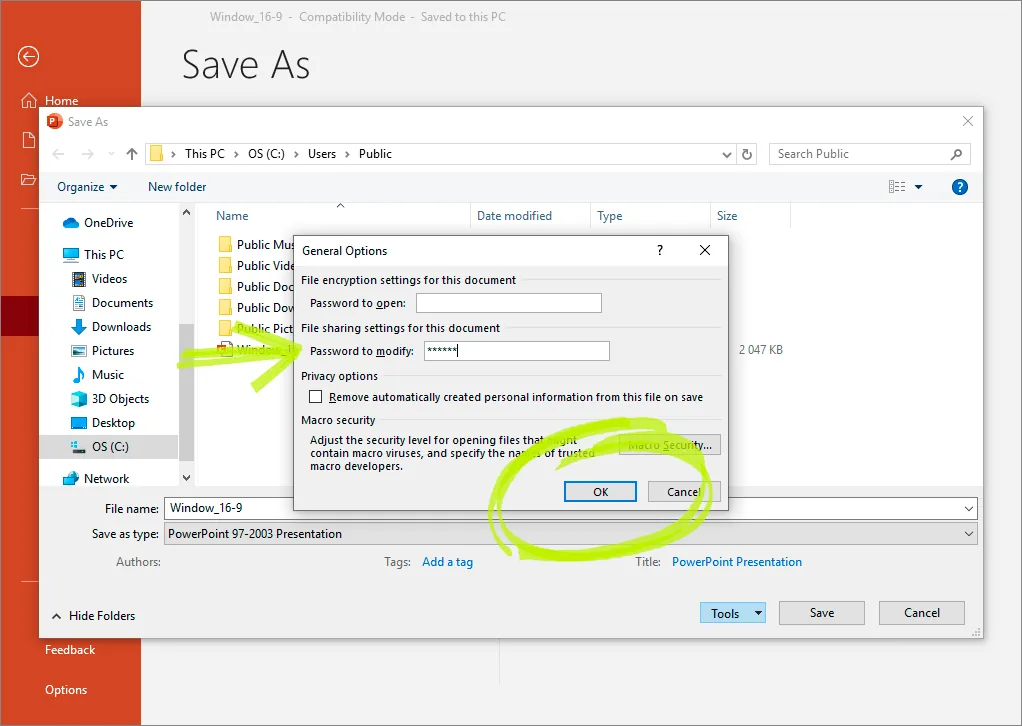
Alternatively, you can use the Tools option when you save the file. The Tools icon will bring up a list of options, select General Options. You can then remove the password, hit OK, and save the presentation.
Conclusion
Passwords are a great way to protect essential presentation files. We discussed some of the best ways to add and remove passwords. However, it’s vital to make sure that you keep these passwords in a safe place. It can be challenging to unlock your documents if you forget them. Thankfully, if this occurs, you might be able to find free PowerPoint password remover tools online. Just remember to check the site’s credibility before you use the service; otherwise, you might be unwittingly downloading a virus.


