


Printing Google Slides is quick and easy. Whether you need a guide to read off of during your presentation, or you wish to give handouts to your viewers, knowing how to print from Google Slides themes is a great skill to have.
Printing your Google Slides
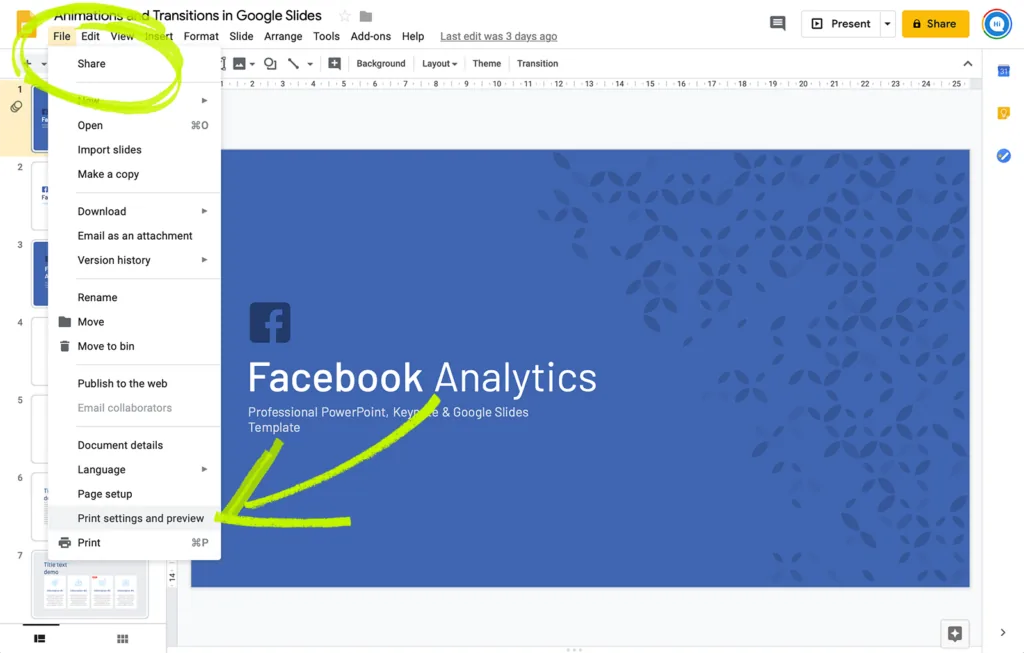
- To print your slides, open your presentation in Google Slides. Now click File. Near the bottom of this menu, you will see and select Print settings and preview.
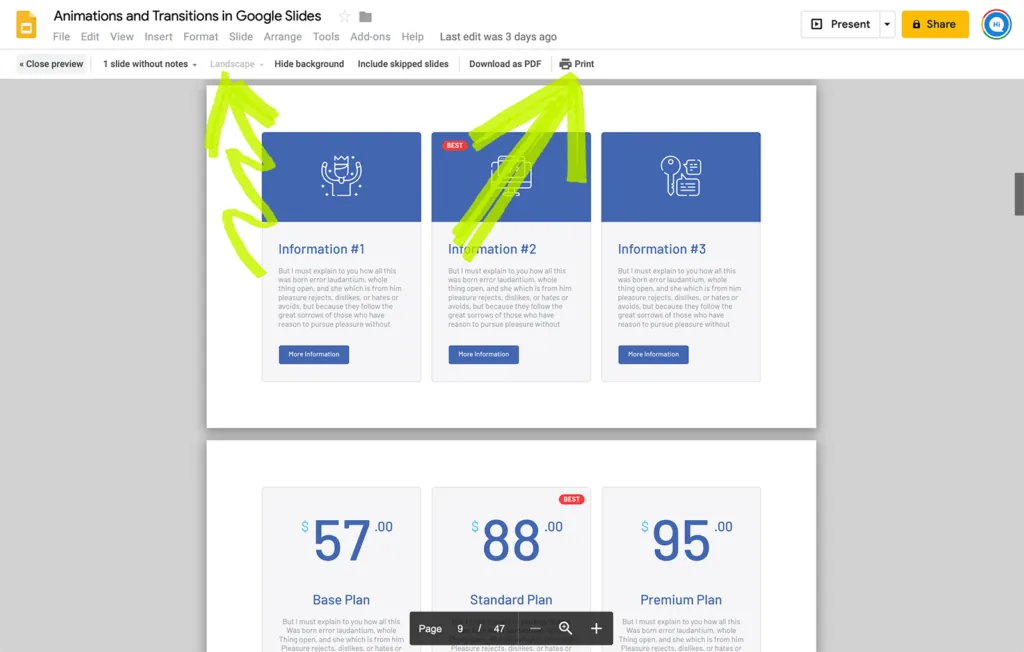
2. If you are happy with the preview, click “Print” on the toolbar at the top right of your screen. If you are not satisfied with the display and wish to change the orientation of your slides, you may select Landscape or Portrait on the toolbar, then click Print. A window will pop up in the center of your screen, giving you the option to choose a printer, select a range of pages, decide the number of copies needed, and select colored or black ink. Once you have filled in your selections, click Print at the bottom right of the window.
How to print Google Slides with speaker notes?
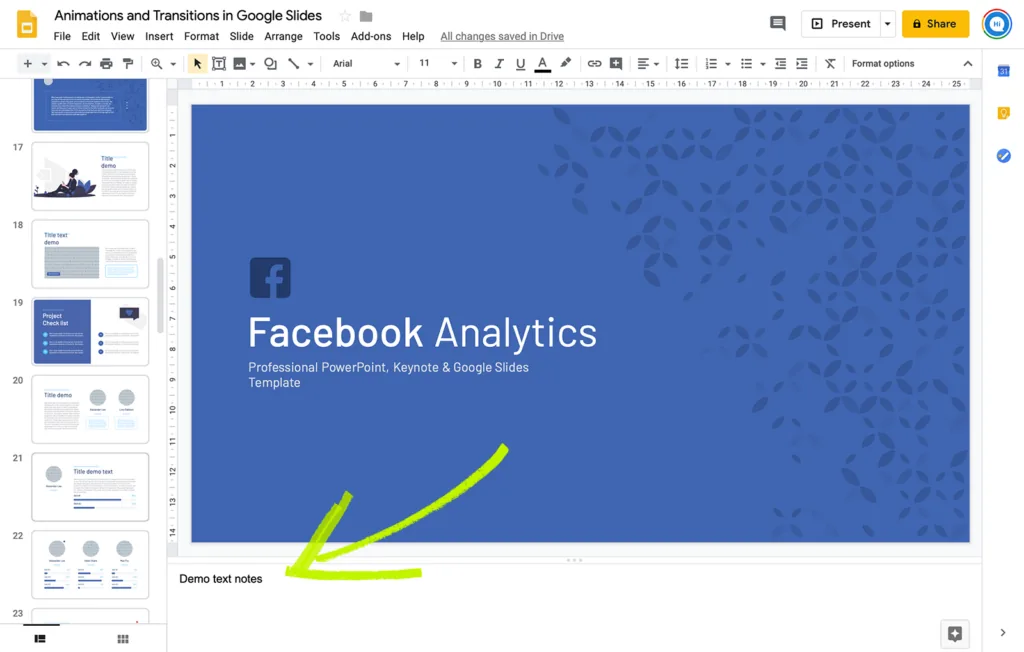
- You may wish to write yourself a few notes if you are giving a guided presentation. To print your Google slides with annotations, click on File to open the drop-down menu. Near the bottom of this menu, you will see and select Print settings and preview.
- A new window will open, displaying a preview of your presentation. At the top left of this screen, along the toolbar, you will notice another drop-down menu reading 1 slide without note”. Click the menu and select 1 slide with notes. At this time, you may also choose Landscape or Portrait on the toolbar to change the orientation of your printed slides.
3. Now select Print on the far right side of the toolbar. A window will pop up in the center of your screen, giving you the option to choose a printer, select a range of pages, decide the number of copies needed, and select colored or black ink. Once you have filled in your selections, click Print at the bottom right of the window.
Printing multiple slides on a single page using Google slides
- Depending on what you are using the printed pages for, you may wish to include numerous slides on each of the pages.
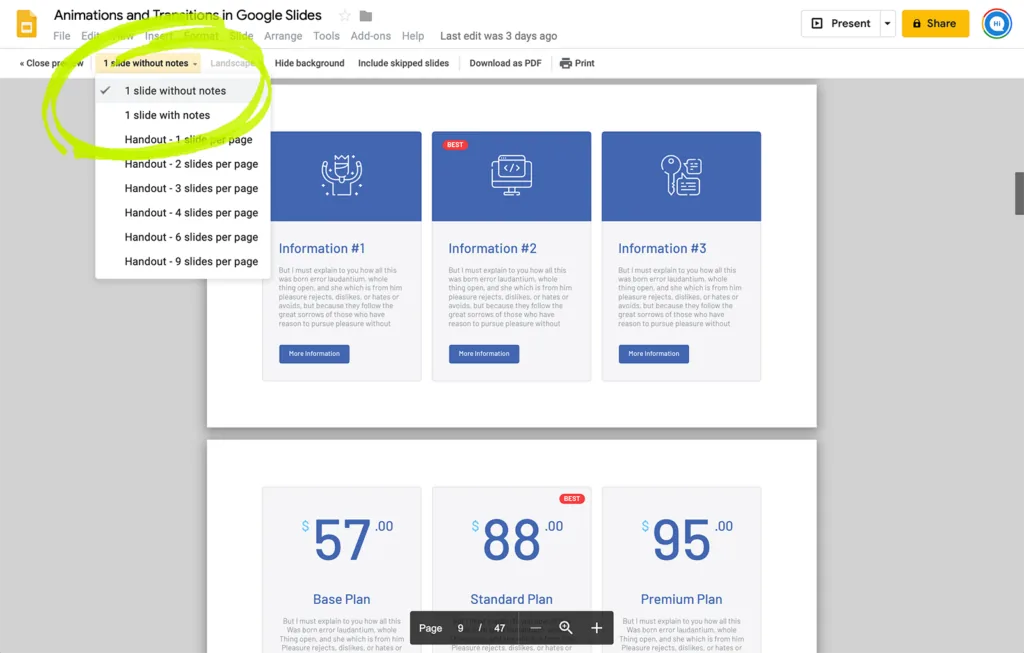
2. You can do this by first opening your spreadsheet in Google Slides. Now select File. A drop-down menu will appear. Select Print settings and preview. At the top left of your screen, along the toolbar, you will notice another drop-down menu reading 1 slide without notes. Select this drop-down menu to view all your options. You will be able to print up to 9 slides per page.
Google Slides offers a professional-looking and straightforward layout for your presentations. Having learned how to print from Google Slides, you can bring that professionalism to the notes and handouts you need.


