


One of the best parts of using a service like PowerPoint is the range of print options available, which ensures that you will be able to customize it to suit your needs, helping you give a compelling presentation. Let’s take a closer look at some of the different printing options and how they work.
Accessing the Print Menu
Before you can print anything, you need to access the print menu. To do this, go to the top left-hand side of the screen and click on File, which will activate a drop-down list of options. Choose the print section, and that will give you a range of printing options.
Choosing How Many Slides You Want to Print
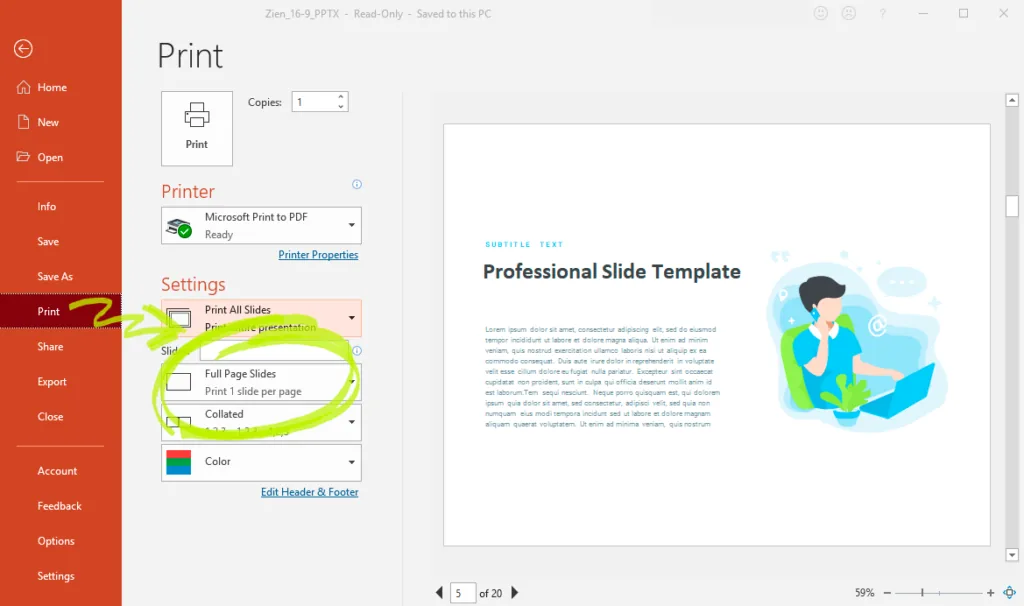
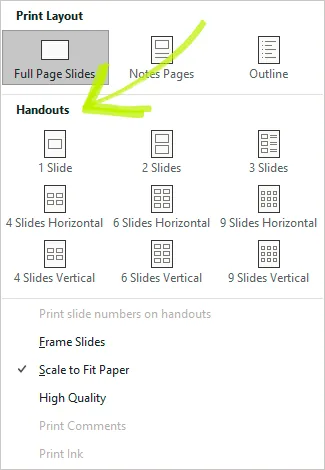
There are multiple ways that you can customize how many slides you print. For example, you can put a single slide on the page, or you can set various slides on each page. Generally, the default option is a single page slide. To find how to print multiple slides on one page, you will need to click on the full-page slides button, which provides a drop-down menu. Here, you will get plenty of options that let you place multiple slides on the same page. For example, you can get either three, six, or nine slides on each page, depending on your needs.
Choose Whether You Want to Include Notes
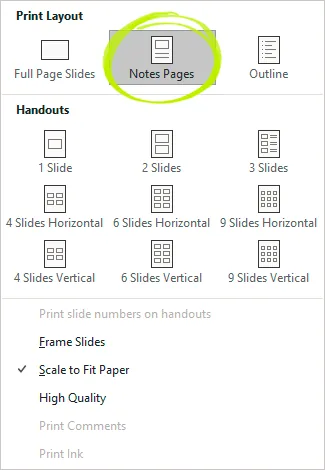
You also have the option of adding notes when printing the presentation, which can be useful when giving a presentation, as you can use the notes section in which to write your script. To print PowerPoint with notes, you will need to go to the Slide options, which is in the same area that you access to change the number of slides on each page. At the top of this page, you will see the Slide Layout section. Then, select the Notes Pages options, which will display your notes underneath each slide.
Select Print Range
Finally, you can select what slides you print. To do this, you’ll need to click on the Print Range button that will give you more options. You can either print all the slides, print the current slide, or print a range of slides. When you enter a custom range, you can control what section of the presentation gets printed. For example, you might only want slides 41 to 50.
Conclusion
One of the best tools when creating a presentation is PowerPoint, which makes it easy for you to control the way the slides look and add notes to the script. To help you use this tool better, we looked at some printer options. For example, we showed you how to print PowerPoint slides on one page. So, use this to improve the way you use PowerPoint.


