


One of the best ways to give a presentation remotely is by recording narration that will play whenever someone watches your slideshow. While many people assume that this will require a great deal of technical knowledge, this isn’t the case. Let’s look at how to record audio on theme PowerPoint.
Adding narration to a single slide
In some cases, you might only want to add narration to a single slide. If this is the case, you should go to the Insert tab. Then navigate to the far-right corner of the ribbon, where you should see the Audio icon. Here you will find a drop-down menu that has been released that has a range of options from which to choose. To add narration, select the Record Audio option.
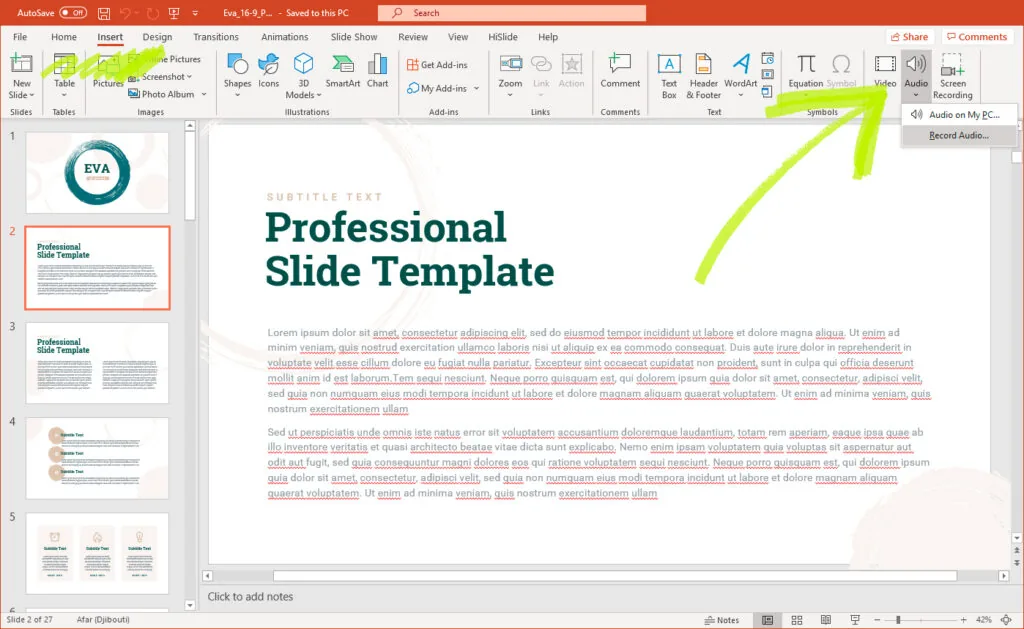
Once you choose Record Audio, you will be able to record an audio file and insert it into the PowerPoint. When selecting the audio file, you may want to name the recording. Giving the recording a name will allow you to keep track of it better. To record the file, click on the red circle icon. When you are finished, you will be able to stop the audio using the black square icon. Then, you will be able to review the file and add it to your presentation.
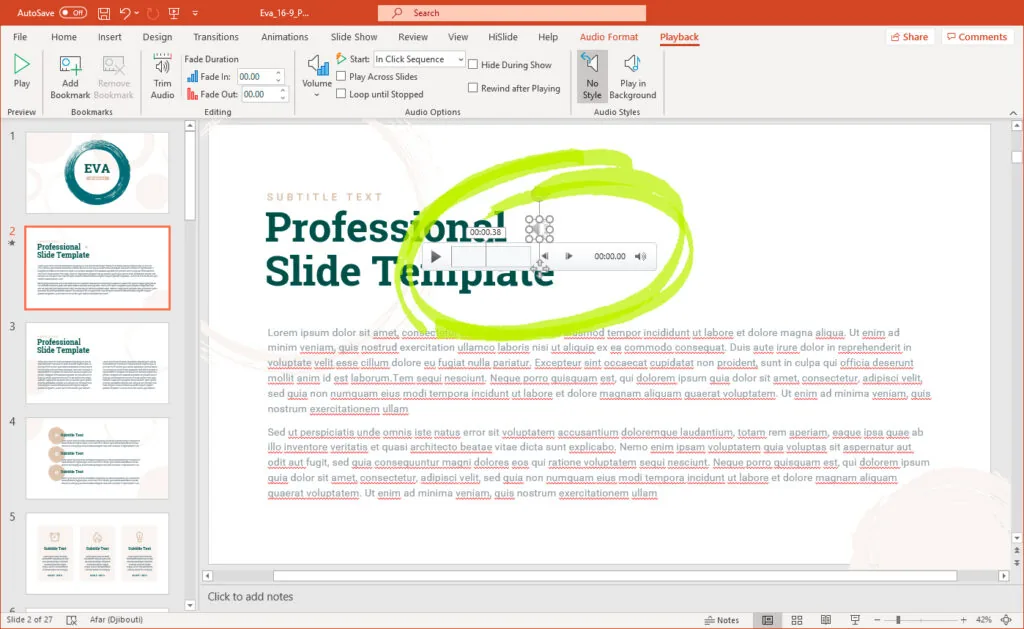
Recording narration for the whole presentation
In some cases, you might want to record the whole slideshow. In this case, going slide by slide can be a plodding approach. To make it more convenient, you might want to learn how to record audio for the whole presentation. To do this, click the slide on which you want to start the recording. Then, move to the Slide Show tab on the navigation ribbon. Next, click on the Record Slide Show button, which should be in the middle of the screen. After that, you will then be able to click the Record From Current Slide option. The recording will start on whatever slide you are currently on.
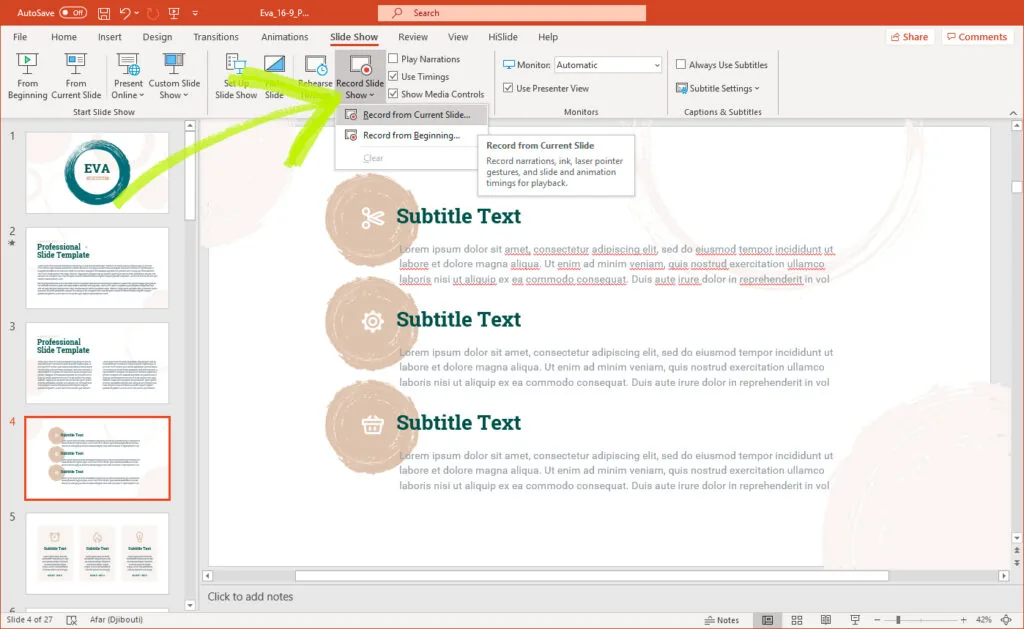
When you are recording, you will be able to move through the presentation using the spacebar, or by selecting the Next Slide option. You will also have the choice to pause the recording, letting you take a break. Use the Stop icon when you have finished the recording.
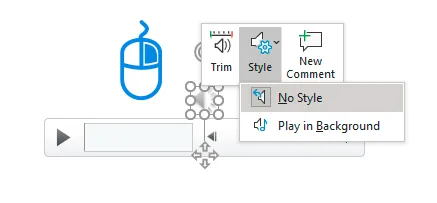
Finally, you might want to check the quality of the audio by listening to the file. While listening to the audio file, you may notice if you made any mistakes and need to re-record the soundtrack. To do this, click the Speaker icon on the slide, then click the Play button. You will then be able to hear the recorded narration for that slide.

Conclusion
Recording audio PowerPoint can be a great way to talk people through your presentation, even if you can’t physically be there. Therefore, use this guide to add narration to your future presentations.


