


When giving a presentation, pictures can be an excellent tool for getting your message across. However, in some cases, the background could be distracting, which could result in losing your audience’s attention. Thankfully, you can use PowerPoint to remove such elements. Let’s look at how to remove the background from picture in PowerPoint.
Select the remove background tool
To remove the background, you will need to use the right tool. To access this, you will need to click on the image that you want to modify. By clicking the image, you will bring up the Format tab. Clicking on this tab will present a range of options that you can use to alter the pictures.
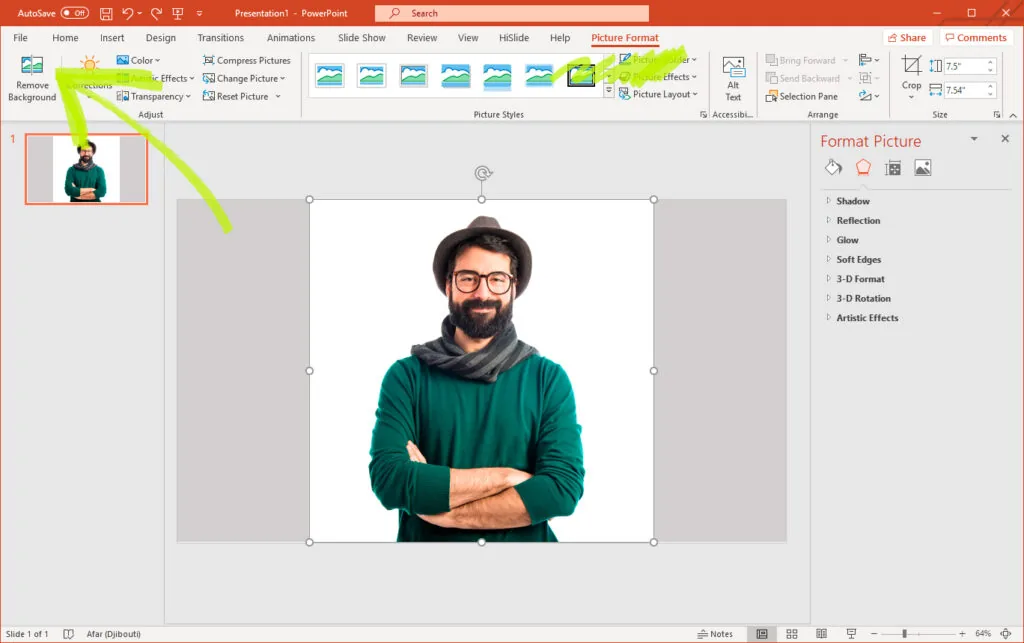
Once you’ve accessed this tab, you need to find an option labeled, Remove Background. Click on this.

Controlling which parts of the image to remove
The next stage of learning how to remove background from an image in theme PowerPoint is to make sure that you highlight the background sections that you want to remove. At first, you will notice that the background has been turned Magenta. Any areas marked in this color will be made transparent.
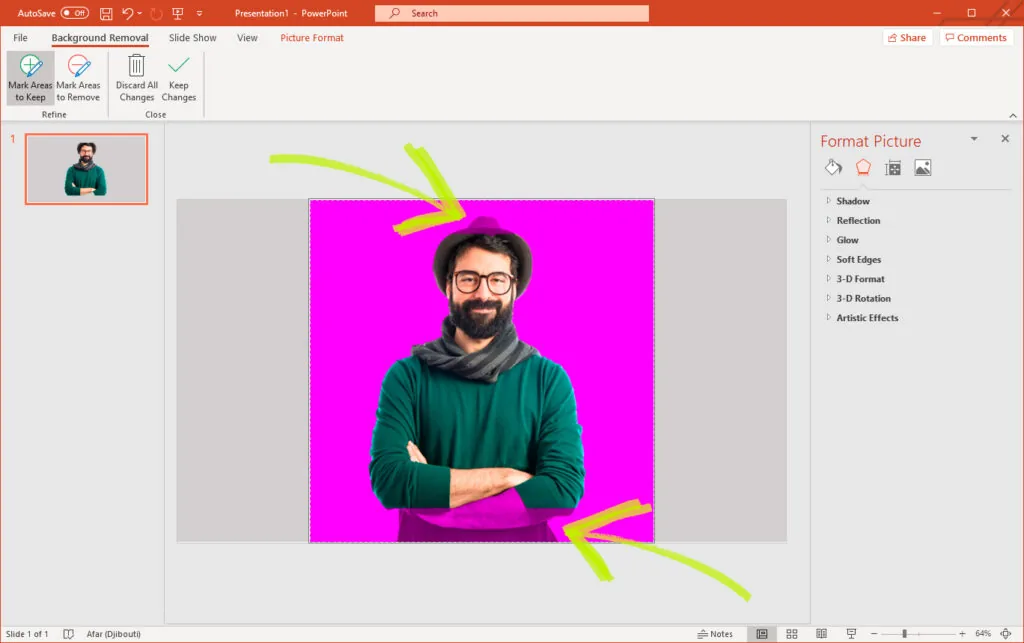
While most of the time, PowerPoint will be able to spot the correct background image, there are some times where you might want to modify it. To edit the image, go to the Picture Tools section. This choice will present some options to help you customize the removal.
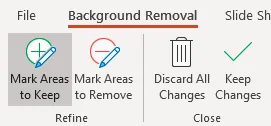
The first tool is Mark Areas to Keep. This selection will bring up a pen that allows you to control how much of the background images are retained. The second tool is Mark Areas to Remove. This choice will enable you to get rid of more of the background image. Using these tools, you will be able to customize how the background appears in your pictures. If you make a mistake, you can opt to Discard All Changes and start again from the beginning. Once you are happy with the image, hit the Keep Changes button.
Making colors transparent
In some cases, you might want to make just one color transparent. To make a picture background transparent in PowerPoint, click on the image, and go to the options. On the right side of the screen, you should spot something called Color. Clicking on this will give you a list of colors that you can choose to make transparent. At the bottom of this list, you will see a tool labeled Select Transparent Color.
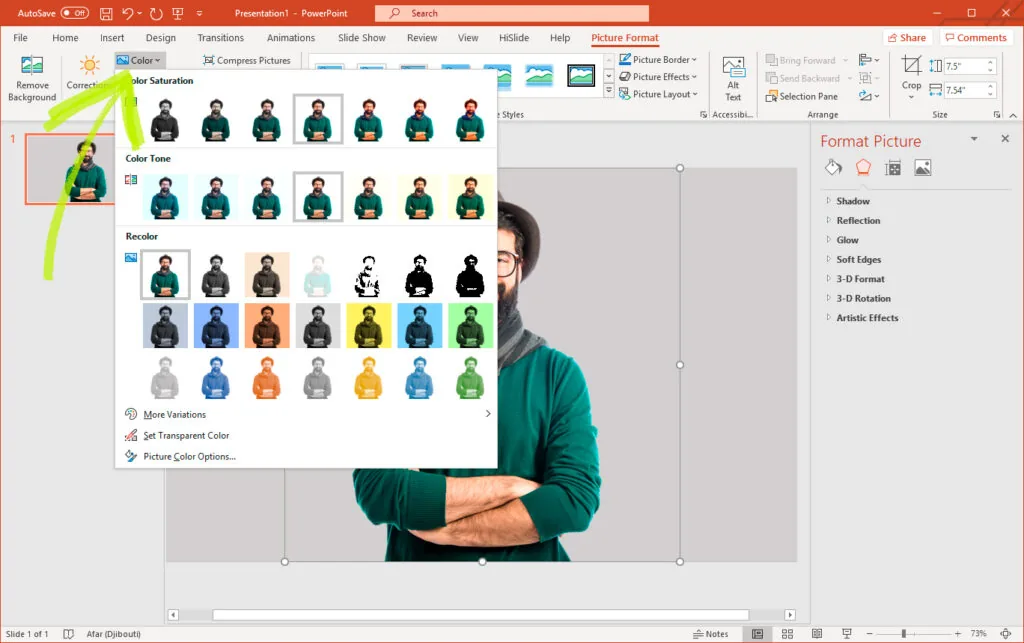
Next, select the color that you want to make transparent. It should be noted that complex images are harder to edit in this way, as they have a more significant mix of colors.
Conclusion
Learning how to edit your images by removing the background or changing their colorings will give you more control over how your presentation appears. Therefore, use these techniques to make sure that you are happy with all the pictures in your PowerPoint.


