


Design is an integral part of any presentation. Like other platforms, many skills can be learned in Google Slides to make your presentation style unique and eye-catching.
In this tutorial, you’ll learn how to rotate aspects of your slide, specifically the textboxes, objects, and images you’ve included in the slides.
Inserting First
Before you can start altering your slides’ design, you need to understand how to insert these textboxes, objects, and images. While many may already know this initial step, others aren’t sure how to add these aspects to their presentation.
To add a textbox, image, or shape, you need to follow these simple steps:
- Go up to the toolbar at the top of the screen.
- Click on the “Insert” tab.
- You’ll see all the options you need to add these additions to your slide in the dropdown menu.
- Then, you can choose from the options:“Image” – There are a few different ways to add images to your slide, including picking from your Google Drive, computer, or finding one from the web.“Textbox” – Clicking on the option, you can drag and drop a textbox of your desired size.
- “Shape” – Inserting an object, and specifically shapes, is as easy as clicking on one of the shapes under the drop menu and then dragging the cursor until the shape is the size you desire.
Rotating second
You may think that understanding how to rotate objects, images, and text boxes are three different skills. However, rotating any of these three aspects involves all of the same steps.
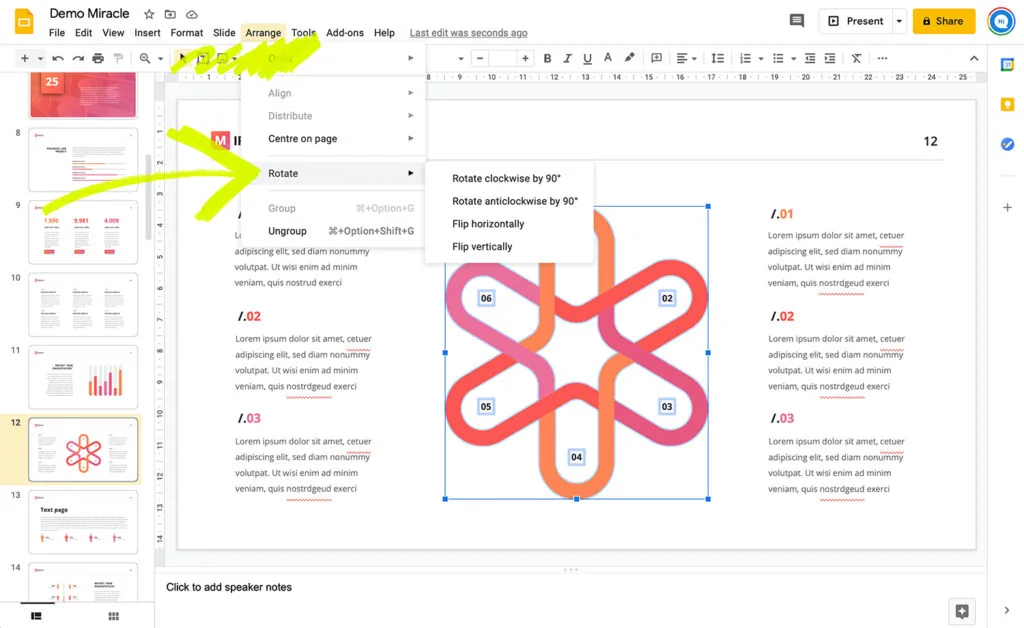
- First, you need to go up to the toolbar at the top of the screen.
- Then you go over to the option “Arrange.”
3. Once the dropdown menu appears, you go down towards the bottom of the menu where the “Rotate” option is.
4. Under the rotate option, you can pick four ways to rotate your aspect: Rotate clockwise 90°, Rotate counterclockwise 90°, Flip horizontally, and Flip vertically.
There is also a shortcut to rotating a textbox, image, or object in your Google Slides. However, it is very similar to using the toolbar at the top of the screen.
- After selecting the image, object, or textbox, you want to alter, right-click.
- When the menu appears, you can go down towards the center and select the “Rotate” option.
- Under this option, you’ll see the same four options like the ones under “Arrange.”
Conclusion
Learning skills, such as rotating slides, aren’t complex skills in Google Slides, though they bring an interesting skillset. Not only are they simple skills to utilize and master, but this skillset also makes it easier to learn how to do other tasks such as how to rotate a video in Google Slides.


