


To distribute your presentation widely, you might want to convert it into a video. Such a video will allow you to put the production onto platforms like YouTube. It will also allow you to put the PowerPoint onto a DVD, which people can watch in their homes. Let’s look at some of the steps used to convert .ppt to video.
Export the video file
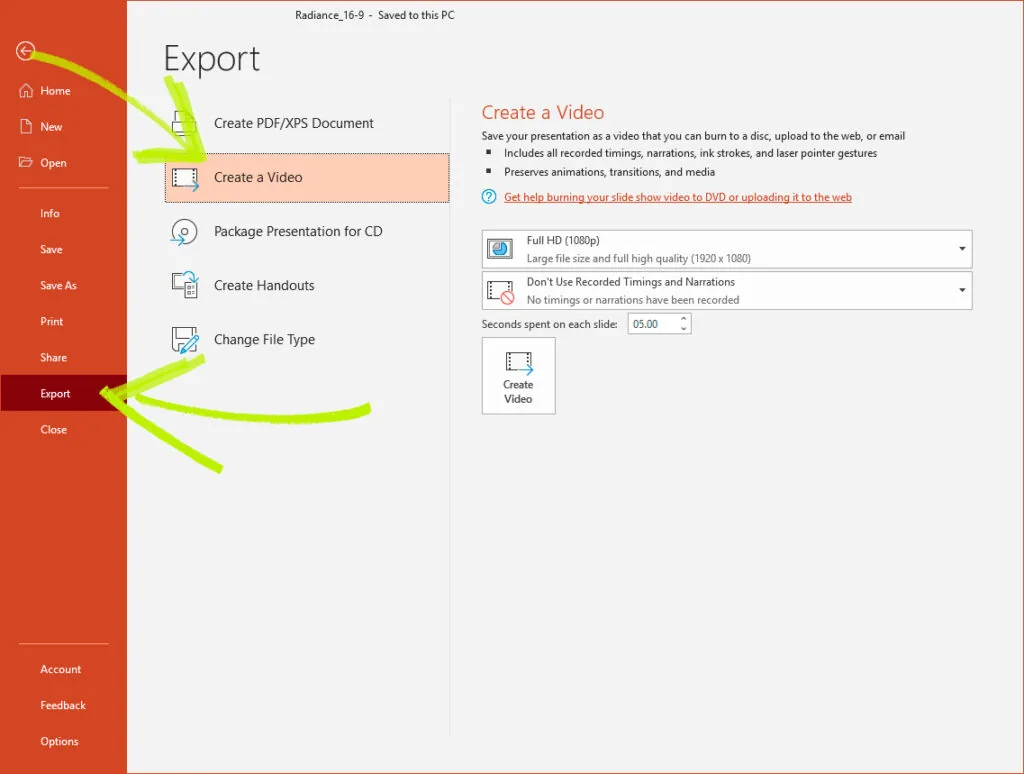
When thinking about how to create a PowerPoint video, the first thing that you want to do is export the PowerPoint file in a video format. To do this, you will need to go to the File tab, which is in the right-hand corner of the screen. Next, you will need to be able to move to the Export option. You will find this option at the bottom of the menu. Here you will view multiple options of which you should choose Create a Video.
Choose the quality option
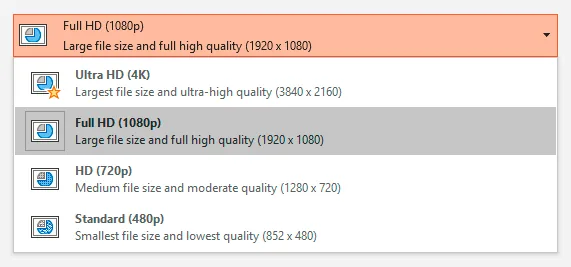
Then, choose what quality you want the video display to be. When making this choice, you should consider where it will be played. For example, if you wanted to put it onto a DVD, you might want higher quality. However, if you wanted to put it on YouTube, you might want to make it a lower quality so that it will be uploaded faster.
Decide whether to use animations
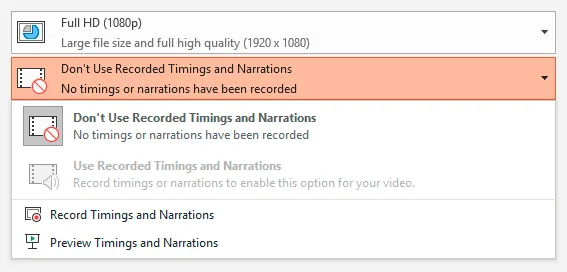
If you’re going to record a video, you might want to use narrations, which will allow you to record audio over each slide. Once you’ve taped the narrative, select the Use Recorded Timings and Narration option, which should be the default. The options will include the narration in the video. In some cases, you might want only the slides. In this case, select Don’t Use Recorded Timings and Narration. This option will allow you to set how long you want to stay on each slide.
Once you are happy with these settings, select the Create Video button.

Save the video
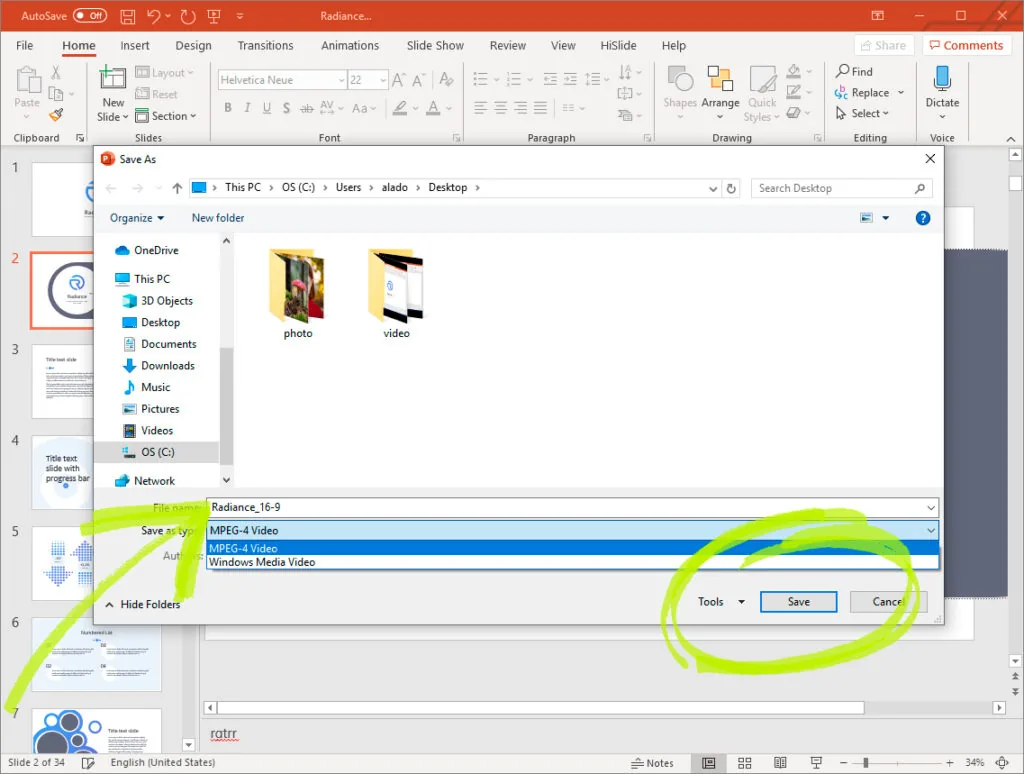
When you click on Create Video, you will be directed to a folder to save the video. Afterward, you will be given the option to name your film. You will also get to choose what file type you want to save it as. When exporting ppt to videotape, there are usually multiple options. Which one you select will depend on your specific needs. Once done, you will need to wait for it to be converted, which can take a few minutes.
Conclusion
One of the best ways to share your presentation is to export it as a video file. Therefore, use these techniques to share your PowerPoints with the world.


