


Google Slides can be a great platform to create a presentation. By creating and storing your files in the cloud, you will be able to work on the slideshow from anywhere in the world. However, to do this effectively, you will need to know how to save and share your slides.
How to save Google Slides?
First, you might want to learn how to save your work. In Google Slides, this is a straightforward process. As you write, the document will be saved to the cloud automatically. The updated copy will be available the next time you open the Google Slides presentation.
How to save Google Slides to flash drive?
In some cases, you might want a physical copy of your presentation. This copy will allow you to alter it, even without access to the internet. For this reason, you might want to save it to a flash drive. To do this, you will need first to insert the drive into the computer. Then, you will have to download the file. You can do this by navigating to the File button on the top left-hand side of the screen.
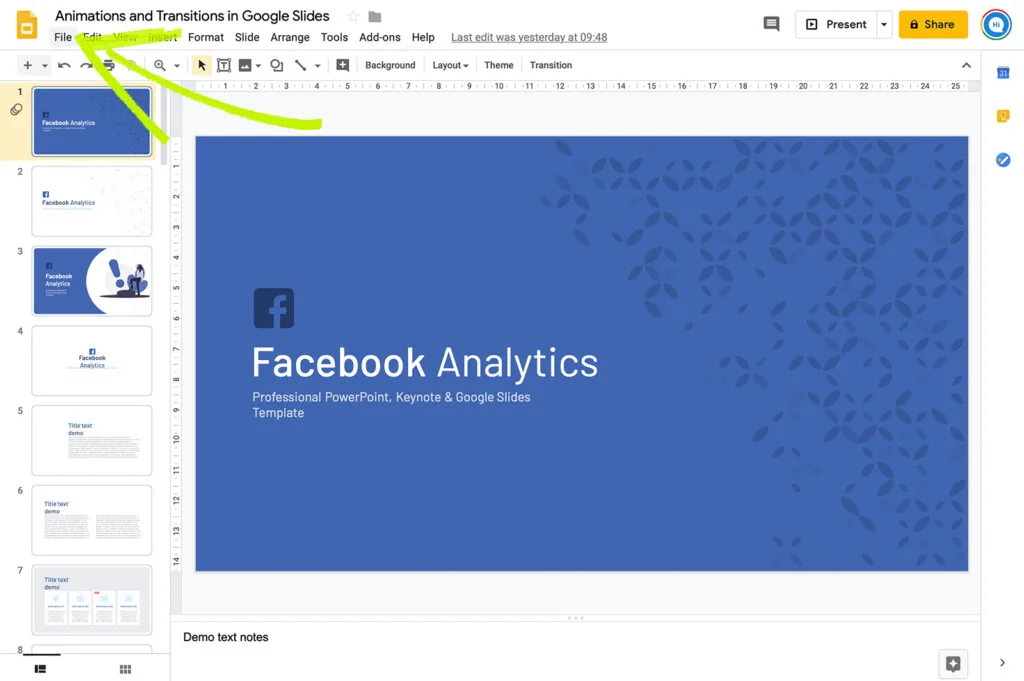
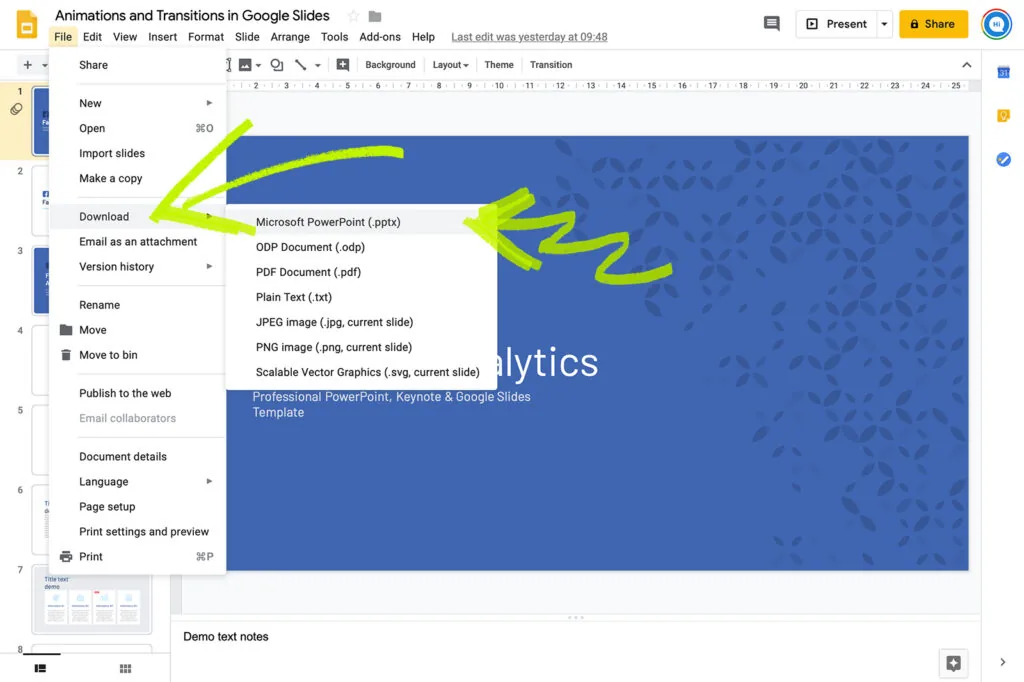
Clicking on this button will open a drop-down menu. In this area, you will have to find and select the Download Asoption. This option will create another menu with a list of the formats that you can use. Select the one that will best suit your needs.
Once you download the file, you will have to open it and select the Save As option. Then, you have to select the Computeroption. This option will bring up a list of all the files on your computer.
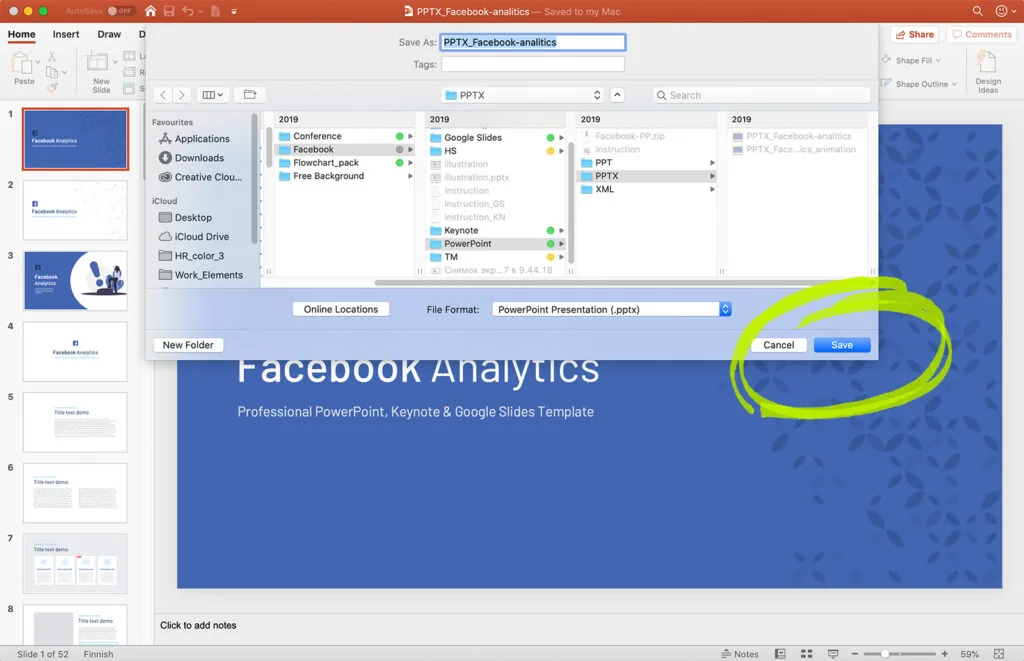
Navigate to the flash drive and click Save. In some cases, you might also have to adjust the title of the file.
How to share Google Slides?
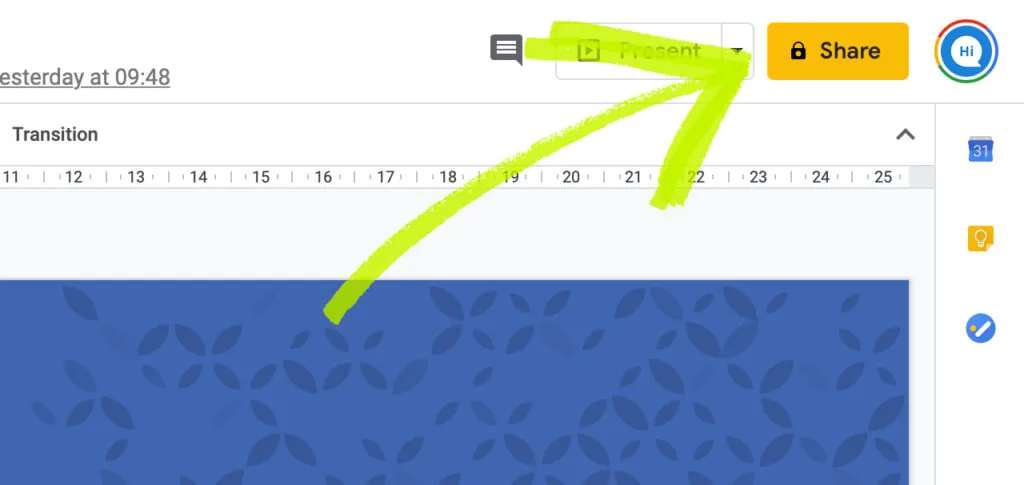
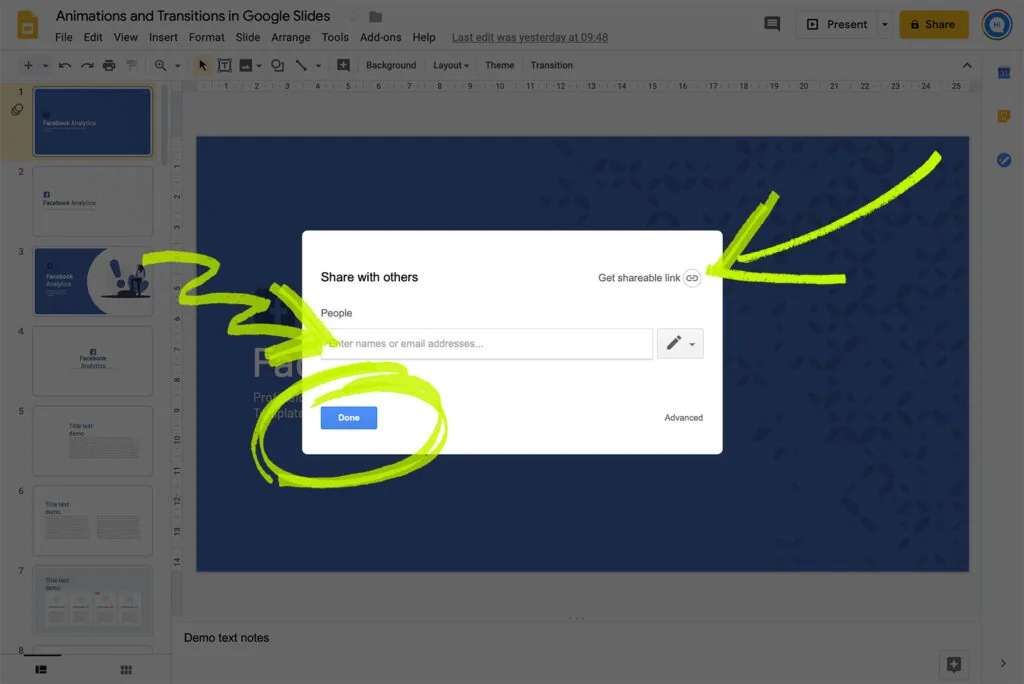
Often, when you create a presentation, you might want other people to deliver their feedback to help you improve the project. One of the best ways of doing this is by sharing your slides with them. To Google Slides share, go to the File button in the top left-hand corner. This button will open a menu. At the top of the page, you should see the Shareicon. Clicking on this will allow you to choose to whom you send it. Often, the way you will share a file is by entering an email address. If you want to send a message explaining the message, you can click on the pencil icon. Once you have finished, you should hit the Done button.
Google Slides can be a great tool to employ when you are trying to create a presentation, allowing you to collaborate with your workmates and store the presentation in the cloud. So, use these tips to make sure that you always have access to your files.


