

One of the best tools to use to create a presentation is PowerPoint. However, it can sometimes be difficult to share these slides with other people, especially if they don’t have PowerPoint installed on their computers. However, you can get around this by sending people a PDF version of the presentation, which will allow them to view the presentation but will prevent them from making any changes. Thankfully, it’s easy to create and save this type of file.
Review the File
Before you save it, you should review the presentation. Once saved as a PDF, you will be unable to make any changes to the document. Once you’ve double-checked everything, you should save a copy of the file.
Method One: Export As a PDF
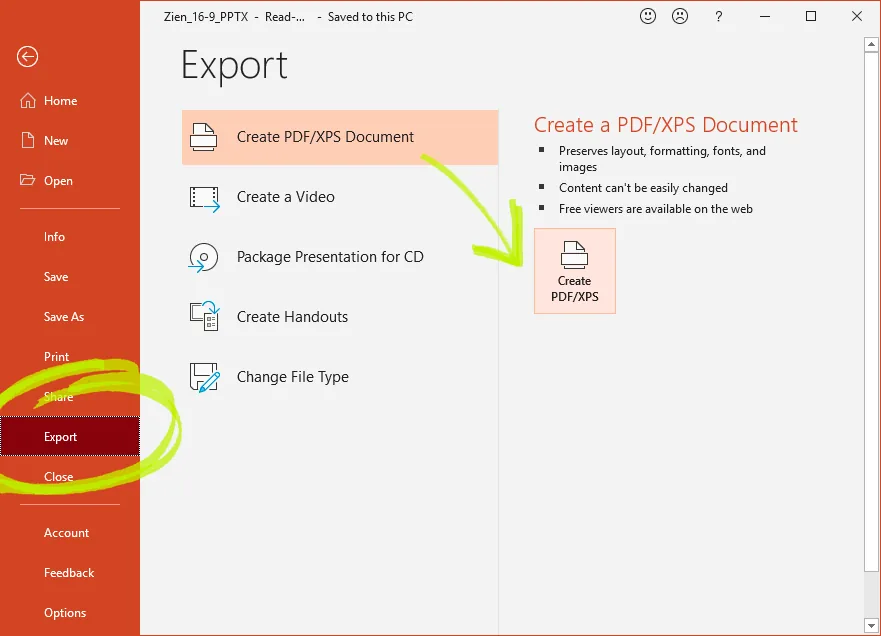
To do this, click on the File ribbon on the top left-hand side of the screen. Once there, click on the Export option, which covert the PowerPoint into a PDF document. Once this is completed, you will be able to choose a location to save PPT Template as a PDF. While this option will work, there are a few other methods that you might want to use. For example, you can learn how to save PowerPoint as a PDF.
Method Two: Use Save As
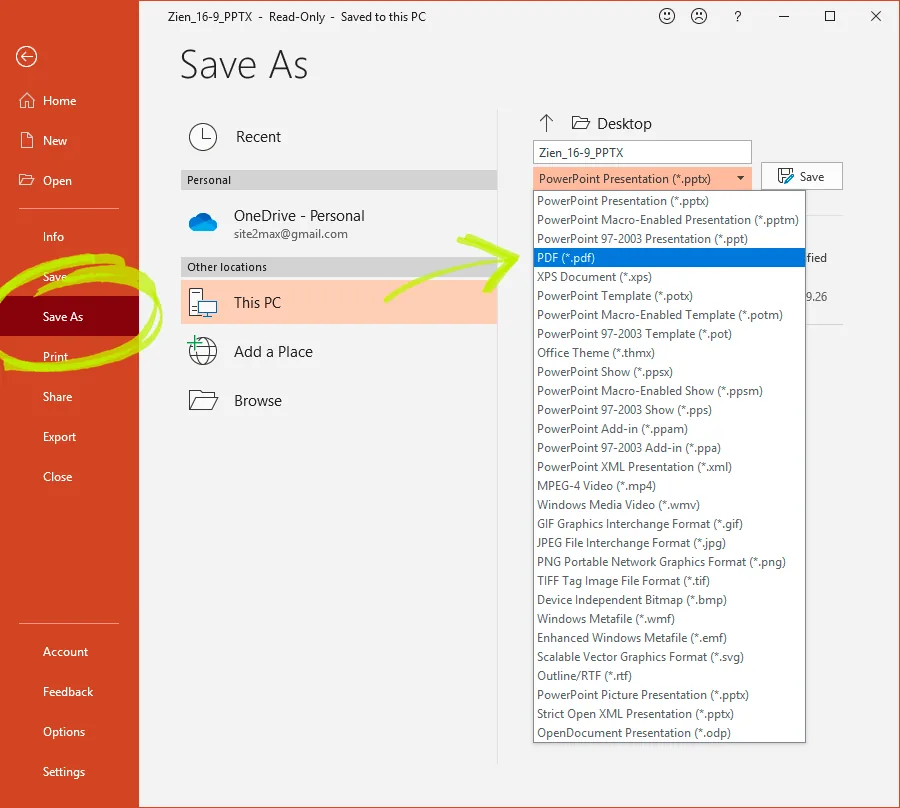
Another simple way to convert PowerPoint into a PDF file is to use the Save As function, which is especially useful for people who are using the Macintosh operating system. To do this, you will need to go to the File section in the top left-hand corner. Then, click on the Save As function, which will show you where the file is currently located on your computer. To convert it into a PDF, you will need to change the file format, which can be done by using the drop-down menu and hitting the PDF option. In some cases, you might want to add any notes to the PDF file. But how do you save PowerPoint as a PDF with notes?
Adding Notes
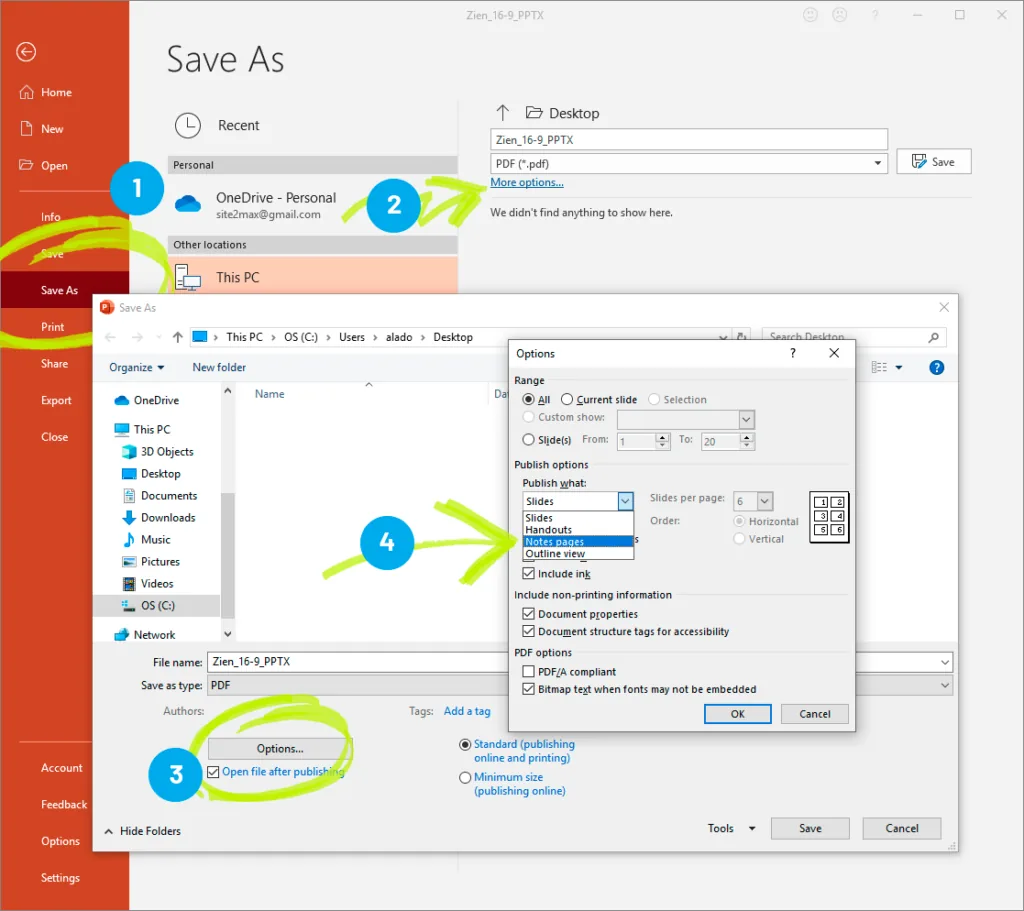
To add notes to your presentation PDF, go through the Save As process we described above. Before you publish a PDF version of the file, click on the Options box, which should take you to a page that will present you with more information about the document. To include notes in the PDF, go to the Publish What section, which will give you a drop-down menu. In this menu, you will see an option to include notes. When you select this, the notes will appear beneath each slide in the PDF document. After selecting this option, hit the OK button and save the PDF.
Conclusion
PowerPoint can be a handy tool for preparing a range of presentations. Saving prospective PDFs is a great way to get someone’s feedback without giving them the option to change the presentation. So, use these techniques to save PowerPoint as PDF.


