

When working on a presentation, you may need to select all slides in PowerPoint. This function is realized by using “Drag & Drop” actions. The easiest way to do this is with a computer mouse.
In what situations might you need this:
- If you need to change the structure of your presentation and the order of the slides
- If you need to create “Sections” and arrange the slides by meaning, type, and sections
- If you need to duplicate, copy, cut, or delete slides
- If you need to hide slides (do not show slides when showing a presentation)
How to select all slides in PowerPoint?
In Microsoft Office PowerPoint you can work with several slides at once using the “Normal View” or “Slide Sorter”modes. “Normal View” is useful when you have up to 10 slides to choose from because the sidebar shows their thumbnails in a small size. “Slide Sorter” is suitable for working with a large number of slides like the whole presentation. Also, “Slide Sorter” is easier for users with touch pads.
When using “Normal” view
- Select the “Normal View” mode.
- Change the scale of the thumbnail area to what you want.
- To select all your slides:Option 1: Click on the empty thumbnail display area with your mouse and call up the context-sensitive menu (right mouse button). Select the “Select All” option.

- Option 2. Click on the first slide. Hold down the “Shift” button. While continuing to hold down the button, scroll through the thumbnail display areas to the last slide. Click on the last slide.
Note: You don’t have to start with the first slide and end with the last slide. This feature allows you to select multiple slides or all slides in a row.
4. How to select single or multiple PowerPoint slides. Use the “CTRL” (or “Command”) hot key to select all the slides you want. You can use this function to select slides that are not in order. Selected slides will be displayed with a frame around their edges.
When using “Slide Sorter” view
- Switch to “Slide Sorter” mode.
- Use the slider bar at the bottom right of the PPT workspace to change the scale of your thumbnails.
- Select all the slides:Option 1. Click on an empty area of the screen to bring up a context-sensitive menu (right mouse button). Select the item “Select All”.
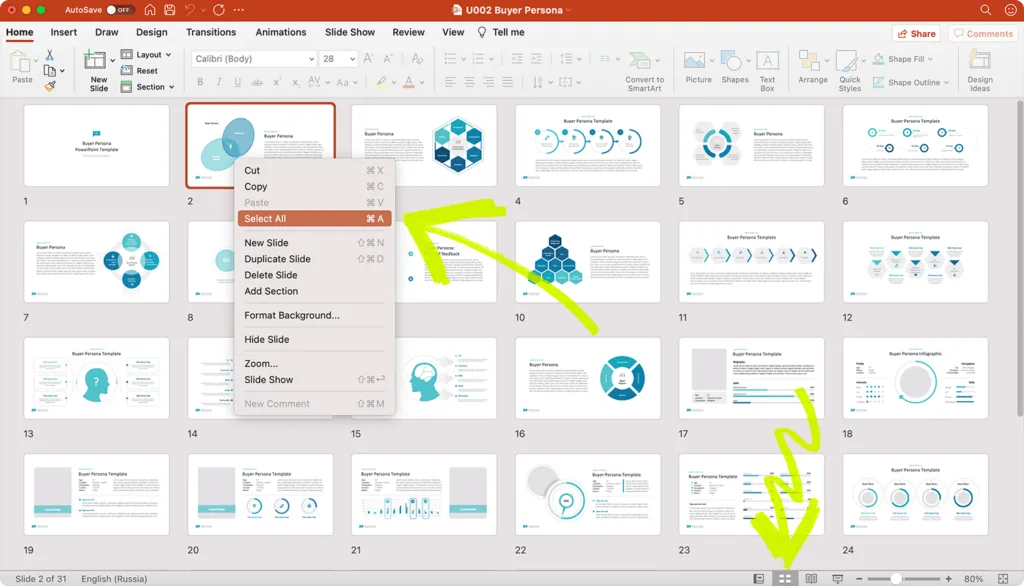
- Option 2. Click on the first slide you want to see. Hold down the “Shift” button. Keep holding down the button and click on the last slide of the selection.
4. In “Slide Sorter” mode you can also select several slides out of order. Holding down the “CTRL” (or “Command”) button allows you to select multiple slides in different parts of the presentation.
Note: After selecting all slides you can press and hold the “CTRL” (or “Command”) button and click on the slides you want to exclude from the selection. This feature works in “Normal View” and “Slide Sorter” mode.
How to move PowerPoint slides?
You can move slides or change their position in your presentation:
- Select the slides you want to move.
- Use your mouse to drag the slides to the desired location or section using “Drag & Drop.”
Note: If you reposition several slides from different parts of your presentation, the slides will be displayed in the same order where you moved them.
Conclusion
Working with multiple slides when creating a presentation saves a lot of time. Use the slide selection feature when you need to make changes on a group of slides at once. You can always undo the last change by pressing “Undo” or using the “CTRL+Z” (“Command+Z”) hot keys if you moved it by mistake.


