


When designing a presentation, it’s essential to make sure that everything is pleasing to the viewer. For this reason, you might want to use guides to help you determine where you should be placing elements. To help you do use guides, let’s look at how you can find and apply these elements in PowerPoint.
Displaying the ruler
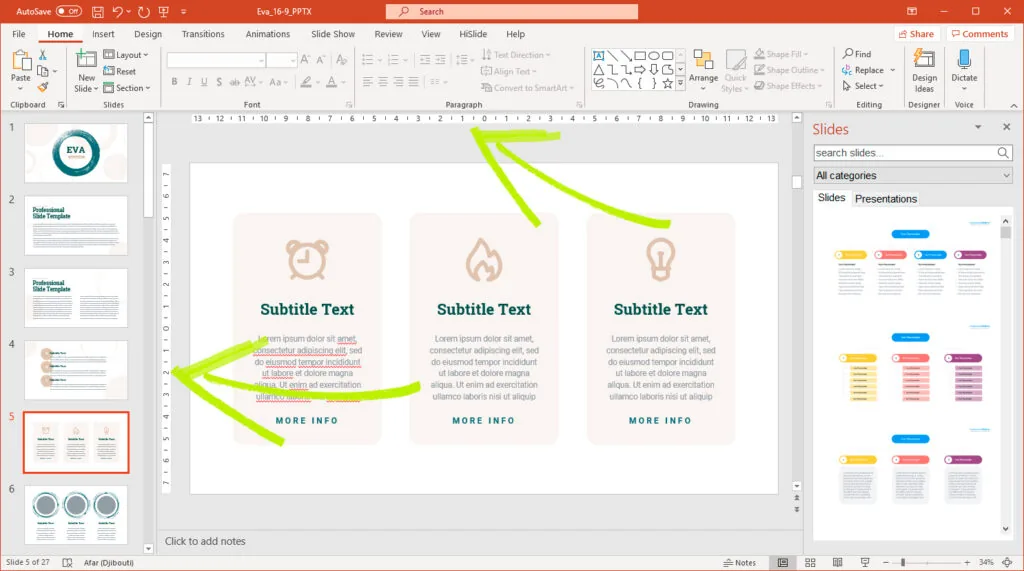
When you are designing a slideshow, you will often have two rulers to use to help you place elements. One ruler will be along the top of the screen, while the other will be down the side.
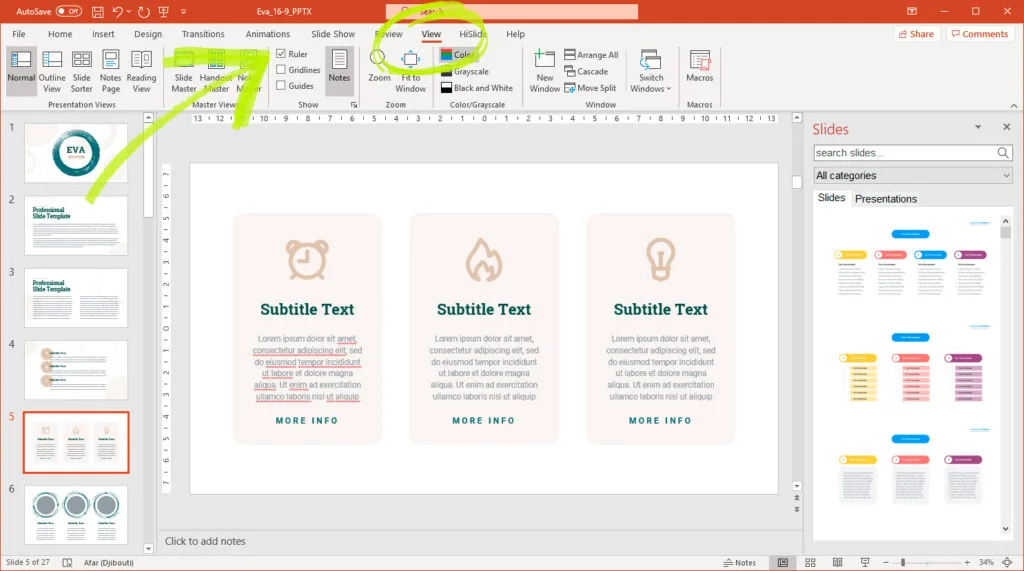
To make sure that the PowerPoint ruler is displayed, you will need to navigate to the View tab. Once there, you should see the control of the ruler. To show the tool, make sure that this checkbox has been selected. If you want to turn it off, you can untick the box.
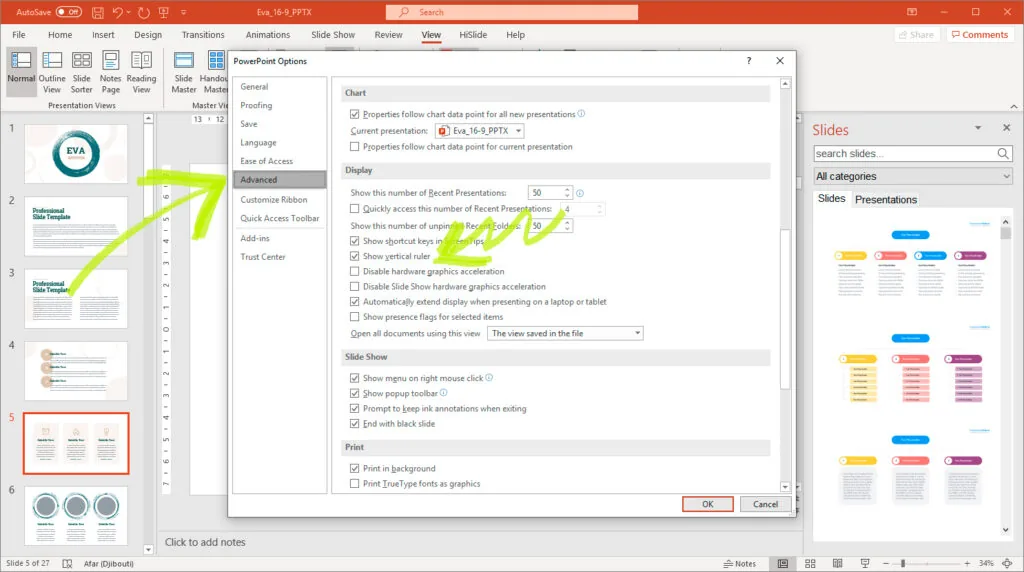
In some cases, you might only want to use the horizontal ruler and get rid of the vertical one. To do this, click on the Filebutton in the top-right section of the screen. Then, move to the Options and click on the Advanced section. This section will bring up many ways to customize the PowerPoint. Move to the Display section. There you will find an option labeled Show vertical ruler. Clicking this checkbox will disable this ruler.
Displaying the guides
For more precise positioning, you might want to turn on the guides. To do so, you will have to use the right-click option. By doing this, you will bring up a menu option. From this list, make sure to select the Grid and Guides option.
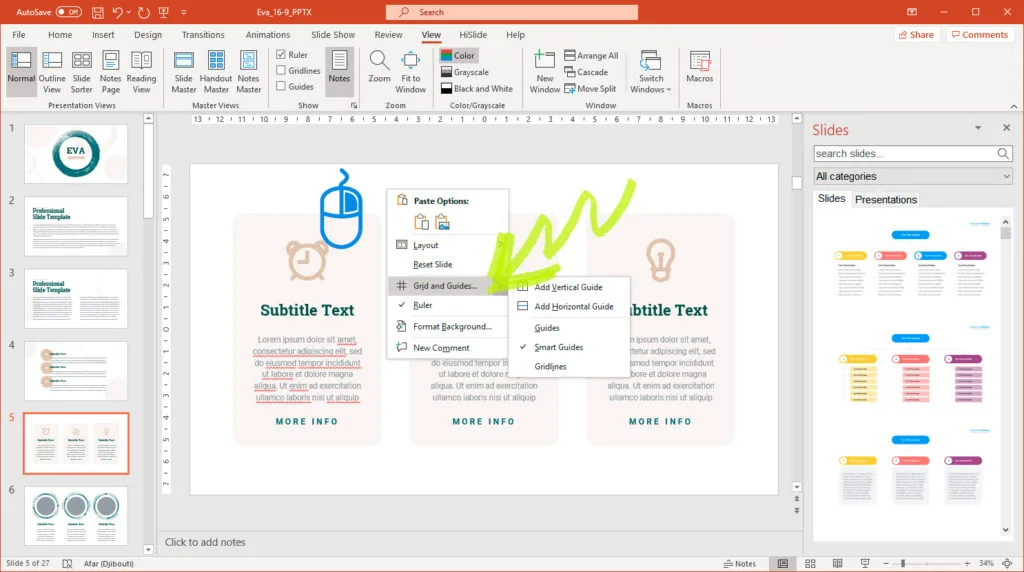
The type of PowerPoint grid that you choose to apply will depend on your needs. For example, you might want to use either a horizontal or vertical guide. You can easily select which guide by clicking on one of these options.
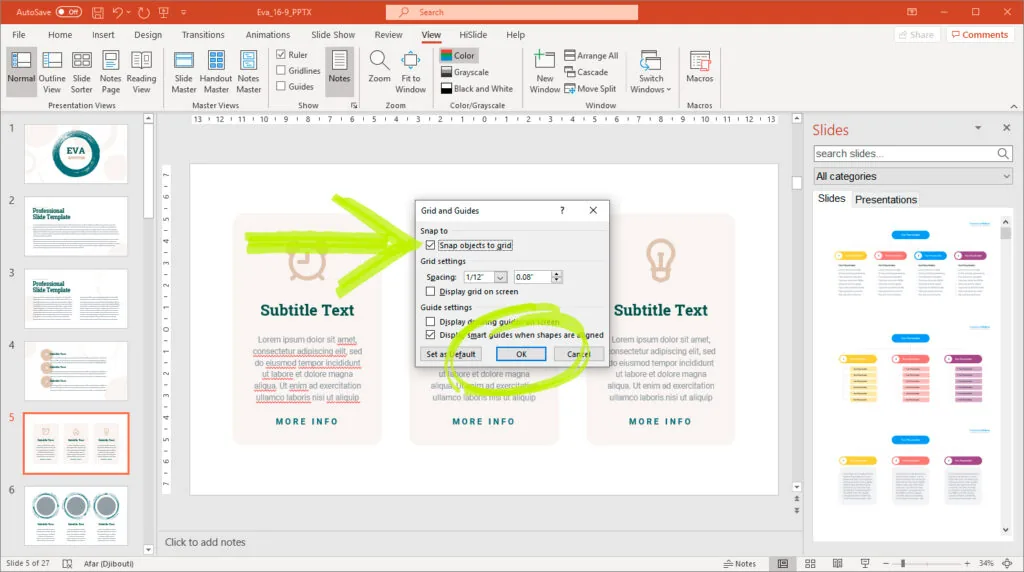
However, there are some cases where you might need to apply more detailed guide options. For example, you might want to use the PowerPoint snap to grid option. This choice will allow you to position things more precisely. Once selected, your choice will occur automatically, even if the grid isn’t visible. To do this, right-click and move to the Grids and Guides option. Instead of clicking on the arrow, select the button. When you’ve done this, you will see a dialog box presenting more advanced options. At the top, you will see an option labeled Snap objects to grid. Make sure that this box has been checked.
Conclusion
When you are designing a presentation, everything must look as good as possible. Often, this means making sure that all the elements have been aligned correctly. There are multiple options that PowerPoint provides to make it easier for you to do this. We discussed the two most popular methods, rulers and guides. So, the next time you are creating a presentation, you can use these options to make sure that everything is in the right place.


