


When creating PowerPoint presentations, it’s essential to make sure that your slides are as visually appealing as they are intellectually appealing. Many different types of learners will be listening to your presentation, and you can make sure that it is clear and easy to follow for all of them with an animated graph PowerPoint!
If you’re not used to creating graphs on PowerPoint, it’s vital to make sure you know how to copy graphs from Excel to PowerPoint. Knowing how will help to ensure that you’re able to make sure your message reaches and resonates with most people!
- To copy a graph from Excel to PowerPoint, you first need to open the Excel file you’d like to copy and navigate to the chart. Select the table and look at the ‘Home’ tab. Click ‘Copy’.
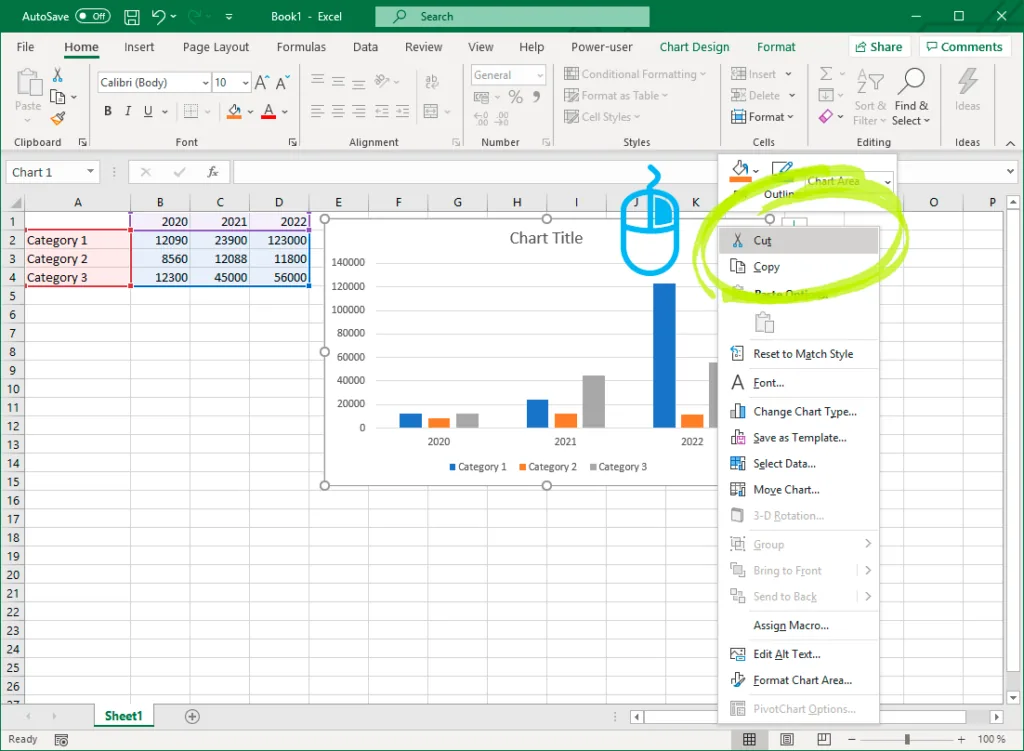
2. Now that you’ve copied the chart or graph from Excel, you can navigate to PowerPoint to work on the next step—inserting it into your slides.
3. Find the slide you’d like the chart or graph to appear on.
4. Look at the Home tab on the main ribbon. There will be a button that says Paste. Click the downward-facing arrow next to it. Alternatively, you can merely right-click the slide you’d like the chart or graph to appear on.
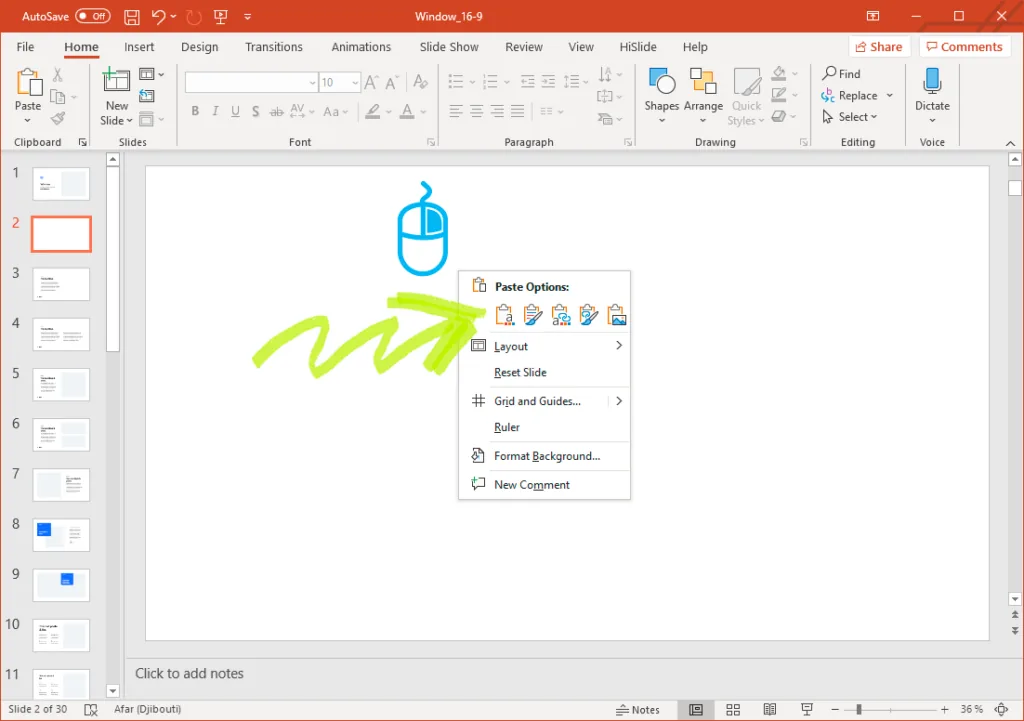
5. When your options appear after you’ve right-clicked your slide or looked at the options under the Paste button, you’ll see a few options you can use. Choose Use Destination Theme & Embed Workbook to paste your chart into PowerPoint. Making this selection will also allow you to go back later and edit the chart or graph to match your presentation’s color scheme and make it more visually appealing!
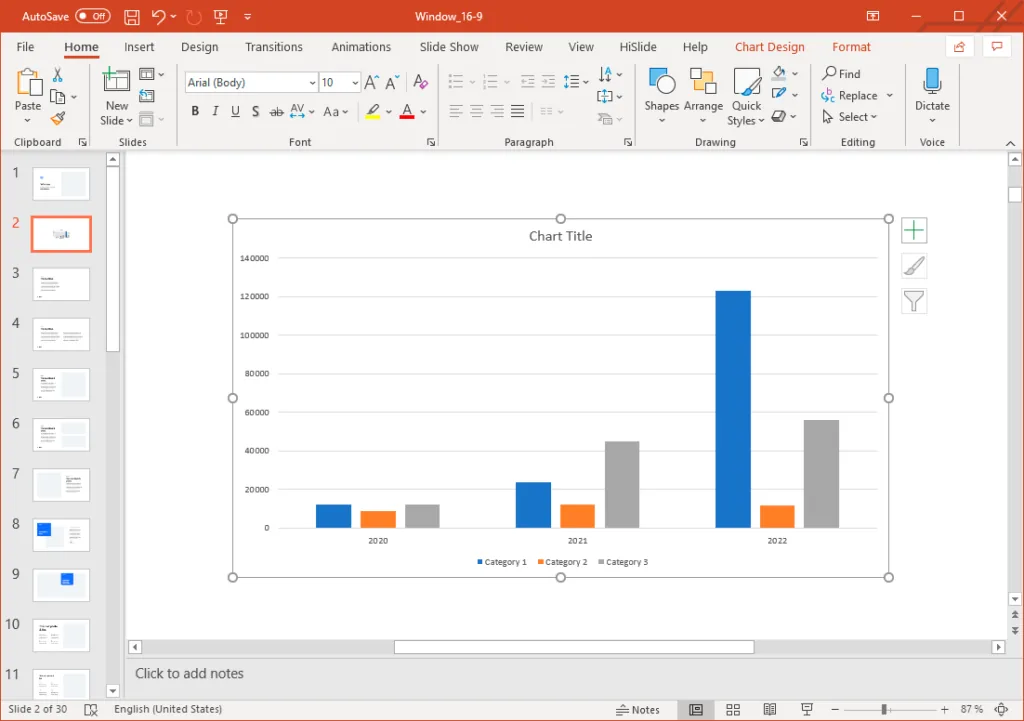
6. If you want to keep the original color scheme, you designed in Excel, choose Keep Source Formatting & Embed Workbook instead of Use Destination Theme & Embed Workbook. This choice still allows you to access the chart or graph in your slide, but won’t let you change the design to match your PowerPoint presentation.
7. If you think you may want to make changes later but would prefer to make those changes in Excel, there’s an option for that too! Merely click Use Destination Theme & Link Data in the options that are presented to you. This option will ensure that you’ll be able to update your graph without having to go through these steps again. It will also guarantee that your graph will match your PowerPoint presentation scheme—even if the original color scheme is entirely different.
8. If you want to be able to update your chart or graph in Excel but don’t want the color scheme to change to match that of your presentation’s color scheme, there’s still an option for you! Merely choose Keep Source Formatting & Link Data. This option will allow you to update your data while keeping your original color scheme.
9. Finally, if you want a simple image of your PowerPoint chart that isn’t connected to Excel, you can select Picture.


