


If you’re working on creating a presentation, one of your primary concerns is likely trying to keep the attention of your audience—especially if you’re working with a dense subject matter. It can be challenging to keep an audience engaged over a long period; after all, there are many other ways that they could be spending their time. If you want to make a connection that lasts during the entirety of your presentation, it’s a good idea to add a GIF to PowerPoint to add some comic relief!
When you insert a GIF into PowerPoint, you change the dynamic of your presentation. You go from being a lecturer that follows a slow, mundane, and scripted presentation to a presenter that thinks about every aspect of the material they are covering and knows how to handle a crowd. Using a PowerPoint, Animations GIF sets you apart from the rest of your colleagues—so you must know how to use it!
- First, decide which slide you want to insert the PowerPoint animations GIF into. You don’t want it to be too early on in your presentation unless you’ll be doing multiple GIFs. Do a timed trial run of your presentation and determine the points in time that you are most likely to lose your crowd. Try to insert a GIF into PowerPoint during these times.
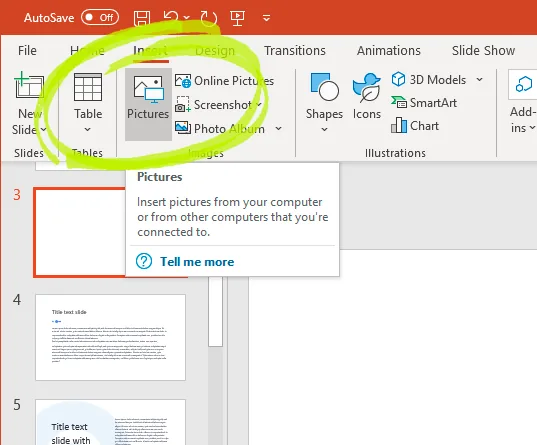
- Go to the Insert tab and click on the button for Pictures.
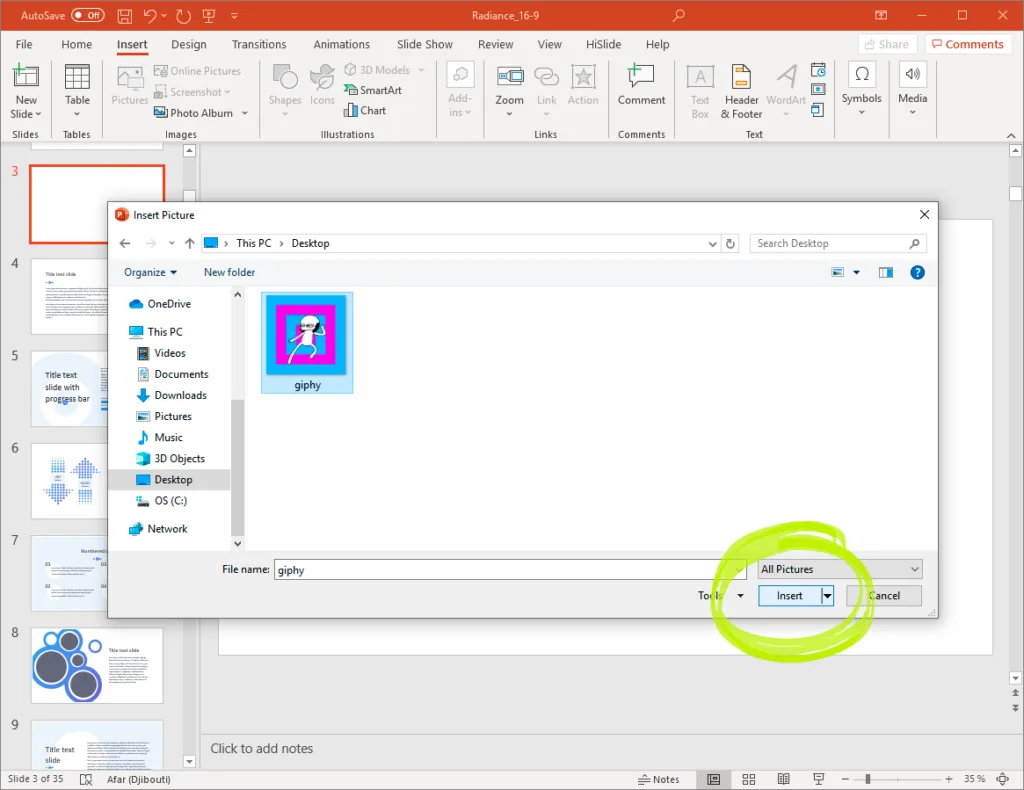
- When you click on Pictures, look through your files for the location of the GIF you want to add to your presentation.
4. Next, select the file and then click Insert.
5. You’ve done it! Now that your GIF is imported into PowerPoint, do a quick trial run to make sure you like how it’s placed, and the animation is working correctly. To do this, find the Slide Show tab on the main ribbon and click it. Once you see the Start Slide Show grouping, click on the From Current Slide button.
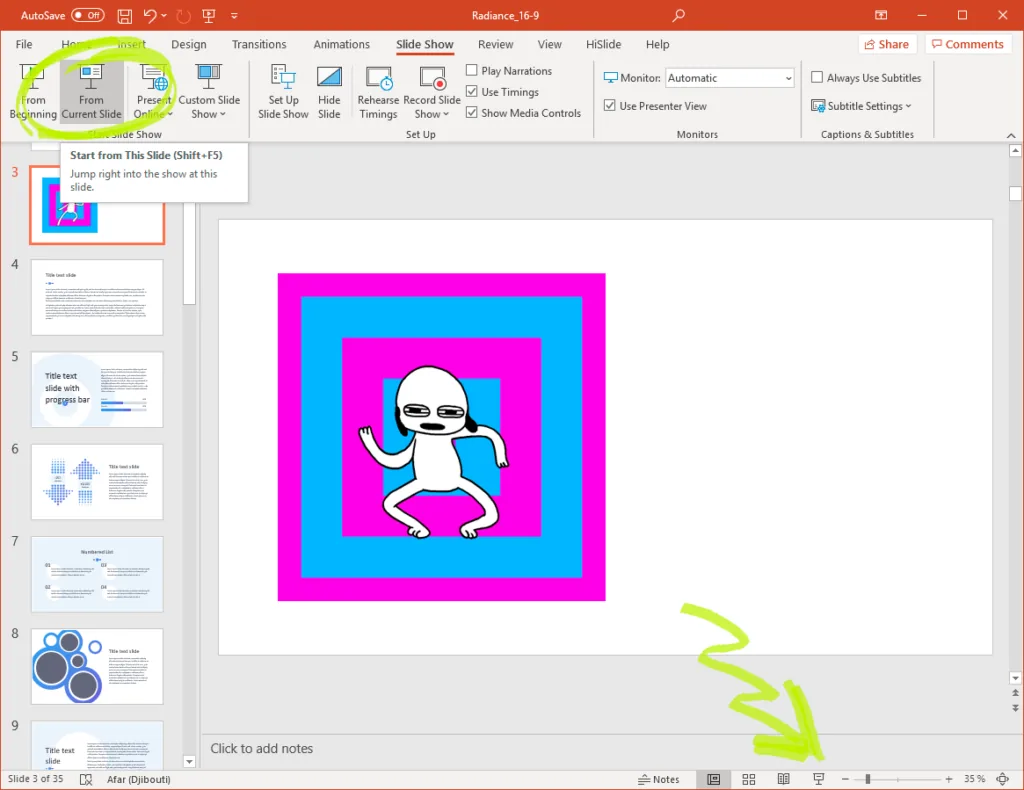
6. Once you’ve confirmed that the GIF works properly, you’ll also need to check to make sure that it fits the flow of your presentation. Go back to the Slide Show tab and start the display from the beginning. Rehearse your presentation as you go through the slides and make sure the timing of your GIF lines up with an ideal time marker in your presentation.
Finding Online GIFs
You may not have any GIFs of your own to use, but you can quickly solve this problem by finding a GIF to import into PowerPoint from online! To do this, you’ll either use Insert Online Pictures or Insert Clip Art on the Insert tab of the ribbon, once you’ve clicked on one of these options, type animated GIF into the search engine box. The search will return many GIFs that you can use in your presentation to lighten the mood or illustrate a point.
It’s that simple! All it takes is a little creativity and some placement skills to make your PowerPoint presentation from a mediocre informative session to an excellent educational experience!


