


When you’re putting a PowerPoint presentation together for your colleagues, it’s just as important to include visual information as it is to add textual information. You may have the best lecture that anyone in your department has ever heard prepared, but you won’t get a good reception among your peers if you don’t consider learning differences. Sometimes people won’t be able to fully comprehend your ideas if you don’t give them a visual example with which to work.
Add table in PowerPoint
Not sure how to start making your presentations more viewer-friendly? Don’t worry! We’ve put together a guide to help you become an expert at making tables for PowerPoint!
- First, navigate to PowerPoint and open the presentation. Find the slide into which you’d like to insert the table.
- Look at the main ribbon and find the Insert tab. Click on it. You’ll see a Table icon on the left side of the Insertribbon. Click on the Table icon.
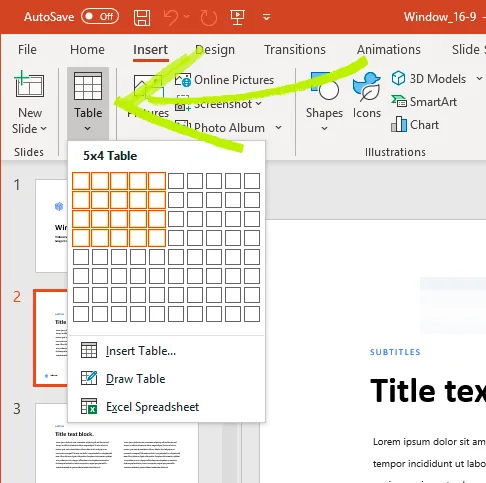
3. You’ll see a series of boxes appear underneath the Table tab. Next, hover your mouse over them. At the top of the command box, you’ll see the size of the table appear based on where you hover your mouse.
4. Choose table dimensions that suit your project. Then click. The table will appear on your chosen slide.
5. By clicking on the table and selecting it, you’ll be able to move its location on the slide with your mouse. Play with the different ways to display the table on your slide and determine the best option.
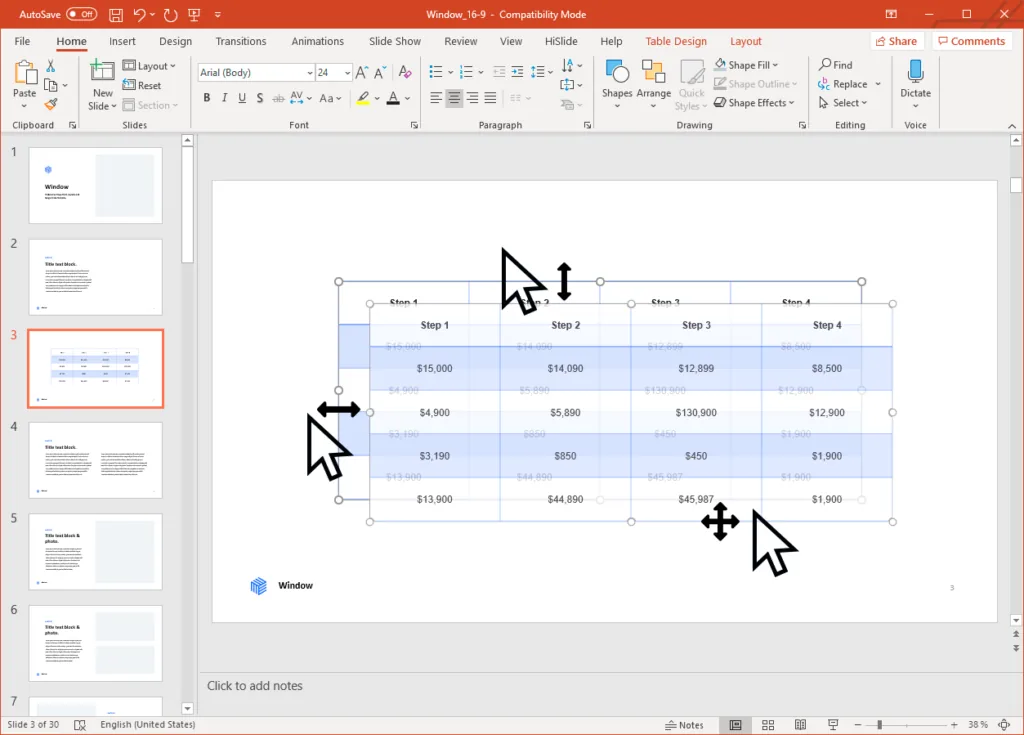
6. Congratulations—you’ve created your table!
Adding and deleting columns and rows for PowerPoint
As your table continues to develop, you may find that you need to add or delete columns or rows. Adding or removing columns or rows is an easy and straightforward process.
- Place the insertion point (your cursor) adjacent to the area you want to add your row or column.
- Next, look at the main ribbon and find the Table Tools tab. Click on the Layout option.
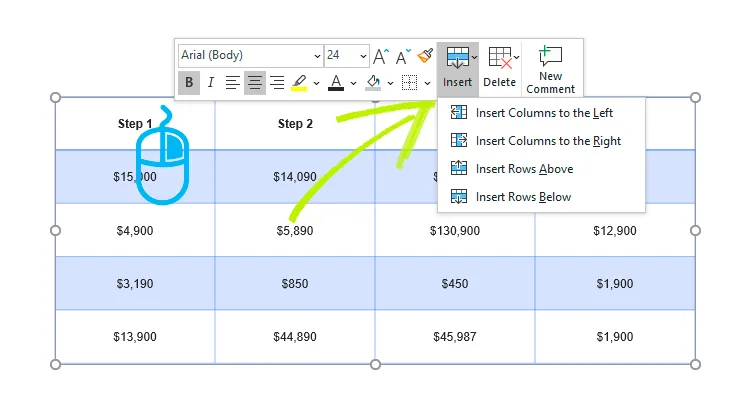
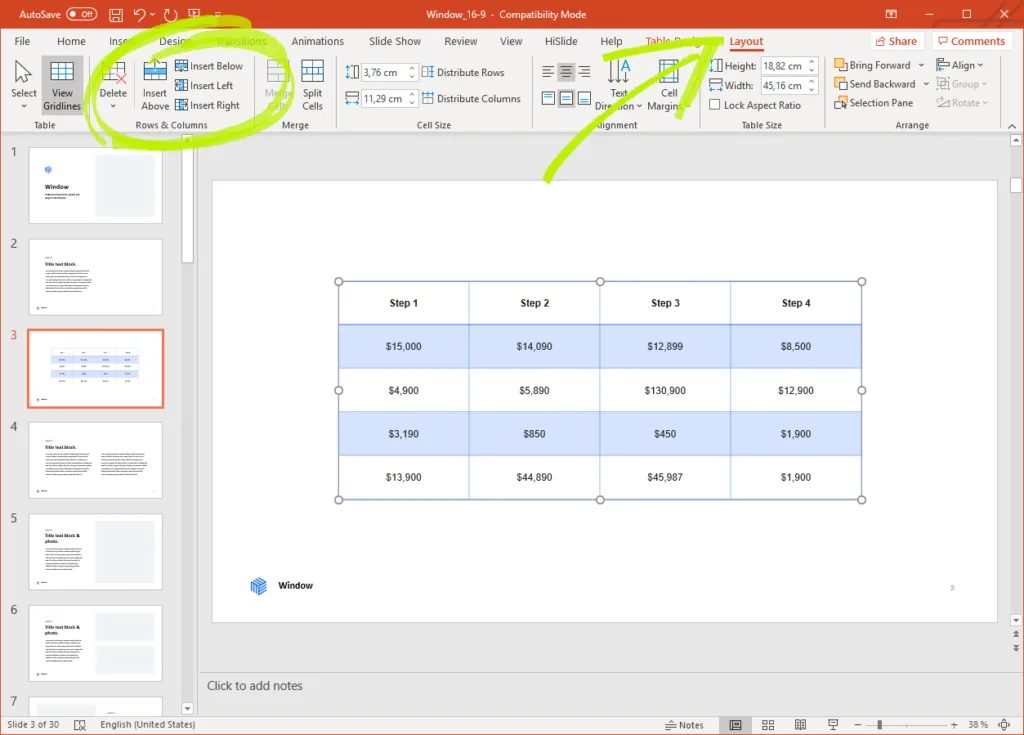
3. If you choose to add a new row to your table, then select Insert Above to add the new row above your insertion point, or Insert Below to insert the new row below your insertion point.
4. If you choose to add a new column, merely select Insert Left to put the new column to the left of your insertion point, or Insert Right to insert a new column to the right of your insertion point.
5. Congratulations—you’ve added a new section to your table!
6. If you need to delete a section of your table, the process is very similar. Put your insertion point into the row or column you’d like to delete.
7. Navigate to the Table Tools tab and click into the Layout sub-tab. Find the Rows & Columns, group.
8. Click Delete in the Rows & Columns group. A drop-down menu with different options will appear.
9. Select Delete Rows to remove an unnecessary row or Delete Columns to remove an unneeded column.
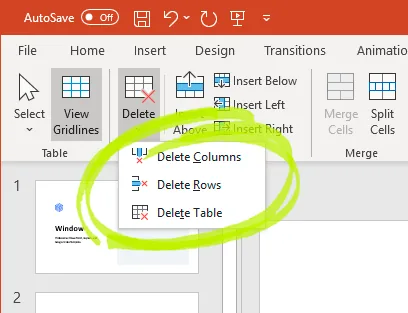
10. Congratulations—you’ve updated your table to reflect the new direction of your presentation!


