


If you’re trying to put a presentation together in PowerPoint, you know that working with the text feature in PowerPoint is one of the most critical aspects of your visual design. You want to be able to put together a presentation that flows well and gives your viewers visuals that pull them in. If your text formatting is too dull, you’ll lose the attention of the majority of your audience. We’ve all been in presentations that were boring and difficult to sit through—make sure your presentations don’t fall into this category by using the text feature in PowerPoint!
Take advantage of the font box

Of all the different styles that can be implemented into your presentation, some of the most effective will come from merely utilizing the options that are provided in the PowerPoint font box. All it takes is a few seconds to format your text better and make it more reader-friendly.
How to highlight text in PowerPoint?
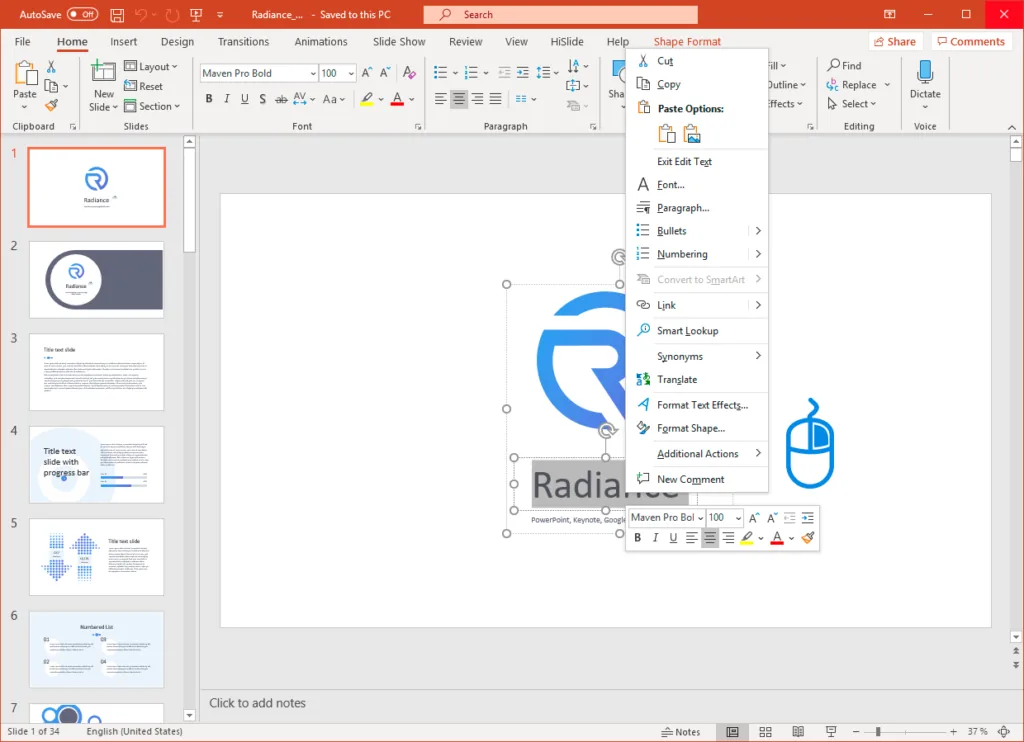
- To highlight text in PowerPoint, navigate to the font box, and look for the downward-pointing pen with the yellow bar underneath.
- Highlight the text you want to emphasize in your presentation and then click on the highlight button.
- You’re done! Your text is now formatted in a way that will emphasize your vital point.
- If you want to change the color your text is highlighted in, merely click on the downward-pointing arrow next to the highlight button. A drop-down menu of different colors will appear, and you can make the appropriate selection.
How to bold text in PowerPoint?
- Bolding text in PowerPoint is a simple and effective method to make your text stand out. To bold a portion of your text, start by highlighting the desired text you want to be emphasized.
- Next, look for the Bold icon. It will be a capital B that has a heavier line weight than what is standard.
- Click on the Bold icon.
- You’re done!
How to change font size in PowerPoint?
- Go to the font box and look for the drop-down menu that has the font style. There should be another drop-down box beside it that has a specified number. This box is the font size.
- Highlight the text that you desire to change.
- Click on the downward-facing arrow next to the font size box. You’ll see a list of numbers. Click on the number that corresponds with the size you’d like your font to be.
- You’re done! Try experimenting with multiple font sizes to see what size flows best with your presentation!
How to curve text in PowerPoint?
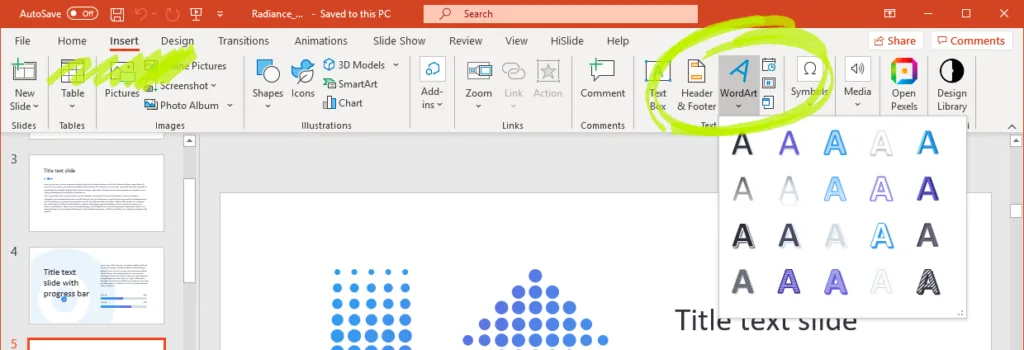
1. To curve text in PowerPoint, you’ll need to use WordArt and add a ‘Transform’ text effect. First, go to ‘Insert’ and click on ‘Word Art.’
2. You’ll be prompted to select a style. Pick the style that best reflects your presentation.
3. Type in the text you want to be curved in your presentation. Next, select the WordArt text.
4. You’ll see a Shape Format tab. Click on it and then click Text Effects. You’ll want to click on the Transform option.
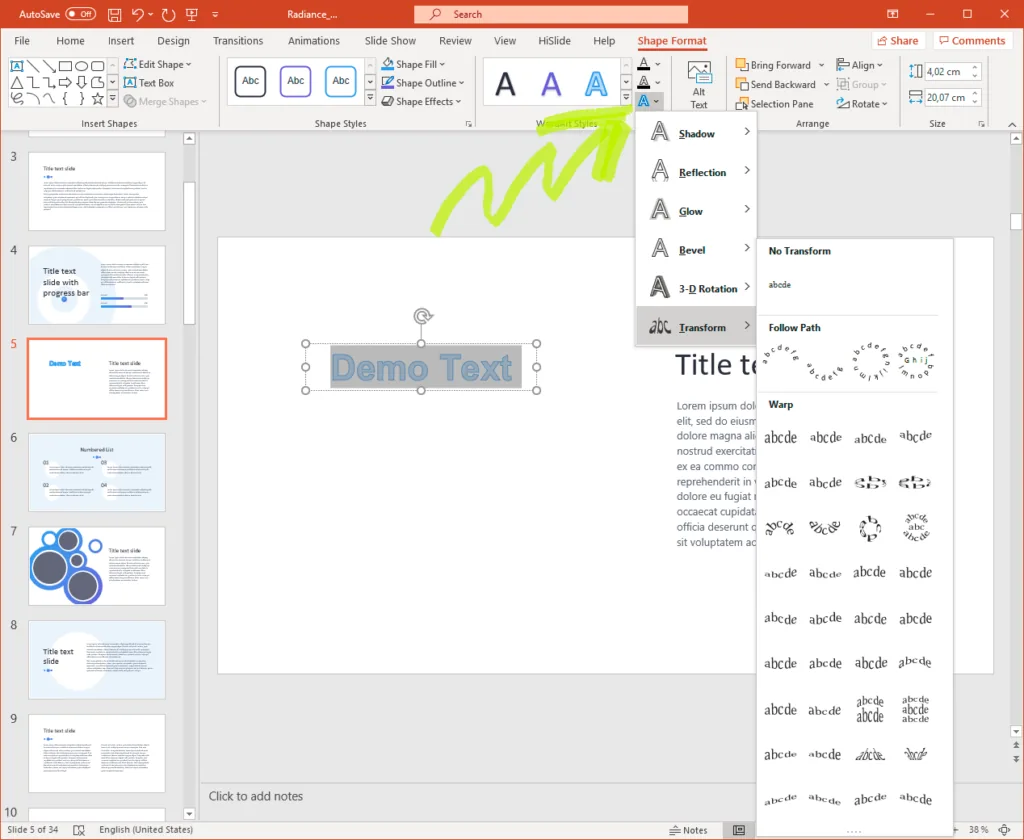
5. Pick the path you want the words to follow. Once you do this, you’re done! Check to see how it fits with the overall flow of your presentation!


