


PowerPoint: How to change your contact information, links, logo?

Google Slides™ Add-on

Over 600 professionally designed layouts and data-driven infographics with weekly updates.

Download it for free from the official Google Marketplace.

Download fromGoogle Marketplace
powerpoint_default_post

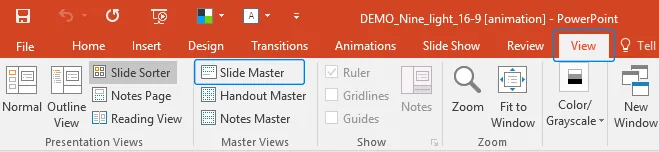
1. Open the presentation. Click on “View” tab in the top toolbar. Select “Slide Master” button.
1
Slide master mode in PowerPoint

Information: Slide Master is responsible for the look (template) of your presentation. Standard information that is repeated on every slide (for example, logo) is added to the master slide and is automatically broadcasted to all content slides of your presentation. Moreover, editing tools and master slides settings allow you to change or customize a color scheme of the presentation, as well as its background and default fonts.

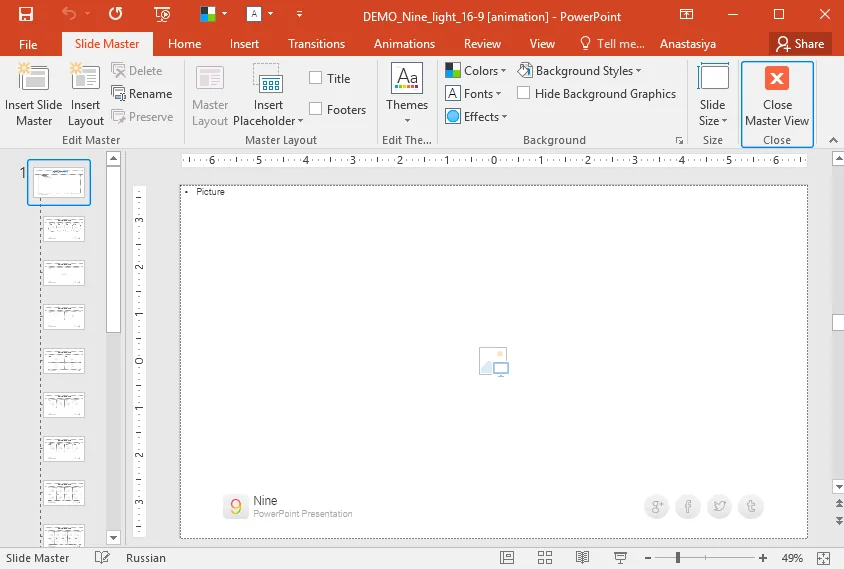
2. Enter master slide editing mode and select the first slide. Delete the default logo and insert your own. Supported formats include .PNG and .JPG, but firstly we recommend you to paint your logo with integrated vector tools in PowerPoint. This will significantly improve a quality of your logo during the broadcast via the widescreen projectors and during the print of your presentation.
2
Slide Master mode for correct or add contact information

3. Any contact information can be edited as a plain text.

4. You can change or add links to social networks icons. Just select an icon (image or object) and open the context menu (left-click). In the pop-up menu select “Hyperlink …” Paste an address, link or email in the opened window, in the “Address” field. Click “OK”. You can change any link in a similar way.

5. After making all necessary changes in the top menu, click on the button “Close Master View”.

Stacy M.
About the author:Stacy M.
Follow the expert:
how-to-share-powerpoint

How to Share PowerPoint: A Comprehensive Guide

You’ve just finished crafting a brilliant PowerPoint presentation, and now it’s time to share it. But how exactly do you do that? Whether you’re collaborating with a team or presenting to an audience, sharing your work is essential. Let’s dive in and explore the different methods available to share your PowerPoint presentation. Different Methods How … Read more
how-to-copy-slides-from-one-powerpoint-to-another

How to Copy Slides from One PowerPoint Presentation to Another?

You’ve just created a stellar PowerPoint presentation for an upcoming meeting. But wait – you remember another presentation with slides that would fit perfectly in this one. If only there was a way to integrate them! Oh, wait. There is. Wondering how to copy slides from one PowerPoint to another? Dive in, and let’s unravel … Read more
how-to-insert-pdf-into-powerpoint

How to Insert PDF into PowerPoint?

Ever been in a situation where you wanted to seamlessly integrate the detailed content of a PDF into your PowerPoint presentation? You’re not alone. Many professionals and students often find themselves needing to combine these two formats for a more effective presentation. Benefits of Inserting PDFs into PowerPoint Incorporating a PDF file into a PowerPoint enhances … Read more

