


Both Microsoft and Google offer presentation platforms with their Suites. Microsoft’s platform, PowerPoint, has more creative designs, but it does cost you something. However, Google Slides is free, although with less animation ability. In this tutorial, we compare PowerPoint and Google Slides.
First, we’ll cover how to use PowerPoint and Slides. Then we’ll review their main differences.
PowerPoint
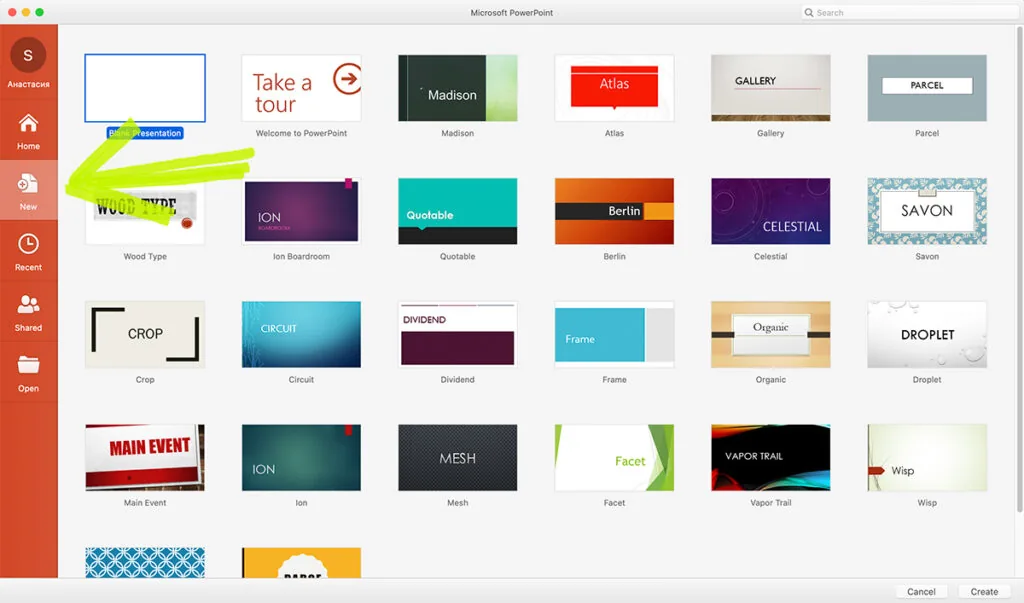
First, when you open your PowerPoint document, pick a theme. Here the “Gallery” theme is chosen. However, if you want additional themes, click the bottom right “more themes” button.
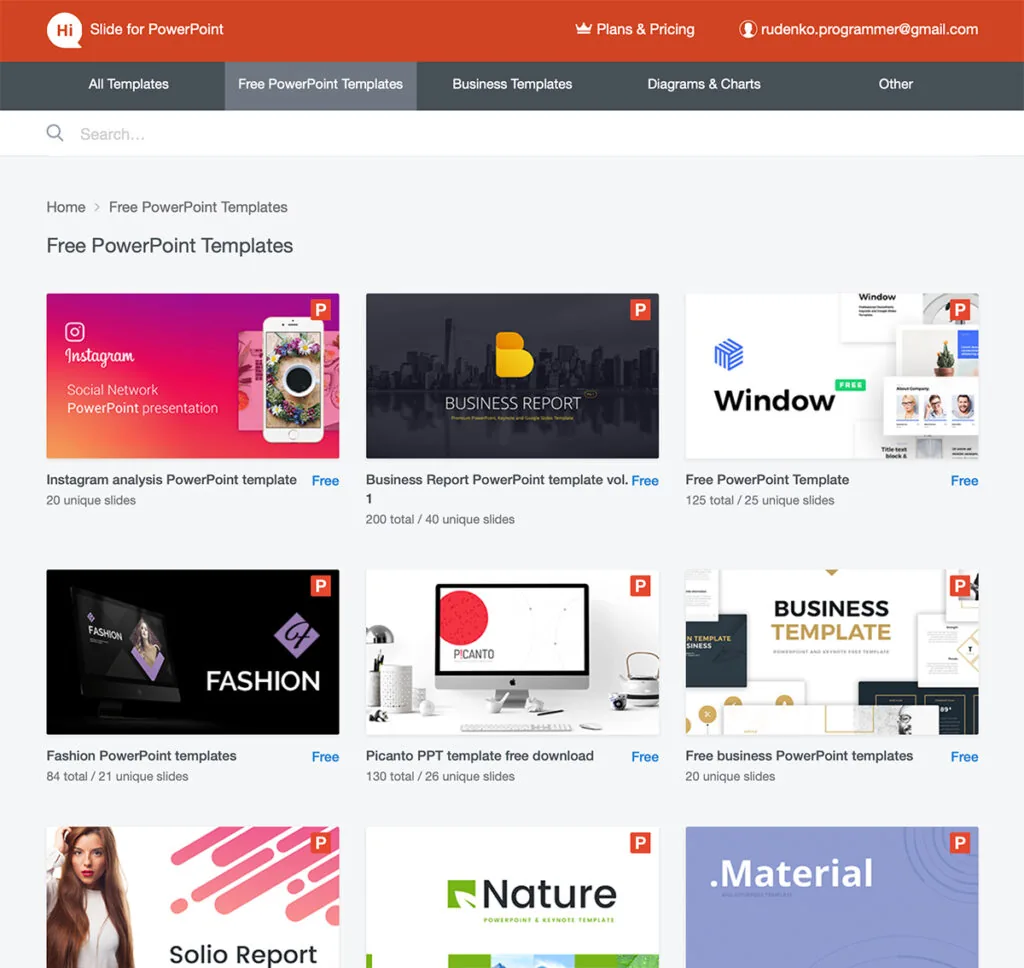
PowerPoint offers a small number of simple themes, but you can always use our database of professional free templates for Powerpoint:
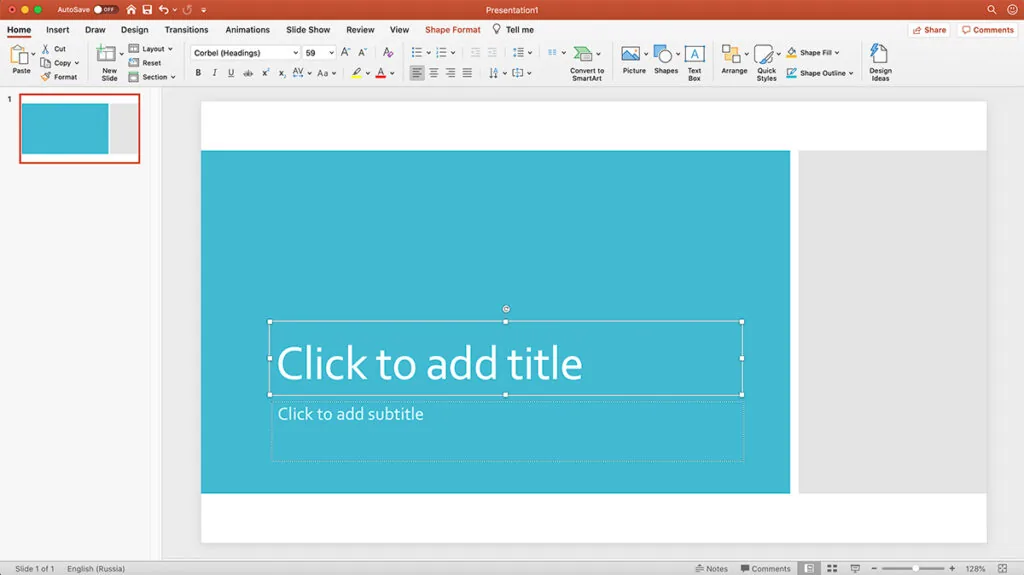
Once you have your template chosen, just click on the boxes and fill them in as prompted.
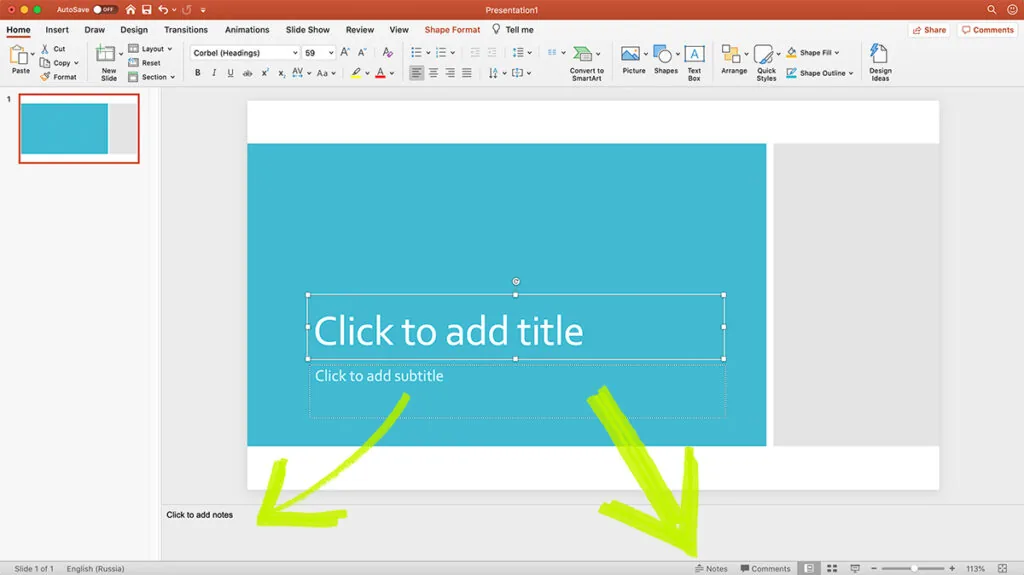
Once you have your title and subtitle filled in, you can add notes to your presentation—for your eyes only. Do this by clicking the “notes” button on the bottom bar.
Once you have a title page, you will want to add text slides. Click on the “Insert” tab, as shown below. Then hit “New Slide.” From there, you can choose the style of slide you want.
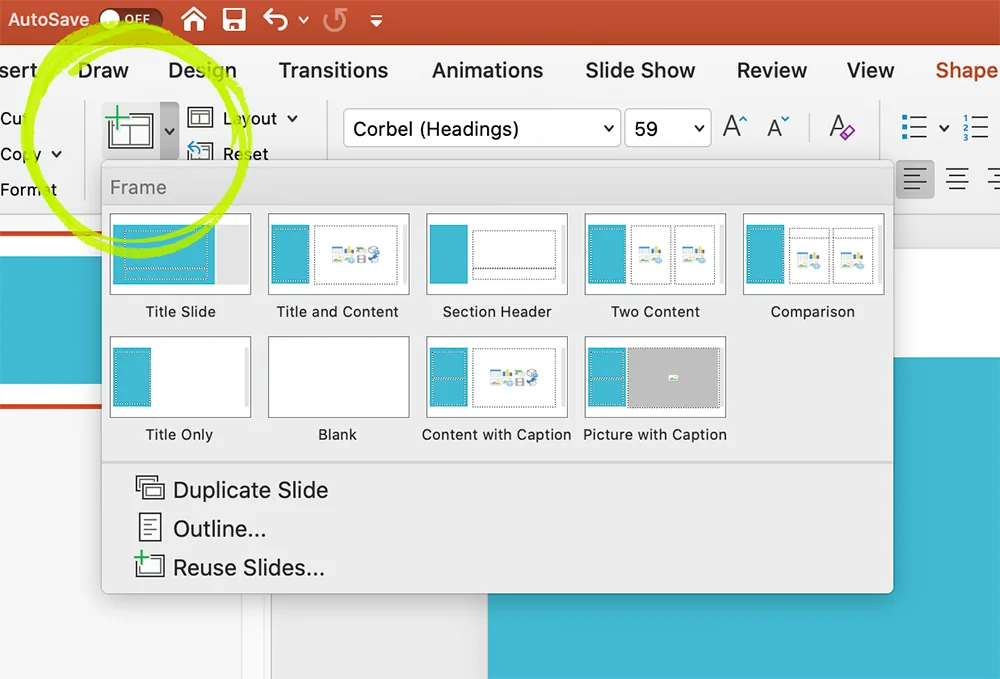
Now that you have a secondary slide fill in the title space and start filling in your main text.
Once you have filled those out, play around with the animations under the “Animations” tab. Here you can choose to have your titles or bullet points fly-in, fade-in, or simply appear.
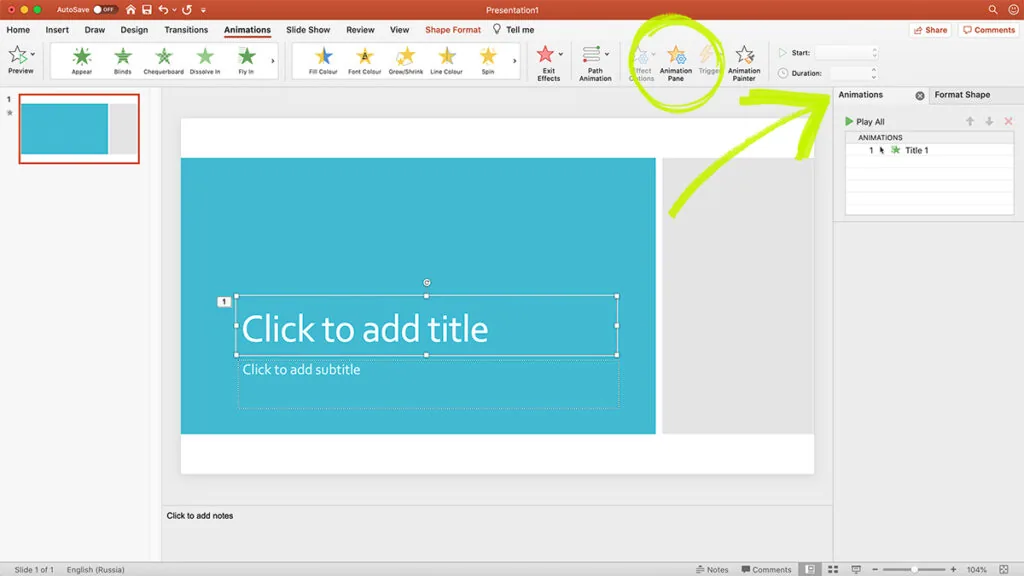
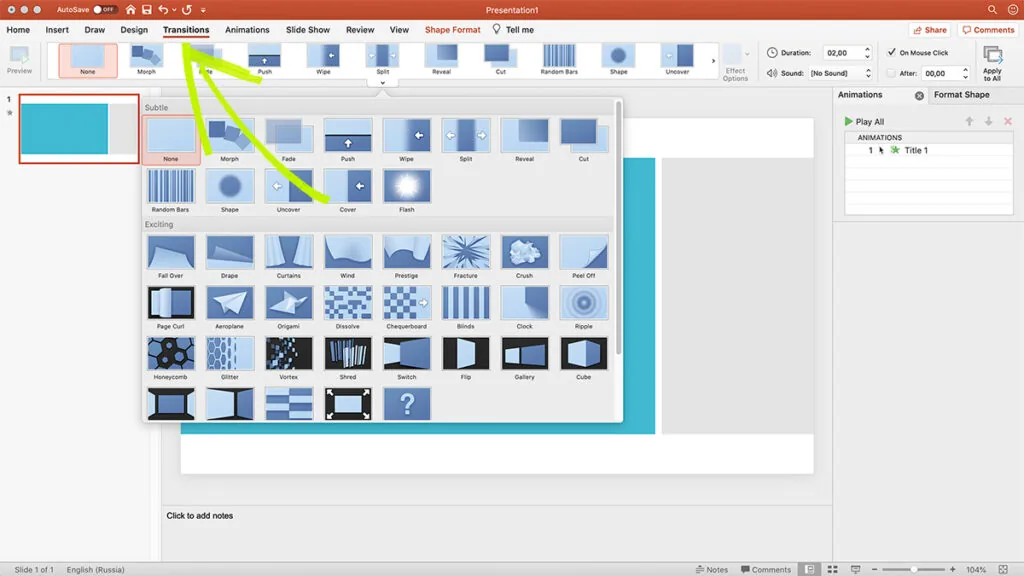
Now that you have your presentation ready, how about you check out transitions? Under the “Transitions” tab you can create different effects when giving your presentation. Having classy slides that fade into each other could be a nice touch. Be sure to click on whichever slide you want to have the entering transition.
Now that you’re finished click on the “Slide Show” tab and start “From Beginning.” Your slideshow has just begun!
There is a lot more to PowerPoint that you can find by experimenting and trying new things out.
Google Slides
The first thing you see when opening Google Slides is very similar to PowerPoint.
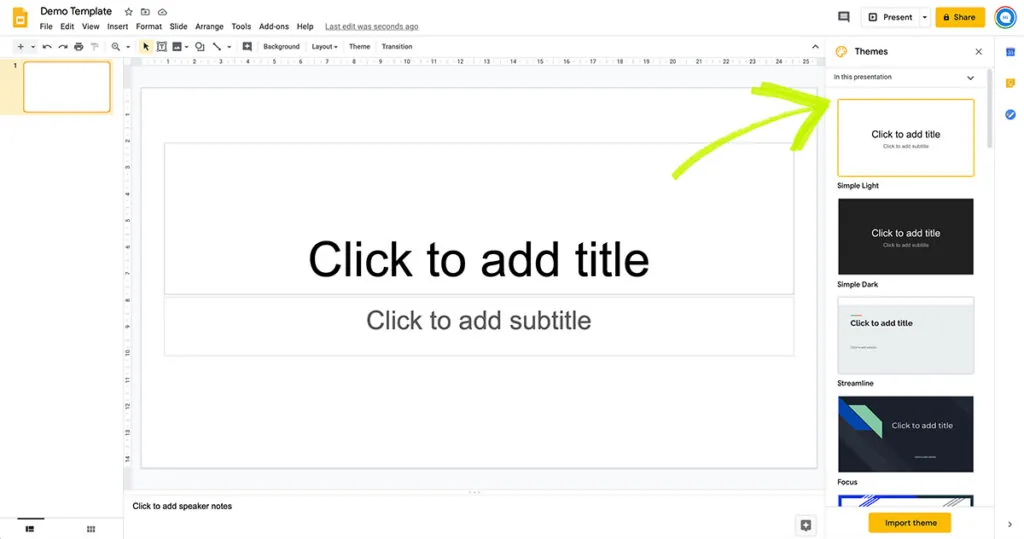
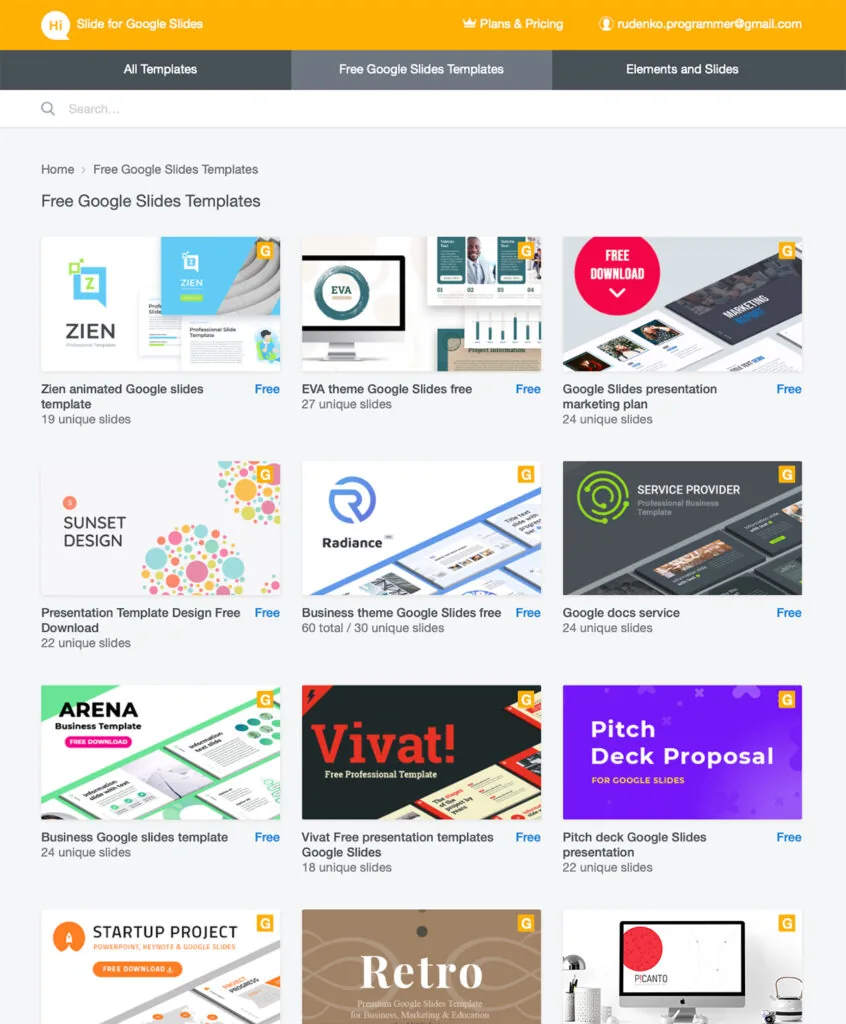
However, the themes are on the right-hand side of the document. In this example, the “Focus” template was chosen. At the bottom of the page, you can also add in your speaker notes. You can also use free templates HiSlide.io for Google Slides.
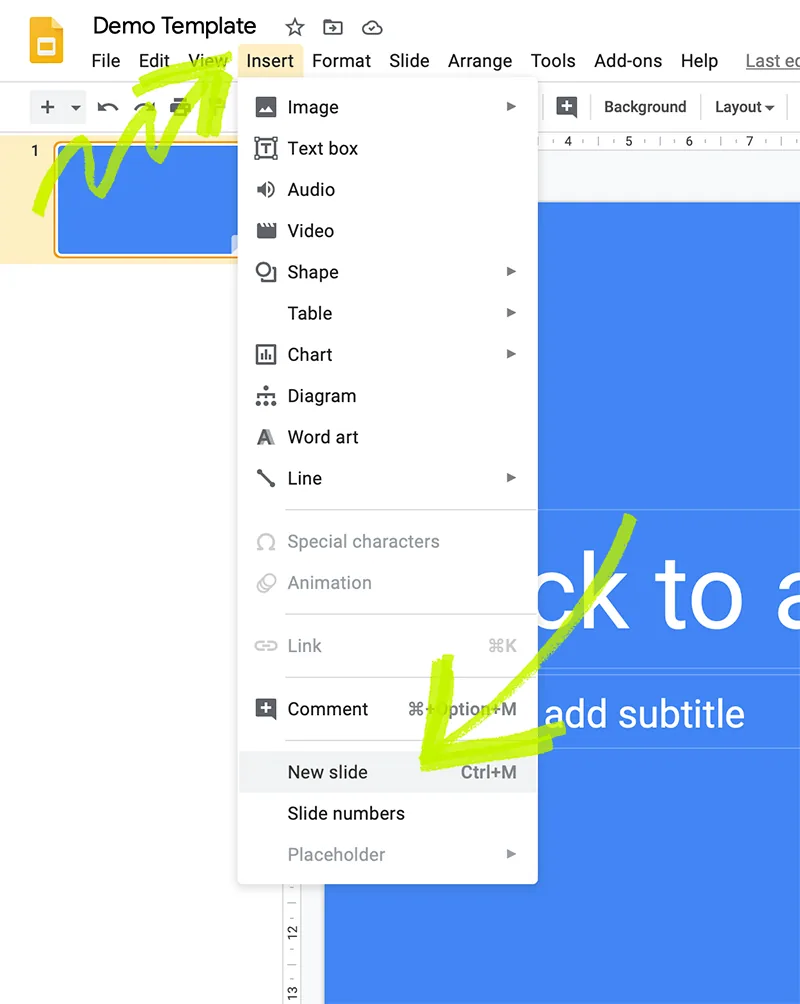
Once you have filled in the information, insert your additional slides under the “Insert” tab at the bottom.
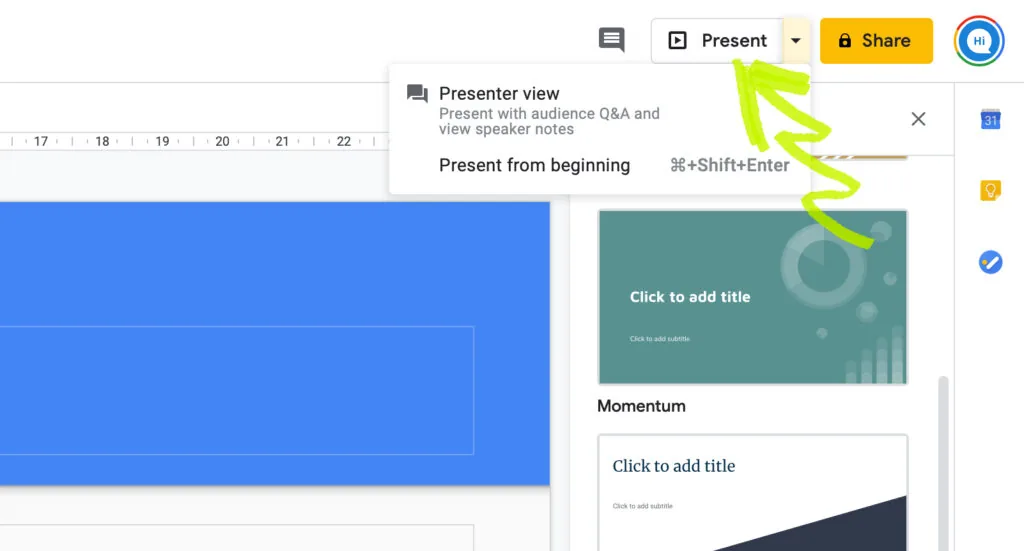
After you have finished your presentation, the “Present” button is at the upper right. The “Share” button is also next to it so that you can collaborate.
Again, there is so much more to explore in Google Slides.
Online vs. desktop access
PowerPoint is designed for PC usage. It has numerous templates, and themes, but they are all downloaded. You can create a creative or professional presentation. However, PowerPoint’s online version is oversimplified. It does not have the same variety or customizability.Google Slides is designed for online use. Its collection of simple templates and many fonts are all stored in the cloud. However, the offline version of Slides is very similar to the online version of PowerPoint. Its capacities are cut in half.
Features
The features that each platform offers are heavily dependent upon whether they are online or offline.PowerPoint – offline – provides a multitude of animated effects, varying from in-slide motion to transition animations. All these effects are well-designed.Google Slides – online – presents simple templates and not many animations. However, since Google Slides is online, it also is a fantastic team-based platform. If you share your Google Slide, you can collaborate online with your colleagues and friends.Comparing PowerPoint and Google Slides reveals both of their strengths and weaknesses. But whether you should get one of the other depends on your needs. If you want to create a solo professional, creative presentation, PowerPoint is the way to go. However, if you want a free platform that allows team-collaboration, Google Slides is your best option. Both platforms are geared toward different audiences.


