


PowerPoint lets you create footers, which are information that appears at the bottom of the slide. Typically, this footer information will include the date, presentation tile, slide number, and other slide information, including a company logo.
Putting a logo on a PowerPoint footer can be a great way to add your brand to your slides. Besides, it makes a presentation look more formal and stand out.
But what if you want to remove a logo or footer from your PowerPoint template? Don’t worry, we’ve got you covered. We will describe to you how to remove a logo from a ppt template. You will also learn how to edit the footer in PowerPoint.
Removing a logo from a PowerPoint template
When you want an unnecessary logo removed from your PowerPoint presentation, simply follow these steps:
Step 1: Open the PowerPoint Presentation from which you want the logo on the footer removed.
Step 2: Click on ‘View’ from the top menu and then select ‘Slide Master,’ which will switch you to the ‘Slide Master’ view.

Step 3: Be sure you scroll over and click on the top-most slide or the master slide.
Step 4: Select the logo you wish to remove and delete.
Step 5: Click the X or ‘Close Master View’ button. The logo on all PowerPoint footer slides that belong to the same master slide should now be gone.

Editing the footer in a PowerPoint presentation
There may be occasions when you want to edit or change the look, position, or size of the footers of your slide presentation. Fortunately, you can do it pretty quickly. Follow the steps below about how to edit footer in PowerPoint:
Step 1: Click the PowerPoint slide for which you want to edit the footer information. To choose more than one slide, click on the first slide for which you want to change the footer, and then press and hold the ‘CTRL’ button on your keyboard as you click the other slides.
Step 2: Head over to the ‘Insert’ tab, and then click the ‘Header & Footer’ button.

Step 3: In the ‘Header & Footer’ dialog box, click the ‘Slide’ tab. Now make the changes that you want.
Step 4: Click ‘Apply’ to save the changes and to update the selected slides. If you want to apply the changes on all slides, click on ‘Apply to All’ instead.
Alternatively, you can make adjustments on the PowerPoint footer on all related slides using ‘Slide Master.’
Step 1: Head over to the View Tab.
Step 2: Select ‘Slide Master’. Once you are in the ‘Slide Master’ view, you can make any changes that you want to the footer through moving or resizing the text boxes and making changes to the footer’s text style and color using the ‘HOME’ or ‘FORMAT’ tabs.
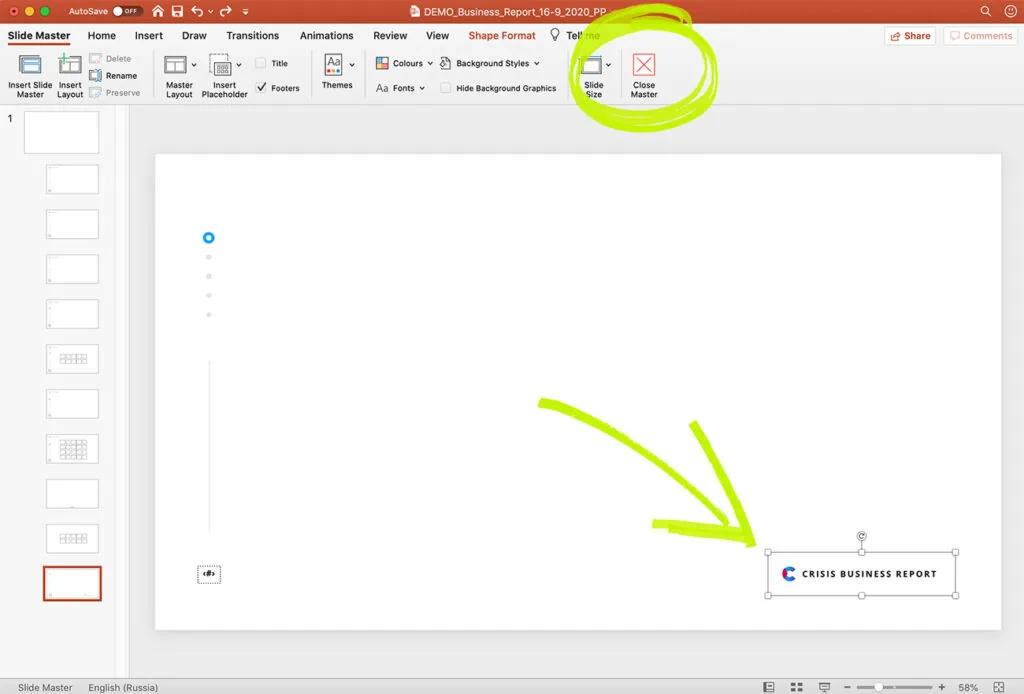
Step 3: Once you’ve completed your changes, click the ‘X’ or the Close Master View button. You will notice that your changes have been applied to all slides that belong to the same master slide.
Now that you have learned how to remove a logo and edit a PowerPoint footer on every slide, you are ready to customize your PowerPoint presentation easily and quickly.


