


Some people may want to change bullet point color in their Google Docs just to make their points stand out, especially from other bullet points in the document. You can use the same approach to changing Google Slides bullet points as well as their standard Docs. These instructions will help you better understand how to make bullet points change color in Google Slides and the rest of the Google Suite.
Creating a bullet list
The first step is showing how to create a bullet list. You can start in 2 ways: you can have text written already before bulleting, or you can start with the bullet point.
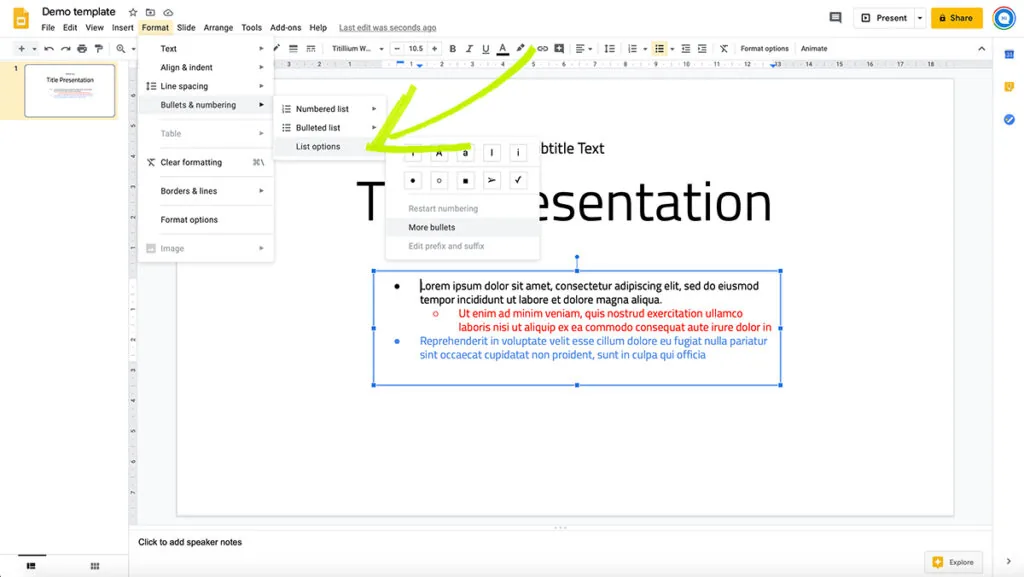
- If you are going to start with the bullet point, you will need to go into the “Format” menu, then select the “Bullets & numbering” option. Within that menu, you can choose between a “Numbered List” or a “Bulleted List.” Then you can select the bullet point that you want.
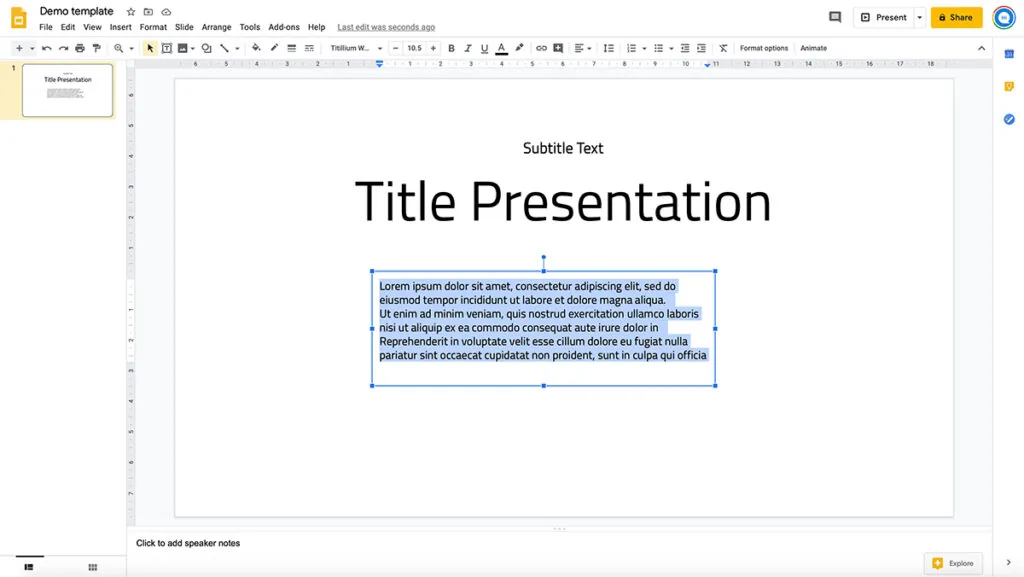
2. If you already have words written out, you can go through the same process as mentioned above; only you will need to highlight the area to which you want to add bullets.
3. You can follow these same steps if you want to add additional levels to your presentation.
How to customize your bullet points?
Now that you know how to add bullet points to your Google Slide or Google Doc, you can customize the bullets to achieve your desired look. You can choose from the different styles of bullets, or you can even select what color you want your bullets to be. If you wish to add the same color to the bullets or change colors for each bullet, you do follow similar steps.
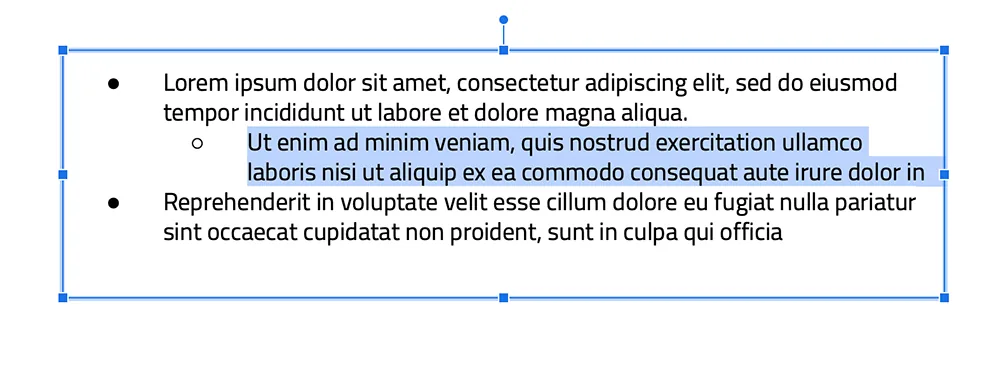
- Start by highlighting the line or lines to which you want to add color.
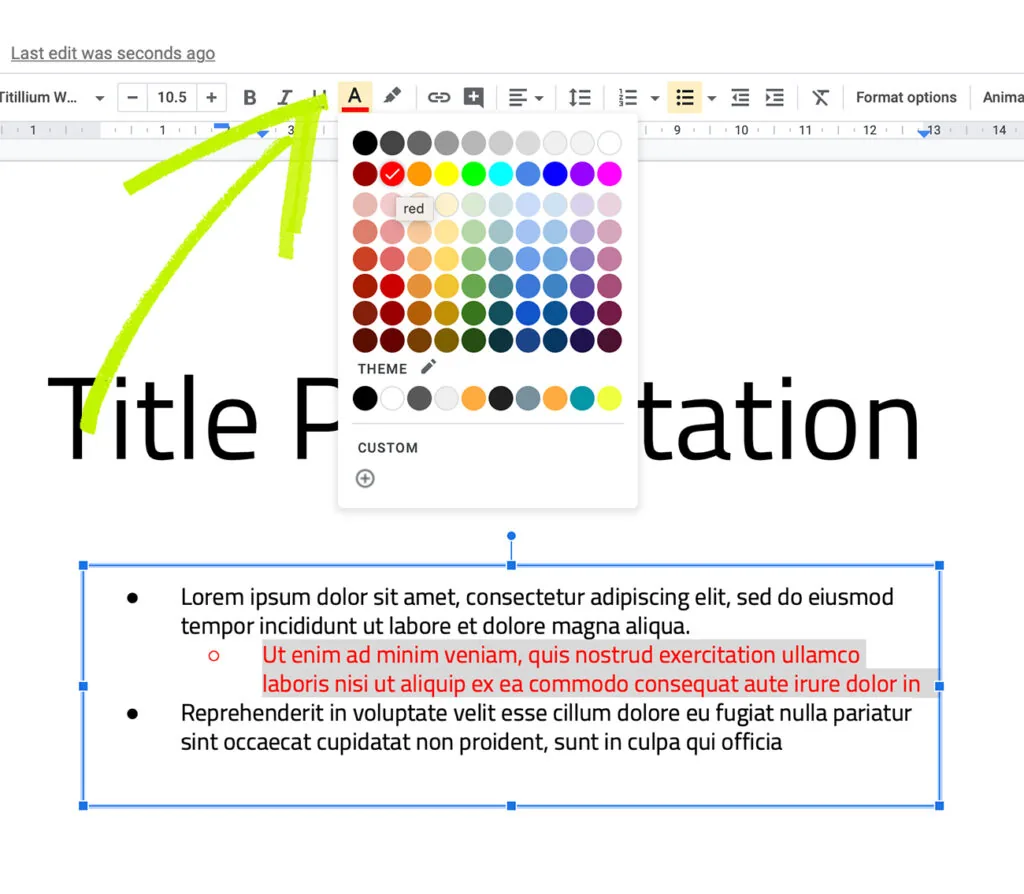
2. Next, go up to the “Text Color” option on the bar, then you will see what colors from which you can choose.
3. If you do not see a color that you like, you can create your color as well by going to the “Custom” option.
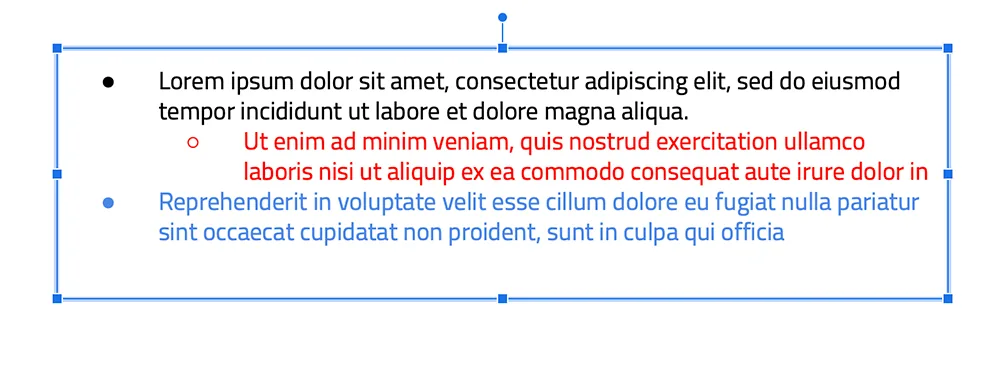
4. You can perform this step as many times as you need to, depending on what style you are trying to achieve with your document.
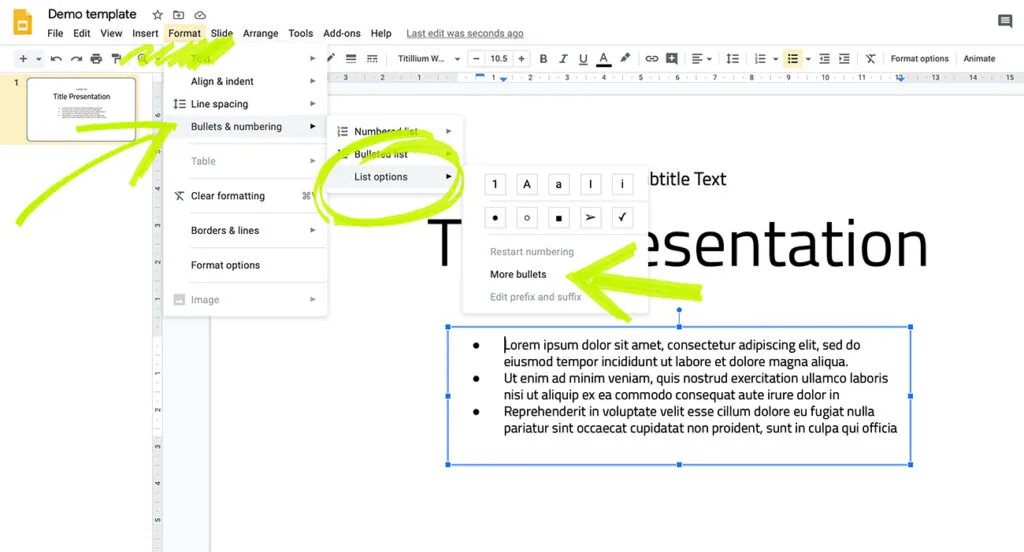
5. If you also want to customize the bullets as well as the colors, you can go to the bulleting option, then select “More bullets.”
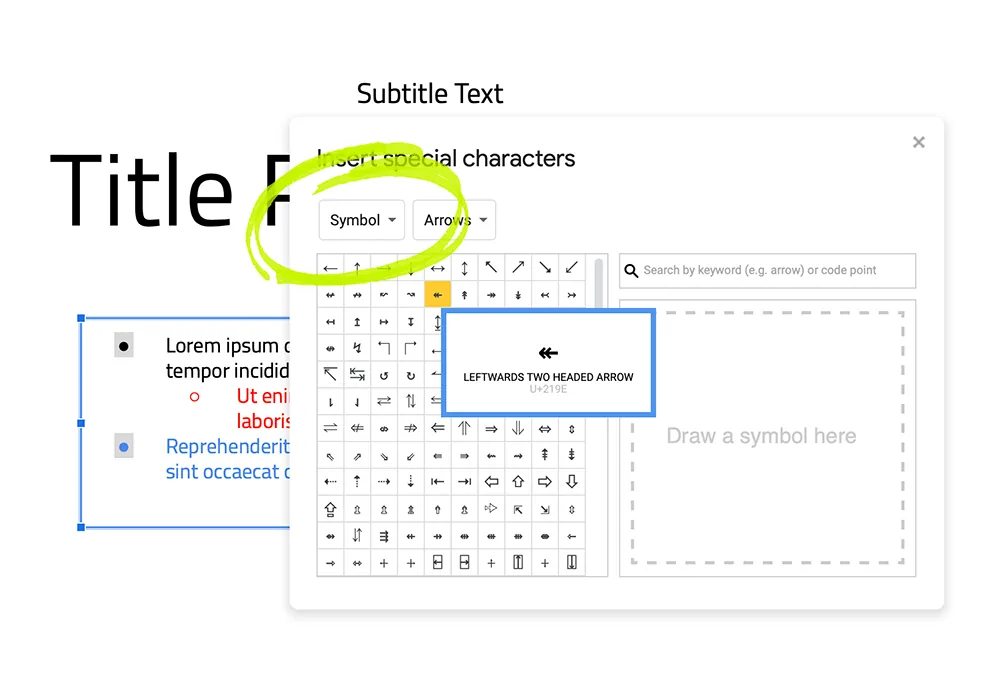
6. You aren’t limited to just different styles of bullets or colors. You can also choose between different symbols and even emojis if you decide for your bullets.
7. You can just repeat this process as needed to achieve your desired look.
Conclusion
Thanks to all of these options, you can create a custom document or slide that can genuinely help make your project stand out. Sometimes you merely want to make a statement with your project to get your point across or just to make it visually appealing. Customizing your bullets can be a great way to do that.


